

Logging in as another User
System administrators can log in as another student without requiring or changing the student’s password. This is useful for troubleshooting user-specific issues.
WarningAny changes or updates made by a super administrators whilst impersonating a student will be saved. For example, if a super administrator completes course material in a student's session, the progress will be saved and the learner's completiong record updated.
Enabling Login as User setting
To enable the Login as User setting, to the following:
- Go to System Administration > System Settings > Security.
- Set Allow switch user to Yes to allow a system administrator to log in on behalf of a student without having to enter or change the student's password.
Logging in as another User
To login as another user, do the following:
-
On the relevant user's Manage Users screen, go to the General Details tab.
-
Select Login as this user.
-
You will be redirected to the student user's session, whilst your own session will remain active in the background.
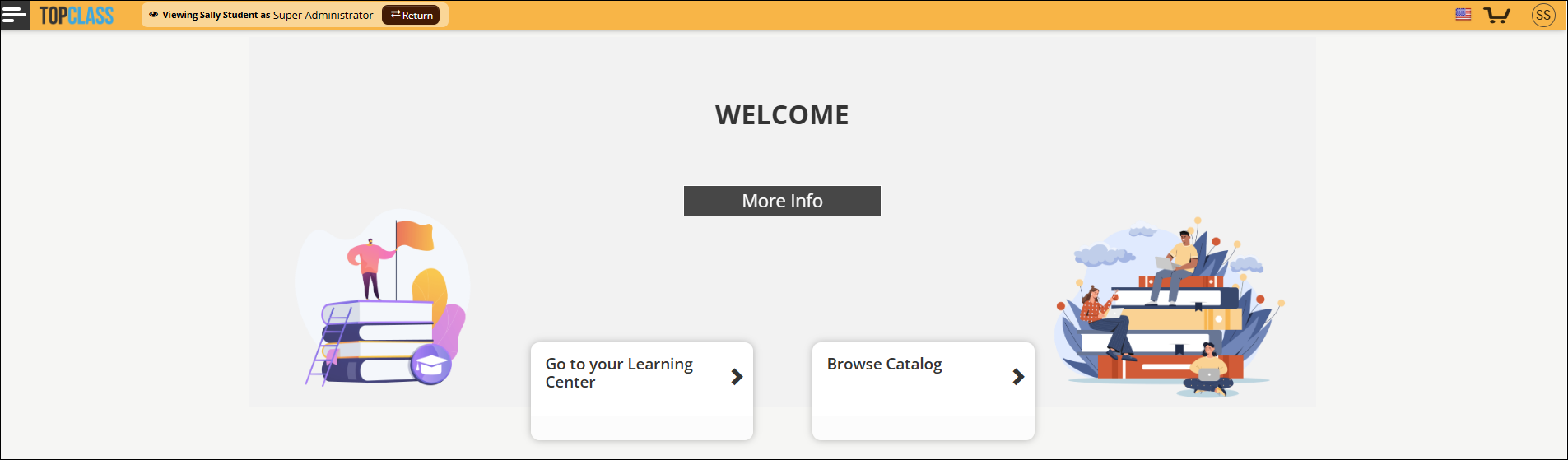
NoteThe header bar of the impersonated session will be highlighted to notify authorized administrators they are logged in to another user's session.
- When finished, click Return to exit the impersonated session and return to your original session without having to re-authenticate.
Updated 21 days ago