

iMIS integration: Prerequisites
TopClass uses the iMIS REST services to integrate, so the following information must be provided before the integration can begin:
- iMIS test environment: URL of the iMIS test server and test account credentials.
- iMIS version: Confirmation of the exact version of iMIS that TopClass will integrate with.
- Single Sign-On (SSO) confirmation: Indicate whether SSO will be implemented.
- REST API endpoint URL: The base URL of the iMIS REST API endpoint (for example, https://imisserver.org/).
- Integration user credentials: Username and password for the iMIS account used for communication between iMIS and TopClass. This account must have remote access enabled and should not be configured as a SysAdmin account.
All required information must be provided before development of the integration can commence.
iMIS version
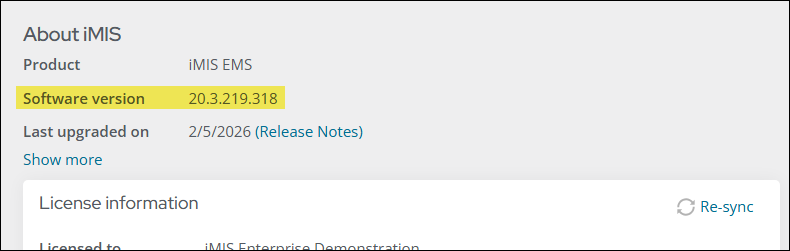
To locate the iMIS version number, do the following:
- Go to Settings > About iMIS.
- Make note of the Software version.
Single Sign-On (SSO) confirmation
If you plan to use SSO for the iMIS-TopClass integration, it must be properly configured. SSO configuration consists of the following:
- Creating an SSO client application. Ensure the following values are set:
-
Client ID - TopClass
-
Refresh token lifetime (minutes) - 10
-
Login redirect URL - Enter in the following format: https://***/topclass/login.do
-
- Adding it to an iMIS content page that contains the Single Sign-On content item with the Client Application.
REST API endpoint URL
The REST API endpoint URL is simply your iMIS public website URL. For example, https://example.imiscloud.com or https://example.org. Whatever you use to access your public iMIS RiSE site, that is your endpoint URL.
Integration user credentials
If you need a dedicated user account to access the API, contact ASI Technical Support for additional information and next steps. There may be a cost associated with this licensed account.
Once you have the dedicated user account defined, ensure the account has the RemoteService role:
- Go to Community > Security > Users.
- Search for the account using the provided search filters.
- Select the account Username.
- Under User information, locate the Roles section, then select Add.
- Enable the RemoteService role.
- Click OK.
- Click Save. The changes may take a few minutes to take effect.
Once that account is properly configured, send the username and password to TopClass.
Updated 3 months ago