

Syncing the Zoom host through iMIS
Using iMIS and TopClass, you can sync activities from iMIS > TopClass > Zoom.
NoteIf you are manually creating activities directly in TopClass, this process will not apply to you.
Event categories in iMIS
When creating an event in iMIS, you must select a category. Each category has a Code and a Description. Although the Code is not visible, it defines the type of program being synced to TopClass, so it is important that it is correctly defined.
For events in iMIS that are synced into TopClass via the IQA ILT activity sync, the following pre-defined category codes define the program/session type:
- VIR – Zoom Webinar session
- VIRM – Zoom Meeting session
- SE – Standard session
- VC – Virtual Conference
To confirm these event categories are properly configured, do the following:
- From iMIS, go to Settings > General lookup tables.
NoteYou must be a system administrator to have access to this setting.
- From the General tables drop-down, choose MEETING_TYPE.
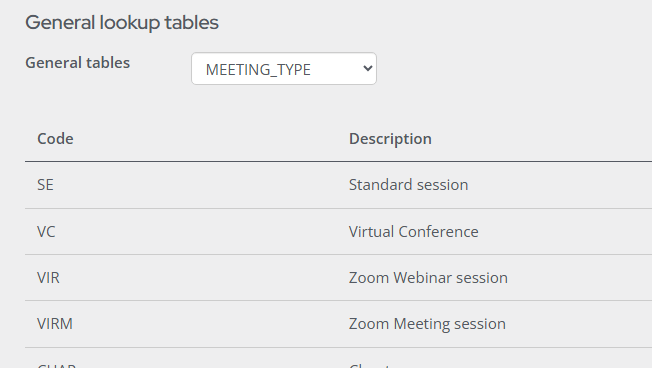
- Confirm the above categories are defined. If they are not, select Add new row, and add the missing categories.
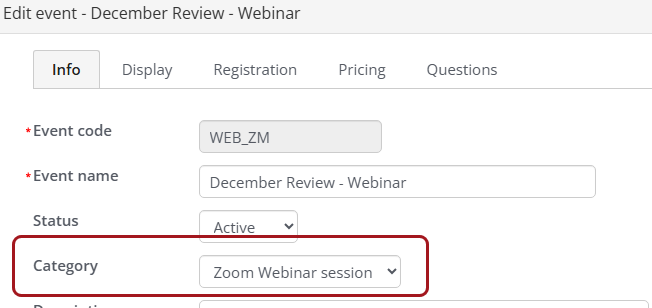
From the iMIS Event, ensure the proper Category is chosen.
Defining hosts for Zoom sessions
When creating a Zoom Webinar or Meeting, you can define the host, instructor, or speaker within iMIS. Once connected,
this will create the event in TopClass and the corresponding Zoom session.
Key Requirements
- The host/instructor must have a valid iMIS account with a valid iMIS ID.
- The email address on the iMIS account must match the email connected to their Zoom account.
- The host/instructor must have Zoom hosting privileges.
- The host/instructor account must be synced to TopClass before proceeding.
Assigning a host/instructor in iMIS
To assign an instructor in iMIS, do the following:
- Go to Events > Find events.
- Search for and open the event.
- Open a registration option or program item for edit.
- Click the Plan tab.
- In the Support staff section, select Add support staff.
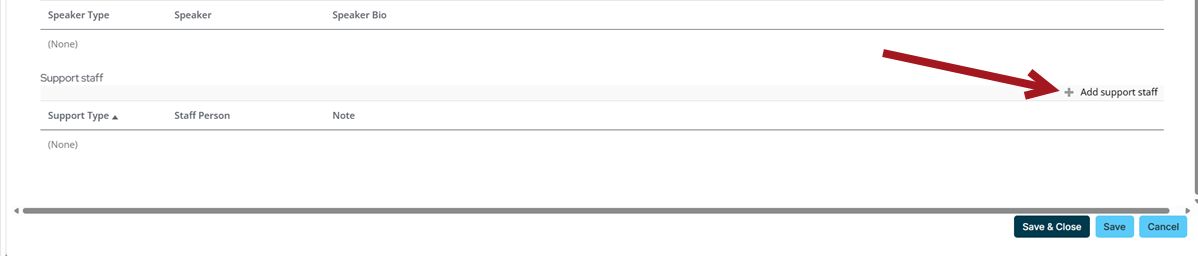
- Set the Support Type to Facilitator.
- Click Select and search for your host/instructor’s iMIS account.
- Click the Save icon to save the selected host/instructor.
- Click Save and Close on the iMIS program.
After saving, a Resources section will appear under the program showing the host/instructor you selected.
Syncing activities to TopClass
Activities are synced into TopClass based on the Batch Sync Scheduler.
To sync activities in real time, navigate to the Learning Activities screen in TopClass and select the Sync Activities button.
Updated 4 months ago