

Configuring Featured News
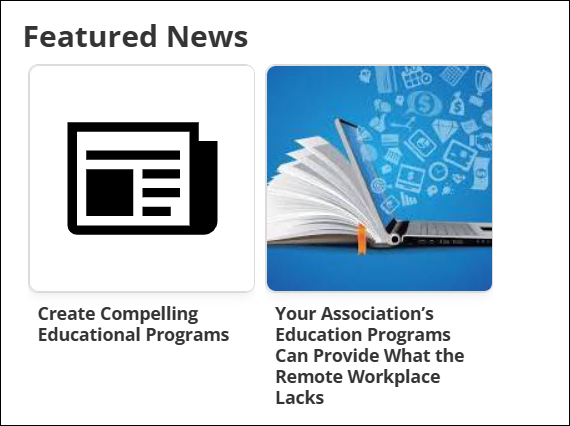
Featured News plays a crucial role in highlighting important news or articles to users. Featured News Items appear on the Landing page as a Learning Stream.
To configure Featured News items, do the following:
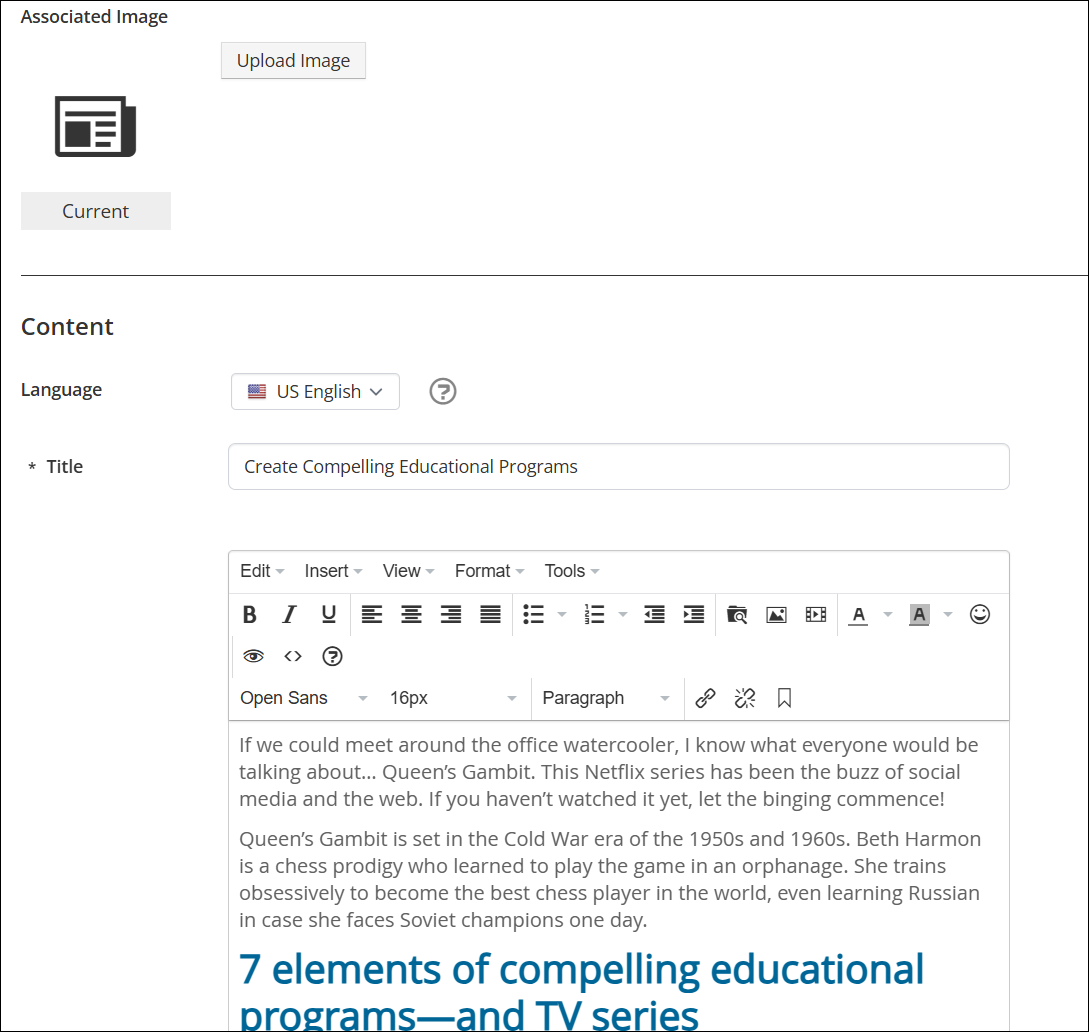
- Go to Customizations > News & Promotions > Featured News.
- Click Create.
- Upload an Associated Image to appear as a thumbnail. If no image is specified, a placeholder image is used.
- The Language is set to the system default. Add other language variations after setting the default.
- (required) Enter a Title. The title is visible to users.
- (required) Add details of the featured news item in the Body. Text can be formatted, and images and links can be included.
- Click Create.
Once created, new options are available on the Featured News Item screen:
-
Click the More Options (caret) icon beside the Delete button to Add News Item or Preview.
-
To make the news item visible to users, toggle Published to On.
-
The Published Date/Time field is informational only and does not appear on the published news item.
-
Click the More Options (caret) icon beside the default Language to add the news item for other language variations.
NoteIf a user has set a default language different to the system default and the language variation of the news item has been set, the user will see the variation. If not, the user will see the system default language text.
Remember to Save all changes.
Use the Learning Streams customization settings to enable Featured News on the Landing Page. See Learning Streams for details.
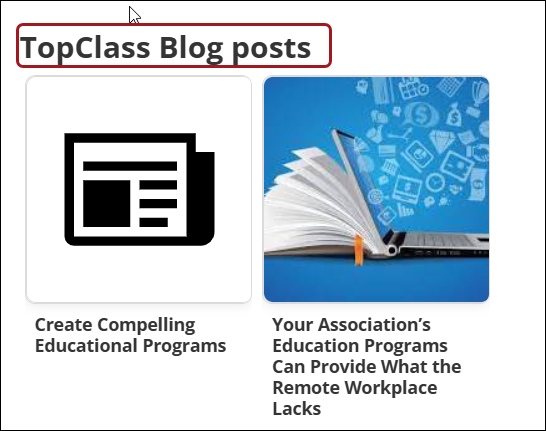
Updating the Featured News display name
Use the Custom Strings settings to change the name of the Featured News learning stream to mirror your organization’s verbiage, e.g. TopClass Blog posts. See Customizing Language with Custom Strings for details.
Updated 5 months ago