

Creating Questions
The following are the available question types:
- True/False (Boolean) – The question requires a True or False value as the response.
- Pick One – The learner must choose only one out of several possible answers.
- Multiple Response – The learner may choose one or more possible answers.
- Text Answer – The learner may enter text for the answer.
- List Matching – The learner must pair items from one list with items from a second list.
- Upload – The learner can upload files or documents directly as part of their test submission.
- Acknowledge – The learner can submit an acknowledgement response as part of their test.
- Likert Scale – A 5-, 7-, or 9-point agreement scale, used to measure the learners' attitudes.
Use this guide to determine which question type is required and how to configure each.
True/False (Boolean)
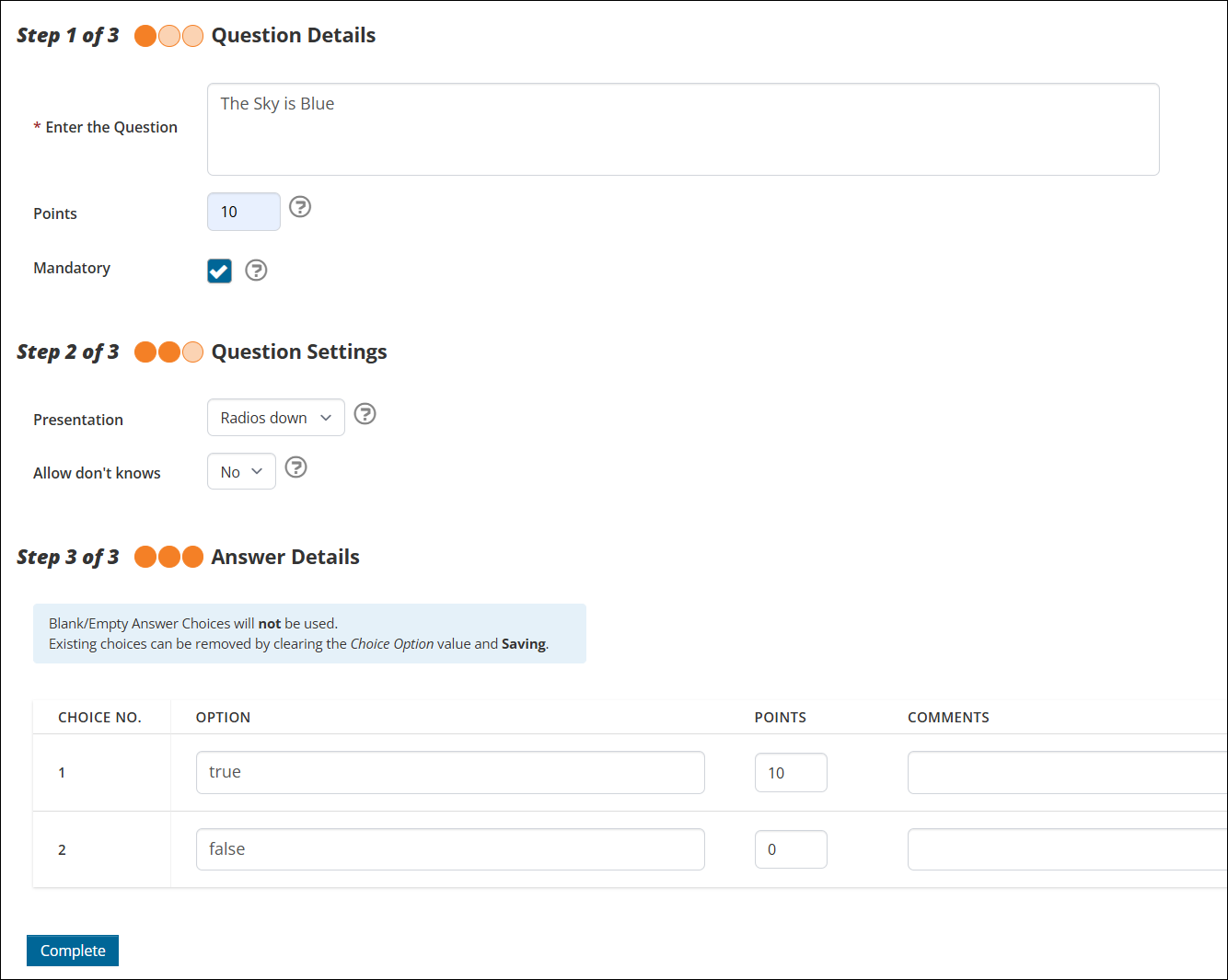
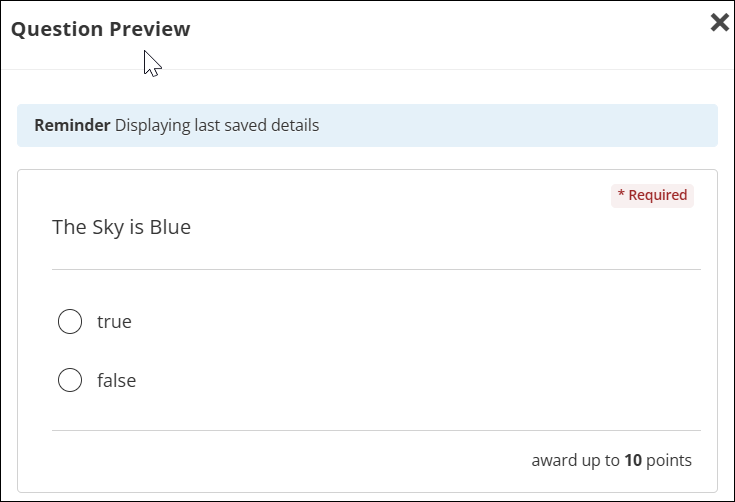
To create a True/False question, do the following:
- Click Add Question.
- Select True/False.
- Under the Question Details section:
- Enter the Question to be displayed to the learner.
- Indicate how many Points the question is worth.
- Check the Mandatory field if the question should appear as "Must be completed" prior to submission.
- Click Next.
- Under the Question Settings section:
- Use the Presentation field to determine how the answers will be listed. The options are:
- Radios across
- Drop-down
- Radios down
- If the Allows don't knows field is set to Yes, the learner will see a "Don't Know" option in the answer list. If set to No, the learner will only see the answer options set.
- Use the Presentation field to determine how the answers will be listed. The options are:
- Click Next.
- Under the Answer Details section:
- Set the display text for each answer Option.
- Allocate the Points to be awarded when the answer option is selected by the learner. For example, if the question is worth ten points, set the points for the correct answer option to ten and the points for the incorrect answer option to zero.
- Enter Comments to be displayed to the learner on the results page after test submission.
- Under the Instructor Grading Instructions section, enter the help text for instructors when grading the question.
- Click Complete.
Pick One
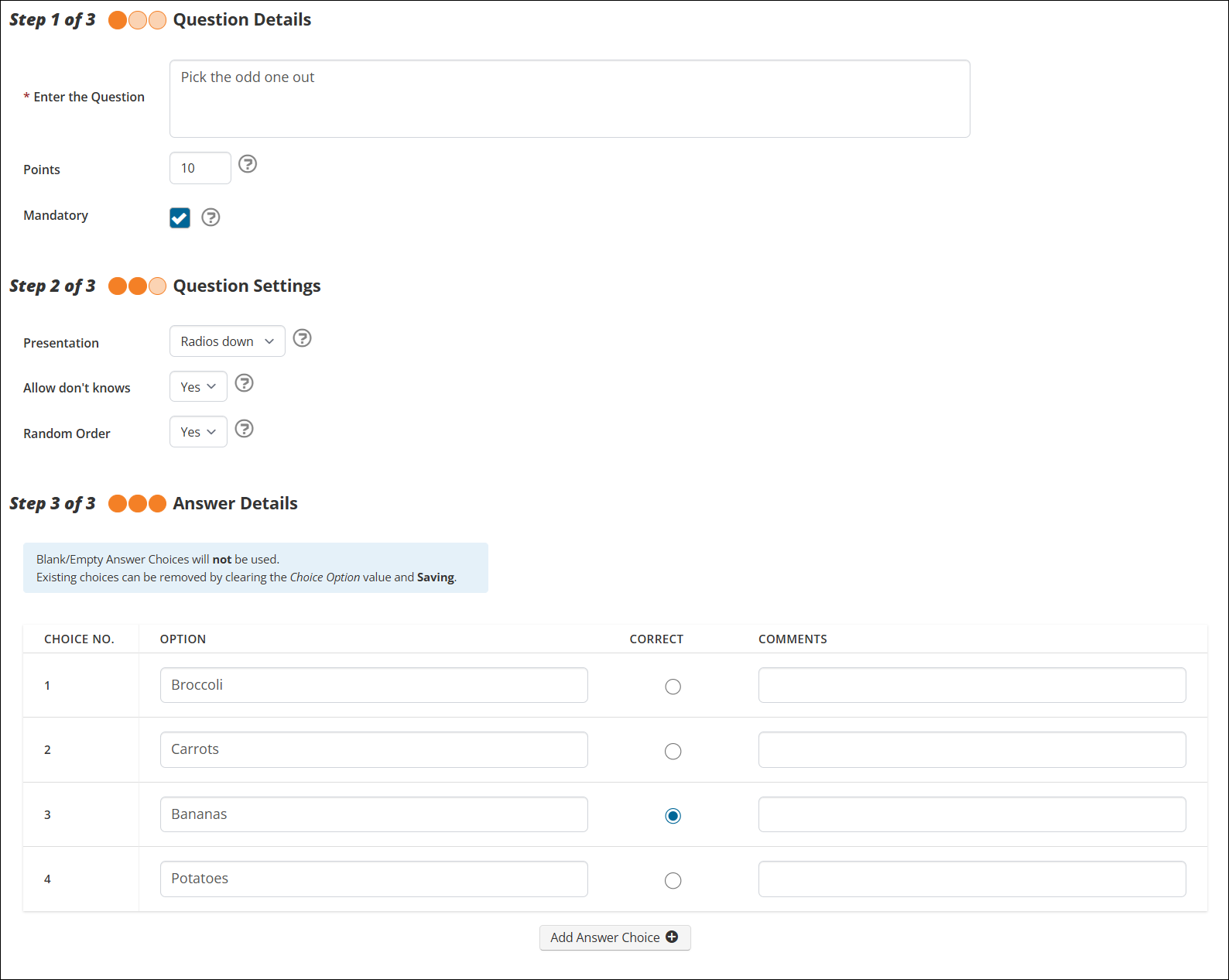
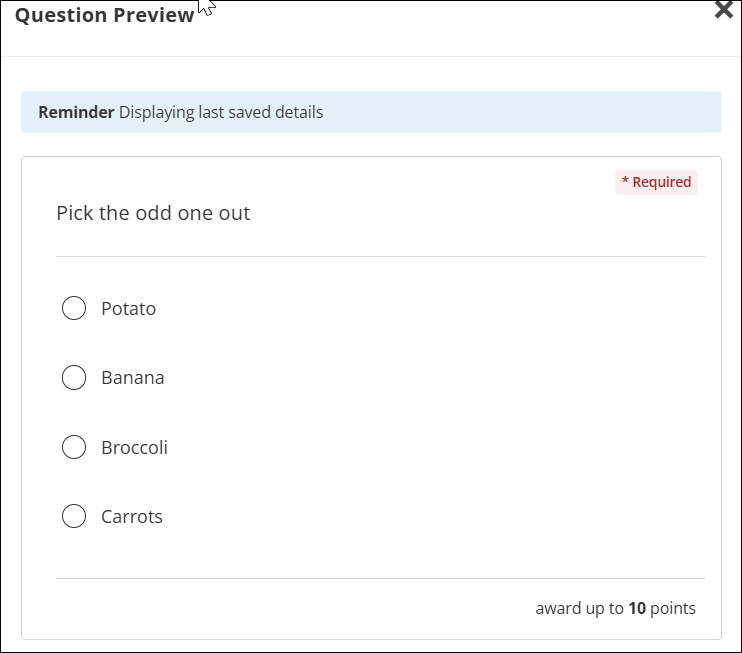
To create a Pick One question, do the following:
- Click Add Question.
- Select Pick One.
- Under the Question Details section:
- Enter the Question to be displayed to the learner.
- Indicate how many Points the question is worth.
- Check the Mandatory field if the question should appear as "Must be completed" prior to submission.
- Click Next.
- Under the Question Settings section:
- Use the Presentation field to determine how the answers will be listed. The options are:
- Radios across
- Drop-down
- Radios down
- If the Allows don't knows field is set to Yes, the learner will see a "Don't Know" option in the answer list. If set to No, the learner will only see the answer options set.
- If the Random Order field is set to Yes, the answer options will be presented to each learner in a random order. If set to No, the answer options will be presented to the learners in the order set.
- Use the Presentation field to determine how the answers will be listed. The options are:
- Click Next.
- Under the Answer Details section:
- Set the display text for each answer Option.
- Set the Correct answer option.
- Enter Comments to be displayed to the learner on the results page after test submission.
- Click Add Answer Choice to add additional answer options.
- Under the Instructor Grading Instructions section, enter the help text for instructors when grading the question.
- Click Complete.
Multiple Response
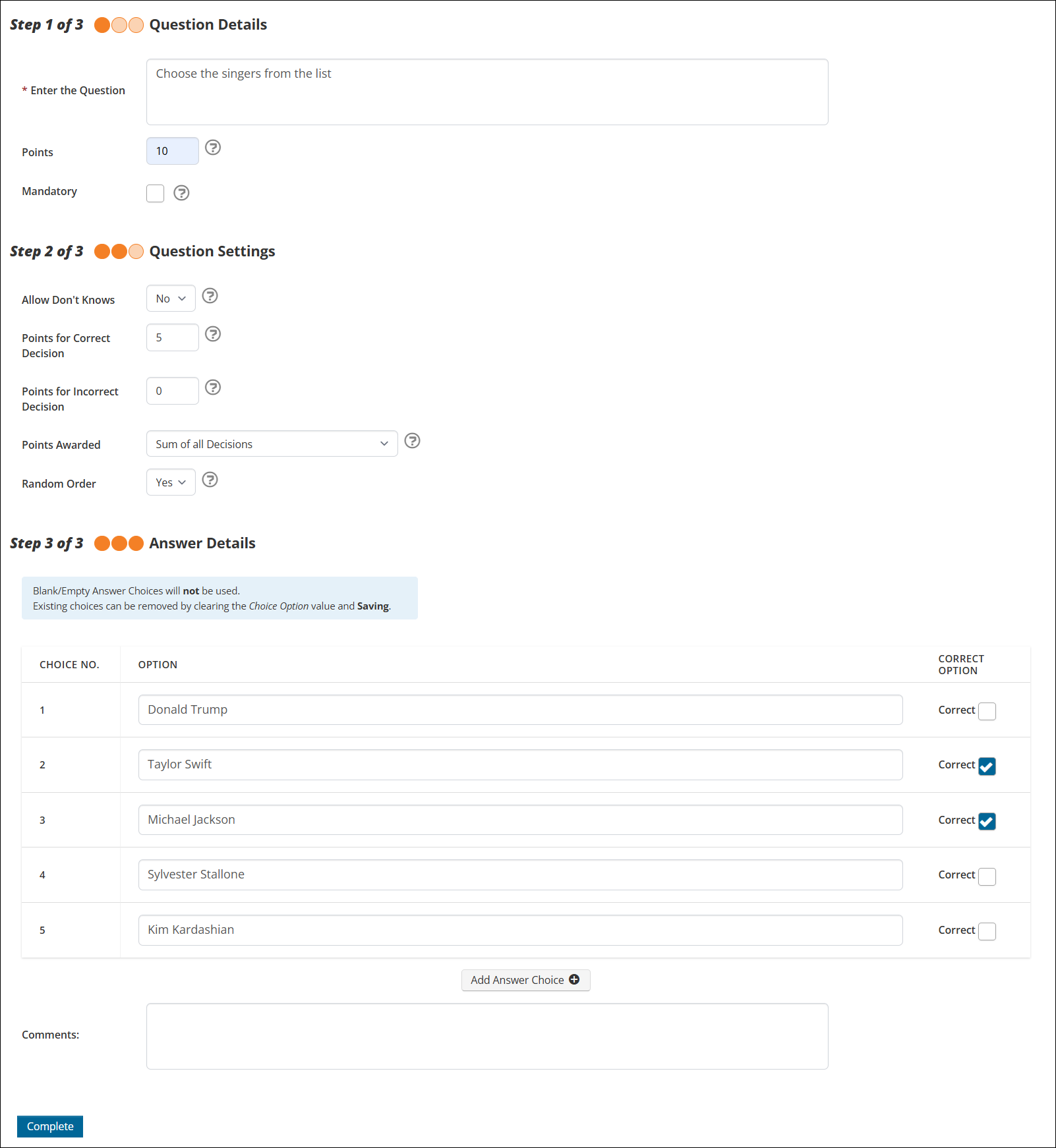
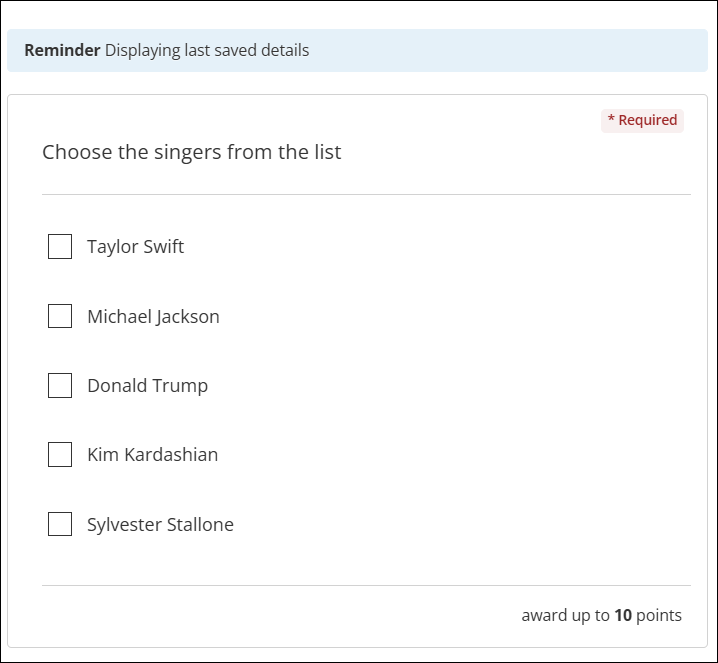
To create a Multiple Response type question, do the following:
- Click Add Question.
- Select Multiple Response.
- Under the Question Details section:
- Enter the Question to be displayed to the learner.
- Indicate how many Points the question is worth.
- Check the Mandatory field if the question should appear as "Must be completed" prior to submission.
- Click Next.
- Under the Question Settings section:
- If the Allows don't knows field is set to Yes, the learner will see a "Don't Know" option in the answer list. If set to No, the learner will only see the answer options set.
- Set the Points for Correct Decision if partially correct answers are accepted.
- Set the Points for Incorrect Decision if partially correct answers are accepted.
- Use the Points Awarded drop-down to select the award criteria:
- Sum of all Decisions – The learner is awarded the accumulated points for all correct and incorrect answer parts of the question.
- Sum of Points for Correct Decisions – The learner is awarded the accumulated points for all correct answer parts of the question.
- Points on Question (if all answers are correct) – The learner is awarded the total number of points assigned to the question.
- Points on Correct Answer – The learner is awarded the Points for Correct Decision value for selecting the answers that are explicitly marked correct as an option.
- If the Random Order field is set to Yes, the answer options will be presented to each learner in a random order. If set to No, the answer options will be presented to the learners in the order set.
- Click Next.
- Under the Answer Details section:
- Set the display text for each answer Option.
- Use the Correct Option column to mark an option as correct.
- Enter Comments to be displayed to the learner on the results page after test submission.
- Click Add Answer Choice to add additional answer options.
- Under the Instructor Grading Instructions section, enter the help text for instructors when grading the question.
- Click Complete.
Text Answer
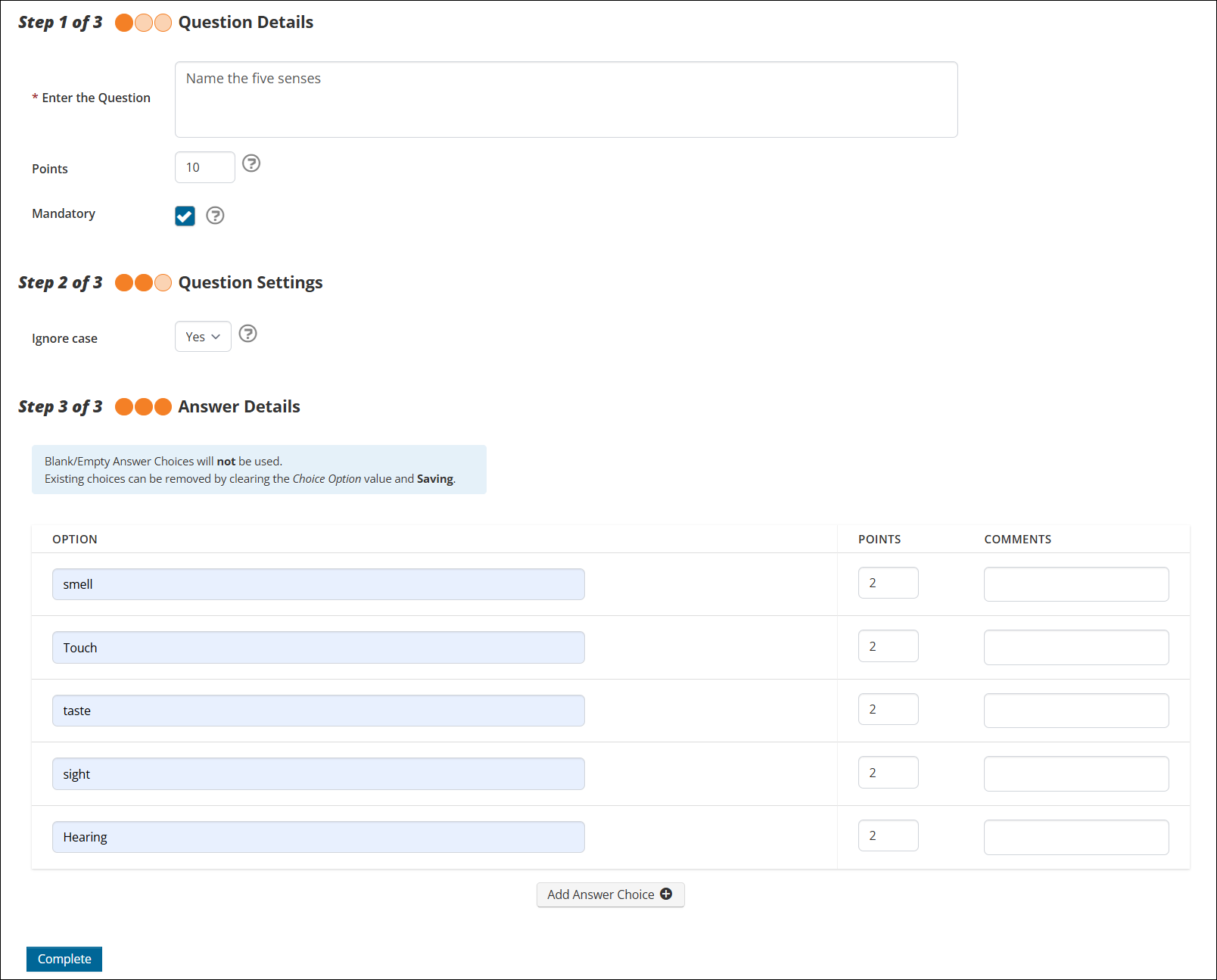
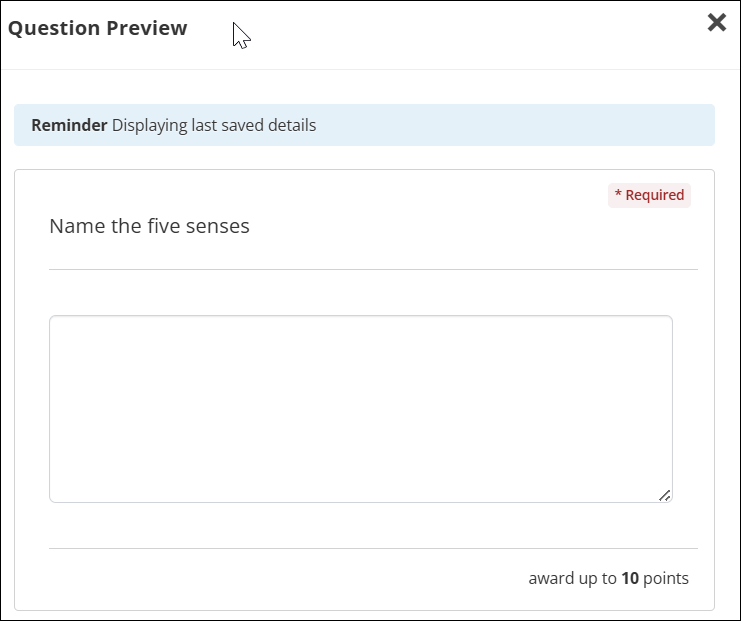
To create a Text Answer type question, do the following:
- Click Add Question.
- Select Text Answer.
- Under the Question Details section:
- Enter the Question to be displayed to the learner.
- Indicate how many Points the question is worth.
- Click Next.
- Under the Question Settings section:
- If the Ignore Case field is set to Yes, the case of the letters in the answer given does not need to match the case entered in the answer options. If set to No, the case must match exactly.
- Click Next.
- Under the Answer Details section:
- Set the display text for each answer Option.
- Allocate the Points to be awarded when the answer option is selected by the learner.
- Enter Comments to be displayed to the learner on the results page after test submission.
- Under the Instructor Grading Instructions section, enter the help text for instructors when grading the question.
- Click Complete.
List Matching
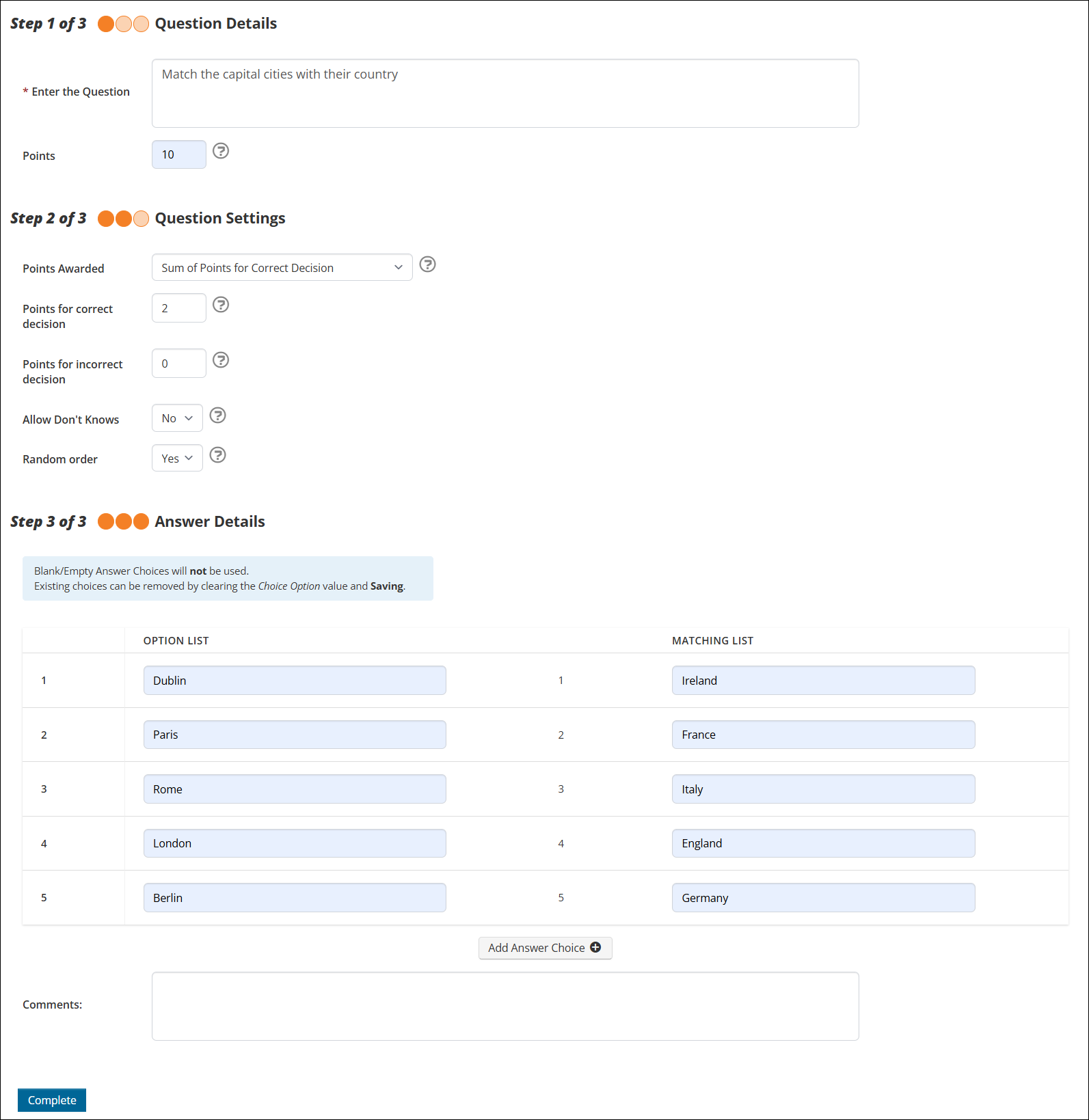
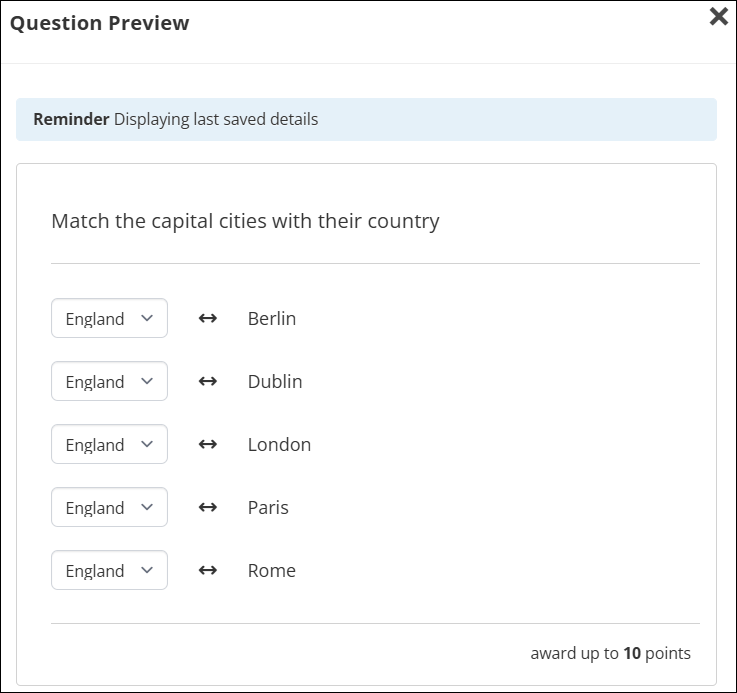
To create a List Matching type question, do the following:
- Click Add Question.
- Select List Matching.
- Under the Question Details section:
- Enter the Question to be displayed to the learner.
- Indicate how many Points the question is worth.
- Click Next.
- Under the Question Settings section:
- Use the Points Awarded drop-down to select the award criteria:
- Points on Question (if all answers are correct) – The learner is awarded the total number of points assigned to the question.
- Sum of Points for Correct Decision – The learner is awarded the accumulated points for all correct answer parts of the question.
- Sum of all Decisions – The learner is awarded the accumulated points for all correct and incorrect answer parts of the question.
- Set the Points for correct decision if partially correct answers are accepted.
- Set the Points for incorrect decision if partially correct answers are accepted.
- If the Allows don't knows field is set to Yes, the learner will see a "Don't Know" option in the answer list. If set to No, the learner will only see the answer options set.
- If the Random Order field is set to Yes, the answer options will be presented to each learner in a random order. If set to No, the answer options will be presented to the learners in the order set.
- Use the Points Awarded drop-down to select the award criteria:
- Click Next.
- Under the Answer Details section:
- Use the Option List and Matching List columns to set the answer options and their corresponding match.
- Enter Comments to be displayed to the learner on the results page after test submission.
- Click Add Answer Choice to add additional answer options.
- Under the Instructor Grading Instructions section, enter the help text for instructors when grading the question.
- Click Complete.
Upload
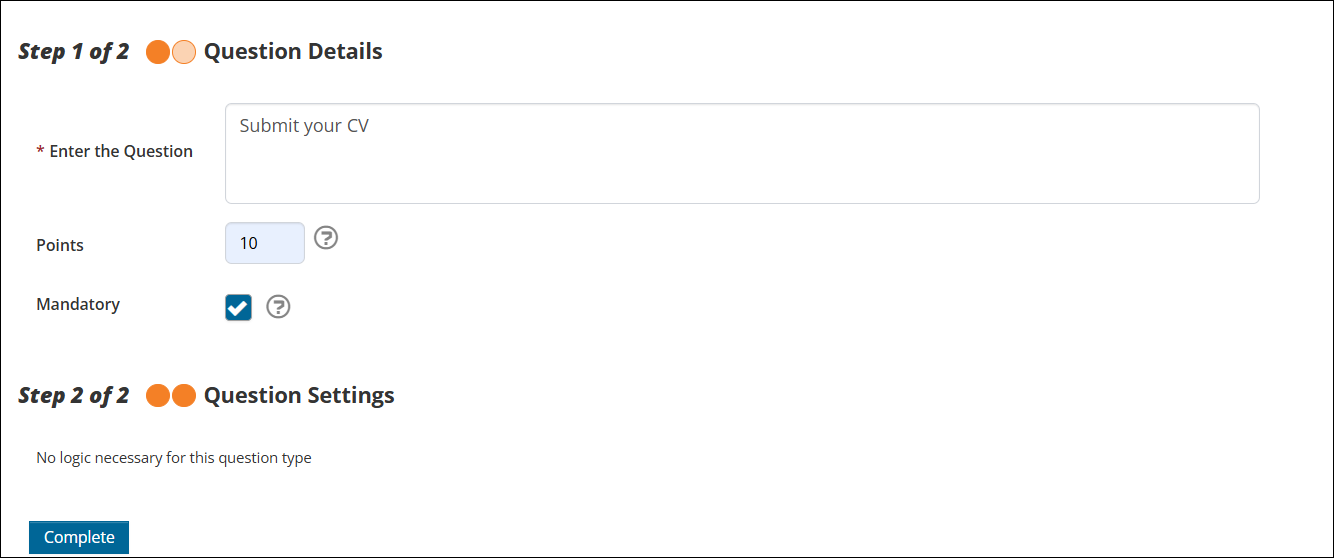
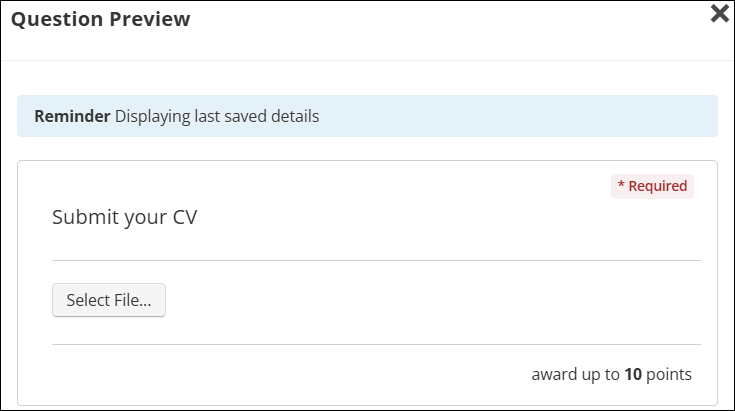
To create an Upload type question, do the following:
- Click Add Question.
- Select Upload.
- Under the Question Details section:
- Enter the Question to be displayed to the learner.
- Indicate how many Points the question is worth.
- Check the Mandatory field if the question should appear as "Must be completed" prior to submission.
- Click Next.
- Under the Instructor Grading Instructions section, enter the help text for instructors when grading the question.
- Click Complete.
Acknowledgement
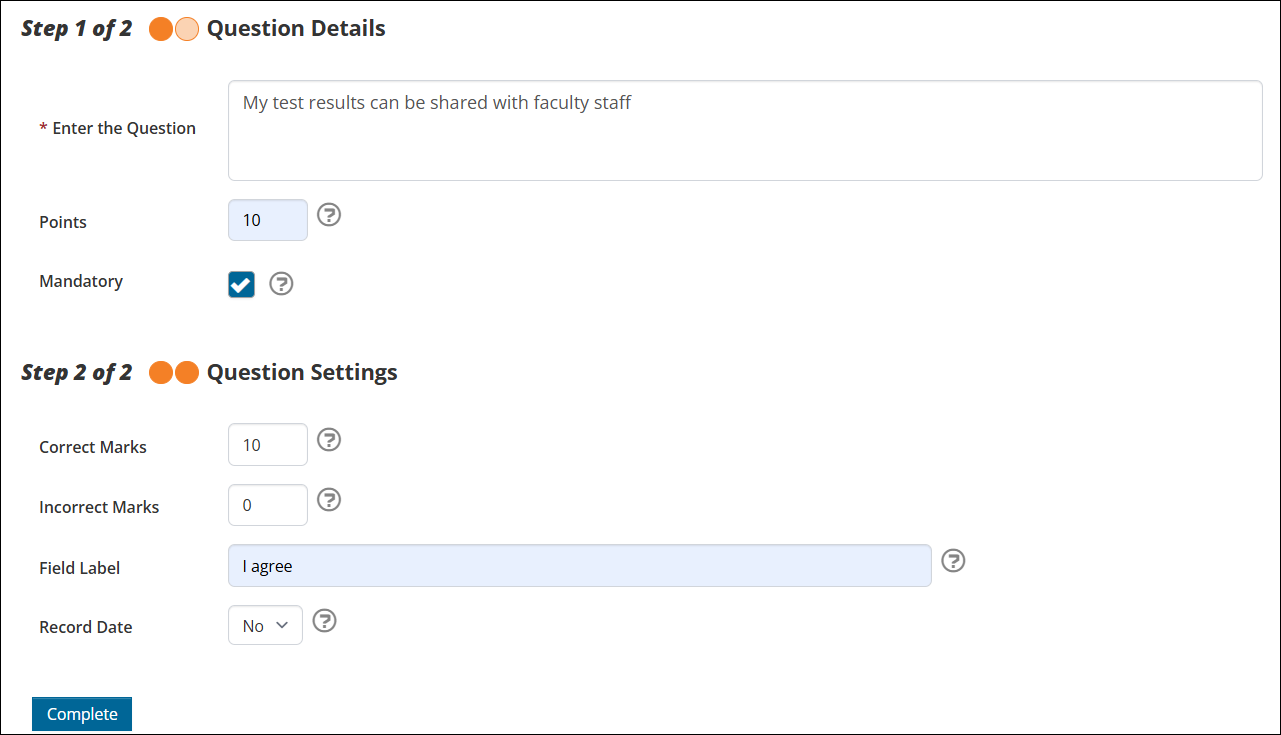
To create an Acknowledgement type question, do the following:
- Click Add Question.
- Select Acknowledge.
- Under the Question Details section:
- Enter the Question to be displayed to the learner.
- Indicate how many Points the question is worth.
- Check the Mandatory field if the question should appear as "Must be completed" prior to submission.
- Click Next.
- Under the Question Settings section:
- Use the Correct Marks field to set how many points to be awarded for a correct answer.
- Use the Incorrect Marks field to set how many points to be awarded for an incorrect answer.
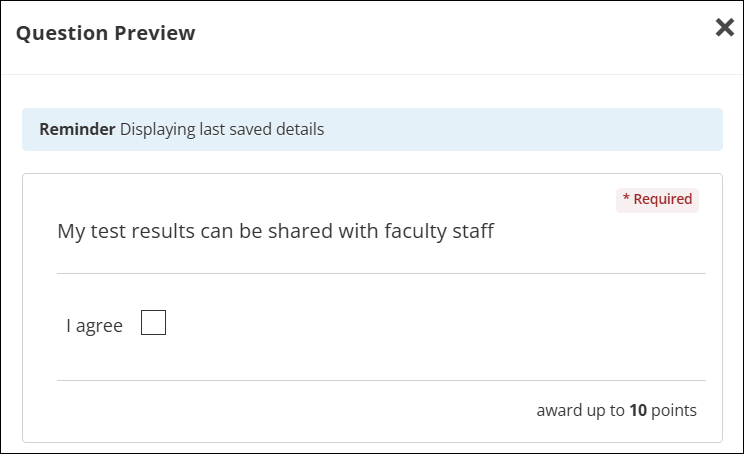
- Enter the Field Label to be shown for the acknowledgement, e.g. I agree.
- If the Record Date field is set to Yes, the date of acknowledgement will be recorded. If set to No, the date will not be recorded.
- Under the Instructor Grading Instructions section, enter the help text for instructors when grading the question.
- Click Complete.
Likert Scale
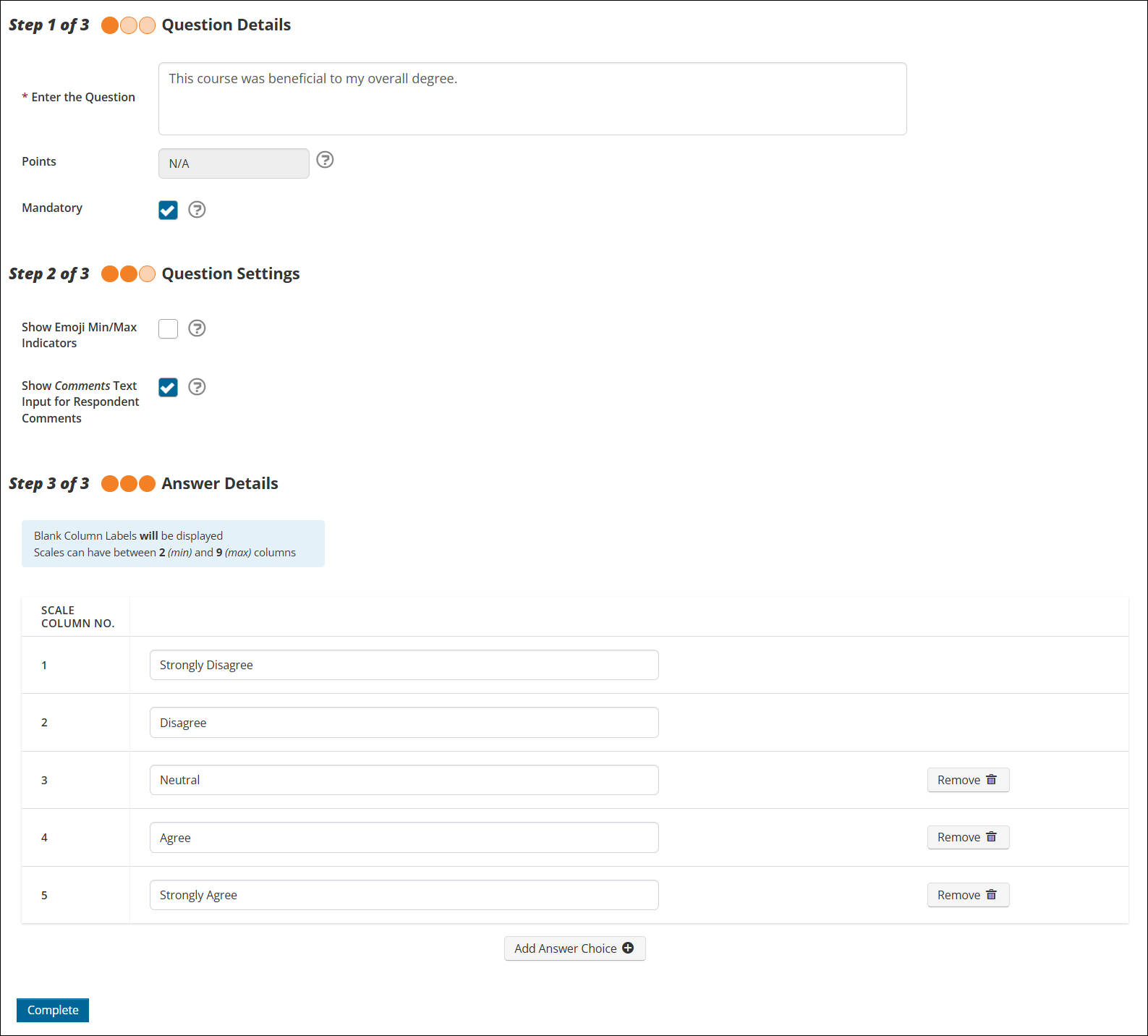
To create a Likert Scale type question, do the following:
- Click Add Question.
- Select Likert Scale.
- Under the Question Details section:
- Enter the Question to be displayed to the learner.
- The Points field is not applicable for this question type.
- Check the Mandatory field if the question should appear as "Must be completed" prior to submission.
- Click Next.
- Under the Question Settings section:
- Check the Show Emoji Min/Max Indicators box to use emoji characters to indicate the Min and Max agreement values on the scale.
- Check the Show Comments Text Input for Respondent Comments box to allow learners to enter text feedback.
- Click Next.
- Under the Answer Details section:
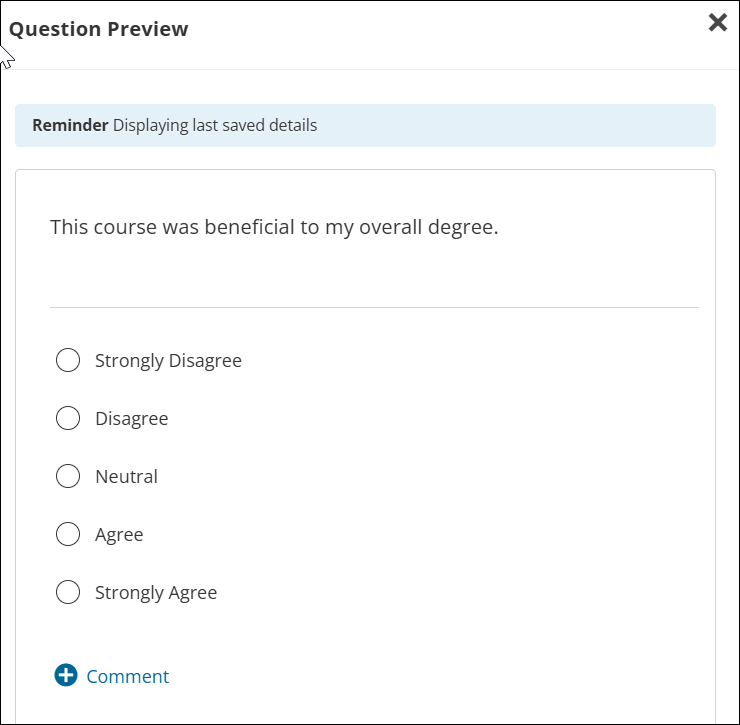
- Edit the display text for each agreement value on the scale.
- Click Add Answer Choice to add additional answer options.
- Under the Instructor Grading Instructions section, enter the help text for instructors when grading the question.
- Click Complete.
Editing Questions
Once a question has been created, admin users can edit the question details on the question admin page. Admin users can perform the following tasks:
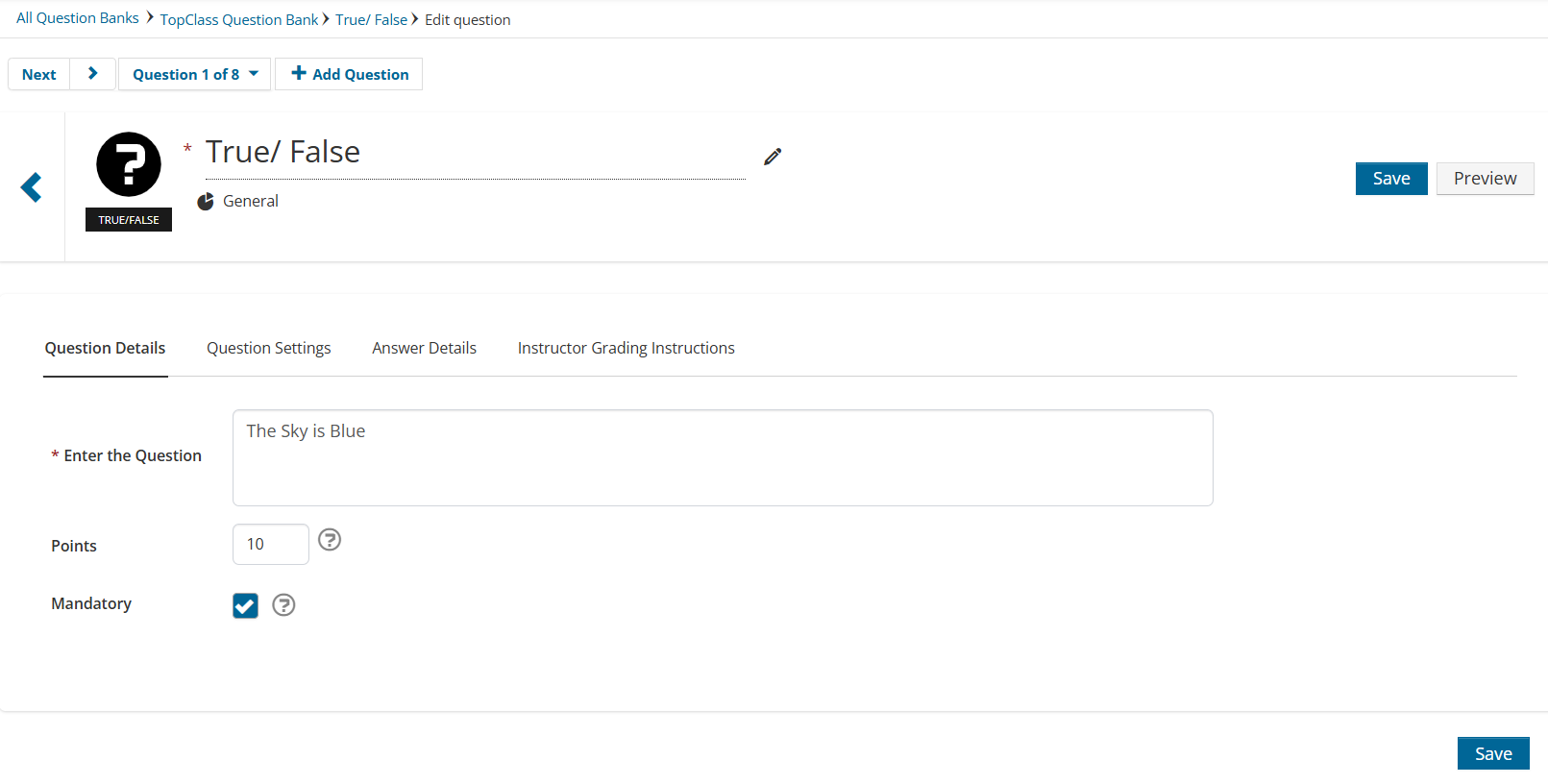
- View a summary of all questions in the question bank by clicking the Question 1 of 8 caret icon.
- Click Add Question to create a new question for the question bank.
- Change the question Title.
- Delete the question.
- Preview the question.
- Edit all question details and settings under the Question Details, Question Settings, Answer Details, and Instructor Grading Instructions tabs.
- Click Save.
To navigate back to the question bank admin page, use the scroll icon or the breadcrumb at the top of the page.
Updated 3 months ago