

Assigning multiple price plans to users
Users can be assigned multiple price plans. When a user with multiple price plans browses the Catalog, the system automatically applies the lowest-priced valid plan available to them, ensuring they can purchase the activity at the best rate or enroll at no cost without being redirected.
Assigning Multiple Price Plans to Users
Multiple price plans can be assigned to users by the following options:
Manual
To manually assign multiple price plans to a user, do the following:
- Go to Resource Management > Users.
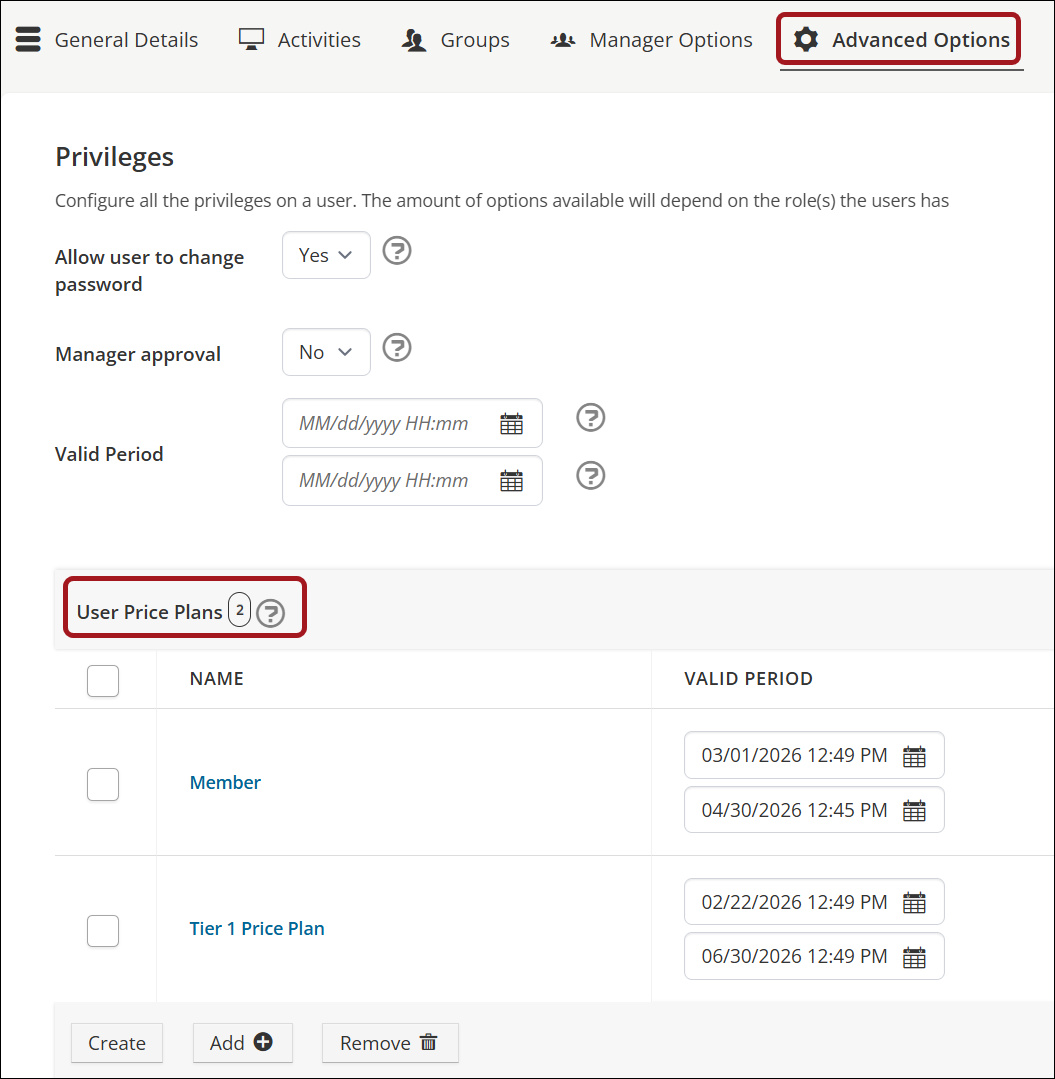
- Within the selected user, go to Advanced Options > Privileges.
- Under the Price Plan section, do the following:
- Click Add to add an existing price plan to the user.
Note
To create a new price plan, see Creating a price plan for details
- Set the Valid Period.
- Click Add to add an existing price plan to the user.
- Click Save.
Group Operation
To assign multiple price plans via a group operation, see Creating a group.
NoteAn individual operation for each price plan must be created for the group.
ImportantWhen a user is assigned the same price plan by more than one group, the effective valid period is set to the last applied price plan.
Integration
To check the capability of assigning multiple price plans to a user via your specific AMS integration, enter a Support Ticket.
Viewing Multiple Price Plans in the Catalog
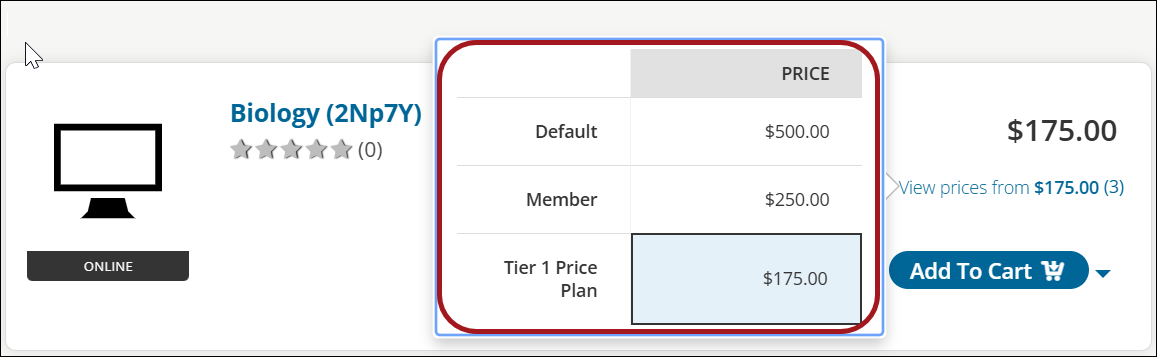
If a user is assigned multiple price plans, TopClass will automatically apply the lowest-priced valid plan available to them at check-out.
Users can view all price plans by selecting the View prices from... link.
Reporting on Price Plans
To report on price plans, use one of the following reports:
- Sales Report
- Completed Transactions Report
ImportantReporting on price plans is effective from June 2026 and will not be populated retroactively.
Updated 3 months ago