

Using TopClass Learning Contracts via iMIS integration
TopClass clients with an iMIS integration can create single activity Learning Contracts by bulk purchasing seats in a Learning Activity through their iMIS shopping cart.
NoteThe TopClass Catalog must be enabled. To enable the catalog, see System Settings: Catalog for details.
Configuring iMIS
A new product for the learning contract must be created in iMIS. See Defining products for details on how to create a new product in iMIS.
NoteA new product category TC_LC must be created in iMIS first. See Defining product categories for details.
Configuring TopClass
Setting up Catalog Redirect for Bulk Purchase Seats
To set a catalog redirect for bulk purchase seats, do the following:
- Go to System Administration > System Settings > Catalog.
- Under the External Catalog Redirect Settings, find URL Type Learning Contracts.
- Enter your base URL and set the unique identifier to Activity External ID.
- Click Save.
Configuring TopClass Learning Activity and Product Linking
Changes need to be made to the Learning Activity to allow bulk purchase of seats and link it to the iMIS product.
To configure the TopClass Learning Activity, do the following:
- Go to the Learning Activity > Catalog Options tab.
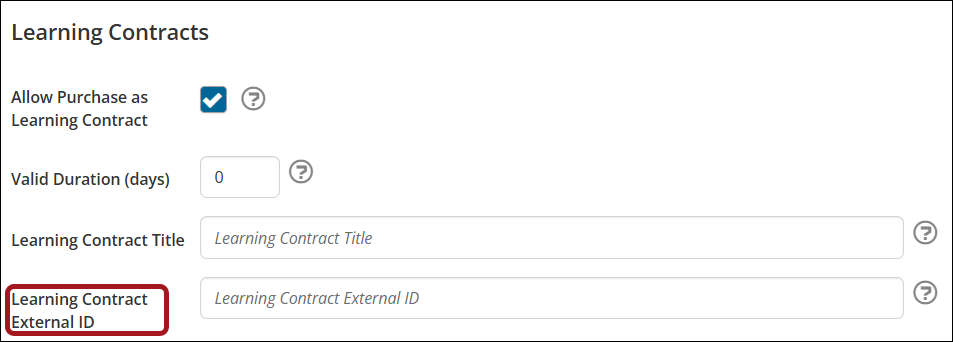
- In the Learning Contracts section, do the following:
- Select Allow Purchase as Learning Contract.
- If applicable, set Valid Duration (days). If set to zero, no valid period will be set.
Note
The valid duration is not applied to the iMIS product and must be configured in TopClass.
⚠️ ImportantWhen the Learning Contract is created, the valid period start date is taken as the iMIS purchase date (
enrollDateTime) and the valid period end date is calculated asenrollDateTime+ valid duration days set in TopClass. - Define the Learning Contract Title.
- Set the Learning Contract External ID as the Product ID from iMIS.
Note
This is different from the External ID on the Activity's General Details tab.
Creating a Single Activity Learning Contract via iMIS
To create a single activity Learning Contract via iMIS, do the following:
- Select the Learning Contract product in iMIS and specify the quantity (number of seats).
- Submit the order in the iMIS shopping cart.
- Once the purchase is complete, a Learning Contract is automatically created in TopClass with the following attributes:
- Code - Sourced from the iMIS sync.
- Title - Sourced from the iMIS sync
- Number of Seats - Based on the purchase quantity from iMIS.
- Valid Duration - Taken from the Activity Catalog Options tab in TopClass.
- Activity:
- During the sync, TopClass identifies the Activity whose External ID matches the Learning Contract External ID.
- That Activity is then linked to the Learning Contract.
- Owner - User who purchased the contract.
- Contract Admin - User who purchased the contract.
- Contract Type - Defaulted to Voucher.
- Per User Limit - Defaulted to zero.
- Require Invitation Code - Defaulted based on system configuration.
- External ID - From iMIS.
- Source - iMIS.
Once the Learning Contract has been created in TopClass, the user becomes a Contract Admin and can access the Learning Contract from the Learning Contracts Dashboard.
See Using the Learning Contract Dashboard and Inviting users to the Learning Contract for details.
For further assistance in setting up Learning Contracts via iMIS, enter a TopClass Support ticket.
Updated 4 months ago