

Discussion Forums
Discussion Forums in TopClass provide a structured environment for communication and collaboration. They can be used for multiple purposes, such as hosting an open FAQ forum or enabling class-based discussions where learners can ask questions and interact with peers.
TopClass supports two types of discussion forums:
- Public Access forums
- Assigned Access forums
Enabling the Forum privilege for administrators
Discussion Forums can be created by super administrators, or administrators with the Forum privilege enabled.
To enable the Forum privilege for an administrator:
- Go to Users.
- Select the administrator's profile.
- Go to Advanced Options > Privileges.
- From the Forum drop-down, choose Yes.
- Click Save.
Creating discussion forums
Do the following to create discussion forums:
- Go to Activities and Learning > Discussion Forums or Discussion Forums > admin mode.
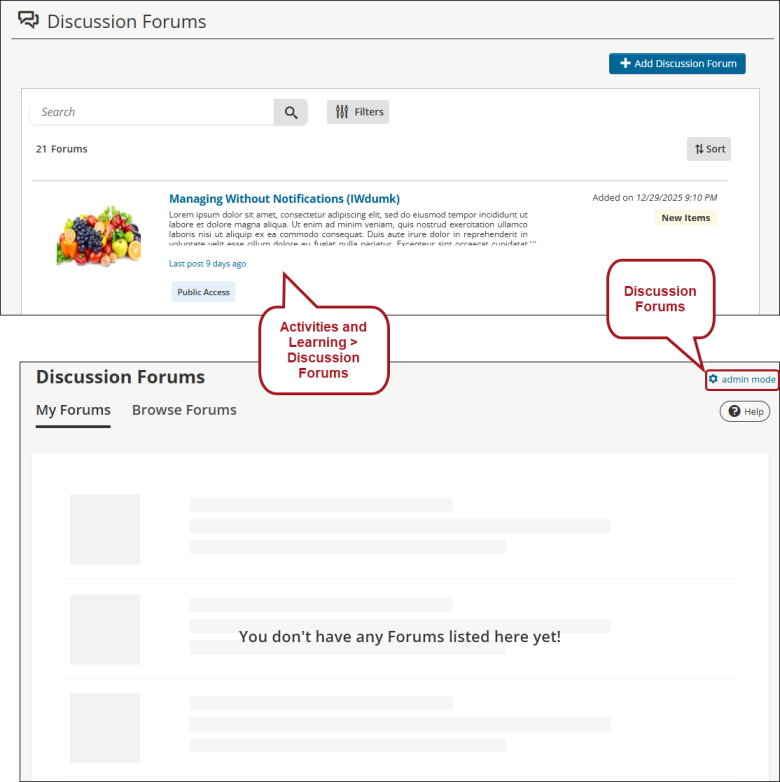
- Click Add Discussion Forum.

-
Create the forum:
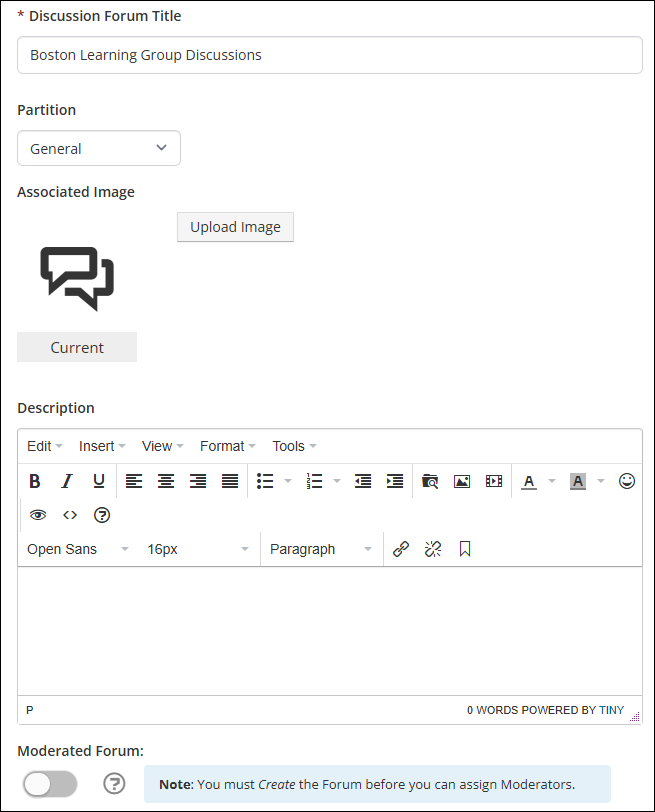
- Assign a Discussion Forum Title.
- (optional) Enter a Description for the forum.
- (optional) Choose an image to represent the forum with Upload Image.
- (optional) To create a private forum, toggle Public Access off.
-
Click Create.
Understanding forum statuses
Review the following table to understand forum statuses:
| Status | Description |
|---|---|
| Open | Visible to users |
| Closed | Invisible to users |
| Locked | Read-only and visible to users |
| Moderated | Discussion posts may be reviewed, edited, or removed by assigned Moderators |
| Public Access | Accessible to all users |
| Restricted Access | Accessible to specific users |
Recommendations for editing Discussion Forums
The following recommendations are useful for configuring Discussion Forums:
- An image may be associated with the forum. If none is provided, a default placeholder image is used.
- Forums are public by default and available to all users.
- Forums must be set to Open to be visible and accessible to users.
- To restrict access to a forum, set Public Access to Off and Save. Once Public Access is disabled, administrators can configure user access in the Access & Cohorts tab.
- To add user access based on specific collections of Users, set the Public Access flag to the off position and save. Once this is set, user access can be set on the Access & Cohorts tab.
- To make a forum read-only, set it to Open & Locked.
- To enable moderation, mark the forum as Moderated. All posts by users after the Moderated setting is enabled will require moderator review.
- Discussions associated with the forum can be reviewed or deleted from the Discussions tab.
- Do not forget to save and open. Forums must be open to be available to users.
Public Access forums
Public Access forums are open to all learners within the TopClass. When the Public Access flag is On (green), and the open toggle has been set, the discussion forum can be viewed by all users.
Restricted Access forums
Restricted Access forums are available only to users explicitly granted access by Super Admins or authorized Admins.
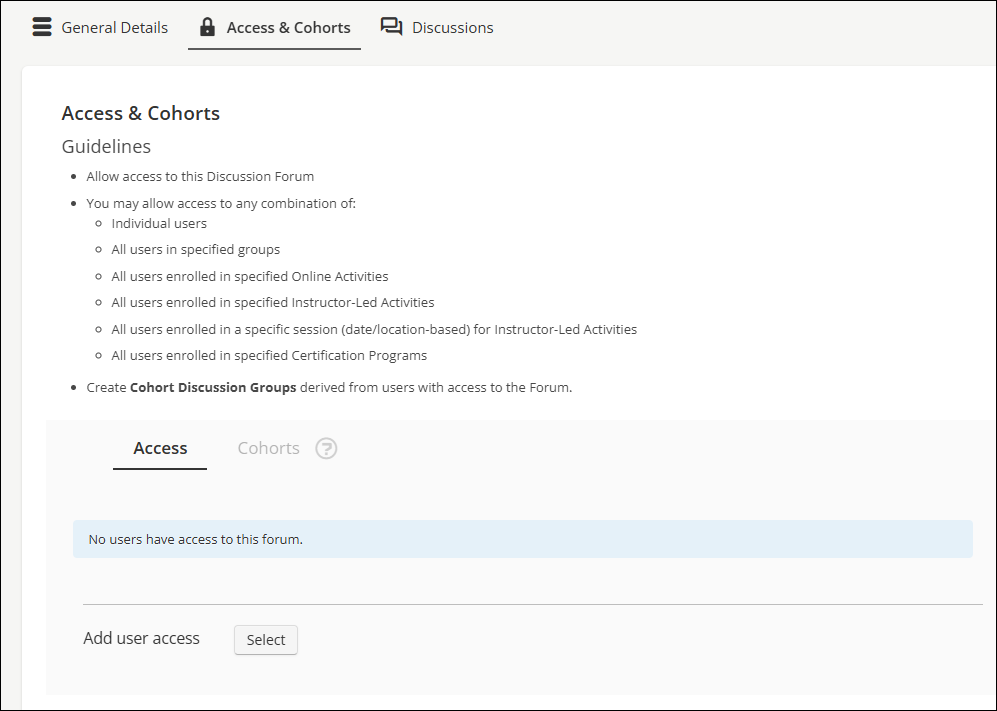
When Public Access is set to Off, the Access & Cohorts tab becomes available. Administrators can grant access to the discussion forum to the following types:
- User
- Online
- ILT
- ILT Session
- Group
- Certification Program
Once users have been granted access to a Restricted Access forum, administrators can assign them into cohorts.
Creating cohorts
NoteCohorts are an optional feature
Cohorts allow administrators to subdivide users within a Restricted Access forum into sub-forums. Administrators and moderators can create and manage discussions at the cohort level. Cohorts can be set to Open or Close, or Locked or Unlocked, independently of their parent forum.
To create a Cohort, do the following:
- Go to Activities & Learning > Discussion Forums.
- Select the Restricted Access forum.
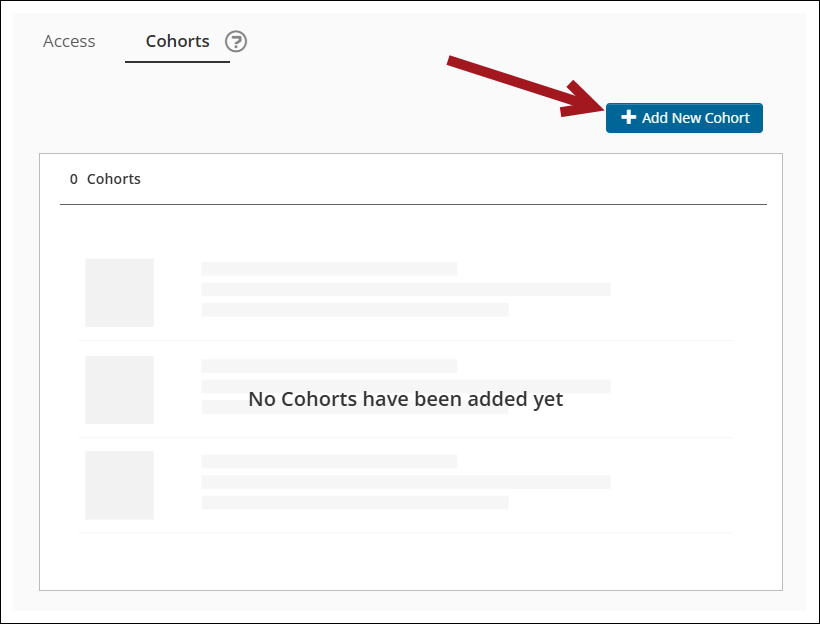
- Go to Access & Cohorts > Cohorts.
- Click Add New Cohort.
-
Configure Cohort settings:
- Cohort Forum Title - The title for the cohort forum.
- Associated image - The image associated with the cohort forum.
- Description - The cohort forum description that is visible from the Discussion Forums list.
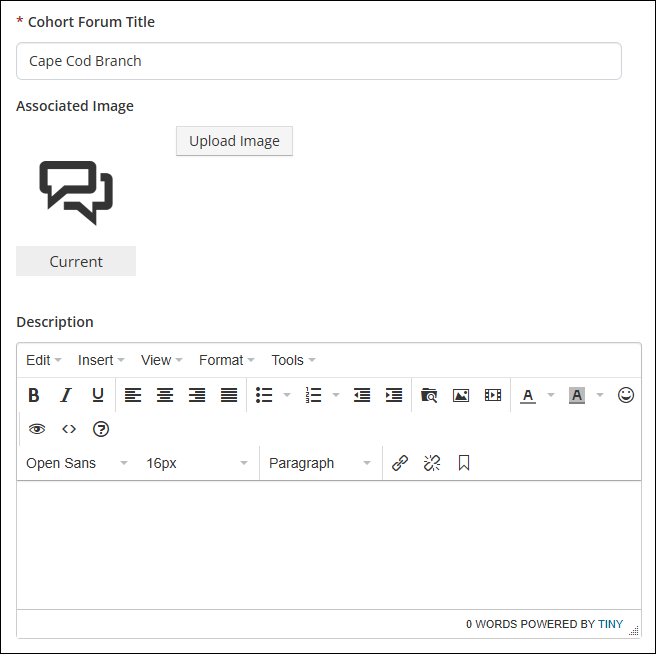
- Click Create.
-
Assign users:
- Go to Users.
- Click Add users.
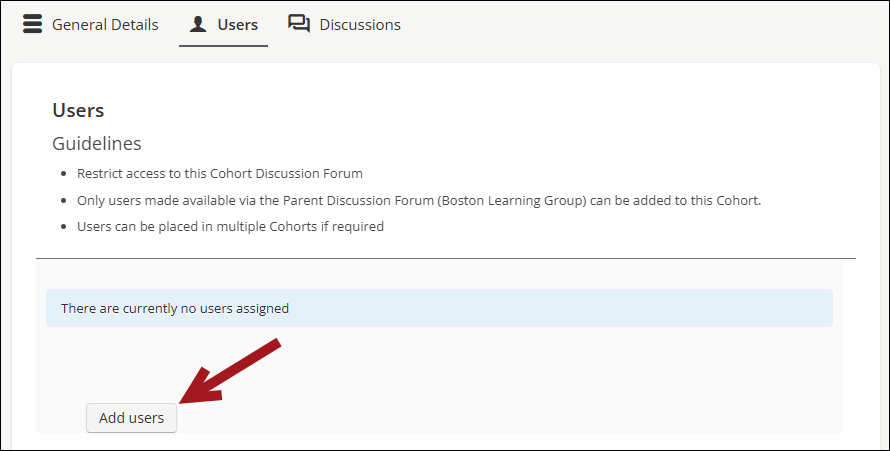
- Select users to add to the Cohort.
- Click Submit.
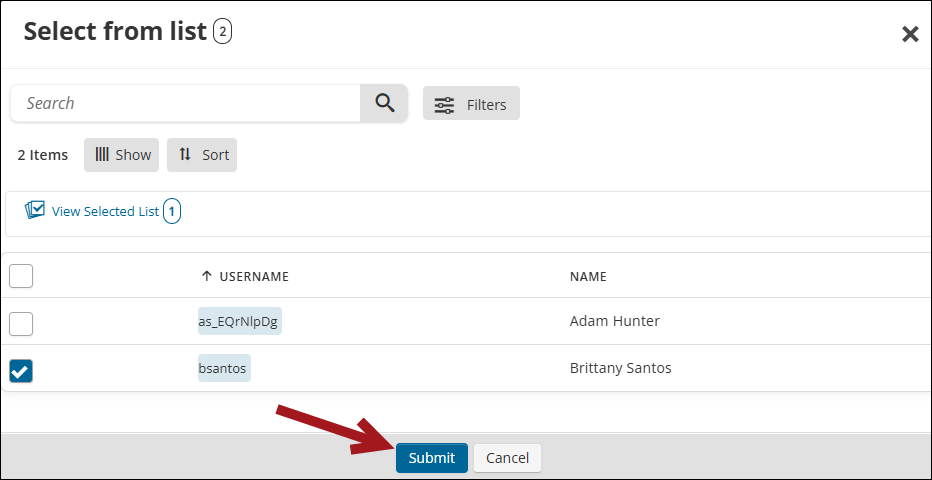
- Click Save.
Viewing forums as a Moderator user
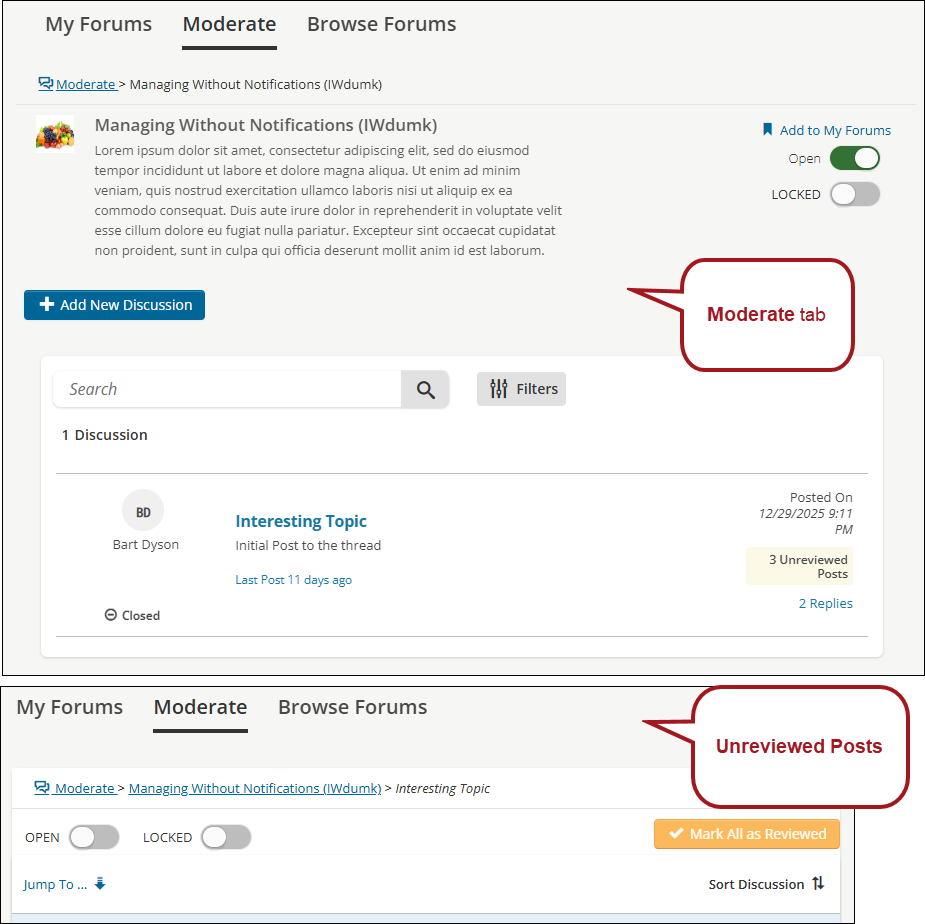
Any user type can have the Moderator role. Moderators have access to the Moderate tab in the Discussion Forums landing page.
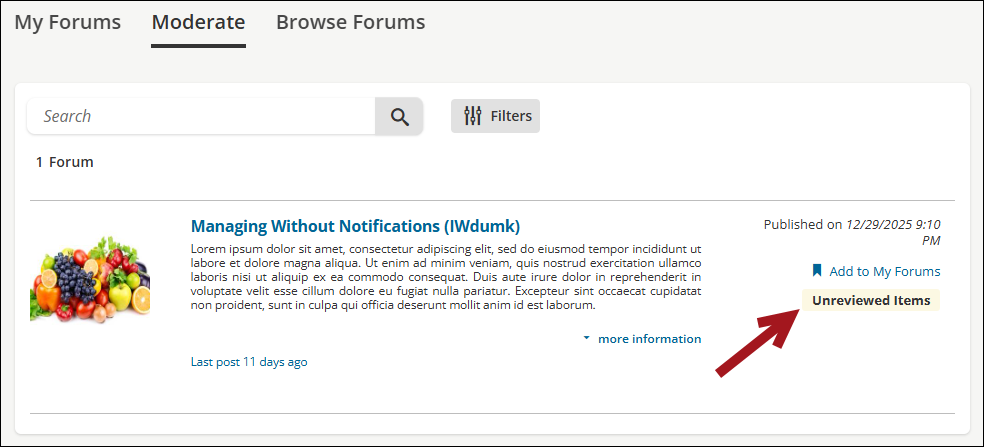
Reviewing forum items
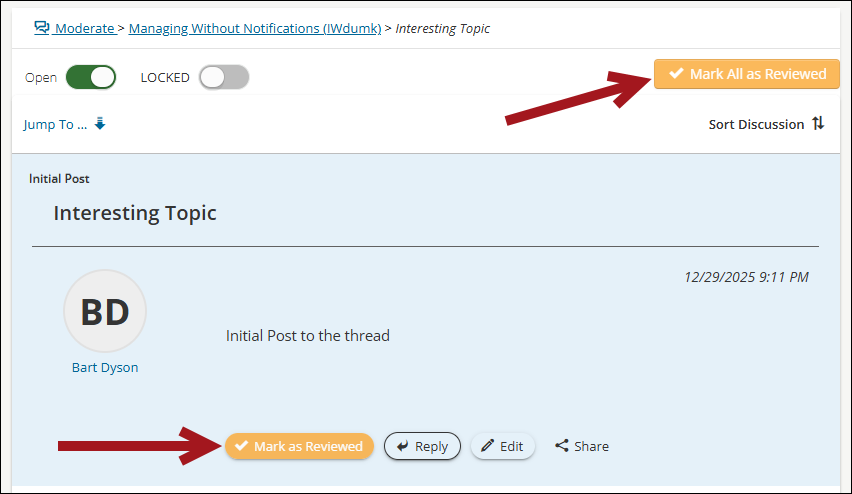
Moderators can review Unreviewed Posts that have been created within the discussion forum.
Click Mark as Reviewed to review a single item, or click Mark All as Reviewed to mark all items as reviewed, to remove items from the Unreviewed Posts list.
NoteIf a moderator reviews an item and marks it as Reviewed, then the item is removed from the Unreviewed Posts list for all moderators.
Editing or deleting users' posts
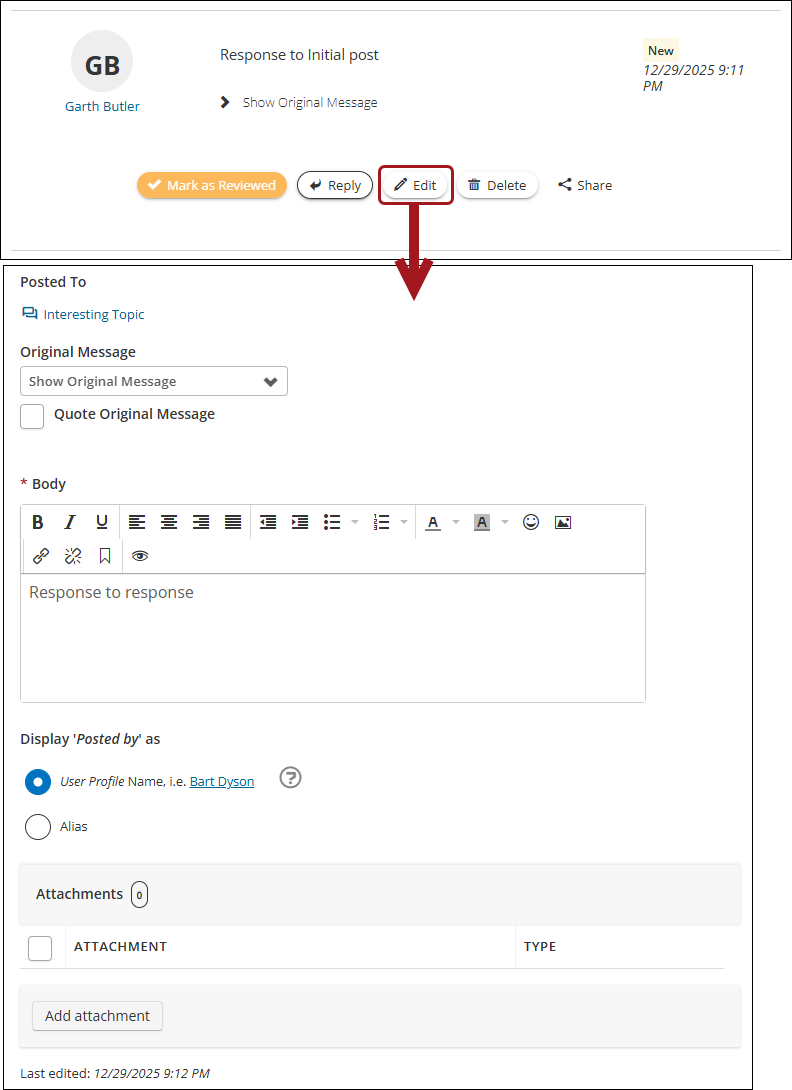
Moderators can Edit or Delete users' posts. Deleted and edited posts are indicated by system messages.
Opening, locking, and closing forums or posts
Moderators can toggle on or off the Open and Locked forum statuses from the Moderate tab, or from the Unreviewed Posts list.
Viewing forums as a Student user
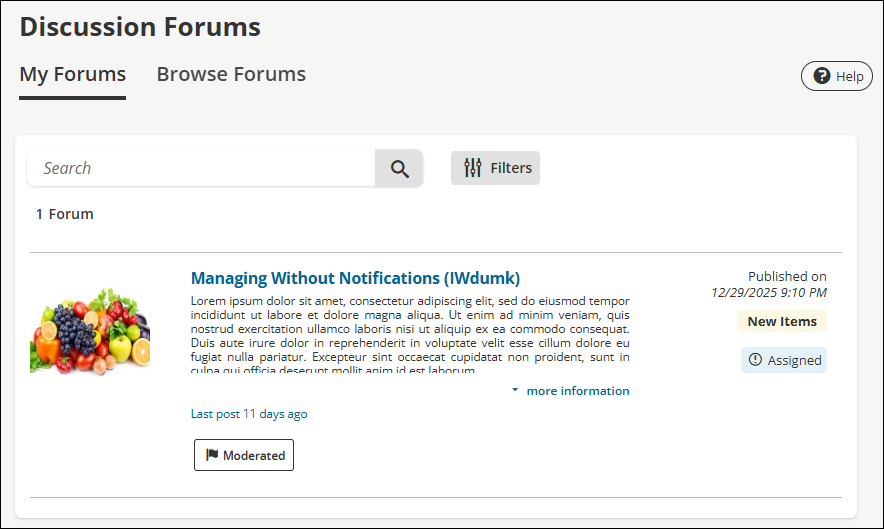
Assigned discussion forums are visible for Student users in the My Forums tab. Once a user is assigned a discussion forum, they cannot remove the forum from the My Forums tab.
Public Access forums are available to every user within the system if the public discussion forum is set to Open. Users can access Public Access forums by selecting the Browse Forum tab within the discussion forum menu item.
Any user type can participate by reading or replying within a public discussion forums.
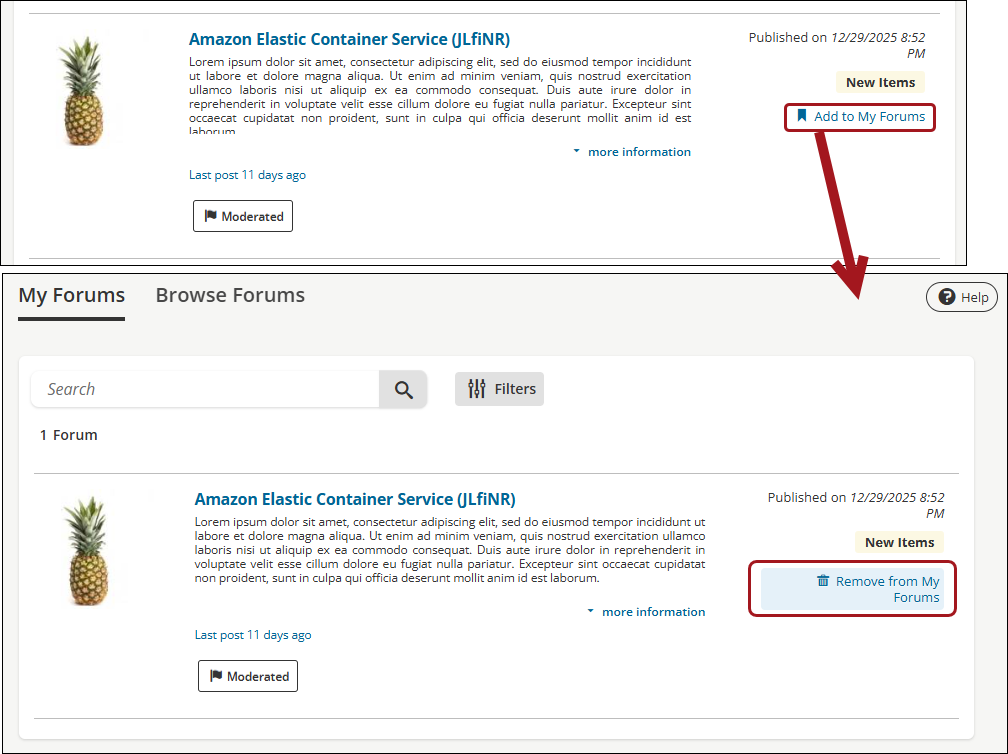
Users can also add Public Access forums to their My Forums tab by selecting Add to My Forums. Conversely, users can remove Public Access forums from their My Forums tab by selecting Remove from My Forums.
Updated 5 months ago