

Deleting users in bulk
Prerequisites:
- Login as a super administrator.
- Create a group with a joining operation to delete users
Create a group with a joining operation to delete users
Do the following:
- Go to Resource Management > Groups.
- Click + Add Groups To.
- Enter a unique Code and Title.
- Click + Add 1 New Sub-Group.
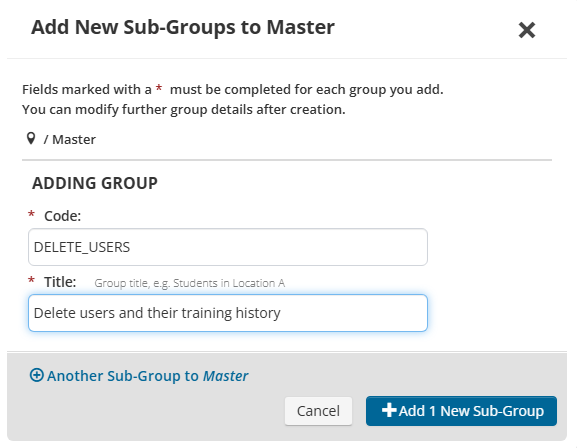
- Select the new group to open it.
- Click the Advanced Options tab, then choose Operations.
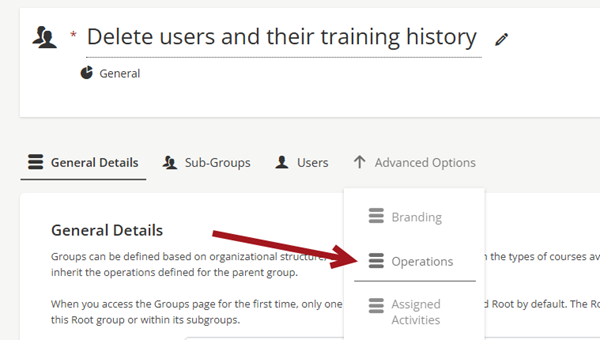
- Click Create new operation.
- Select Delete the user and click the Next.
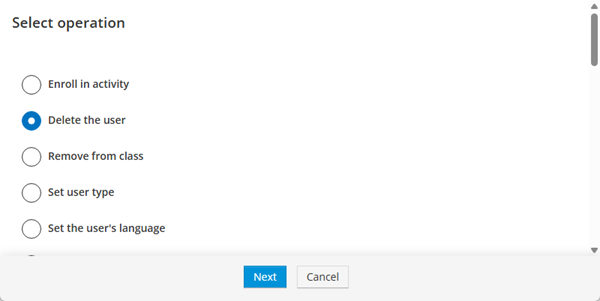
- Click OK.
- Save the group.
Deleting users in bulk
Do the following to delete users in bulk:
- Go to Resource Management > Users.
- Click Batch Register.
- Click Enroll Existing Users.
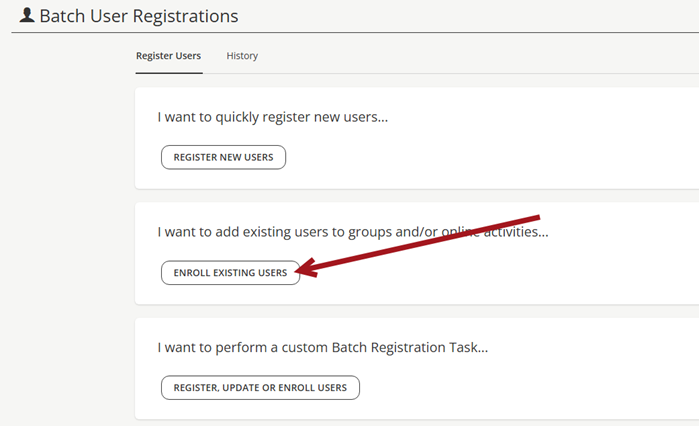
- Enter a Title for the task, such as Delete users from TopClass.
- Click Upload CSV. This should include the users you want deleted. The file should contain the TopClass username for users you want deleted.
- Click Next Step.
- Click the Groups tab.
- Click Select.
- Select the group you created with the deletion operation.
- Click Submit.
- Click Register.
Users selected/specified in the file will be deleted completely from TopClass and will not be recoverable. User accounts and their associated training history records will be removed from TopClass.
Updated 3 months ago
Did this page help you?