

Learning Streams
Learning Streams are streams of content that are visible to users on the Landing Page. Administrators can configure and customize Learning Streams.
To customize the Learning Streams on the Landing Page, do the following:
- Go to Customizations > Landing Page.
- Choose Learning Streams from the dropdown.
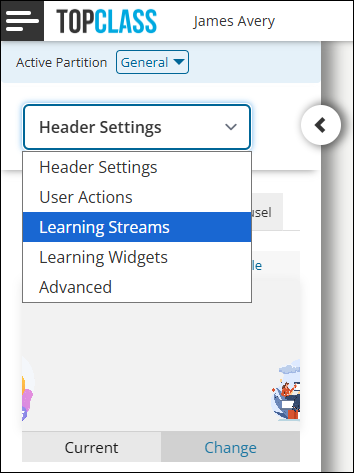
Review the available Learning Streams:
- Recommended Learning
- Featured News
- Featured Learning
- Recently Added
- Testimonials
- Catalog Categories
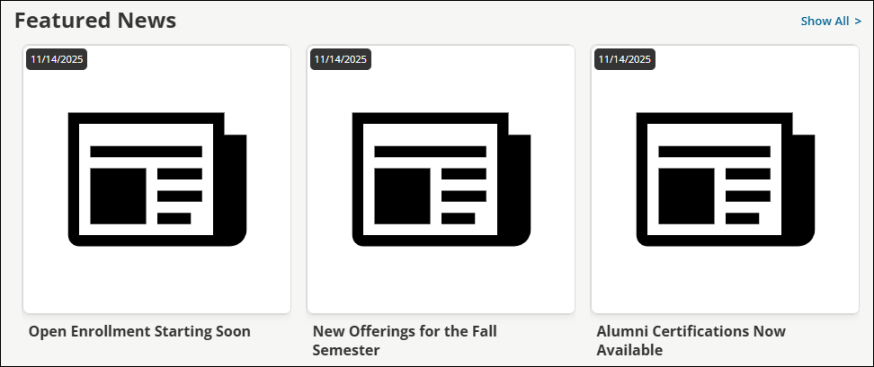
Featured News
The Featured News stream is similar to a blog, where administrators can add news items that are displayed on all users' Home pages in the Featured News stream.
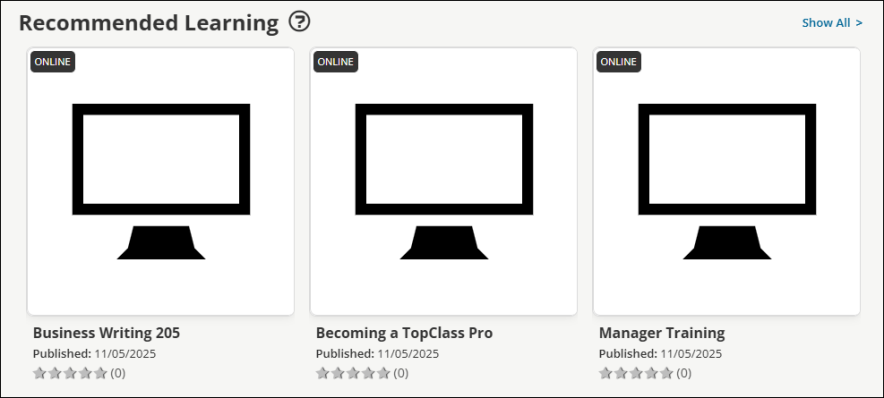
Recommended Learning
The Recommended Learning stream displays a list of all activities recommended for a user based on their engagement with Learning Activities and other content.
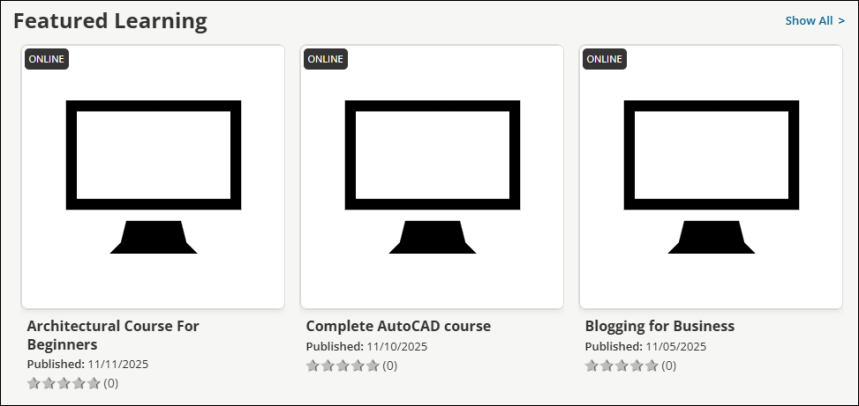
Featured Learning
The Featured Learning stream displays a list of up to 12 visible featured Learning Activities, although up to 30 Learning Activities can be added to the stream. Learning Activities can be reordered in the stream using drag and drop.
If a Featured Until date is entered for an Activity, the Activity is featured until the specified date. Be sure to remove expired Activities from the Featured Learning stream, as they are not automatically removed, and expired Learning Activities must be removed before adding new Learning Activities to the stream. Leaving the Featured Until field blank results in a Learning Activity that never expires.
Recently Added Learning
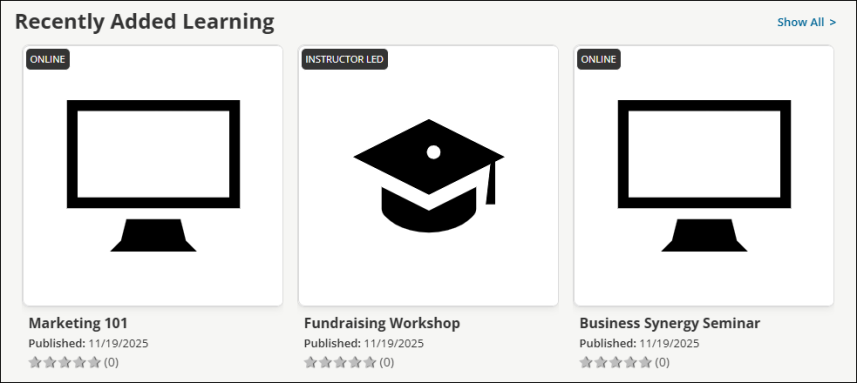
The Recently Added Learning stream displays a list of all newly created and published Activities.
Testimonials
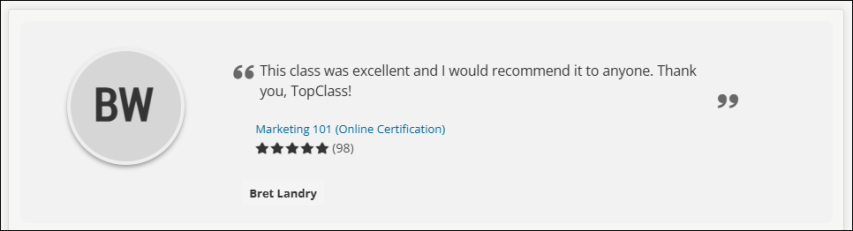
The Testimonials stream displays a list of all published testimonials. Testimonials are displayed one at a time, shifting to the next published testimonial on a timer.
Catalog Categories
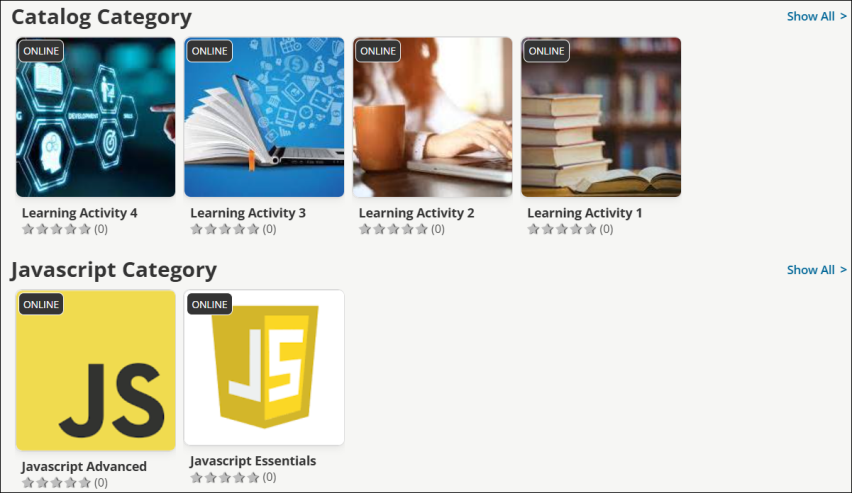
The Catalog Categories stream displays a list of selected Catalog Categories, along with the associated Learning Activities.
Customizing Learning Streams
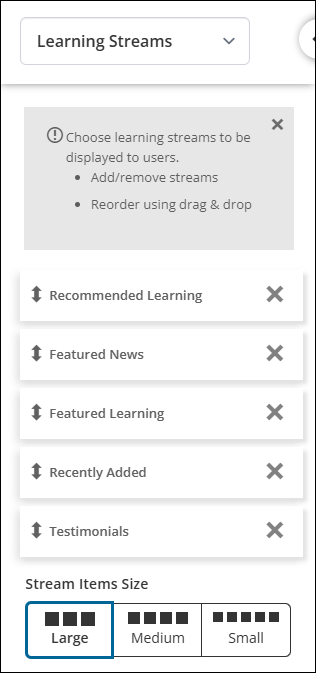
Learning streams can be reordered using drag and drop. Their size can be customized with the Stream Items Size option, choosing from Large, Medium, or Small. Remove a learning stream by selecting the X icon associated with the learning stream.
Updated 5 months ago