

Creating a Bundle
Bundles are collections of activities or courses grouped together to provide learners with a structured learning experience.
Do the following to create a bundle:
- Go to Activities and Learning > Bundles.
- Click Create.
- Provide a unique Code. Use underscores instead of spaces.
- Provide a Title for the bundle.
- Upload an Associated Image for the bundle. It is recommended to use a transparent PNG, square (HxW) > 480px x 480px, file size < 0.5MB.
- External ID and Source are optional and used only if your organization requires integrations.
- Complete the Description field. This rich text description will be parsed for catalog search keywords, making it easier for learners to find your bundle. While optional, adding a detailed description improves discoverability.
- Complete the Course/Activity Information field with the learning objectives. This information appears in the catalog and helps learners understand what they will gain. More detail helps learners make informed decisions.
- Set the point of Contact for the offering. If left blank, the field will default to the Owner.
- The Owner is preselected as the person creating the bundle. Click Remove or Select to choose a new user. This is the specified user who will have full edit rights on the bundle regardless of what other permissions are or are not set in their user privileges.
- Click Create to save the bundle.
Once the bundle is created, all additional settings are optional and can be configured through the bundle menu.

General Details
From the General Details tab, you can edit catalog information added during the initial creation. There are also toggles that appear at the top of the General Details tab:
- Publish: Toggle to make the bundle available in the catalog.
- Disable Enrollment: Toggle to prevent learners from enrolling without deleting the bundle.

Catalog Options
The Catalog Options tab lets you manage how your bundle appears in the catalog.
Catalog settings refer to how the activity is made available for enrollment. An activity can be added to one or many categories and have specific enrollment rules and pricings configured. Pricings will only be enabled if you use the eCommerce module.

Browse and Search
The following settings are available on the Browse and Search sub-tab:
- Hide Activity in Catalog for Anonymous Users: Enable if you do not want the bundle visible to anonymous users while making edits. This is selected by default. You might use this feature if you are adding a new offering to the catalog but want to make further changes to it before making it visible to anonymous users browsing the catalog.
- Hide from Catalog - Enabling this setting will hide this activity from the Catalog, certain Learning Streams, and Widgets, even if the activity is published. Activities that are Published and Hidden from the Catalog will still be available for purchase or enrollment through other areas of the product (e.g. Certification Programs or Equivalent Activities).
- Resources URL: Add a link to external materials. Click Verify to confirm that the link is correctly entered.
- Categories: Optional but recommended for easier catalog navigation. When users browse the Catalog, they see activities organized by category. Activities that are not assigned o categories will not be visible to users browsing the catalog, but they can still be found when searching. Click Add to select a previously created category.
- Keywords: Enter search terms learners can use to find this bundle.
- Group Access: Restrict visibility to members of selected groups by clicking Add. Only members belonging to the specified groups will have access to the bundle.
eCommerce and Pricing
The following settings are available on the eCommerce and Pricing sub-tab:
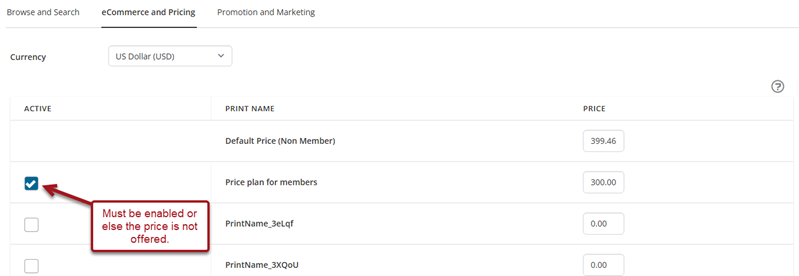
- Currency - From the drop-down, choose the Currency for the bundle.
- Pricing - Set prices for each option. Check the Active column to enable the activity. New price plans can be configured by a system administrator under Price Plan maintenance.
- Sales Tax Rule - To select which tax rate, if any, is applicable for this offering, select one of the following:
- No Tax - No tax is charged on the activity.
- User Location - The tax rate is determined by the user's billing location.
- Fixed - The tax rate is determined by the server location as per the system settings.
- Purchase Credit - If users should be allowed to purchase credit for this offering, enable this option. This allows users to purchase coupons for one or more enrollments in this offering and to pass the coupons to other parties.
- Shippable - Enable to designate this as a shippable item in the catalog.
Promotion and Marketing
The following settings are available on the eCommerce and Pricing sub-tab:
- Early Bird Percentage Discount: To offer a discount on the offering price to users who register before a certain date, enter the percentage discount and select the date at which the offer expires.
- Early Bird Expiry Date: Select the date which the Early Bird Percentage Discount expires.
- Featured Learning: Enter a date for the bundle to appear in the Featured Learning widget.
- Cross Sell: You can promote other associated offerings in the catalog and optionally offer discount pricing on these offerings to users requesting enrollment in the current offering by associating Up Sell items with the current offering.
- Alternative Delivery Options: You can link this offering to versions delivered in different formats, for example, the content of an ILT might also be delivered in an Online Activity.
Resources
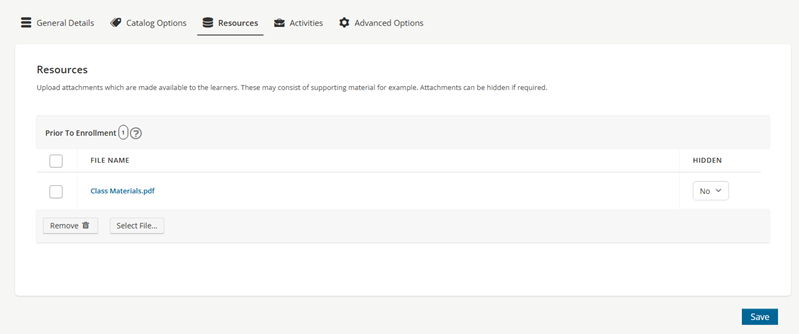
From the Resources tab, upload attachments (brochures, syllabi, etc.) for learners to view. Do the following to upload resources:
- Click Select File.
- Choose the file, then click OK.
- (optional) If the file should not be immediately available, update the Hidden drop-down to Yes. Change it to No when the file should be available to learners.
- Click Save.
Activities
From the Activities tab, add previously created activities to your bundle by clicking Add next to each activity. You can include multiple activities of the same type. To remove an activity, check the box next to it and click Remove.
Advanced Options
Click Advanced Options to reveal additional settings:
- Prerequisites: Add any activities that must be completed before starting this bundle.
- Extra Info: Placeholder for future use.
Your bundle is now created. Ensure all necessary toggles and settings are configured and saved before publishing.
Updated 3 months ago