

2021 Release Notes
October 2021 (10.5.7)
New Features
Redesign of Administrator User Interface
NEW – Redesigned the user interface of Administrator screens in TopClass to bring the look and feel of these screens in line with the modern, fresh look of more recently added features. This is Phase One of a multi-phase project to refresh the TopClass user interface. We recommend that these screens should be displayed in landscape orientation on tablet-sized devices, notebooks, laptops, or desktop monitors for the best resolution and user experience.
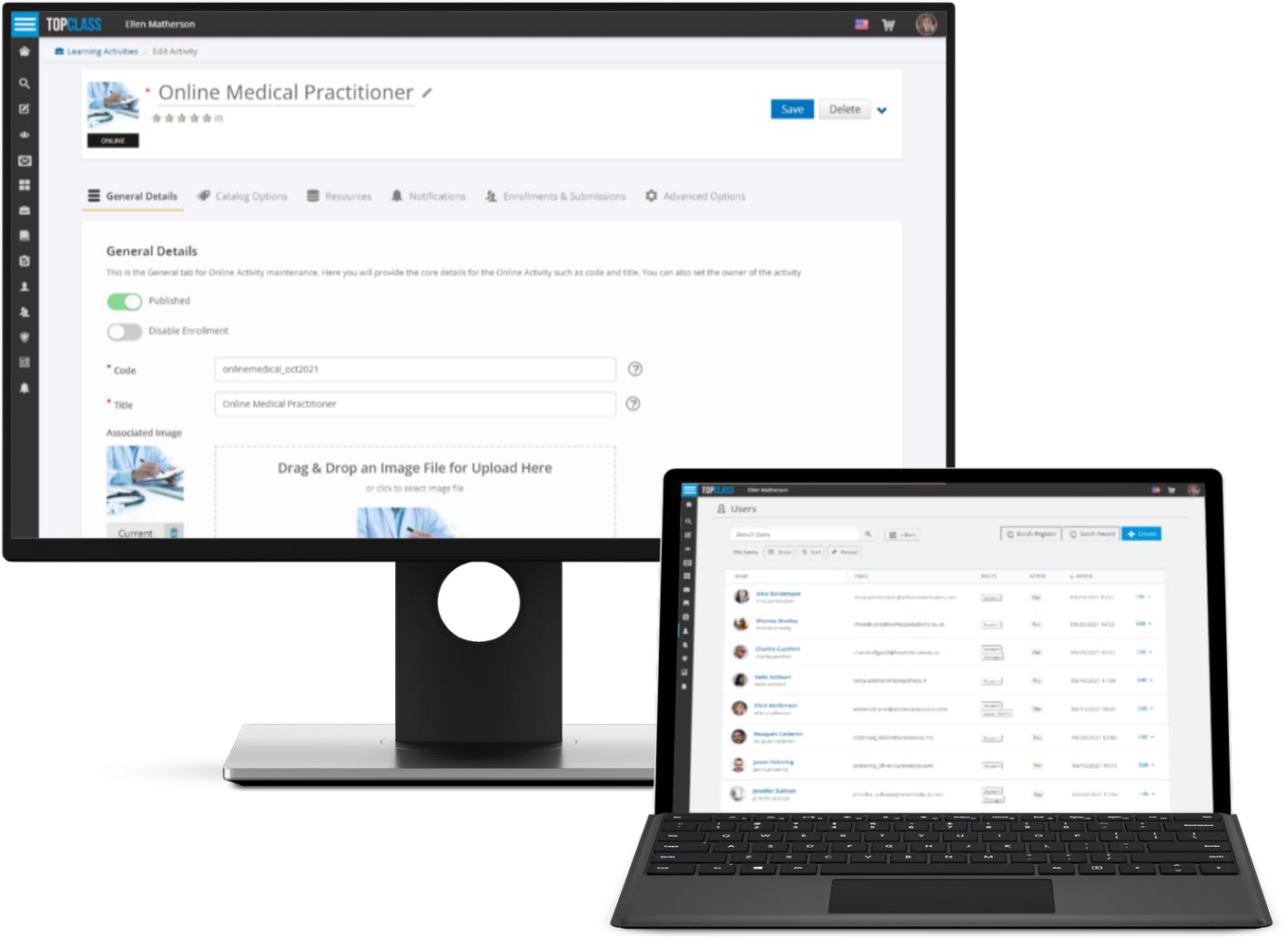
The updates in this release are primarily a user interface (UI) improvement, with the following functionality changes:
-
Removed mini–User Create option
-
Username removed from profile overlay
-
Student ID, External ID, and Source will only be shown after a user has been created
-
Show/Hide columns on list screen – allows user to specify what columns should be displayed and the preference is retained for the next time they return to the list screen.
-
Pinned functionality changed – this now behaves like a filter
-
List screen search enhancements
-
Long forms – now divided into sub tabs to improve navigation and simplify display. For example:
- Catalog tab
- Branding tab
-
Branding
- Section tabs for each branding section
- Easier to specify which areas branding changes should be applied to. TopClass will now explain the areas that will be affected by branding changes.
- NEW - Ability to define logo height and width for mobile device displays
- NEW - Specify text color for buttons

Equivalence
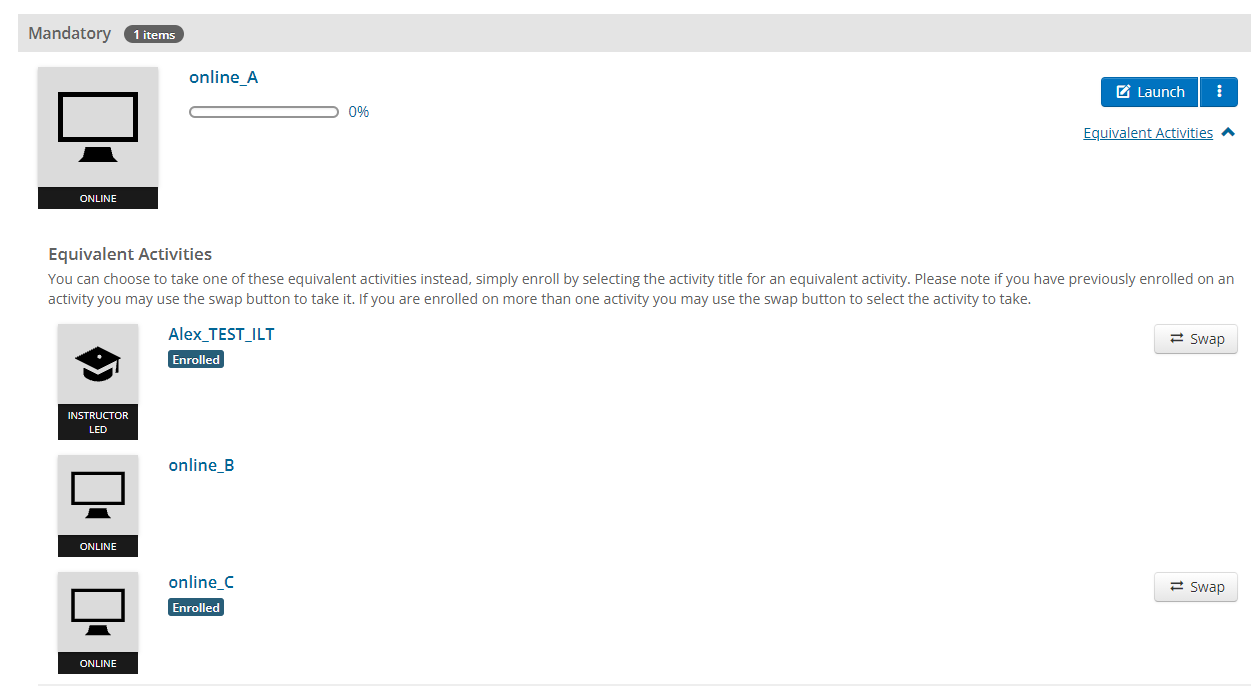
- NEW – Ability to Mark courses as equivalent courses in TopClass.
- Setting can be found in Advanced Options > Equivalent Activities tab of the Activity.
- Ability to use equivalents In Certification Programs.
- Certification Path enrollment:
- Check all equivalent items of a base activity; if an equivalent has been completed – it is auto-swapped and the item marked as completed by equivalence.
- Available for students purchasing via catalog and also if Administrator enrolls student in Certification path via Certification Program admin screens.
- Certification Path enrollment:
- Students can have the option to swap base activity to an equivalent activity if enrolled in equivalent activity.
- Via Certification Program tab in Learning Center
- No swap option shown to student if student is not enrolled in an equivalent activity.
- Include previous items
NoteThis setting does not take into consideration equivalence of learning activities.
- Ability to include equivalent activities in assignments.
Miscellaneous
- Enhancements and updates to the standard integration bridge for iMIS Cloud
- Updates to Standard Reports: External ID field added to:
- Online Activities List Report
- Sessions List Report
- General enhancements and bug fixes
July 2021 (10.5.6)
New Features
Google Analytics
NEW – Added support for Google Analytics to enable you to track learners’ route to purchase through the TopClass catalog and shopping cart.
There is now an option to add 3 snippets to TopClass for tracking:
- OfferingDetails: Ability to pass the category and the offering they looked at to Google Analytics.
- Catalog Search Results: Allows the search results to be tracked and the keywords passed to Google Analytics.
- Shopping Cart OverLayOuter: Ability to track if a user hit the checkout/review screen
Enhancements
Credit Management Enhancements
Award credits after completion of post-work
NEW – You can now specify at activity level if credits, badges, and certificates should be awarded only after post-work is completed.
Sample use case: Often this is a requirement if a survey, evaluation, or assessment is required, particularly for continuing medical education (CME) credits.
Available for:
- Online Activities
- Instructor Led Teaching (ILT) and virtual ILT (vILT)
- If enabled, the activity will remain on the learner’s Current tab in the learning center until the post-work is completed.
Add session-level credits to certificates
- For conferences - If credits are awarded at session level, for each session the student attends the credit information will be itemized and displayed on the certificate.
- The display format will be based on the credits list format setting: eg. simple, comma separated list, or table.
eCommerce Enhancements
Send email receipt for purchase
- Email receipt sent after purchase will now provide a full breakdown of items purchased
- Link to Purchase Details screen in TopClass will be included in the receipt.
- Unable to edit Subject or Body of Purchase Confirmation Notification Rule
- This setting will be disabled by default. It will be necessary to activate this setting to enable this new notification format.
- For customers upgrading from a previous version, if this setting is to be enabled it would be recommended to disable the previous Purchase Confirmation Notification rule.
Print payment improvements
- Customer branding, including logo will be shown on print details.
- Footer will be shown on print details if footer has been enabled in TopClass. The footer will take the logo and text that has been set in the branding for the footer. If nothing has been set in branding but footer is enabled, it will take the default footer branding.
- Invoice Remit Address Details - if entered, these details will be available on the printed version of purchase details regardless of payment method used; this was previously only possible for Invoice payment option.
Content Enhancements
Option to display failed questions and answers on submission
- If this setting is enabled, when a learner completes a test on the results page they will see only the failed questions and answers. (This depends on the chosen configuration for Show Questions and Show Answers.)
- When a learner reviews a submission from their learning center on the submissions tab; they will see only the failed questions and answers. (This depends on the chosen configuration for Show Questions and Show Answers.)
- When a learner has no failed questions and answers, they will see the standard results screen.
- Instructors will see both correct and failed questions and answers for all learners whether this setting is enabled or disabled.
- Configuration of this setting is at test level > Extra Settings Page > Show Failed Answers Only
Multiple Choice Question – Recognize Partially Correct Answers
- NEW – This is a new option to award points to learners for partially correct answers to multiple choice questions.
- Configure this with the new Points Awarded option > Points on Correct Answer
Integration Enhancements
iMIS
- NEW – Ability to configure Single-Sign-On (SSO) via the TopClass user interface (UI) has been added for iMIS Cloud integrations only.
- General enhancements and updates
Virtual Sessions (vILT or virtual Conference)
- Ability to unlink virtual ILT session from the web conferencing vendorm such as Zoom or GoToWebinar
- When the session is unlinked, the session will change to a generic virtual session. This means that the URL will need to be entered, and learners will be required to enter their login details to access the session once launched.
Miscellaneous
- NEW – Sales report added
- General enhancements and bug fixes
May 2021 (10.5.5)
Enhancements
Virtual Conference Enhancements
Sponsor and Exhibitor Enhancements
-
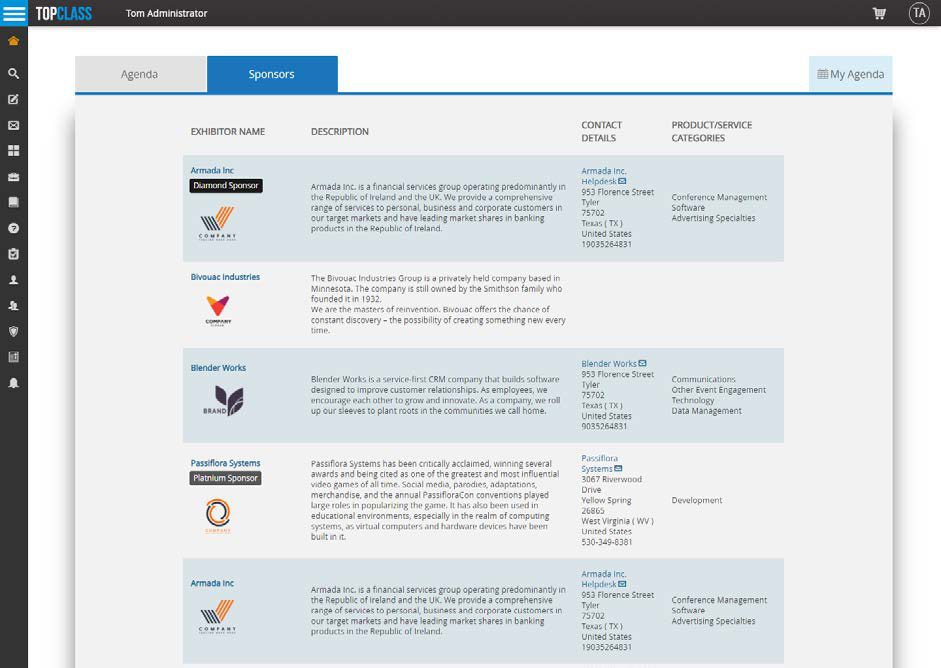
Exhibitors tab renamed to Sponsors & Exhibitors
-
NEW - Ability to specify a level of sponsorship for exhibitors and apply a label to differentiate sponsors within the Sponsors & Exhibitors tab. The specified sponsor level will determine the emphasis of sponsor level display on the Sponsors and Exhibitors list screen for the conference.
-
Default sponsor level labels available in TopClass are:
- Diamond Sponsor
- Platinum Sponsor
- Gold Sponsor
- Silver Sponsor
- Bronze Sponsor
- Partner Sponsor
-
An update has been made to the way sponsors or exhibitors are added to the Sponsor and Partner carousels. During setup, it must be specified which sponsors or exhibitors' logos should be added to each carousel. This is no longer linked to or determined by the Sponsor and Partner labels.
-
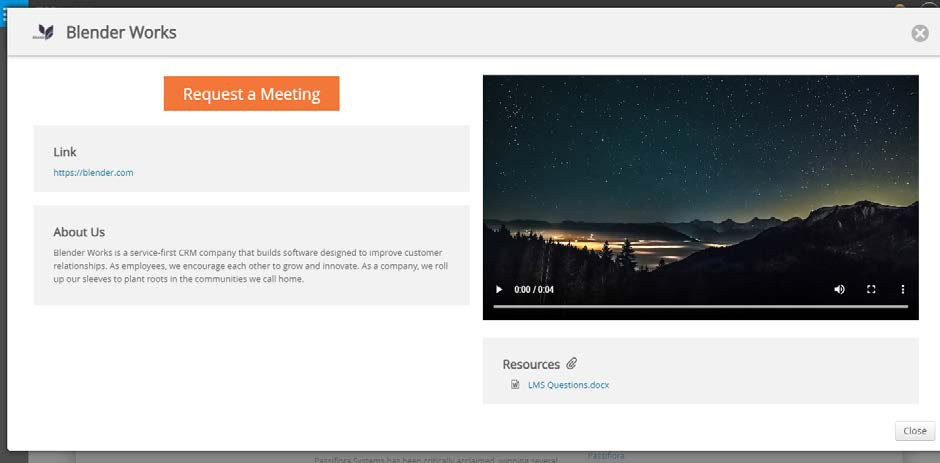
NEW – Request a Meeting button added to Sponsor and Exhibitor profile. This allows the entry of a URL to link out to a contact form, meeting scheduler, or other items, making it easier for attendees to contact exhibitors and sponsors.
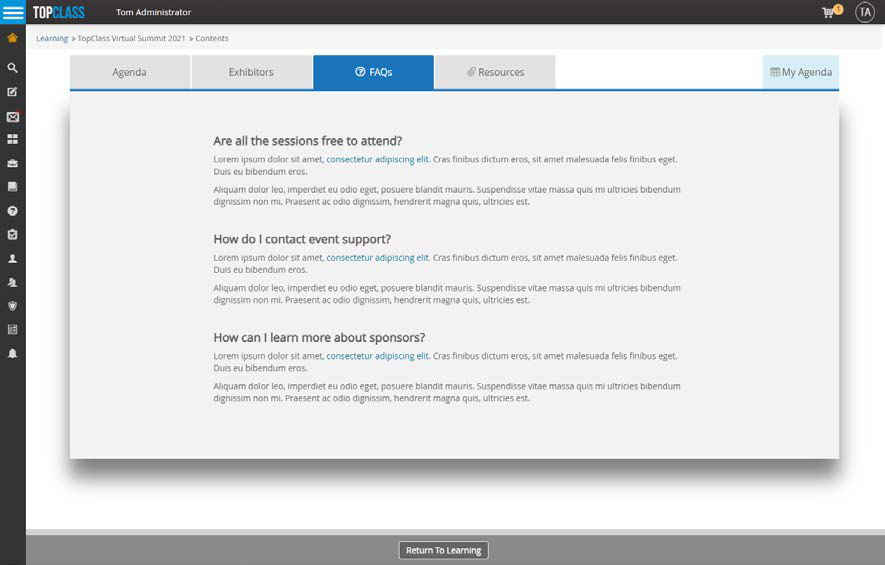
Conference FAQs
-
NEW - This enhancement provides a new tab on the Virtual Conference Agenda page, allowing users to enter and format (using HTML) a list of frequently asked questions.
-
The TopClass team can provide HTML code to apply formatting to the FAQs on request.
-
Schedule sessions on non-consecutive dates
- NEW - This enhancement enables the virtual conference agenda to be scheduled for individual dates for conferences which are spread across multiple, non-consecutive days, up to a maximum of 7 dates. In previous releases, it was only possible to display a date range of 7 consecutive days. This update applies to:
- Virtual Conference Welcome Page
- Virtual Conference Agenda
- Virtual Conference My Agenda
Post-Conference Video Upload
- NEW – For virtual conferences, it is now possible to upload at session level a video recording of the session and make this available for viewing within 24 hours after the conference end-date;
- Upload captions track associated with video.
- Specify at virtual conference level how long (in number of days) should the session video links be available to access after the conference has ended.
- Learners will be able to launch videos from either the virtual conference agenda page or the MyAgenda tab if the associated session is over and video has been uploaded and date is within the available period (such as the number of days specified during which the video is available for viewing after the conference end-date).
NoteOnly learners who registered for the virtual conference will have access to the virtual conference agenda page to view the post-conference videos after the event is over. To make the recordings available to other learners who did not register for the virtual conference, the videos must be made available through the catalog as separate offerings. Credits will be awarded based on attendance of the live session, not for viewing the video.
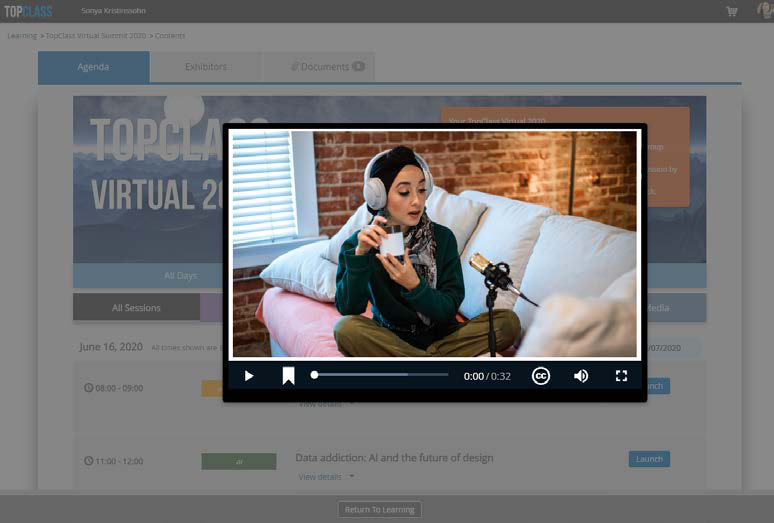
Virtual Conference Video Intro/Overview
NEW – This enhancement enables the upload of a video as part of the virtual conference intro/overview displayed on the banner of the virtual conference agenda page. For example, upload a video that welcomes learners to the virtual environment. or provide a walkthrough of how to navigate the virtual conference platform and where to find everything.
Content Enhancements
SCORM Enhancements
- It is now possible to import SCORM files without creating a parent folder if importing under an existing course in TopClass.
- It is now possible to import SCORM content where [imsmanifest] is not at the root level of the zip file.
- Embedded SCORM – New system setting to determine whether or not to show TopClass navigation buttons
Integration Enhancements
iMIS
Updates to virtual conference and virtual ILT integration functionality for the standard iMIS integration bridge. These enhancements require a change to the IQAs.
Miscellaneous
- Upgraded Payflow to latest version 4.4.7
- Accessibility improvements
- General enhancements and bug fixes
April 2021 (10.5.4)
New Features
Stackable Credentials & Learning Pathways
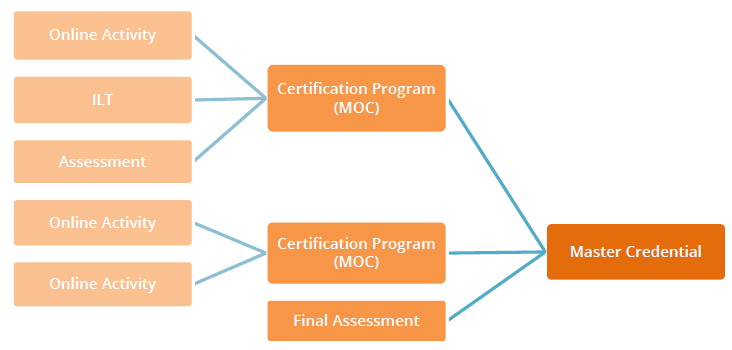
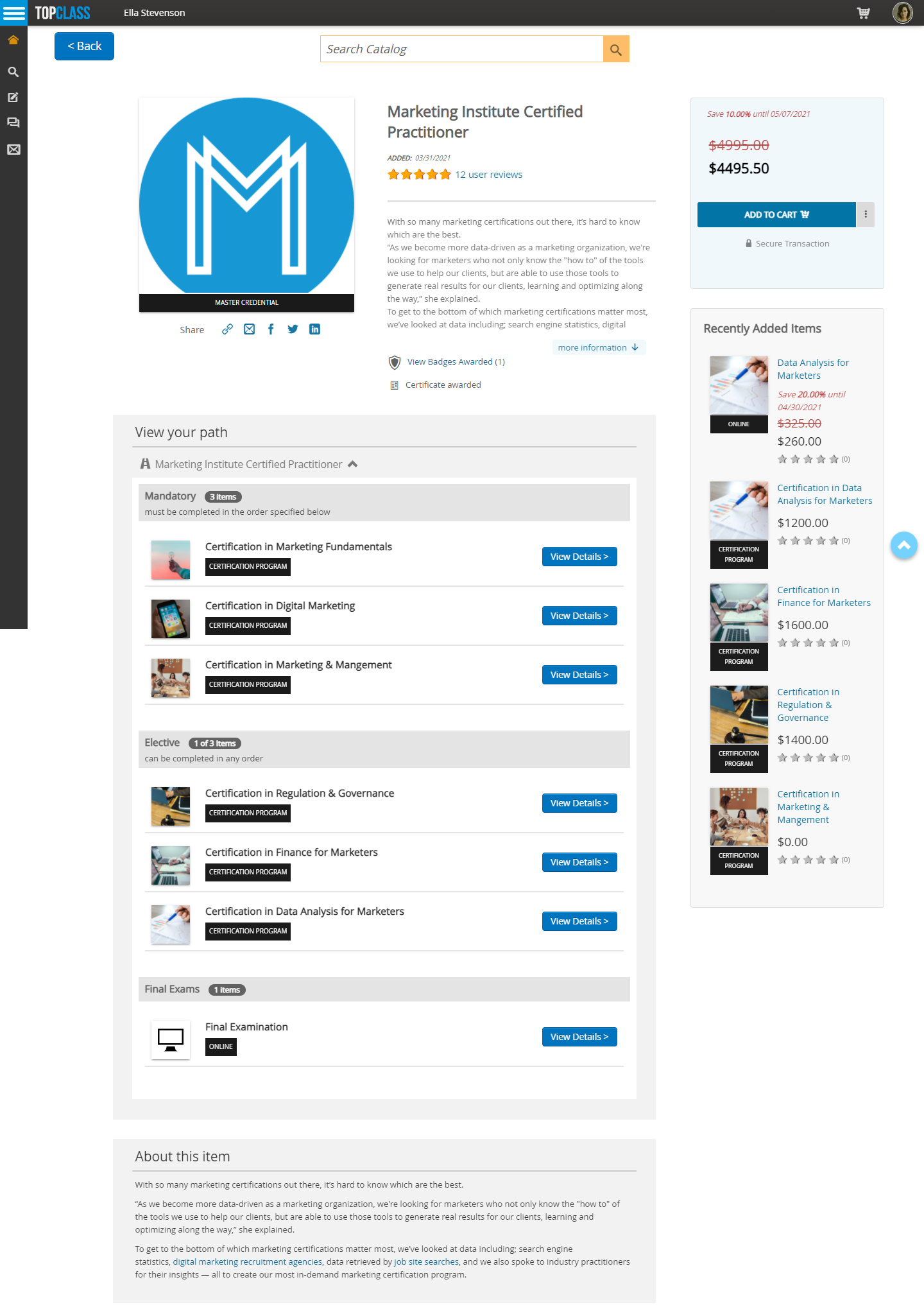
We have developed this new feature in consultation with a number of TopClass customers and in line with a growing trend in learning and development to provide learning pathways and stackable credentials. This feature utilizes the Certification Program module in TopClass to allow your organization to create a learning pathway or a hierarchy of achievements to encourage learners to progress toward their goal. Learning pathways will look different from organization to organization, but a typical structure may be completion of a number of courses or seminars, leading to one or more certificates or certification programs, leading to a designation or master credential.
On completion of each step, the learner is automatically awarded any certificates or digital badges associated with the learning activity, certification program, or master credential. A sample learning pathway is shown below, using TopClass terminology for the various components:
NoteAs the Certification Programs module is optional in TopClass, you may need to add this to your TopClass setup before you can use Stackable Credentials. Please contact your Customer Success Manager or Project Manager for more details.
- NEW - Create Master Credential certification programs:
- Each Master Credential program will only have one certification path.
- Mandatory and/or Elective components must be Certification Programs with the MOC type.
- It is not possible to set Credit Requirement options for Master Credentials
- The Master Credential, once awarded, will not expire. There is no maintenance or re-certification for Master Credential awards.
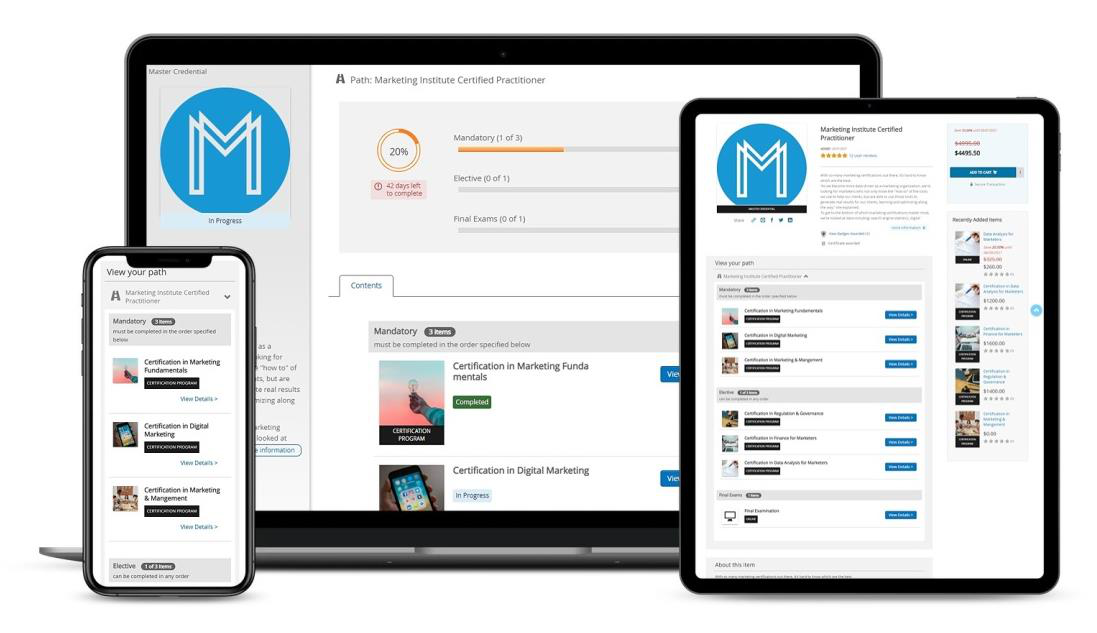
- Master Credentials Hierarchy/Learning Pathway can be viewed on the certification program offering details page, which is accessed through the TopClass catalog, or on Course Home - accessed via the Certifications tab in the Learning Center.
- Learners may enroll in the Master Credential explicitly via the catalog or they can be enrolled via the administration screen of Master Credential by a TopClass administrator.
- NEW – Automatic Rollup setting - if this setting is selected, learners who complete a MOC certification program that is a component of a Master Credential will be automatically silently enrolled in the Master Credential.
- The learner will not know they have been enrolled in the Master Credential and it will not appear in their Learning Center, but an administrator will be able to filter their view to see explicit and/or silent enrollments in the Enrollments menu in the administration screen.
- If the learner then completes the other component MOC certification programs in the Master Credential, then their enrollment will become explicit. The Master Credential will only appear in the learner’s Learning Center in the Completed tab after all MOC Certification Programs in Master Credential have been completed. The learner will then be automatically awarded any digital badges or certificates associated with the Master Credential.
- This optional setting provides additional pathways for learners to achieve the Master Credential without having to explicitly enroll in the full pathway from the beginning, giving learners more options.
- NEW - Student Progress by Certification Program Report - This is a new standard report available in TopClass, which allows the administrator to view all students explicitly enrolled in a certification program and review their progress through the activities within the certification path that they are enrolled in.
Enhancements
Integrations Enhancements
Zoom Meetings
This feature has been requested by a number of customers and will enable the use of breakout rooms within ILT classes or virtual conference sessions in TopClass.
- NEW - Create Zoom Meetings in TopClass, including:
- User registrations
- Launch with single-sign-on for seamless learner experience
- Attendance tracking
- Ability to specify alternative hosts within TopClass
- End-to-End integration support is available with Zoom meetings for ILT classes. For example, Create Event in iMIS results in an ILT class and session being created in TopClass via the integration, then a session is created in Zoom Meetings via integration.
NoteEnd-to-End integration is not available for virtual conferences.
For more detail on how the Zoom integration works, see Virtual Learning and Events inTopClass Brochure
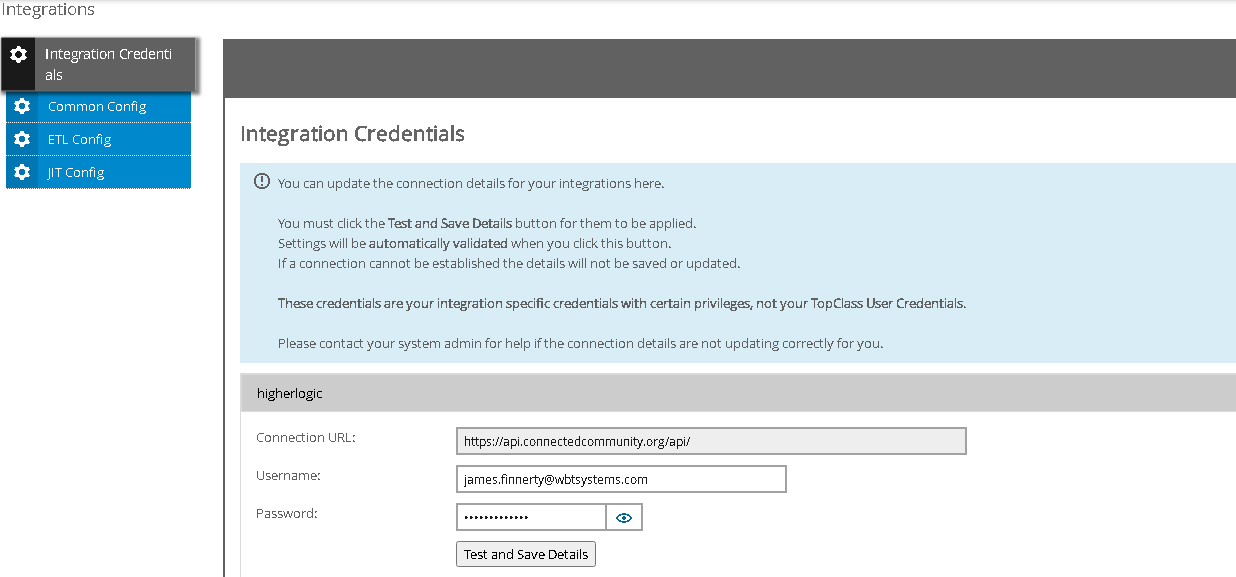
Integrations Credential Screen
- Administration screen to allow customers to update username / password for integrations enabled in TopClass - This new setting validates username and password for external systems that TopClass integrates with, where these systems may mandate that the admin password is changed at regular intervals, such as every 90 days, for security reasons.
Return to External System Menu Item
NEW – If TopClass is connected to an external system, such as an AMS (iMIS, Protech, Aptify, netForum) or CRM (Salesforce, MS Dynamics), the user now has the option to return to the external system via a link in the main navigation menu. This will be configured by the Services team as part of the intitial implementation or upgrade.
External Shopping Cart
This feature has been requested by a number of customers. Many customers who choose to use the eCommerce functionality in their AMS (to maintain financial data in the system of record) have expressed they would like to use the enhanced features of the TopClass catalog and redirect to the system of record to complete the purchase.
- NEW – If TopClass is connected to an external system, such as an AMS (iMIS, Protech, Aptify, netForum) or CRM (Salesforce, MS Dynamics), but the TopClass catalog is turned on, learners will browse the catalog in TopClass but will be redirected to the system of record to complete their purchase or enrollment.
- TopClass shopping cart will be turned off.
- This will be configured by the Services team as part of the intitial implementation or upgrade.
Additional Integrations Enhancements
Updates and improvements to queue management, SSO and redirect logic for integrations.
Security Enhancements
- Forgot password functionality - A user will be sent a link by email that has an expiry. A user can enter their username or email as part of the forgot password workflow. The link expires by default after 15 minutes. This setting can be changed by going to System setting > Security > Password reset link expiry. When users are changing their password, they are prompted to enter their existing password before they are allowed to change the password.
Miscellaneous
- NEW - User Login Report shows all users who logged into TopClass during defined time periods.
- Minor enhancements and bug fixes
January 2021 (10.5.3)
Enhancements
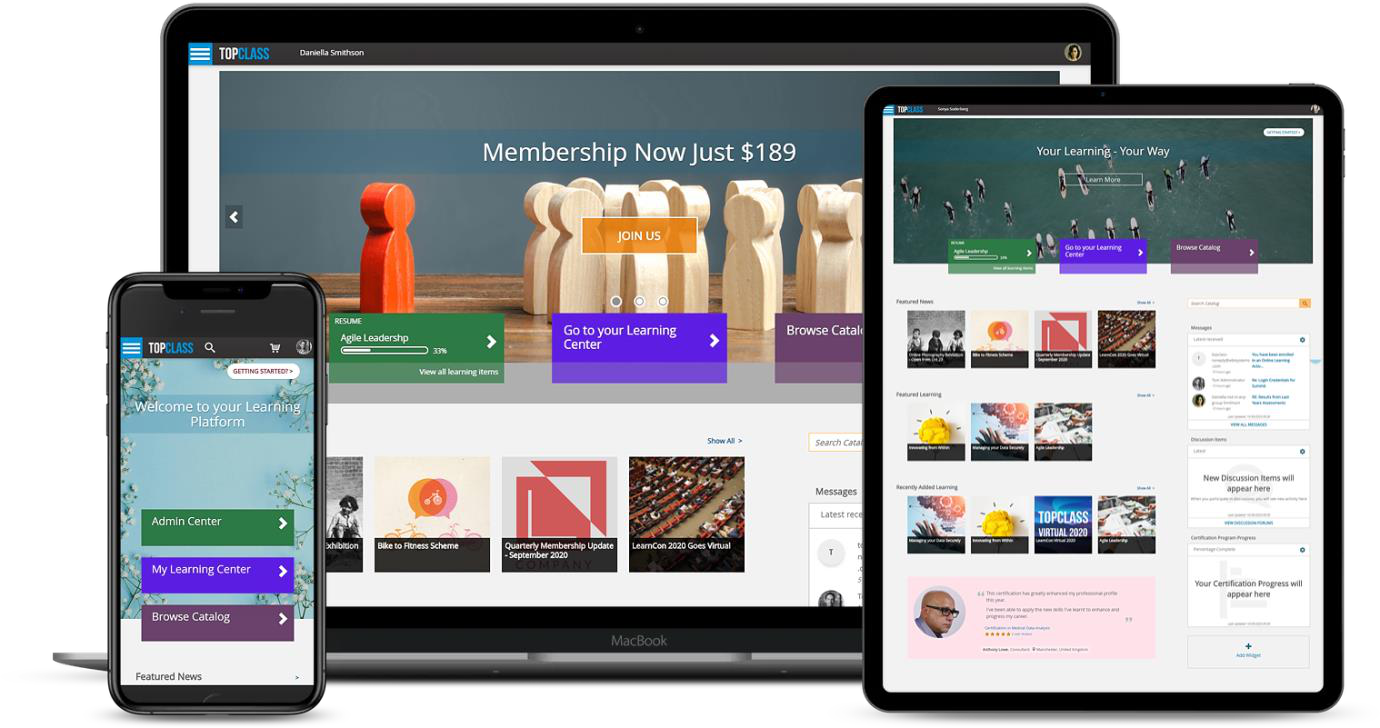
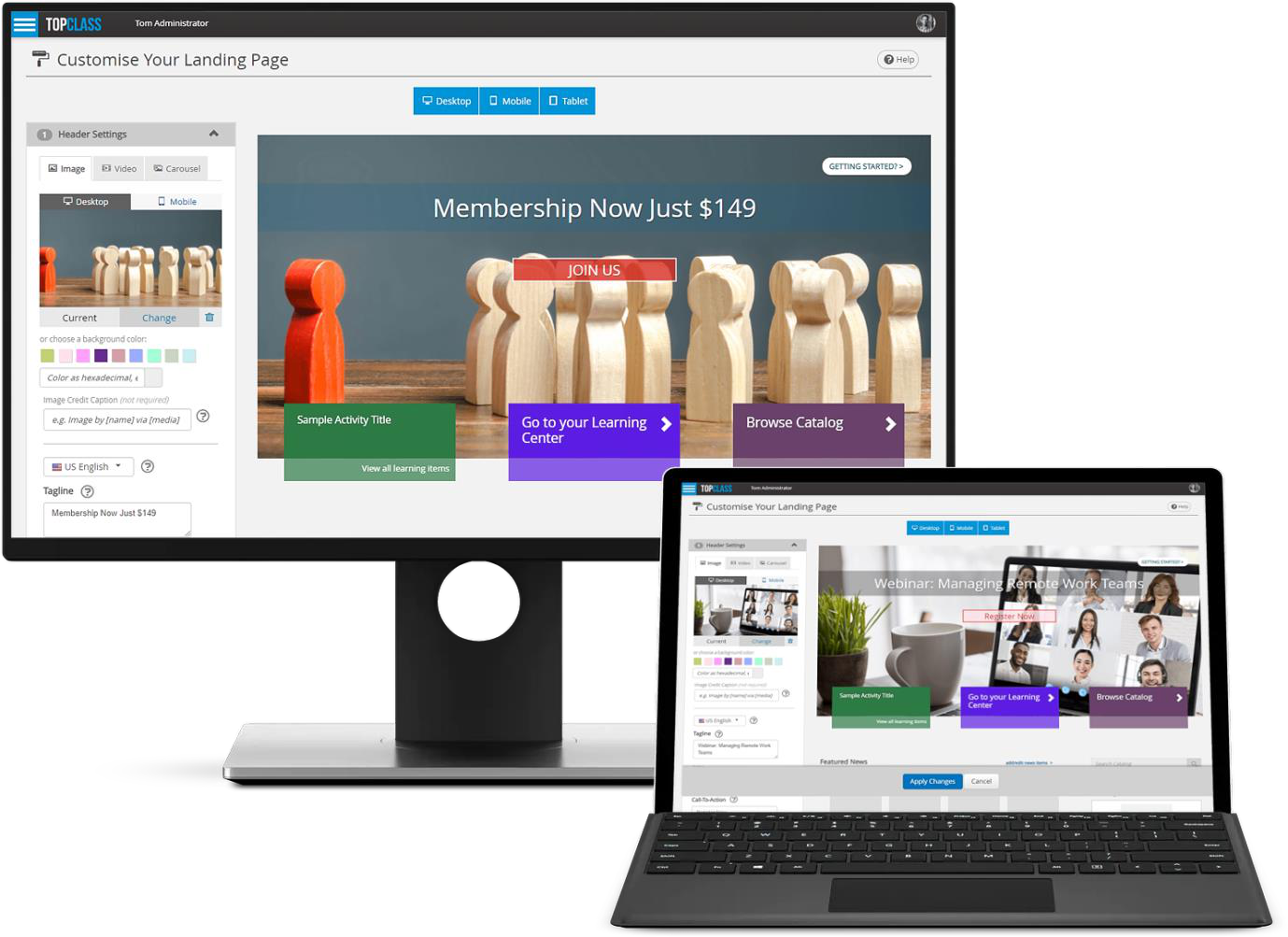
Landing Page Enhancements
- Specify which type of background should be displayed on the landing page:
- Static Image
- Video
- Rotating images (carousel)
- Preview how landing page will display on multiple device types:
- Desktop
- Tablet
- Mobile
- Specify photo credit and copyright information
- Select a mobile-specific image for landing page when using image or video as background. This can simplify view and improve speed of page loading time on mobile experience.
- Language options for tagline & call-to-action button combined to simplify set up.
- Enhanced image cropper tool - The cropper will now enforce specific dimensions on images to ensure images uploaded will display in the correct size. This tool won’t pop up if an image with correct dimensions is uploaded.
- A new video guide, How To Customize Your Landing Page will be available in two locations in TopClass:
- Getting Started page
- Help section on Customize your Landing Page
The video will also be available in the TopClass Customer Support Portal.
Catalog Enhancements
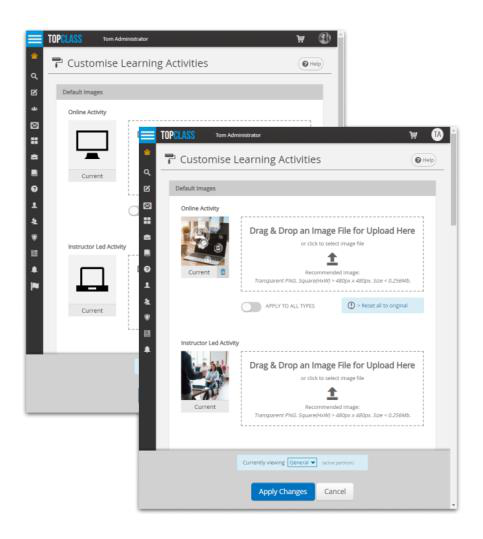
Default images for activity types
This feature has been requested by a number of customers.
- Ability to specify:
- One default icon to be applied to all learning activities in TopClass.
- A different default icon to be applied to each learning activity type in TopClass.
- Default activity icons will be displayed when a specified image has not been added for the activity .
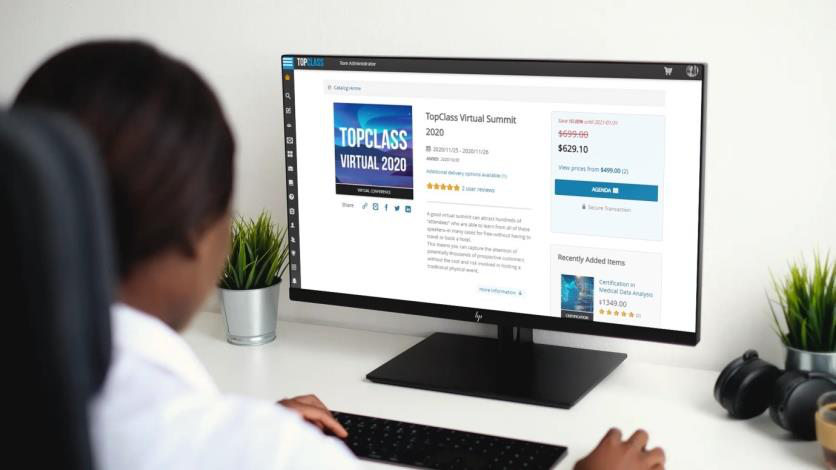
Offering Details Redesign
- New clearer labels for activities and user interface (UI) improvements
- New Recently Added widget shows activities and products recently added to the catalog
Integrations
- Enhancements and bug fixing for queue management.
- Enhancement for iMIS Single-Sign-On (SSO) configuration.
NoteIf you are upgrading to TopClass 10.5.3, a change may be required in your iMIS SSO configuration. Consult with your CSM or Project Manager.
Miscellaneous
- Minor eCommerce enhancements
- Card type validation based on card number
- Pay Pal partner support; ability to specify a partner other than Visa
- Sponsor slide now pauses on hover; this means a video can now play in full before moving to next slide
- Mail to Instructor & Instructor mail to student email text entry now has Rich Text support
- SCORM API update to eliminate caching issues when releasing new versions
- MP3 content support added
- Minor enhancements and bug fixes
Updated 5 months ago