

Creating categories
Users browsing the TopClass Catalog will see activities organized by category. Any activities not assigned to a category will not be visible to users browsing the catalog, but can still be found using the search function.
Do the following to create a category:
- Go to Resource Management > Categories.
- Click Create.
- Insert a unique identifier for the category Code.
- Insert a Title for the category.
- Click Create.
A new horizontal menu will appear of optional fields/sections to utilize:

General Details

Active – Toggle on to activate category and make visible in catalog.
Display as Landing Page Stream – Toggle on to add as Learning Stream to Landing page for all users
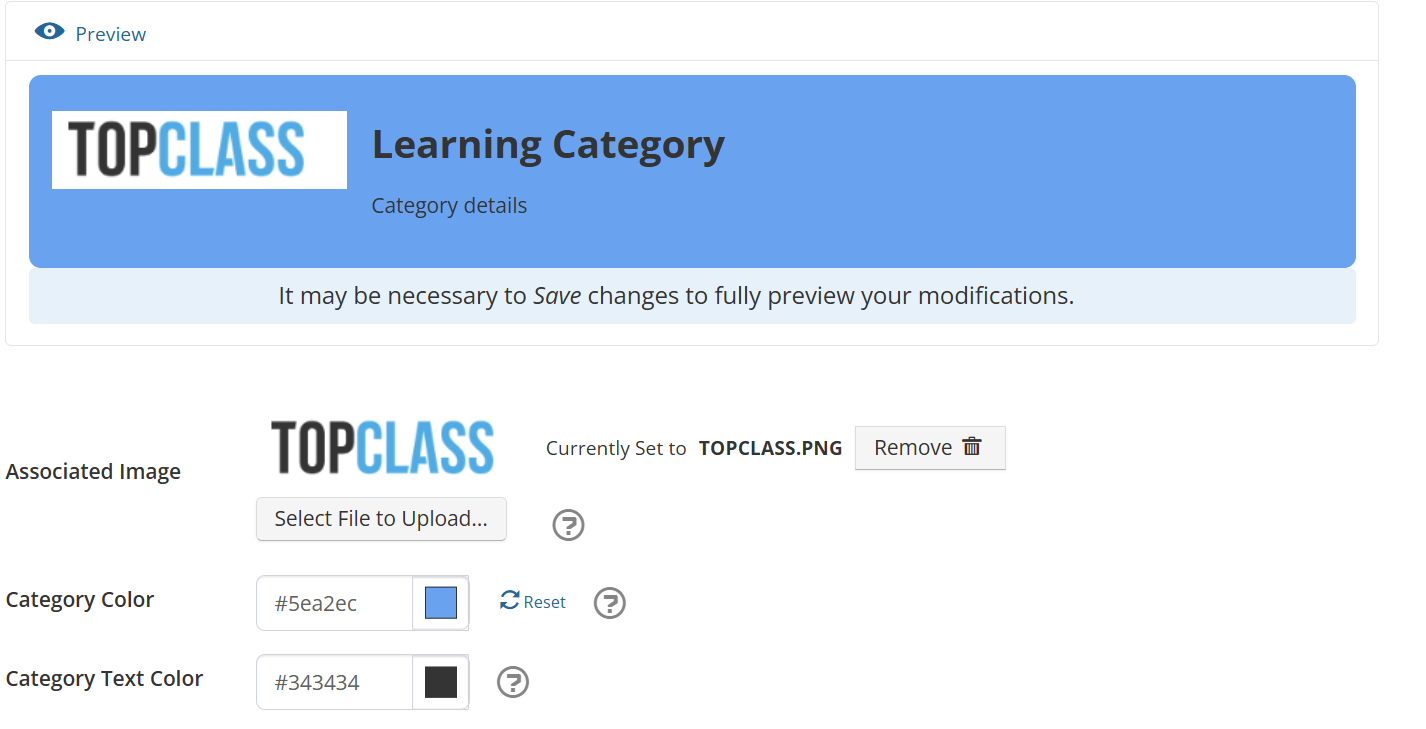
From the Appearance section, define the following:
- Associated Image - Choose an image to associate with the category as users browse the catalog.
- Category Color - Choose a particular color to be associated with the category as users browse the catalog.
- Category Text Color - Choose a particular color to be associated with the category as users browse the catalog.
- Select Preview to reveal what it will look like for the user.
- Click Save.
When it is complete, it may look like this:
Sub-Categories
Create new sub-categories within the parent category to generate a hierarchy. Child categories can also be removed from this section.
ExampleThe overall category is Learning Trades, and you need to create sub-categories for Carpentry, Electrical, and Plumbing.
Do the following to create sub-categories:
- From the Sub-Categories tab, click Create.
- Enter a Code and a Title.
- Click Create.
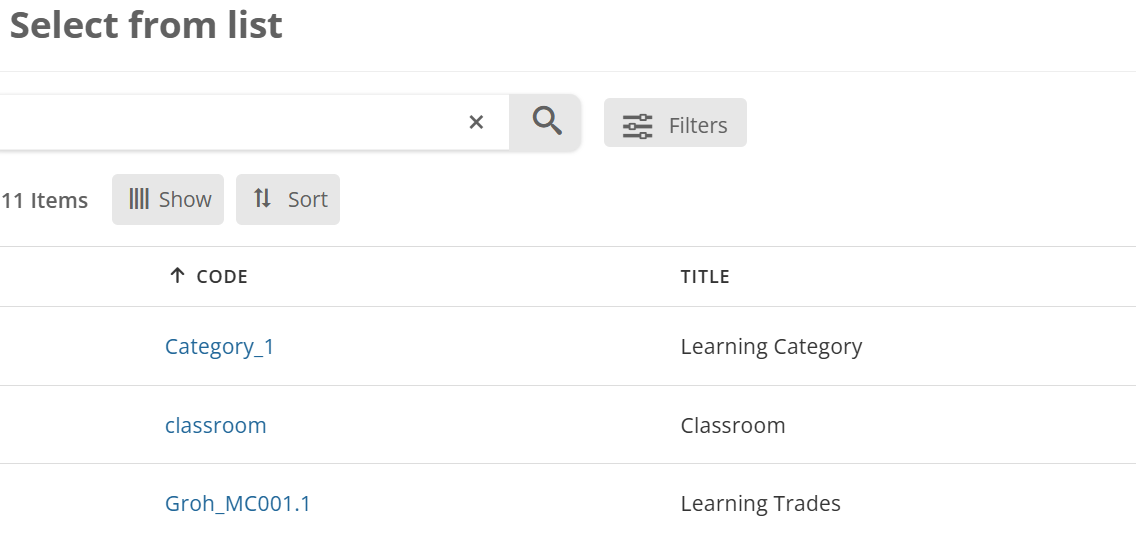
- Go back to Category > Sub-Categories.
- Click Add.
- Select the sub-category you created.
Activities
Add Activities or leave this blank for now and add a category later as you create each activity separately. To add them here, click Add and select the activities you would like to be attached to this category.
NoteYou cannot create new activities from this section.
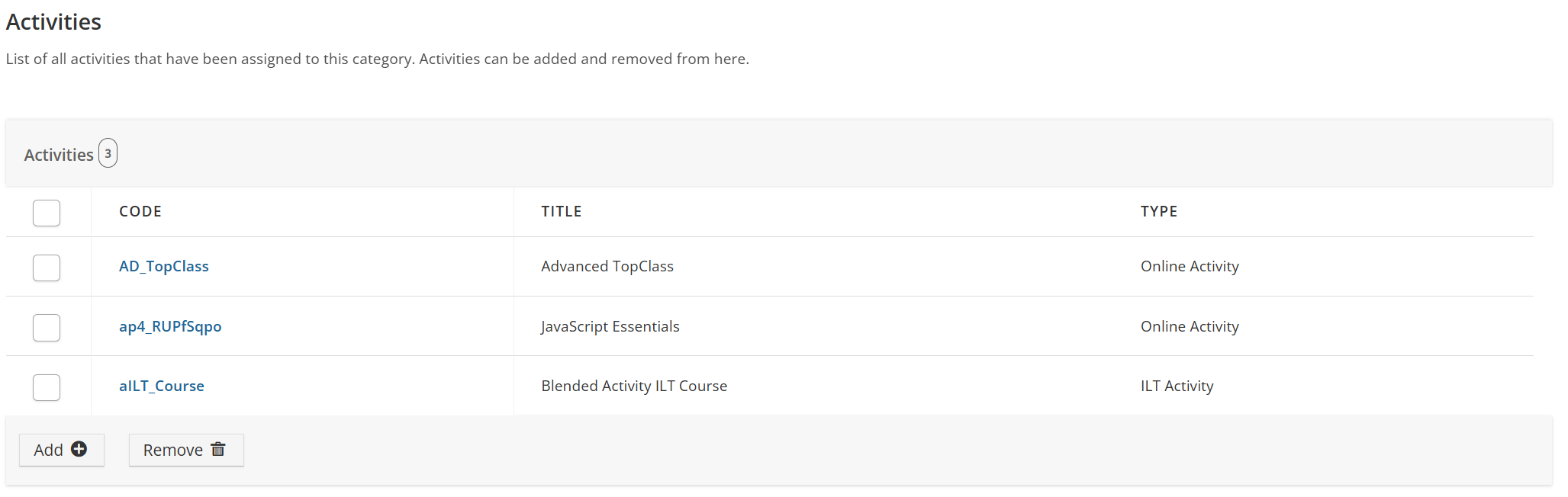
If you add an activity that you do not want to be included, check the box next to the activity and then select Remove.
Advanced Options
This is currently a placeholder for future enhancements if needed. No current functionality is available.
Updated 5 months ago