

Disabling user access to TopClass in bulk
Do the following to disable user access in bulk:
- Go to Resource Management > Users.
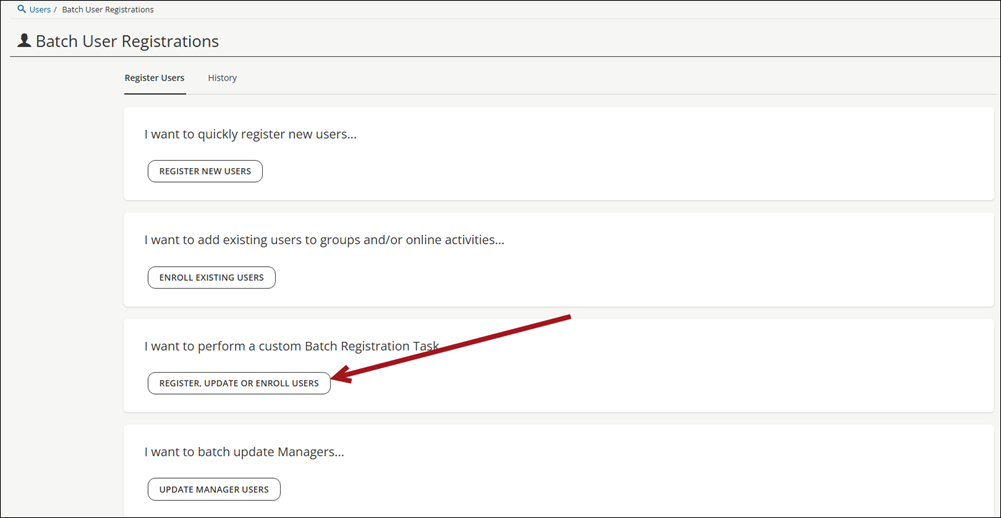
- Click Batch Register.
- Click Register, Update or Enroll Users.
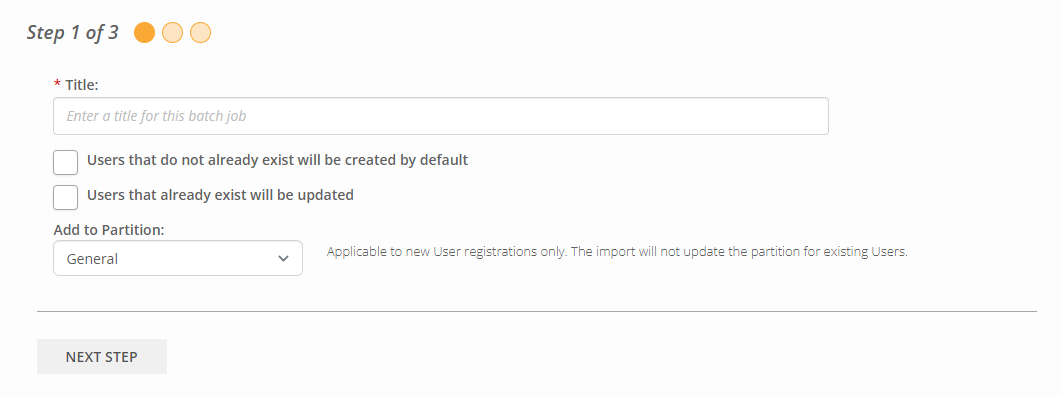
- Enter a Title for the task, e.g., Disable Users.
- Click Next Step.
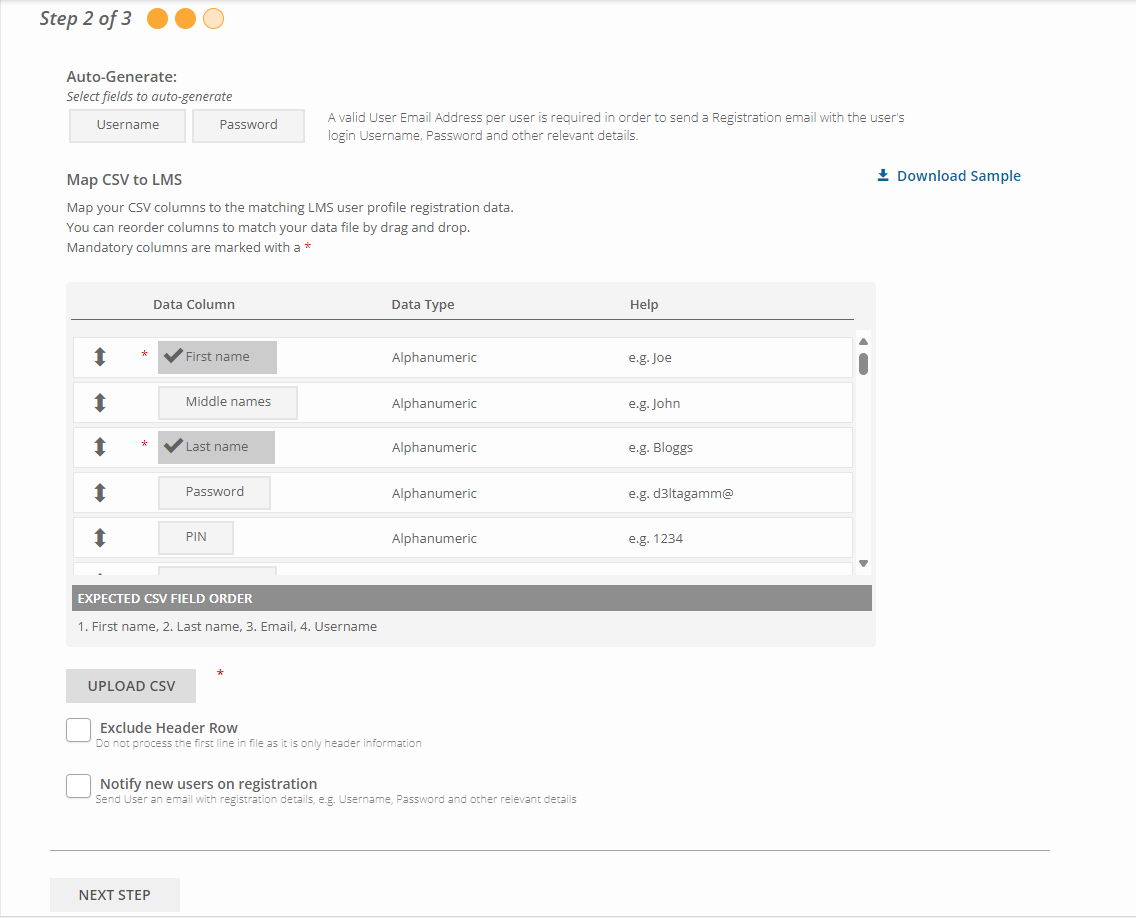
- Select the following columns for your file:
- First name
- Last name
- Account has been disabled, please contact your administrator
- Username
- Upload a CSV file with the exact columns filled in, in the correct order, as selected above.
TipSelect Download Sample to get started with a sample file. Rework the file to have only the columns you need.
- Click Next Step.
- Click Register .
Users will no longer be able to login to TopClass. A super administrator can reactivate their accounts at a later stage, if required.
Updated 3 months ago
Did this page help you?