

Adding business objects and queries as available sources in Report Writer
WarningAdding too many queries, business objects, and/or shortcuts to the $/Common/Query Sources folder will significantly decrease Report Writer's performance. Do not add more than 200 items to this folder.
The $/Common/Query Sources folder contains the data sources available to choose from when creating a report in Report Writer.
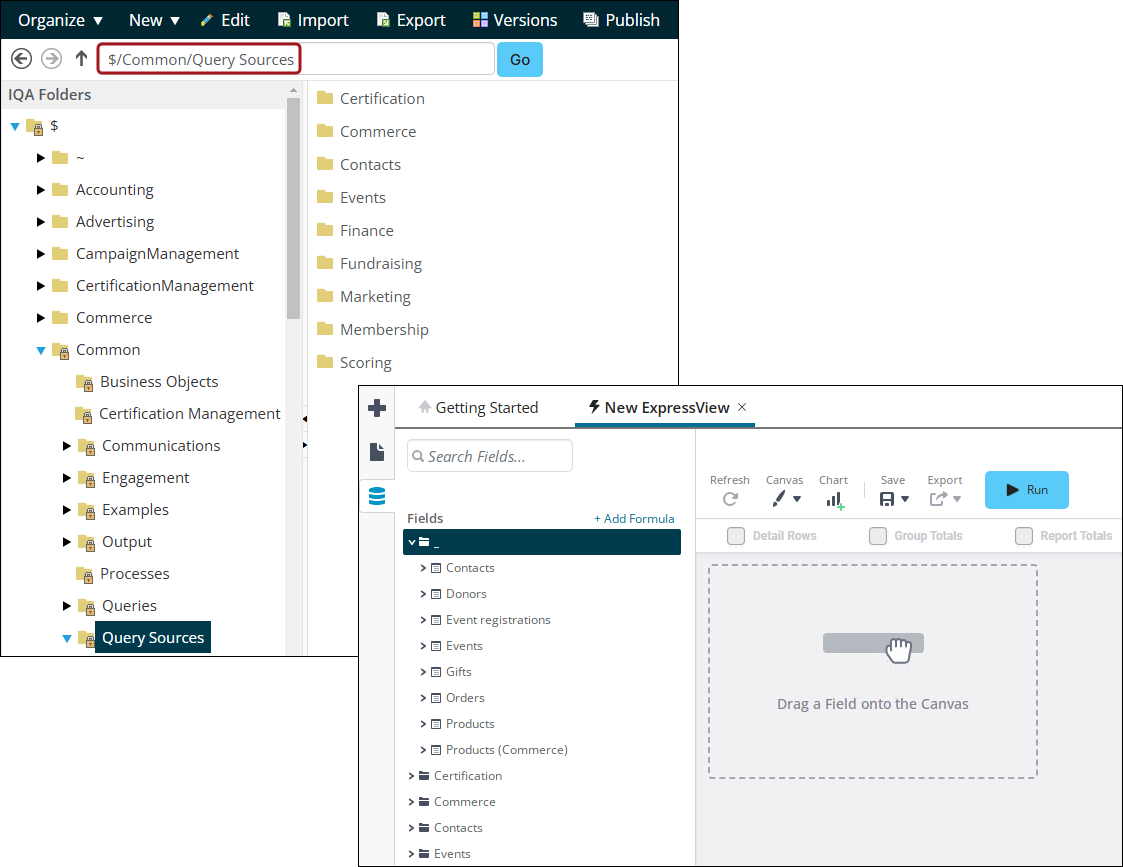
To add data sources, such as user–defined sources, business objects, or queries, to Report Writer, do the following:
-
Go to RiSE > Document system.
-
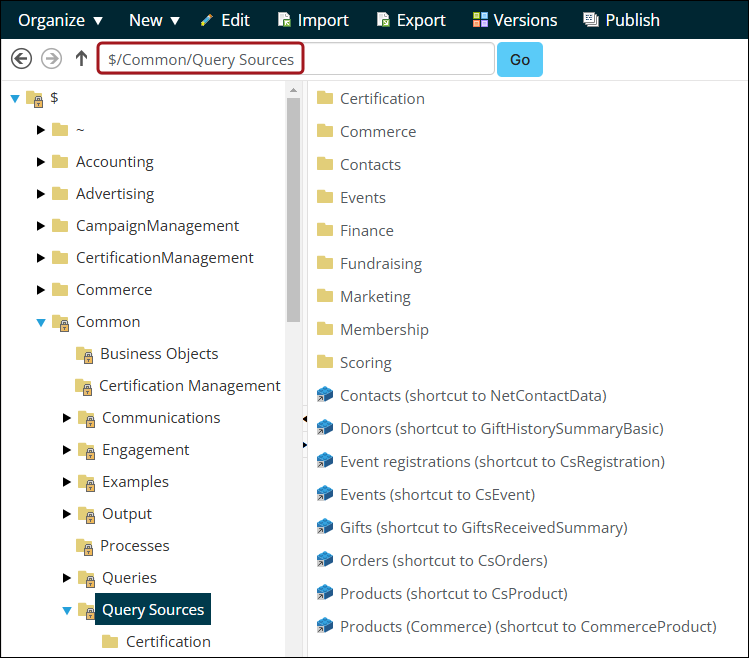
Navigate to $/Common/Query Sources.
-
Do one of the following:
- Select the folder in which you want the source to appear, or if you want the source to appear in the top Common section, remain in the $/Common/Query Sources folder.
- Create a new folder (New > Folder). Make sure Allow only the following types of objects in this folder (select all that apply) is selected. Hold down Ctrl
(Command for Mac), then choose the following:- Business Object
- Design Business Definition
- Folder
- Query
- Shortcut
-
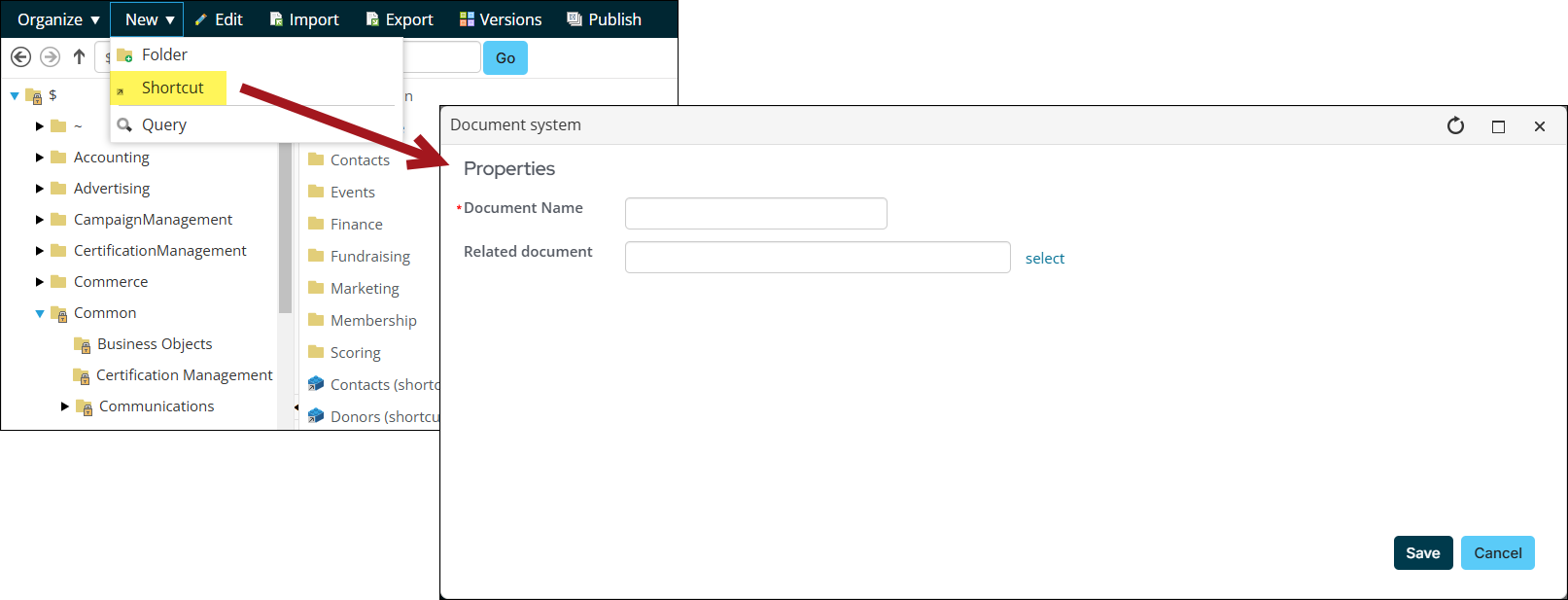
Click New, then select one of the following:
-
To add an existing query, business object, or user-defined source, select Shortcut.
-
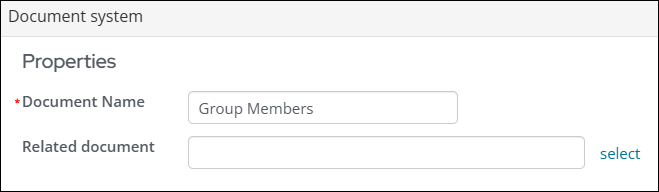
In the Document Name field, enter a name for the source. This name will appear in the query definition.
-
-
-
In the Related document field, Select the source.
-
Click OK, then click Save.
-
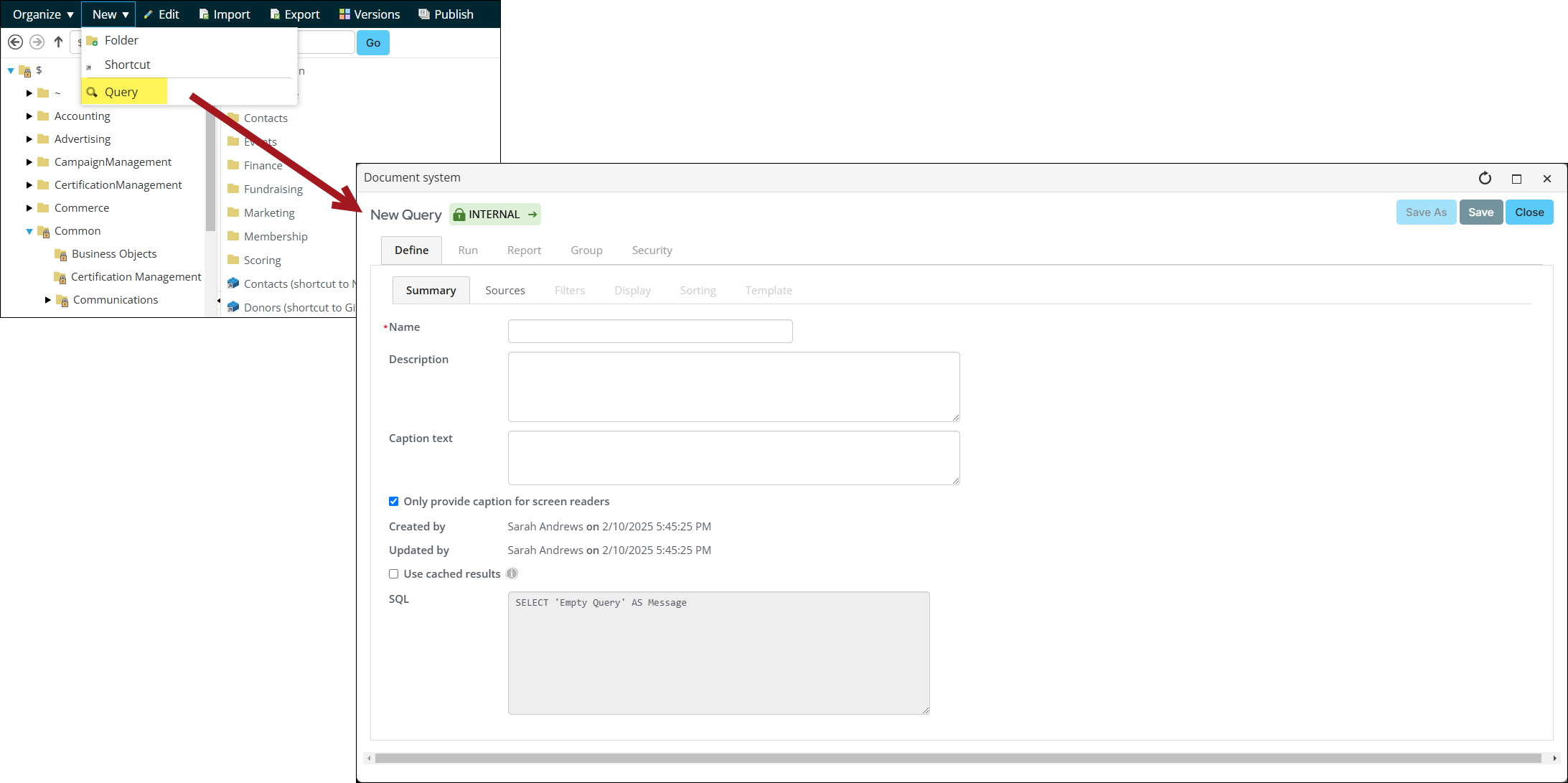
To add a new query, select Query.
-
NoteWhen using an IQA as the report's data source, it is suggested to use the Top/Bottom report filter (Report Options > Filters > Top/Bottom) instead of enabling Limit the report to the top/bottom values. Using the Top/Bottom report filter will ensure no data is missing in the report.
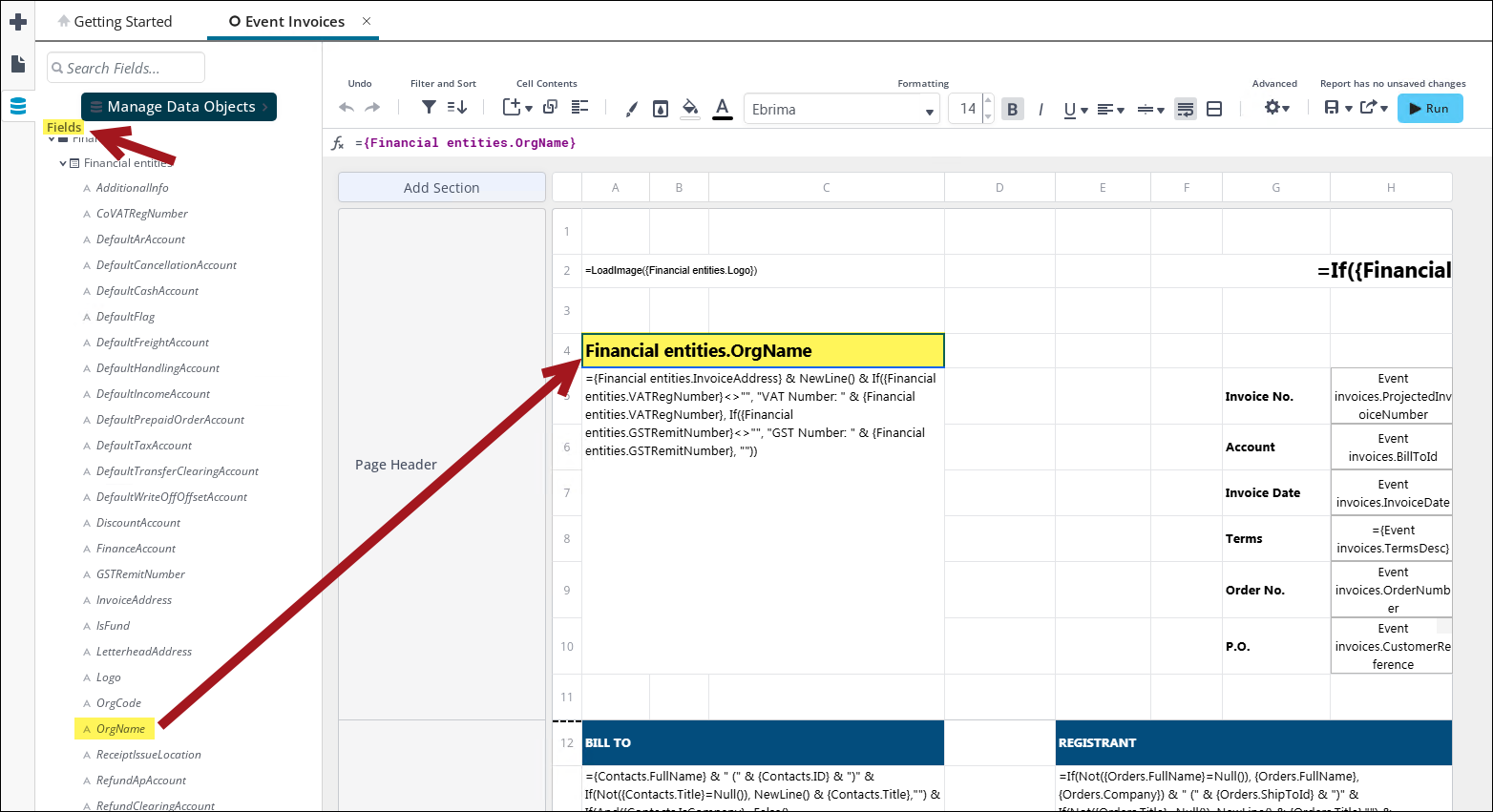
Once your data sources are created, they are added to a Report Writer report when you drag and drop a data source from the Fields panel to a cell in the report.
Updated 25 days ago