

Editing the CSS of a RiSE website
Access requiredTo access Theme Builder, you must be a system administrator or a staff user that belongs to at least one content authority group.
Custom CSS must be edited in a text editor outside of iMIS. After changes are made, you must replace the existing theme located in iMIS with the updated theme.
Do the following to edit and update a custom theme:
-
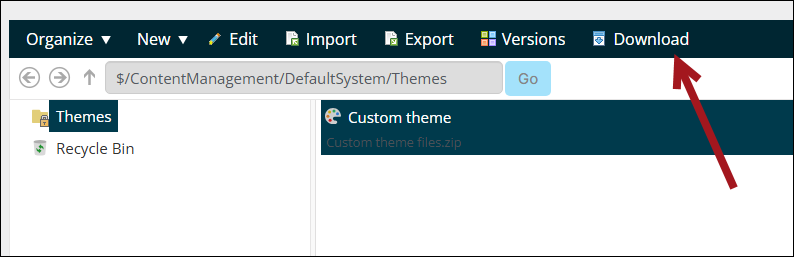
Go to RiSE > Theme Builder > Themes.
-
Click the theme, then click Download.
-
The theme downloads to your computer as a zip file.
-
Extract the zip folder's contents.
-
From the unzipped folder, open the CSS file in a notepad editor.
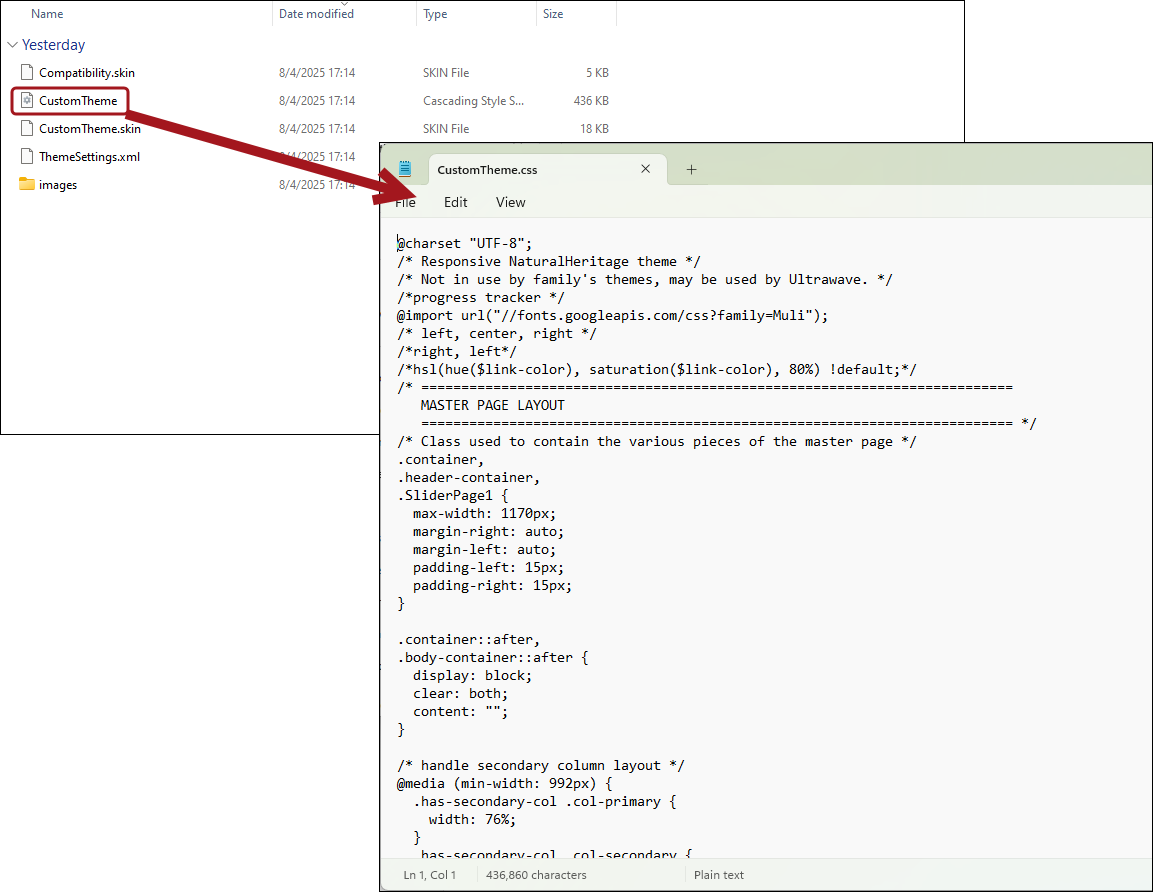
- Make any changes to the CSS as needed.
Note
See MDN Web Docs, W3 Schools, and CodePen for CSS examples.
- Save the changes.
- (optional) Make any necessary changes to the custom .skin file and custom Images folder.
- Save the changes, then re-zip the folder.
- Navigate back to iMIS, and go to RiSE > Theme Builder > Themes.
- Click the theme, then click Edit.
- From Upload new version, select the updated theme.
- Click Save.
Updated 27 days ago
Did this page help you?