

Upgrade Changes
The follow are upgrade changes related to the initial release of iMIS EMS. These upgrade change notes detail important changes in iMIS functionality. Carefully review these notes.
Deprecated items
Templates
The following templates have been deprecated:
- Forest
- Plants
- Sapling
- Mountains
If you were using one of these out-of-the-box templates, you will need to update the template for each website. See Creating RiSE-built website templates.
Themes
The following themes have been deprecated since 2017 but are now removed from iMIS EMS completely.
- Aspen
- Aspen2
- Aspen Mobile
- Birch
- Everest
- Mars
- Mercury
- Venus
If you were using one of these out-of-the-box themes, you will need to update the theme for each website. See Creating custom themes.
"Separate posting cycle required" configuration option
The Separate posting cycle required option allowed users to prevent transactions from automatically being posted. Since the Staff site encourages users to be more self-serving, requiring transactions to be posted immediately, the Separate posting cycle required option is obsolete and has been deprecated. If you need to edit transactions, you must instead adjust or reverse the invoice directly.
WarningIf you are using the Separate posting cycle required option, it is recommended that all batches are posted before upgrade. If you cannot post all batches before an upgrade, it is recommended that batches are posted as soon as possible, because iMIS no longer includes unposted payments when showing invoice balances. Until batches are posted, end users will not see their payments as processed. Ensuring all transactions are posted prior to upgrade will eliminate any confusion for end users. If you are not using the Separate posting cycle required option, this does not affect you.
iMIS no longer supports third-party gateways
To strengthen and enhance our PCI-compliance responsibility, credit cards and direct debits are set up using the ASI-hosted payment processor. As part of this effort, current third-party gateways and related configurations are being removed from the iMIS application and clients must use one of the approved ASI gateways.
Utilities
The DB Upgrader, DB Maintenance Utility, Content Browser Utility, and Query Browser Utility have been deprecated.
Master pages
The following master pages have been deprecated:
- BASDialog
- iMISDialog
- iMISDialog2
- iMISRightNav
- Portfolio
- StandardiMIS
- Ultrawave
If you were using one of these master pages, ASI suggests using the iMIS-Default master page instead.
RiSE Websites
The following related to RiSE Websites have been deprecated:
- The Member and Member Mobile Quick Start sites have been removed from iMIS.
- Users used to be able to select Keep me signed in on the initial sign-in page on a site. This option is no longer available.
Content items
Several content items have been deprecated. It is recommended that you replace the content item with an EMS-compatible content item. If you are using one of the following content items, the content item will continue to function properly, but you will no longer be able to add the content item to a new content record:
-
Address Selector
-
AddThis For Social Networking
-
Advanced Search
-
Contact Profile Picture
-
Contact Status Editor
-
Invoice List Display
-
Item Creator
-
Mini Group List Display
-
Promotion Creator
-
Recurring Donation Expected Payments
From iMIS 2017, use the Content Browser Utility to locate where these content items are being used. From iMIS EMS use the following SQL:
SELECTdbo.asi_PublishedDocumentPath(DocumentVersionKey) AS DocPath,DocumentName AS ContentPage,ContentTypeDocumentName AS iPart,ContentItemName AS InstanceName,ContentTypeDescription AS iPartDescriptionFROM dbo.vContentTypesConfiguredInContentORDER BY DocumentName, ContentTypeDocumentName;
Build All functionality removed from iMIS
The Build All functionality has been removed from iMIS.
Discontinued support for Internet Explorer 11
Internet Explorer 11 will no longer be supported as of January 1, 2021. We recommend that you use other browsers, such as Chrome or Edge.
Update to UseIMISID in the Workbook Converter
The UseIMISID property in the Workbook Converter is defaulted to FALSE.
Database changes
Function and stored procedure changes and deletions
To conform to ANSI and SQL best practices, the "fn_" and "sp_" prefixes were dropped from functions and stored procedures. Additionally, for any function or stored procedure that was missing the "asi_" prefix, a new version was created that has the "asi_" prefix.
If you have a third-party integration utilizing any of the updated functions and stored procedures, you must update the integration to use the new name.
The following name changes were made:
| Existing name | New name |
|---|---|
| CalculateDeferralConversionAmount | asi_CalculateDeferralConversionAmount |
| CalculateFiscalPeriod | asi_CalculateFiscalPeriod |
| fn_asi_CompareVersions | asi_CompareVersions |
| fn_asi_convert_foreign_chars | asi_convert_foreign_chars |
| fn_asi_convert_foreign_string | asi_convert_foreign_string |
| fn_asi_DatabaseVersion | asi_DatabaseVersion |
| fn_asi_generate_login | asi_generate_login |
| fn_asi_GetCompanySort | asi_GetCompanySort |
| fn_asi_GetDupMatchKey | asi_GetDupMatchKey |
| fn_asi_GetFullName | asi_GetFullName |
| fn_asi_GetLastFirst | asi_GetLastFirst |
| fn_asi_SoftCreditCMDM_Amoun | asi_SoftCreditCMDM_Amount |
| fn_asi_SoftCreditCMDM_Exists | asi_SoftCreditCMDM_Exists |
| fn_asi_StripParens | asi_StripParens |
| GetUserKeyByUserId | asi_GetUserKeyByUserId |
| GetValueListTable | asi_GetValueListTable |
The following deletions were made:
- SearchForSuperProduct
- GetFirstGLTransactionLineKey
Member_Control.AutoId
The system parameter Member_Control.AutoId is set to YES on upgrade.
Entering iMIS licensing information
iMIS no longer requires system administrators to add individual keys for each licensed feature. A single Client key and Access code are the only required items when entering licensing information. When you purchase a new licensed feature, you can simply click Re-sync and iMIS is automatically updated with the licensed feature.
Published content no longer saved to file system
Published content (iCore and iSamples) is no longer saved to the file system. Published content is now saved to the Document system (RiSE > Document system).
Name and navigation updates
Name changes
Payments renamed to Pay Central
The Payments navigation item under Finance has been renamed to Pay Central.
DataVault now referred to as Pay Central service
The DataVault has been renamed to the Pay Central Service. The DataVault service address has been renamed to Pay Central service address.
Navigation changes
Navigation areas
There is a new location in the Staff site for administering navigation areas. Previously, navigation areas could be edited in the Site Builder (RiSE > Site Builder > Manage websites). There is a new page in the Staff site (RiSE > Maintenance > Navigation areas) that allows you to administer navigation areas. Any new navigation areas created on the new page are available for selection within the Site Builder.
General lookup tables
The General lookup tables navigation item has moved from Settings > Utilities > General lookup tables to Settings > General lookup tables. The Settings > Utilities navigation item, which also included the Update iMIS and Package installer navigation items, has been removed.
Finance navigation items
Certain navigation items under Settings > Finance have been moved or modified. The following navigation items no longer exist under Settings > Finance:
- Gateway accounts
- Payment methods
- Payment method sets
- Pay Central Service settings
- Automatic payments
These navigation items are now under Settings > Finance > Pay Central.
Pay Central Service navigation
The following navigation items have been removed from the Settings > Finance page in the Staff site:
- AutoPay status
- Automatic payment gateways
The following navigation item has been added:
- Settings > Finance > Pay Central > Pay Central service tab. This item points to a content record with the following:
- A content item containing the Pay Central service address setting (formerly Datavault service address), and a repeater that lists the AutoPay statuses.
- A content item allowing synchronization of gateways with Pay Central.
Primary navigation styling and CSS updates
Several changes were made to the primary navigation with this upgrade. As a result, there are action items you must take if your theme is a copy of one of the out-of-the-box themes:
- Review the Changes to CSS classes and primary navigation require updates to custom theme files (located on support.imis.com) Changes to CSS classes and primary navigation require updates to custom theme files article for step-by-step instructions on what you must update (summarized in #2 below).
- Review the below for more details on the primary navigation attributes that were affected.
The following changes were made to the primary navigation:
- Several CSS classes have been removed. The removal of these items will affect you if you are using a website theme that is a copy of an out-of-the-box website theme (such as Austin Responsive or Glacier Bay Responsive), or if you are using a custom theme that is utilizing any of the listed CSS classes:
- .RadSiteMap
- .RadSiteMap_[ThemeName]
- .MegaDropDownMenu
- .rsmList
- .rsmLevel
- .rsmOneLevel
- .rsmTwoLevels
- .rsmItem
- .rsmLink
- .rsmColumnWrap
- .rsmColumn
- .rsmSelected
- .rsmDisabled
- .rsmLevel1, rsmLevel2
- .LargerWidth10
- .LargerWidth14
- .LargerWidth 18
- .LargerWidth22
- By default, the styling of the primary navigation's first level will cascade to the sub levels. If you require different styling for the second and third navigation levels, you can add the below CSS code to the very end of your custom theme's CSS. Before adding the code, make sure you change the attributes within the square brackets to what you wish to use:
   /* Second Level */
   .RadMenu.MainMenu .rmTwoLevels .rmLevel1 > .rmItem > .rmLink {
       color: [#color];
       font-family: [font-family];
       font-size: [font-size];
       font-weight: normal;
   }
   /* Second Level - Hover state */
   .RadMenu.MainMenu  .rmTwoLevels .rmLevel1 > .rmItem > .rmLink:hover,
   .RadMenu.MainMenu .rmTwoLevels .rmLevel1 > .rmItem > .rmLink:focus {
       background-color: [#color];
       color: [#color];
   }
   /* Third Level */
   .RadMenu.MainMenu .rmSlide .rmSlide a.rmLink {
       color: [#color];
       font-family: [font-family];
       font-size: [font-size];
       font-weight: bold;
   }
   /* Third Level - Hover State */
   .RadMenu.MainMenu .rmSlide .rmSlide a.rmLink:hover,
   .RadMenu.MainMenu .rmSlide .rmSlide a.rmLink:focus,
   .RadMenu.MainMenu .rmSlide .rmSlide a.rmLink.rmFocused {
       background-color: [#color];
       color: [#color];
}- The number of navigation levels for out-of-the-box themes is now limited to three.
- Within the .skin file, the MegaDropDownMenuRepeatColumns attribute has been deprecated for the PageNavR control.
- Breadcrumbs were updated to use the proper
<nav>tag and a numbered list of items. If you have custom breadcrumb styling, you may notice a change in the presentation of your breadcrumbs and will need to modify your CSS accordingly.
Passwords and security
Security
iMIS no longer supports non-SSL (HTTP) connects
Non-SSL connections (HTTP) are no longer supported, and all clients are required to have an up-to-date SSL certificate to use iMIS. The URL(s) pointing to the IIS website root setting has been removed and the Secure URL(s) pointing to the IIS website root setting has been renamed to Website base URL(s). Any URL in the Website base URL(s) setting must begin with https://.

The setting The IIS website root (above) points to more than one RiSE website has been renamed to The base URL(s) above are used on more than one RiSE website.
Credit card data removed on upgrade
All credit card data is removed from the database on upgrade.
Content Security Policy (CSP) enhancement to payment-related content records
As part of an ongoing effort to increase iMIS security, any iFrame added to a page with a Payment Creator or Cart Details Display content item is no longer supported. Certain integrations from external websites, such as script imports, or the Video Player iPart and the Embedded Web Page iPart, are also not permitted on payment pages.
Passwords
Password requirements and multi-factor authentication
The overall PCI approach has been modified, and iMIS no longer requires the Password expiration, Password reuse, and Session timeout settings for system administrators.
If the non-administrator settings were enabled pre-upgrade, the settings remain enabled post-upgrade and apply to all public users. If you need the settings enabled for all staff users, you must enable the staff settings post-upgrade. See Password security for more information.
The Enable multi-factor authentication option has changed to include all staff users instead of only system administrators (now Enable multi-factor authentication for staff). This setting is disabled after the upgrade. If you need multi-factor authentication for all staff users, you must enable the setting after upgrade. See Multi-factor authentication.
Data contracts and API
Data contracts
The following data contracts have been updated:
- TransactionGrandTotal: The TransactionGrandTotal type has been updated from a decimal to a MonetaryAmountData.
- GatewayAccountData: Asi.Soa.Core.DataContracts.GatewayAccountData has been replaced with Asi.Soa.Commerce.DataContracts.GatewayAccountData. The endpoint remains the same but several property names have changed.
- LegacyCashAccountData: Asi.Soa.Core.DataContracts.LegacyCashAccountData has been replaced with Asi.Soa.Commerce.DataContracts.LegacyCashAccountData. The endpoint remains the same and the properties remain unchanged.
- InvoiceSummaryData / InvoiceData:
- InvoiceAmount now represents the full invoice total, including all adjustments.
- OriginalInvoiceAmount is a new property which contains the original amount of the invoice before any adjustments were made.
- PaymentAdjustmentAmount has been split into PaymentAmount and AdjusmentAmount.
- PendingPaymentAdjustmentAmount is now just PendingPaymentAmount. This represents payments sent to the Pay Central Service that have not been reconciled yet (all transactions now auto-post, so there are not any more pending adjustment amounts).
- The ScheduledPayments property is moved from InvoiceSummaryData to InvoiceData. This property remains of type ScheduledPaymentDataCollection.
- InvoiceLineData:
- PaymentAdjustmentAmount is now just PaymentAmount (AdjustmentAmount remains unchanged).
- PendingPaymentAdjustmentAmount is now just PendingPaymentAmount. This represents payments sent to Pay Central Service that have not been reconciled yet (all transactions now auto-post, so there are not any more pending adjustment amounts).
- GatewayAccountData and GatewayAccountService: Both contracts have been updated for specific name attributes.
API
No longer able to submit credit card payments through the API
In iMIS 2017, you could submit credit card payments through the API. Currently in iMIS EMS, you cannot submit credit card payments through the REST API. All payments must be submitted through the iMIS Cart.
SSO refresh token maximum amount is 60
As a security enhancement to the REST API, the Single Sign On Refresh token lifetime (minutes) setting, also known as the refresh_token, maximum value is now 60 minutes and can be invalidated earlier when the cache is cleared.
REST access_token expiration set to 60 minutes
As a security enhancement to the REST API, the access_token expiration time is set to 60 minutes and can be invalidated earlier when the cache is cleared.
The expiration time is reflected in the .expires property.
Access-level changes to the REST API
The following access-level changes have been incorporated into the iMIS REST API:
- Read and write access to iMIS tables and views is no longer permitted.
- Write access to BODs are no longer permitted. Read access to BOD is still supported.
- Read and write access to user-defined panel sources is still supported.
- Read access to IQA queries is still supported.
- Read and write access to services defined with related data contracts are still supported.
Third-parties are encouraged to make any necessary changes using the iMIS REST API.
Migrating Microsoft Azure Translator Text API V2 to V3
Microsoft Azure Translator Text API V2 will be discontinued on April 30, 2019.
Microsoft Azure Translator Text API V3 is now available. This release includes new features, deprecated methods and a new format for sending and receiving data. For more information, refer to Translator Text API V2 to V3 Migration. You must upgrade iMIS before April 30, 2019 to prevent the Learn and translate using Microsoft® Translator feature from ceasing to function.
NoteYou must also verify your web.config settings are updated correctly:
<setting key="AzureTranslatorServiceUrl value="https://api.cognitive.microsofttranslator.com/translate?api-version=3.0" />
Membership billing and AutoPay
Updated use for Bill to ID
In the iMIS Desktop on the billing window, you were able to define a Bill to ID per line item (subscription). In the Staff site, you are not able to define a Bill to ID per line item, and instead, a single Bill to ID is used when billing is run.
The following outlines how the Bill to ID (now called the Bill to ID for renewals) is used with List Billing:
-
If the member has a Bill to ID for renewals defined on their profile page, the person or organization associated with that Bill to ID for renewals is billed. Out-of-the-box, the Bill to ID for renewals is defined from the staff-view of account pages on the About tab. At the bottom of the tab is a Financial panel that contains the Bill to ID for renewals field.
-
If the member does not have a primary organization, then the member will receive their own invoice.
No longer required to set the default accounting method to accrual to use AutoPay
Previously, AutoPay could only be configured when the default Accounting method (Settings > Membership) was set to Accrual. After this upgrade, the default Accounting method is not required to be Accrual in order to use AutoPay, and users can leave the default Accounting method set to Cash, if that is their desired preference.
Fundraising
Registration number now included on out-of-the-box invoice reports
The Registration number defined in the default financial entity is automatically included in the in the address area of the out-of-the-box Event Invoice, Order Invoice, and Invoice Detail reports.
Populate GiftTransaction table with historical data to support receipting
This task will be run after upgrading from previous versions in order to support receipting functionality for historical gift data. The task populates the GiftTransaction table with 500,000 records at a time. The task will automatically be enabled after an upgrade and once the process is done, the stored procedure will automatically disable the task.
Process recurring donations scheduled task has been modified
The out-of-the-box Process recurring donations scheduled task has been modified. Rather than selecting an option on the action Type for the Process recurring donations scheduled task, you can now select from the following actions for the scheduled task:
- Generate recurring donation invoices
- Submit automatic payment invoices for payment
- Retrieve processed payments from Pay Central
Finance: Payments, gateways, taxation, and more
Payments
CSC required for web transactions hosted through Pay Central Service
The option CSC Required for web transactions is no longer available for gateways that are hosted through the Pay Central Service. The CSC is required by default.
Partial payments applied to a backdated transaction
If a partial payment is applied to a membership fee balance, and the transaction has been backdated, additional term date overrides need to be applied to any future payments. This allows for the initial term date override to be preserved. If an override is not applied to the future payments, the term dates will be automatically adjusted to honor the value denoted in the Grace period in months setting.
Updates to Payment section at the bottom of invoices
Previously, cash invoices and invoices paid with an open credit did not display the payment details at the bottom of an invoice. This enhancement surfaces associated payments on cash invoices and invoices paid with an open credit.
Batches
Batch numbering
The Desktop option Operator Assigned Batch Numbers prompted you for a batch number when the billing process was started. This function is not supported on the web. Any Operator Assigned Batch Numbers values from the Desktop are updated to the batch numbering Batch numbering value 3 (Batch numbers are generated based on batch date) after upgrade.
The system parameter AR_Control.UseBatches is set to 3 (Batch numbers are generated based on batch date) on upgrade if the existing value is null or 1.
If the system parameter AR_Control.UseBatches is set to any value other than null or 1, that value is respected and retained upon upgrade.
The Batch numbering setting is available in the Staff site at Settings > Finance > General.
Taxation
Defining a collection of items
Collections of items where the Price is total of components can be defined and purchased in all tax systems, including Standard, Canadian and GSTINC tax systems. Previously this functionality was only available in VAT tax systems.
Refunds
Refunding credit invoices window has a new default GL account
Previously, the Credit invoices window (Finance > Closing procedures > Credit invoices) used the Refund clearing account defined in the financial entity's default accounts. With this upgrade, the Credit invoices window now uses the GL account associated with the payment method. To change the account back to the Refund clearing account, update the Refund method for credit invoices setting (Settings > Finance > General) to Issue checks.
No longer need to reverse an invoice before issuing a refund
The process to issue a refund has been updated, and you no longer need to reverse an invoice containing a payment before refunding a payment.
RiSE: Queries, reports, business objects, and panels
Queries and reports
Subtotal removed for custom SQL expressions
The Subtotal option is no longer available for Custom SQL Expression properties in IQA queries.
Updates to datetime formatting in QueryService
The formatting of the datetime fields in the xml returned by QueryService.asmx has been updated. The datetime fields now use a general format, for example, 5/26/2016 12:00:00 AM.
This formatting is subject to the client's current culture. For example, in the United Kingdom, the formatted fields might look like 26/5/2016 12:00:00 AM.
All queries set to timeout after 30 seconds
The query definition window now encourages users to set a maximum timeout period, so the query stops running after the specified time. The default value for the new setting is 30 seconds.
To change the default value after an upgrade, open the queries, select the Filters tab, then change the Allow query to run for (maximum) setting. Choosing 1 minute or 3 minutes is not recommended and could severely decrease the site's performance.
Business Objects
TIME_STAMP PROPERTY
Business Objects with the TIME_STAMP property are automatically updated on upgrade to have the property removed. It is important that new business objects created in iMIS EMS do not contain the TIME_STAMP property. There is future work planned to drop the TIME_STAMP property from the iMIS schema.
GiftHistorySummaryBasic
A new business object, GiftHistorySummaryBasic, is available for when there are no yearly roll-ups needed, for example, when the only value needed is the lifetime giving amount. This new business object improves performance of queries using GiftHistorySummary table data.
The $/Fundraising/DefaultSystem/Queries/Dashboards/Major Donors For Manager query has been updated to use this new business object to improve the performance of the Moves management dashboard.
Contact business objects
The CsContact and NetContact business objects no longer refer to Bill to ID on the Name table (Name.[BT ID]). The CsContact and NetContact business objects now refer to Bill to ID on the Name_Fin table (Name_Fin.[BT ID]).
NetContact
To improve performance, the Access Key property has been removed from the NetContact business object.
Panels
Panel properties no longer saving as NULL
In an effort to simplify query and report writing, all numeric and boolean (yes/no) panel properties have been updated from NULL to (0). When newly added numeric or boolean properties are added as panel sources, all rows default to (0).
Panel table sources updated to latest version
To improve performance for sites with large amounts of data, the v1 and v2 panel sources related to Panel Designer have been converted to v3 panel sources. The version 3 table model differs from versions 1 and 2 in that actual database tables are used to store data as opposed to "virtual" tables. This has the benefit of improved data access performance. The creation and management of these version 3 tables should only be done through Panel Editor.
The main change to be aware of is that the converted v3 panel sources each have a dedicated database table. This change is primarily transparent. The business objects are updated to point to the new underlying database table, but IQA queries continue to work without any necessary changes, and no data is lost during the conversion.
After conversion, the following underlying database tables are no longer used and are deleted:
- User Defined Multi Instance Property
- User Defined Single Instance Property
- User Defined Table Storage
Sorting criteria specified in IQA queries now respected in Panel Editor drop-downs
Panel editor properties with a pre-defined list of values are displayed as drop-down lists so users can select a desired value. If this pre-defined list is generated by an IQA query, any sorting criteria specified in the query is respected any sorting criteria specified in the query is respected, and the order of the values presented in the drop-down is the same as the order specified by the query.
Other
Default 404 and 500 error pages
Two default error pages (404NotFound and 500InternalError) have been added to the document system for errors of type 404 and 500. The default error pages reuse Content Collection Organizer logic.
LinkedIn public profile links
The LinkedIn public profile links defined in the Social Profile List Creator are no longer self-populating. Users must enter LinkedIn public profile links in the Social Profile List Creator manually.
Client-based content items
The folder structure for client-based content items is defined by the folder structure in the .zip file. Previously, the name on the root folder in a client-based content item was the zip file name.
If the zip file includes files without extensions or with extensions not listed in the Content Item Allowed File Extensions field, they are excluded from the deployment process. Files with extensions that are not supported are ignored. Ignored files will be displayed in a warning message in the Deploy Content Items Summary list. Previously, the presence of files with unsupported extensions would cause the deployment process to stop.
Sign in/out link moved in out-of-the-box themes
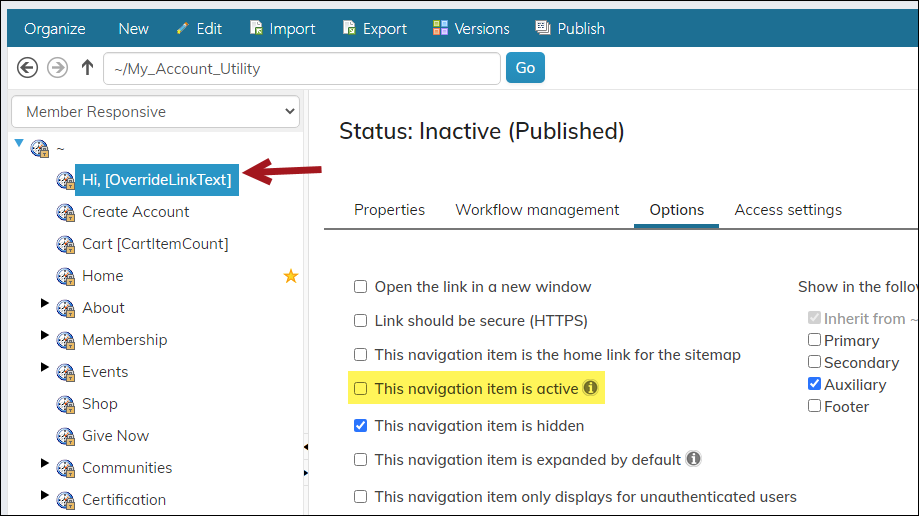
The Sign In/Out link was replaced with the Account drop-down on the Member and Annual Conference out-of-the-box websites. If you are using either out-of-the-box websites, you will have two sign in/out links. To remove one of the duplicate links, do the following:
-
Remove the sign-in link from the sitemap.
-
Copy the out-of-the-box website template and remove the Account drop-down from the auxiliary navigation.
Defining the SMTP Host
When upgrading from previous versions of iMIS, the SMTP Host value defaults to the SMTP server (<network host>) values configured in the web.config files.
Updated 24 days ago