

Creating a checkbox (yes/no) option for a panel
Easily create a checkbox option (yes/no) for a panel. When the checkbox is enabled, the user selected Yes. If the checkbox is blank, the underlying database value is either NULL (the property has never been set for that record) or there is no row at all yet for that contact, event, or invoice. The panel displays all of these cases the same way: unchecked (No).
WarningBecause the panel UI shows unchecked for a NULL value, a missing row, and an explicit No with no visual difference, reports built on this property may not match what the panel displays. See Querying and reporting on panel data for more information.
Creating the checkbox property
Do the following to create a new checkbox property for a panel:
-
Go to RiSE > Panel Designer > Panel sources.
-
Open the custom source, or create a new source.
-
Select Add new property.
-
Enter the Property name, which cannot include any spaces.
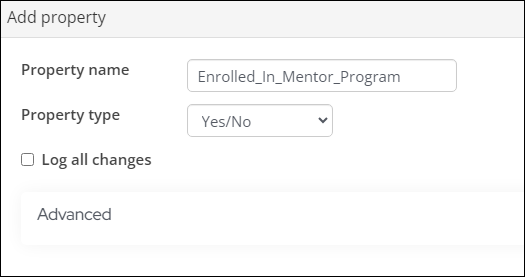
- Update the Display name to make it clear and legible.
- From the Property type drop-down, choose Yes/No.
- (optional) Enable Log all changes to have the changes made to this field logged in the change history.
- Click Save & Close.
Adding the checkbox property to a panel
Do the following to add the new checkbox property to a panel:
-
Go to RiSE > Panel Designer > Panel definitions.
-
Select the desired panel or create a new panel.
-
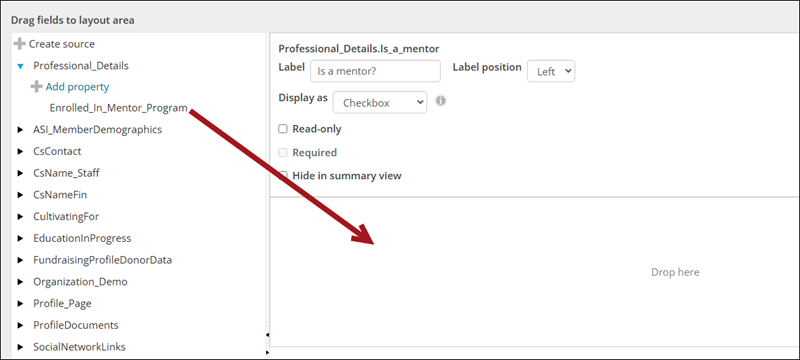
Expand the source you added the checkbox property to, then drag the property to the panel layout.
- Click Save & Exit.
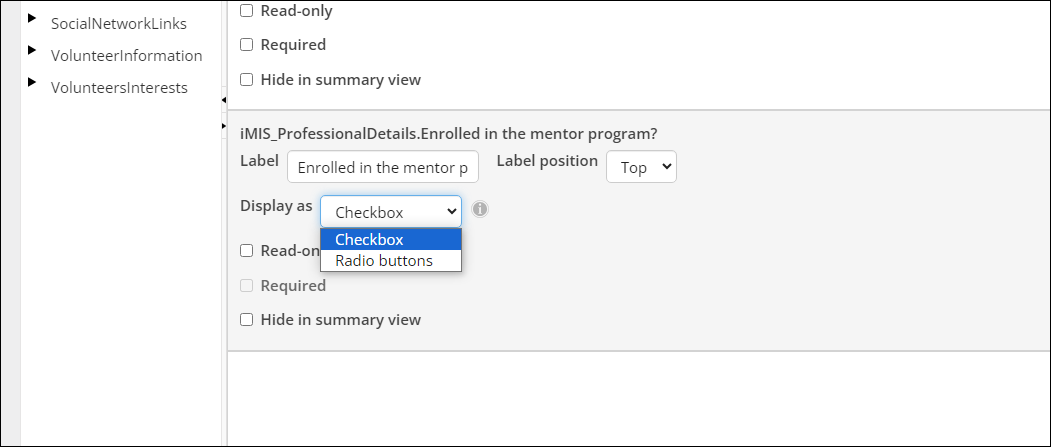
- (optional) To alternatively display the property as radio buttons, update the Display as option from the panel layout area.
Editing the checkbox property
Do the following to edit the new property:
- Go to the panel location, for example, if the panel is on the staff account pages, navigate to an account page from the staff site.
Note
To add a new panel to the account pages, see Creating a panel and adding it to account pages.
- Click the edit icon.
- From the new checkbox property, select the checkbox for yes, or leave it unchecked for no.
- Click Save.
Reporting on the property
Updated 28 days ago