

Multi-factor authentication
Multi-factor authentication (MFA) implements a secondary verification layer during login, requiring staff members to authenticate their identity using a security code alongside their password.
Before you enable multi-factor authentication
Before you enable multi-factor authentication, there are several items you need to be aware of:
- Ensure your email service is fully configured and able to send and receive emails. MFA relies on email to deliver verification codes. If email is not set up, users will be unable to receive the code and will be locked out of the site. If this occurs, access can only be restored via an IT support ticket. To avoid this, confirm your email service is active and tested before turning on MFA.
- Multi-factor Authentication is required for staff users.
- All staff and system administrators must have a valid email address:
- If Name.Email and Name_Address.Email are populated, Name.Email is used. If only Name_Address.Email is populated, then Name_Address.Email is used.
- If your staff and system administrators do not specify an appropriate email address, they will be unable to receive an authentication security code and will be unable to log in to iMIS.
- Ensure The default email address for the site (Settings > Organization) is populated with a valid email address.
- Staff users must perform the initial multi-factor setup through the I don't have a security code link in the Contact Sign In content item.
- Staff users will not be able to sign in to your website using social media accounts or OIDC if multi-factor authentication has been enabled.
- When multi-factor authentication is enabled, iMIS will prompt staff users for a security code every time they log in to iMIS. This also applies to iMIS Quick Start Sites.
- Multi-factor authentication is performed through a public standard for time-based one-time password (TOTP) (IETF RFC 6238). Many authentication tools use this standard, such as:
- Google Authenticator. If you do not have immediate access to Google Authenticator on your phone, you can use a Google Chrome plug-in to access your Google Authenticator through a Chrome browser.
- Microsoft Authenticator
- ZoHo
- 1Password
You must have access to the authenticator on your phone or a similar device.
Enabling multi-factor authentication for staff users
To enable MFA, do the following:
- Go to Settings > Contacts > Authentication.
- The Enable multi-factor authentication for staff users setting is disabled by default. When enabled, staff users (including system administrators) are required to input a security code during login to access all iMIS sites. Delivery of this authentication information requires a valid email address associated with all staff user accounts.
NoteIf the Enable multi-factor authentication for staff users setting is enabled, staff users will cannot use a social media login to access iMIS sites and must use their iMIS credentials instead.
Logging in for the first time
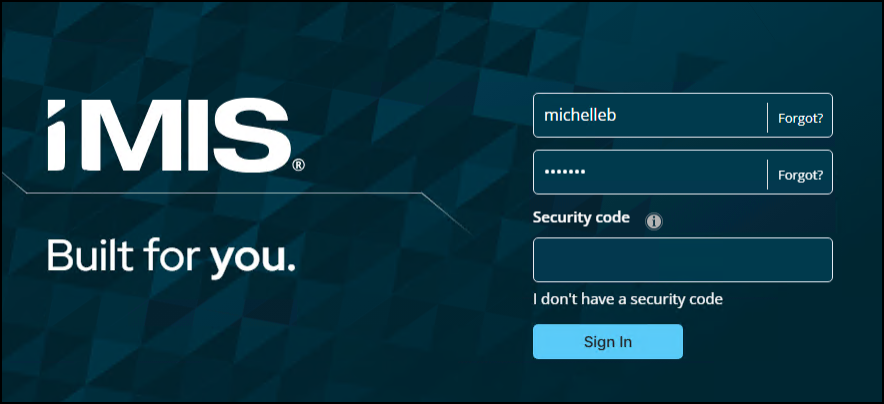
As a staff user, do the following to log in with MFA for the first time:
-
Enter your username and password on the Staff site login page.
-
Click Sign In.
-
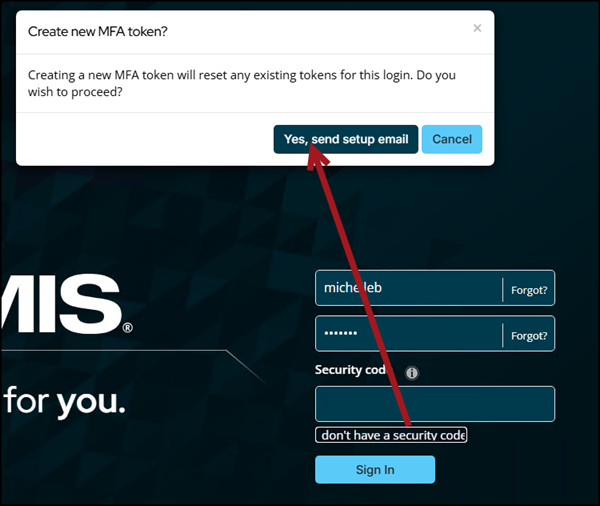
Select the I don't have a security code link.
-
Click Yes, send setup email.
-
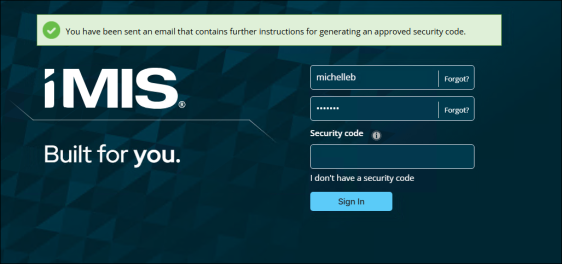
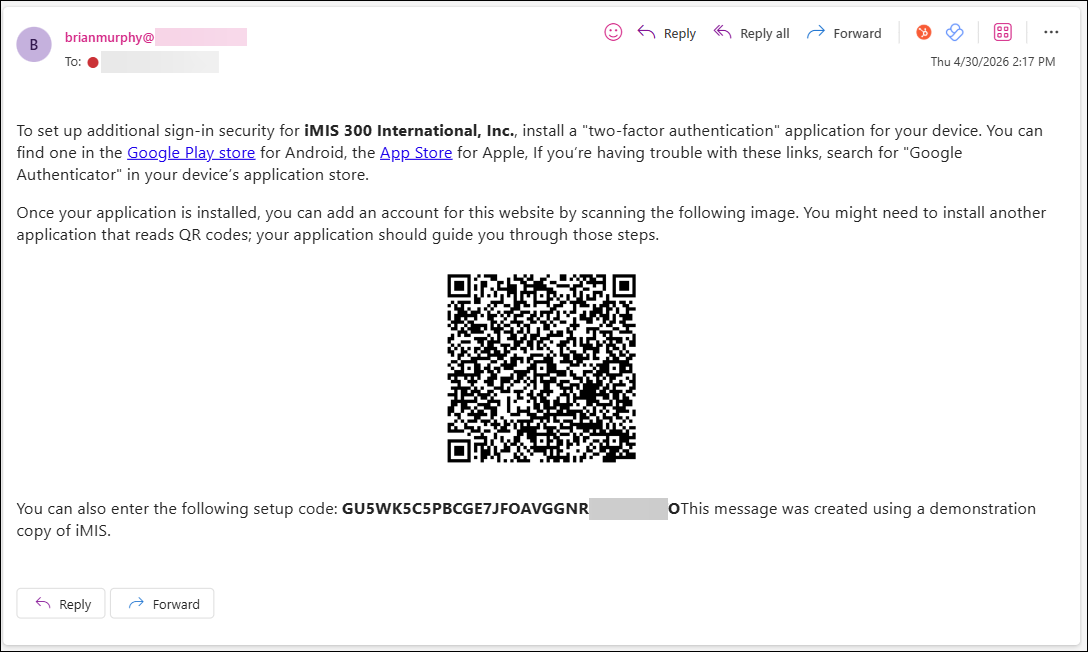
Access your email inbox. The setup message is delivered to the email address connected to your account.
-
Follow the instructions included in the email to connect your authenticator app.
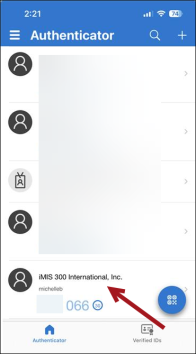
The following is an example of the completed configuration using Microsoft Authenticator:
-
Return to the iMIS Staff site login page after connecting MFA with your preferred app.
-
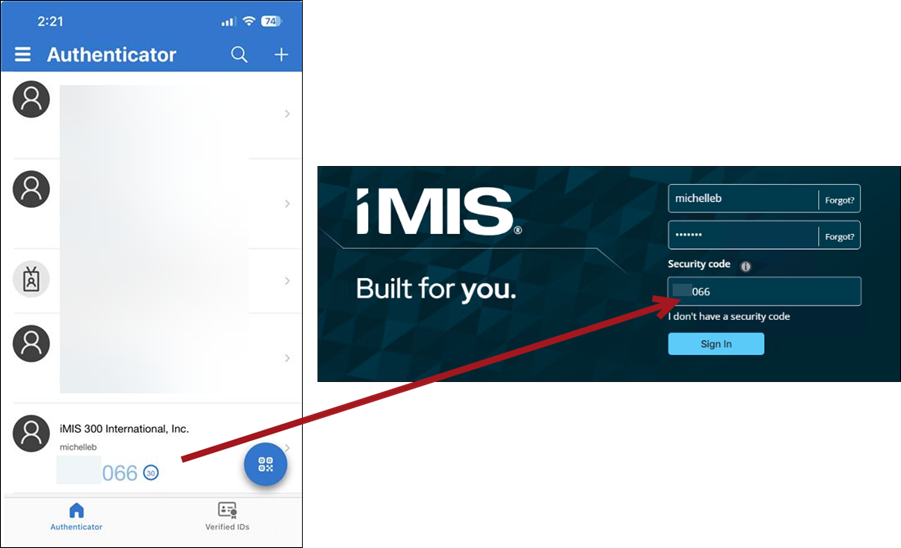
Locate the security code within your authenticator application, then enter it in the Security code field.
- Click Sign In.
Understanding MFA and OpenID Connect (OIDC)
Organizations using OpenID Connect (OIDC) for user authentication will not experience MFA enforcement impacts, for the following reasons:
- Your external identity provider manages authentication (including MFA requirements) when OIDC is enabled, not iMIS.
- MFA activation in iMIS applies exclusively to direct iMIS authentication. OIDC users bypass iMIS authentication entirely.
- Configure MFA policies for OIDC users within your identity provider (Azure AD, Okta, or equivalent).
ImportantWhen MFA enforcement becomes organization-wide, ASI will confirm in advance that enforcement does not adversely affect OIDC-using clients. Identity provider authentication settings will continue governing OIDC users.
FAQ
Do I need to configure anything to display the "I don't have a security code" link on the Sign In page?
No configuration is required. This link displays on the Sign In page automatically. Staff users can access initial MFA setup by clicking it after MFA is enabled.
Does MFA affect API users or third-party integrations?
No. MFA applies exclusively to direct iMIS Sign In page logins. API users and integrations remain unaffected.
Can I receive my security code by email?
Email delivery of security codes is unavailable. Authenticator applications (Google Authenticator, Microsoft Authenticator, ZoHo OneAuth, 1Password) or browser extensions (Google Authenticator Chrome plug-in) are required. Email-based code delivery will not function.
Do MANAGER accounts (AiSPs) need to use MFA?
Yes. Manager accounts are full staff users with system administrator access, and are subject to the same MFA requirements as other staff users. No MFA exemptions exist for system accounts.
Updated about 1 month ago