

Contacts Settings: Activity types
Activity types help you keep track of your organization's contact with individuals and other organizations. Activity types relate to several different areas within iMIS. For example, CHAPT and DUES activity types are specific to membership. The activity types of GIFT and PLEDGE are specific to fundraising efforts. The Activity types window contains both standard and user-defined fields. These fields are assigned according to your organization's needs.
There are default activity types which can be edited to include additional fields or to change field labels.
Out-of-the-box activity types
Earlier versions of iMIS relied heavily on activity types to track actions such as enrollments, purchases, and program participation. As iMIS has evolved, many of these activities are now tracked through modern data structures and reporting tools instead.
As a result, some out-of-the-box activity types may still appear in iMIS even though they are no longer actively used by standard iMIS processes. These activity types are retained to preserve historical data and maintain compatibility with legacy reports and implementations. However, organizations may still use these activity types for custom workflows, integrations, or reporting.
| Name | Code | Description |
|---|---|---|
| Appointment | APPOINTMNT | No longer used with an out-of-the-box process. |
| Award | AWARD | No longer used with an out-of-the-box process. |
| Back Issue Sent | BACKISSUE | No longer used with an out-of-the-box process. |
| Call Log | CALL | Created when a call activity task is added. See Managing activity tasks. |
| Certification | CERTIFICAT | Created when an individual enrolls in a program. Also is created for the speaker and/or provider of a component when the first registrant for that location passes the component. See Managing enrollments. |
| Certification Order | CERTIFY | Created only for components and only when certification orders are invoiced. See Managing enrollments. |
| Chapter Membership Fees | CHAPT | Created when chapter memberships are purchased. See Billing for membership fees. |
| Committee Applicant | APPLICANT | Created when someone is added to a committee as an applicant. See Administering committees. |
| Committee Assignments | COMMITTEE | Created when someone joins a committee. See Administering committees. |
| Complaint | COMPLAINT | No longer used with an out-of-the-box process. |
| Continuing Education | CEU | Generated when an event is closed that contained a function that had CEU/CPD activated, and the attendance was updated. See Defining and marking CEU/CPD attendance. |
| Donor Club | DONORCLUB | No longer used with an out-of-the-box process. |
| Email Letter | Created when an email activity task is added. See Managing activity tasks. | |
| Gift Activity | GIFT | A donation in which the donor transfers funds immediately. See Entering gifts. |
| Journals and Other Subscriptions | SUB | Created when membership subscriptions are purchased. See Billing for membership fees. |
| Meeting Attendance | MEETING | Generated for event attendees. See Registering for events. |
| Meeting Function Attendance | MEETFUNC | No longer used with an out-of-the-box process. |
| Member Letter | LETTER | Created when a letter activity task is added. See Managing activity tasks. |
| Member Survey | SURVEY | Functionality replaced. See Form Builder. |
| Membership | MEMBERSHIP | No longer used with an out-of-the-box process. |
| Membership Fees | DUES | Created when membership dues are purchased. See Billing for membership fees. |
| Miscellaneous Items | MISC | Created when miscellaneous items are purchased. See Billing for membership fees. |
| Monthly Donor Log | MONTHLYLOG | No longer used with an out-of-the-box process. |
| Online Applications | ONLINEAPP | No longer used with an out-of-the-box process. |
| Pledge Activity | PLEDGE | A donation in which the donor promises funds, but does not transfer them immediately. Pledges can be either single or installment pledges. See Entering gifts. |
| Product Orders | ORDER | Generated when a customer purchases an order. See Creating a new order and Processing orders. |
| Products Ordered | SALES | Functionality replaced. See Creating a new order. |
| Proposed for Committee | PROPOSED | Created when someone is added to a committee as a proposed member. See Administering committees. |
| Refund | REFUND | Functionality replaced. See Refunding payments. |
| Request Activity | REQUEST | A specific request for a donation from a donor. Requests are recorded when they occur. See Fundraising requests. |
| Resignation | RESIGN | No longer used with an out-of-the-box process. |
| Sections and Specialty Groups | SEC | Created when sections and specialty groups are purchased. See Billing for membership fees. |
| Speaker Evaluation and expenses | SPEAKER | Functionality replaced. See Setting up event speaker details. |
| Voluntary Contributions | VOL | Created when voluntary contributions are purchased. See Billing for membership fees. |
| Volunteer History | VOLUNTEER | Functionality replaced. See Administering volunteers. |
Creating new activity types
To create an activity type, do the following:
-
Go to Settings > Contacts > Activity types.
-
Select Add new activity type.
-
Enter the activity category or code in the Type field.
-
Enter a full name Description for the activity type.
-
Enable Allow user edit if you want to allow users to edit detailed activity records of this type.
-
Define any desired Labels. When a label is defined, a field appears for edit when someone is adding data to the activity type:
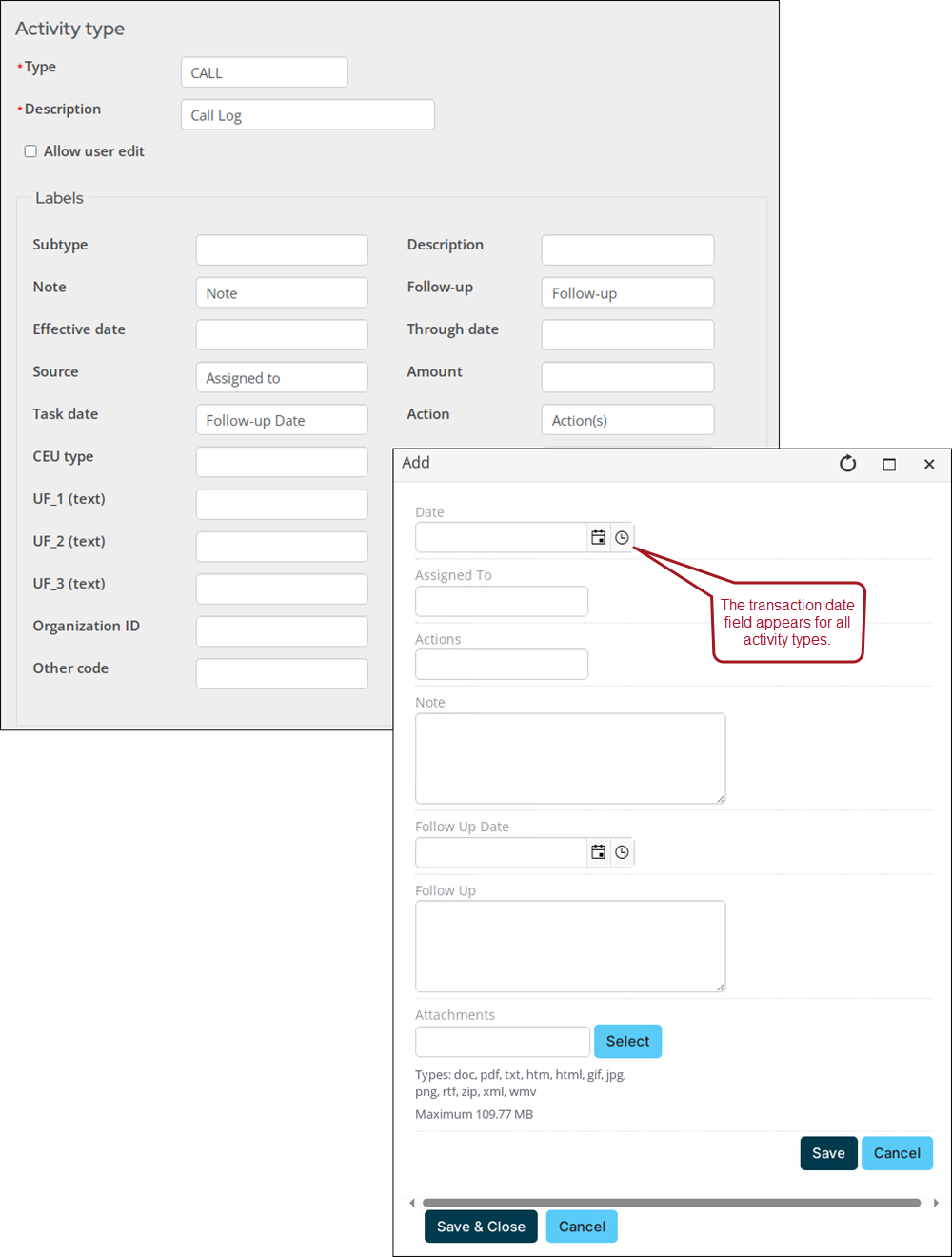 - Subtype - Specifies a subtype of the activity type. This field enables you to sub-categorize the activity type. For example, a product code is a subtype of the activity type Sales.
-
Description - Describes the Subtype.
-
Note - Specifies notes you want to keep about the activity type.
-
Follow-up - Specifies follow-up comments. Activity types containing a follow-up date can be used within activity tasks. See Managing activity tasks for more information.
-
Effective date - Specifies an additional date field (The activity date is system generated). Used if another date field is necessary for the activity. For example, for tracking the begin date of a committee appointment.
-
Through date - Specifies an end date. For example, the ending date of a committee appointment.
-
Source - Specifies either a marketing code, or an individual to which an item will be assigned. For example, if an order sale is made over the phone, the code used to track this information might be Phone. Codes may be set up for advertising, catalogs, salespeople, and so forth.
NoteFor task or call logging activities, the iMIS ID for which this reminder should be logged is entered in the Source field. If the field is blank, the reminder message will display in all users' task activities. See Managing activity tasks for more information.
-
Amount - Specifies a monetary amount for the activity.
-
Task date - Specifies the date on which an activity record will be displayed in the user's task list.
-
Action - Specifies the type of action taken on a task item. For example, CALL or EMAIL.
-
CEU type - Specifies the type or category of educational credit awarded (licensed feature).
-
Quantity/CEU - Specifies the number of credit hours awarded for a CEU course, or specifies the frequency of a recurring request.
NoteFor SALES and ORDER activity types, the system stores the value entered in the Quantity/CEU field in Activity.QUANTITY. For all other activity types, the system stores the value entered in the Quantity/CEU field in Activity.UNITS.
-
UF_1 (text)/UF_2 (text)/UF_3 (text) - Specifies user-defined character information. For example, the GIFT and PLEDGE activities define these fields as List As, Campaign Code, and Fund Code.
-
UF_4 (number)/UF_5 (number) - Specifies user-defined numeric information.
-
UF_6 (datetime)/UF_7 (datetime) - Specifies user-defined date information. For example, the REQUEST activity defines these fields as End Date and Last Reminder.
-
Organization ID - Specifies an ID number. For example, the REQUEST, GIFT, and PLEDGE activity types define this field as Solicitor ID.
-
Keywords - Deprecated.
-
-
Click Save & Exit.
Editing and deleting activity types
WarningDo not delete the REQUEST activity type. This activity type is required for fundraising requests.
To edit an activity type, select the activity Description, then make the necessary changes. The Type field cannot be modified.
To delete an activity type, click the delete icon, then click OK. The following activity types cannot be deleted: DUES, SEC, SUB, VOL, MISC, CHAPT.
To display an activity type on a customer page, see Creating a panel that allows multiple entries.
Updated about 1 month ago