

Cancelling orders
Access requiredTo cancel orders, you must be a system administrator or staff user with an Orders: 4 module authorization.
Notes
Before you begin, review the following notes:
- To cancel an order, the order cannot be invoiced (status is not COMPLETED). To reverse orders that have already been invoiced, see Adjusting and reversing order invoices.
- Once cancelled, orders cannot be restored. To manually restore a cancelled order, re-enter the order.
Cancelling an order
To cancel an order, do the following:
-
Go to Commerce > Find orders.
-
Search for the order.
-
Select the Order Number.
-
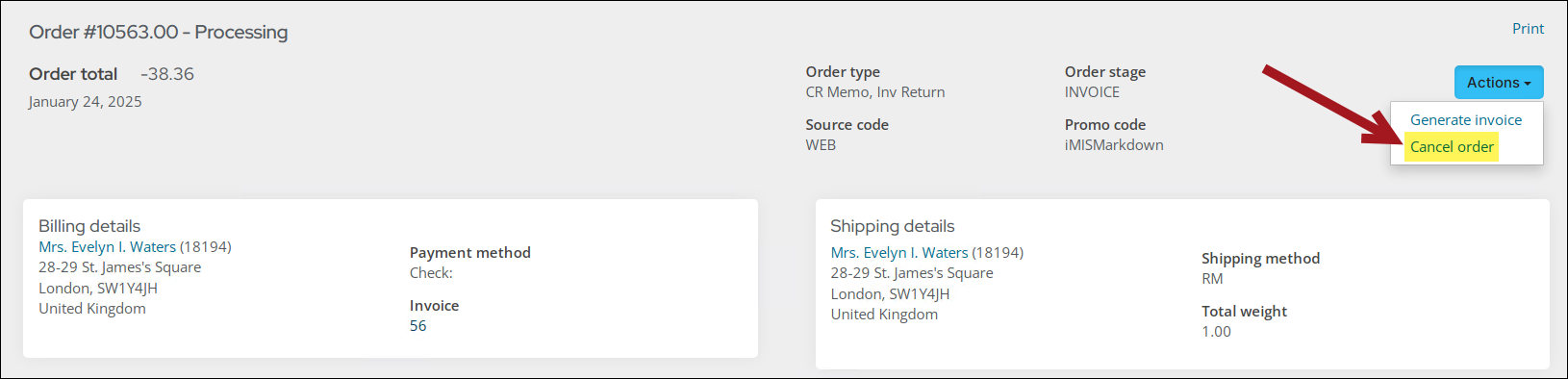
From the Actions drop-down, select Cancel order.
-
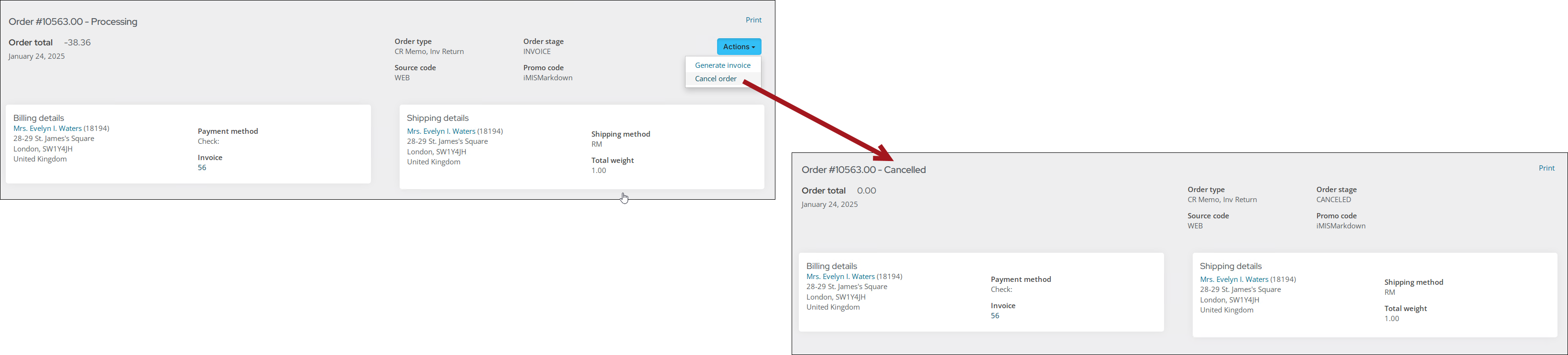
A confirmation window appears. Click OK to complete the cancellation. Once cancelled, the order line quantities and total change to zero, and inventory totals for items in the order reflect that the quantity is no longer reserved or committed. Cancelled Credit Memo and Debit Memo orders no longer appear as adjustments on associated invoices.
-
If the order has an associated prepayment, the following occur automatically:
-
The payment is unapplied from the order.
-
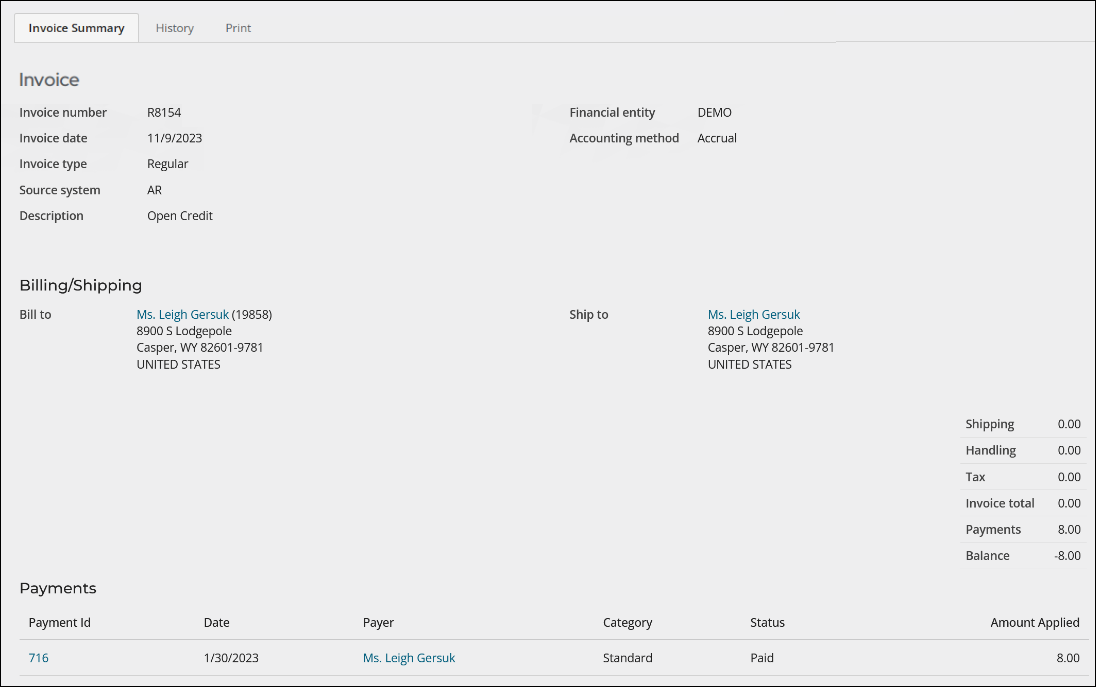
A new Open Credit invoice is created for the unapplied payment. The Invoice date is the date the cancellation occurred, or if a manual batch is selected, the invoice receives the manual batch date.
-
The payment is unapplied from the prepayment (PP) invoice associated with the original order and transferred to the Open Credit invoice.
-
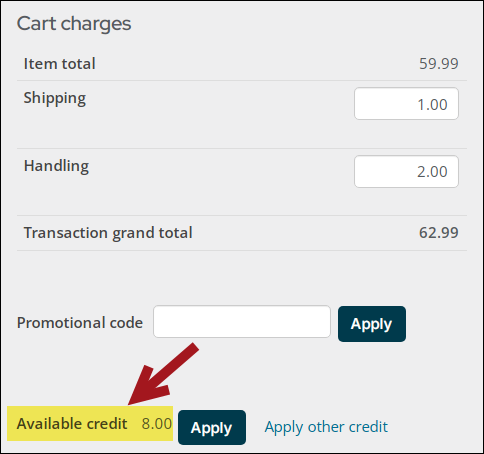
The payment appears as an available credit on the payer's account.
If the order had no associated payments, no invoices are generated.
-
Updated about 1 month ago