

Setting up Reference lists
The Reference lists page provides a central location for managing shared values used across media assets, such as ad sizes. Changes made here are reflected wherever those values appear in the Advertising module.
To access Reference lists, go to Advertising > Settings > Reference lists.
The following lists can be created and updated as needed:
Ad Size
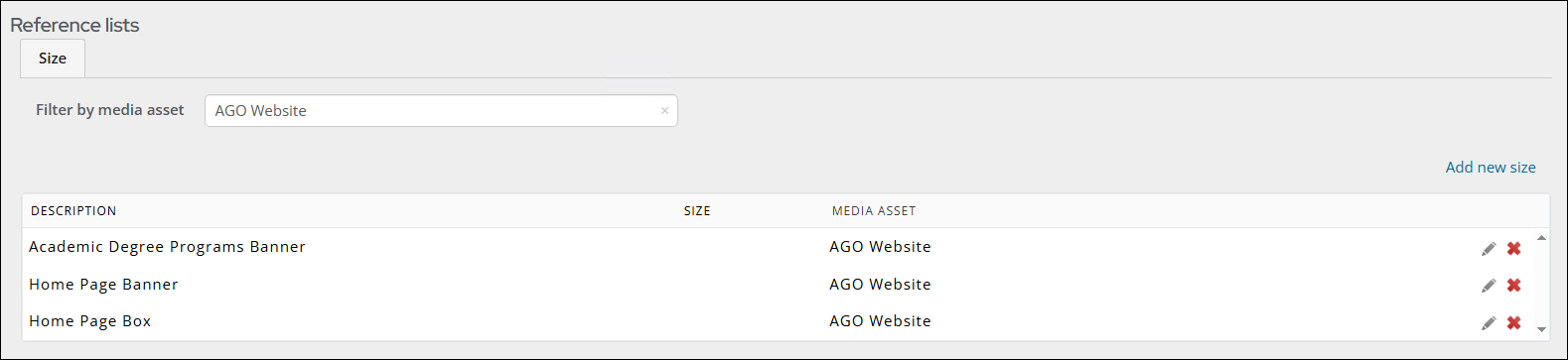
The Ad Size tab lists all advertisement sizes defined across all media assets. Sizes are used in rate card details to define the available dimensions for an advertisement. Managing sizes from this page allows them to be added, edited, and deleted independently of any individual rate card.
NoteSizes can also be added directly from within a rate card. See Advertising: Rate card details.
To filter the list by media asset, select a value from the Filter by media asset drop-down. Select the default option to return to showing all sizes.
Adding a new ad size
Do the following:
-
Go to Advertising > Settings > Reference lists.
-
Click the Size tab.
-
Select Add new size.
-
Enter a Description.
-
From the Media asset drop-down, select the media asset.
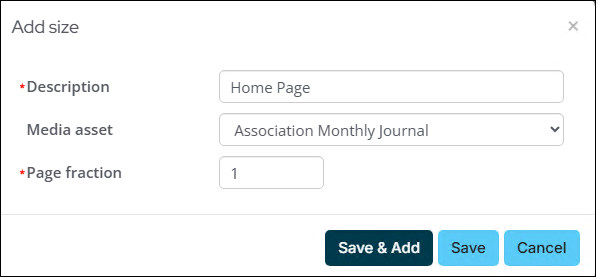
Depending on the media asset chosen, there are other fields to define:
Media asset type Additional field Required? Notes Digital Aspect ratio No Text field. Leave blank if not applicable. Event Size (W x L) in feet No Numeric entry only. Print Page fraction Yes Cannot save without a value. -
Click Save or Save & Add to add another ad size.
NoteIf Description is left blank, an error message is displayed and the size is not saved until a description is added.
Editing an ad size
Do the following to edit an ad size:
-
From the Size tab, select the edit icon on the media asset that needs updating.

-
Update the fields as needed.
-
Click Save.
Deleting an ad size
Do the following to delete an ad size:
-
From the Size tab, click the red X next to the media asset to delete.

-
Click Delete on the Confirm delete? window.
Updated about 2 months ago