

Using display values in runtime IQA filters
By default, runtime IQA filters that use a multi-select property display the stored code rather than the display value. For example, if a contact has selected Monday and Wednesday for their availability, that is stored as 0,2. To show display values in a runtime filter dropdown, the business object property must be configured on the Properties tab of the Business Object Designer.
ExampleA contact has selected Monday and Wednesday as their availability days. In IQA, this is stored as 0,2. A staff user wants to filter a list of volunteers by day name rather than code. For example, filtering on Monday rather than 0. Using DistinctUserDefinedMultiSelectProperties, the query can display and filter on the day name instead of the stored code.
Do the following to configure a business object property so that runtime IQA filters show display values instead of stored codes when using the DistinctUserDefinedMultiSelectProperties business object.
Setting up the business object property
Do the following:
-
Go to RiSE > Business Object Designer.
-
Create a new business object or copy and paste the DayOfTheWeekRef business object. See Working with Business Object Designer.
-
Create a new business object or copy and paste the DayOfTheWeekRef business object. See Working with Business Object Designer.
-
On the Properties tab, select the property to configure. In this case, it is DayOfTheWeekCode.

-
Click the Values tab.
-
Select Value list.
-
Enter the Data Value and Display Value for each value that will be available in the filter dropdown.
-
Click Save, then Publish.
Using the configured property in a runtime IQA filter
Once the business object property has a value list defined, it can be used as a runtime filter in an IQA query. When the query is run, the filter displays a dropdown of display values rather than stored codes.
Do the following:
-
Go to RiSE > Intelligent Query Architect > New > Query.
-
Give the query a Name, such as Availability.
-
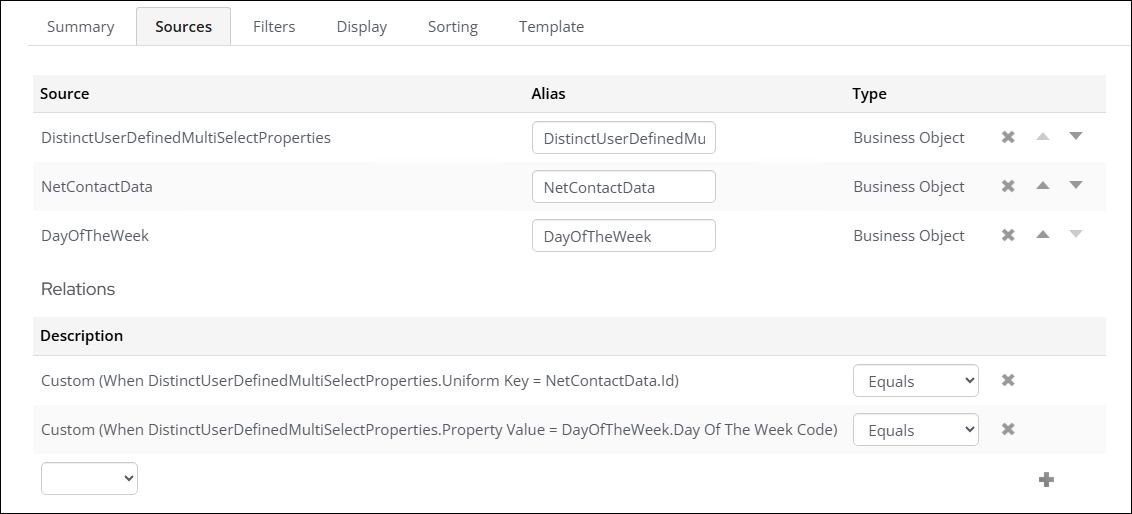
(Sources tab) Add the following sources:
-
DistinctUserDefinedSelectProperties
-
NetContactData
-
DayOfTheWeek
Add the following joins: -
DistinctUserDefinedMultiSelectProperties.Uniform Key = NetContactData.Id
-
DistinctUserDefinedMultiSelectProperties.Property Value = DayOfTheWeek.Day Of The Week Code
-
-
(Filters tab) Add the following filters:
- [DistinctUserDefinedMultiSelectProperties] Data Source Name
- Value - Day
- In Search? - No
- [DistinctUserDefinedMultiSelectProperties] Property Name
- Value - Day of the Week
- In Search? - No
- [DayOfTheWeek] Day Of The Week Code
-
In Search? - Optional
-
Search Label - Day of the Week

-
- [DistinctUserDefinedMultiSelectProperties] Data Source Name
-
(Display tab) Add the following properties:
- [NetContactData] Full Name
- [DayOfTheWeek] Day Name
- [DistinctUserDefinedMultiSelectProperties] Data Source Name
- [DistinctUserDefinedMultiSelectProperties] Property Name
- [DistinctUserDefinedMultiSelectProperties] Property Value
-
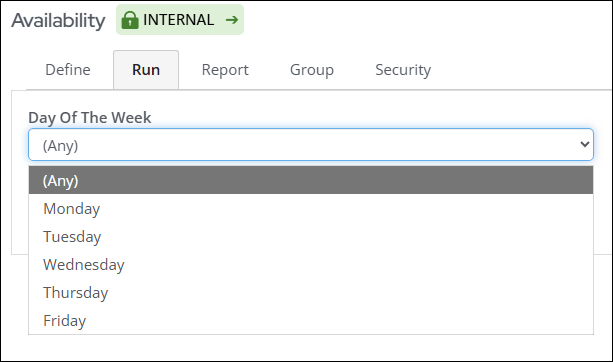
Click Run. A drop-down listing the weekdays is displayed.
Updated 20 days ago