

Creating a Dashboard with Report Writer
Access requiredTo access the Report Writer, you must be a system administrator or a staff user in the Reporting Users Full Control security group.
When a Dashboard is run, it is displayed in a new tab called the Dashboard Viewer. Reports, Visualizations, and other dashboard content appear in rectangular Tiles on the Canvas.
Do the following to create a new dashboard:
-
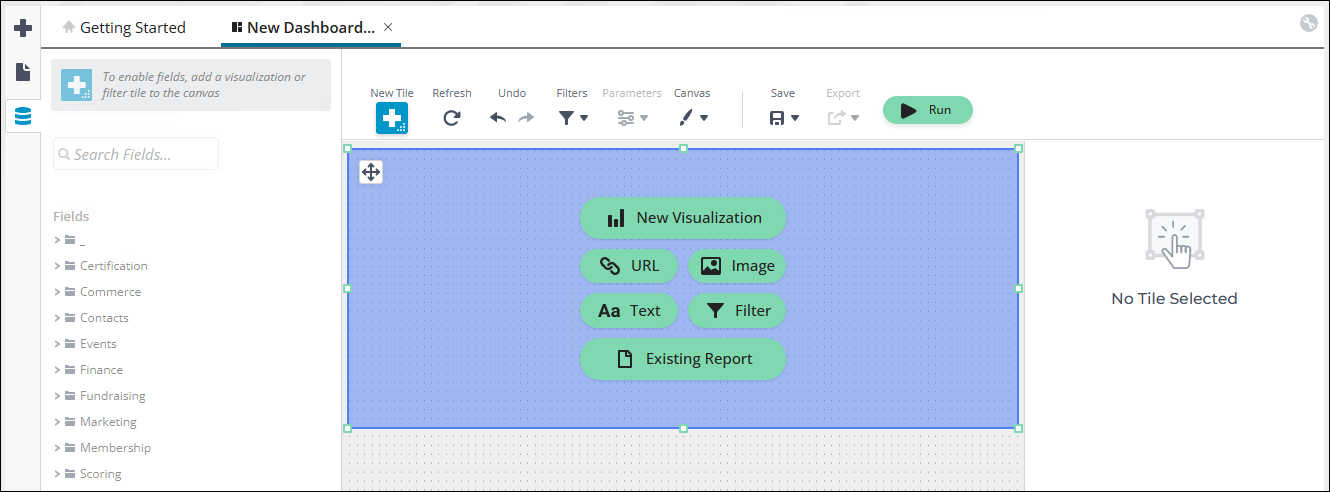
Click Create New Report and select Dashboard. This opens a New Dashboard canvas.
- The Canvas Fit (right) determines how much of the dashboard a new tile will occupy. You can manually resize the tile once you add it to the canvas.
- You can also define Backgrounds and Borders for the new tile.
-
Drag-and-drop New Tile onto the canvas.
-
You can add the following to the new tile:
-
New Visualization
-
URL
-
Image
-
Text
-
Filter
-
Existing Report
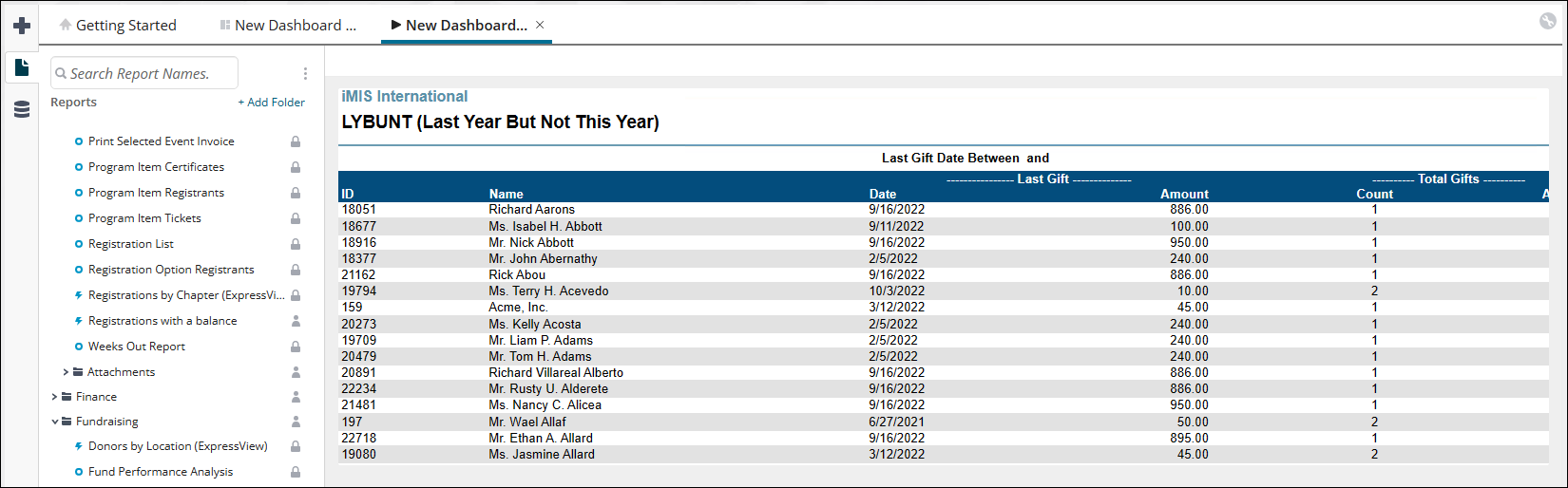
For example, add an existing report:
-
Click Existing Report.
-
Drag-and-drop the report from the Reports pane onto the canvas.
Add a New Visualization:
-
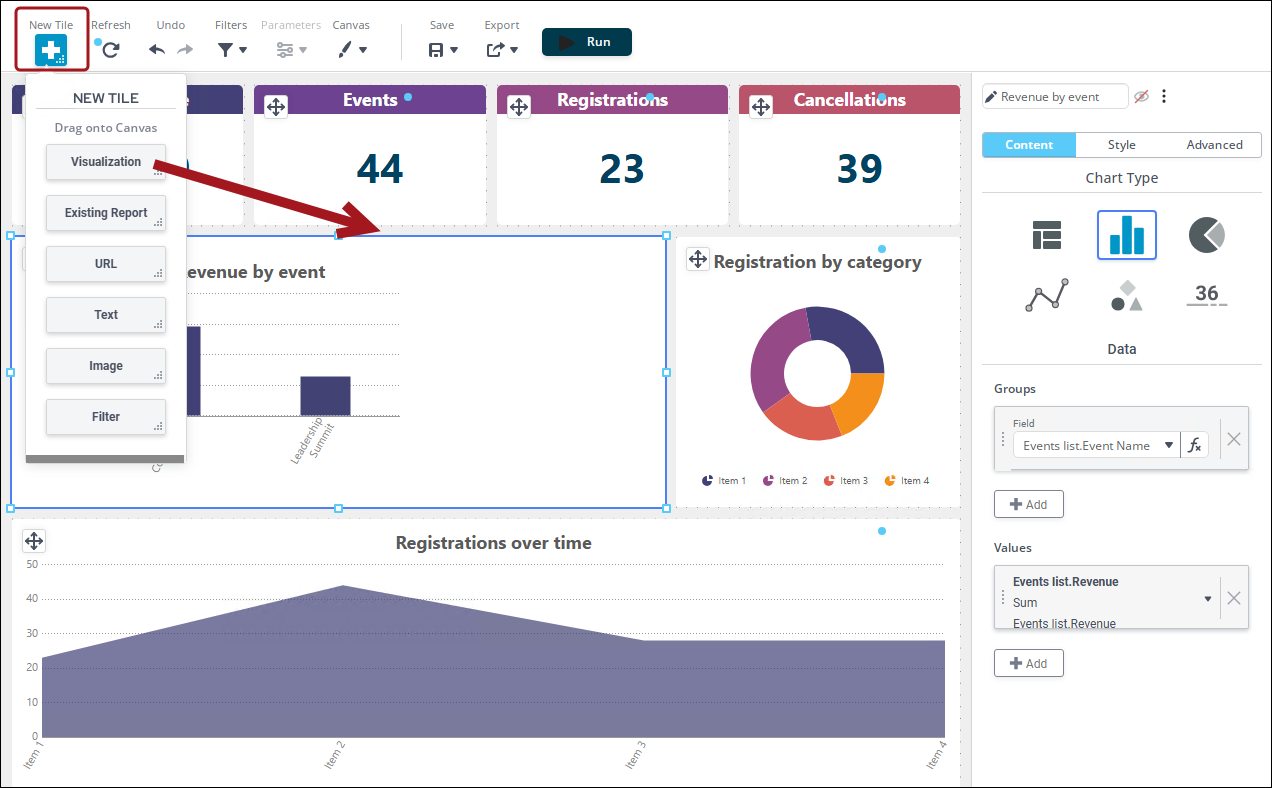
Drag-and-drop a New Tile onto the canvas.
-
Click New Visualization.
-
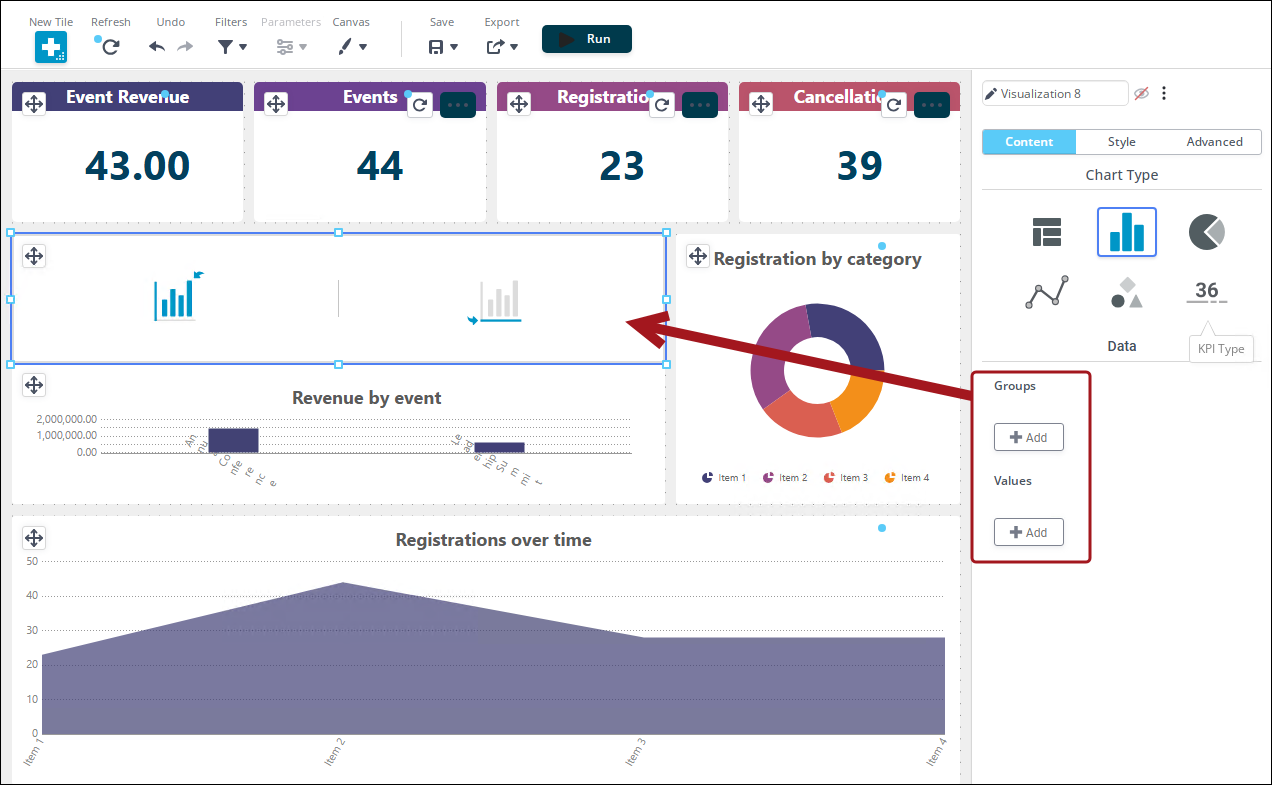
Define the visualization in the right pane:
- The type of chart used to display data
- Labels on the chart
- Styling for the chart
-
Drag-and-drop items for the visualization Groups and Values from the Fields pane.
-
Edit the style of the visualization on the right-side property pane.
-
Add a Filter to help modify displayed information:
- Drag-and-drop a New Tile onto the canvas.
- Click Filter. You can also create a docked filter.
- Select the field on which you want to filter. Define an Operator for the filter.
-
-
Use the following to further update your dashboard:
- Refresh the data in real time
- Undo/redo changes to your dashboard
- Filter information
- Change Parameters
- Customize the Canvas
- Save your dashboard
- Export your dashboard
- Run your dashboard

For more information, see Dashboards documentation.
Updated 25 days ago