

Using contact images and organizational logos in Report Writer reports
Access requiredTo access the Report Writer, you must be a system administrator or a staff user in the Reporting Users Full Control security group.
Contact images and logos for your organization help identify your company to users and make reports unique.
NoteTo learn how to replace a logo image, see Adding and replacing report logos.
Adding contact images to Report Writer reports
Adding contact images to Report Writer reports helps to personalize the reports and make it easier to identify people.
Do the following to add contact images to a Report Writer report:
Step 1 – Creating the business object and shortcut
-
Go to RiSE > Business Object Designer.
-
Locate and select the ContactProfileImage business object.
-
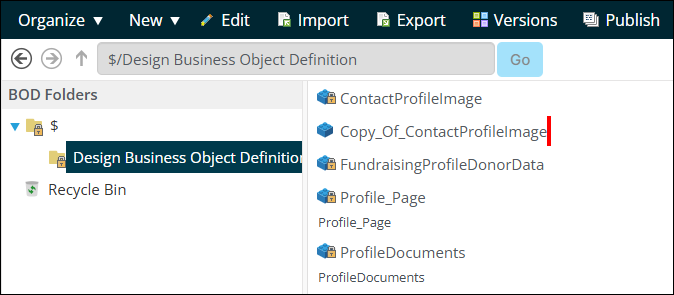
Click Organize > Copy,then click Organize > Paste.The business object is created with the name Copy_Of_ContactProfileImage.
-
Open Copy_Of_ContactProfileImage for edit and change the name to AllContactsWithPicture.
-
Click Save, then click Publish.
-
Go to RiSE > Document system.
-
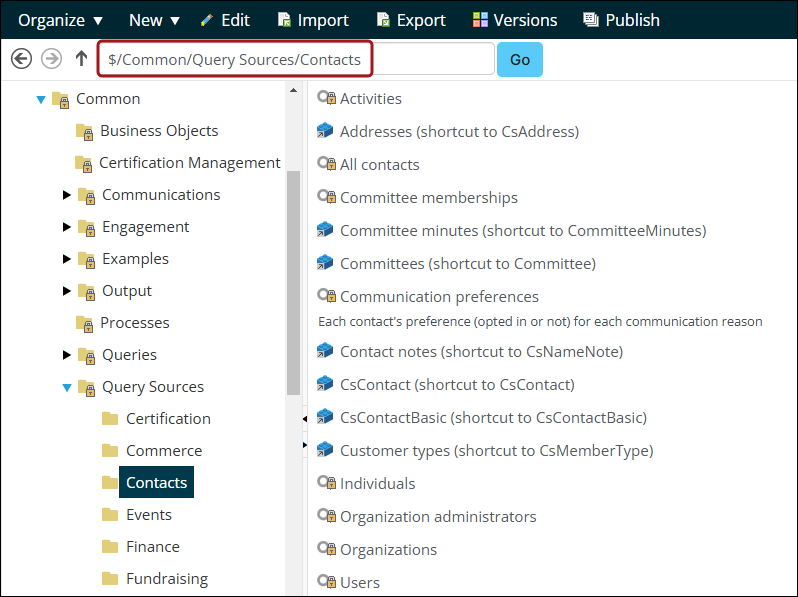
Navigate through the following folder path: $/Common/Query Sources/Contacts.
-
Click New > Shortcut and fill out the following:
-
Document Name: All Contacts With Picture.
-
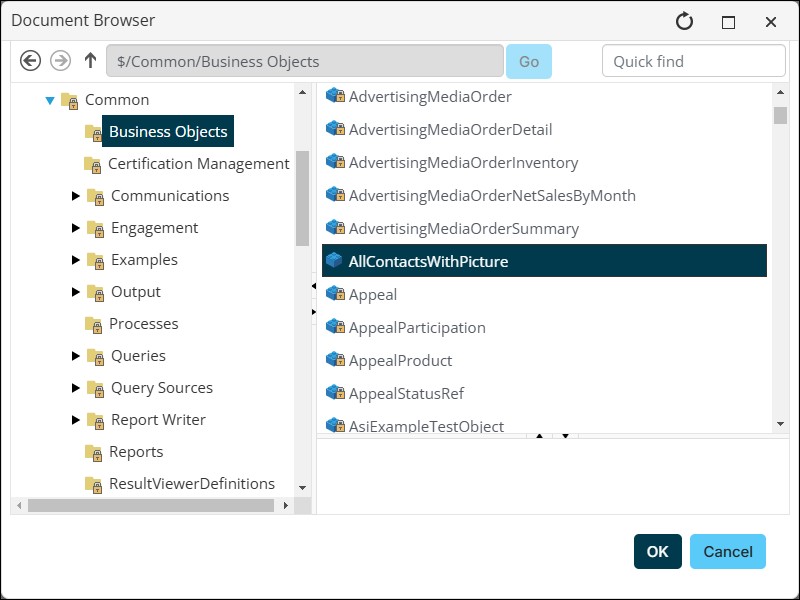
Related document: Select the AllContactsWithPicture business object from the $/Common/Business Objects folder.
-
Click OK.
-
-
Click Save.
Step 2 - Creating the contact image
The formula required in Report Writer to use contact images needs a valid image to properly function. If an organization does not have a contact image already, a blank image can be created and substituted.
-
Create the blank image using any photo software, ensuring the name is BlankImage.png.
-
Go to RiSE > Document system.
-
Click the images folder.
-
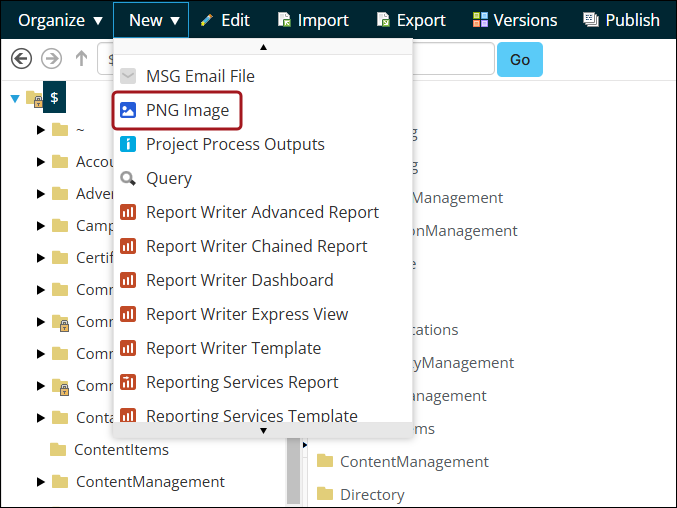
Click New > PNG Image.
-
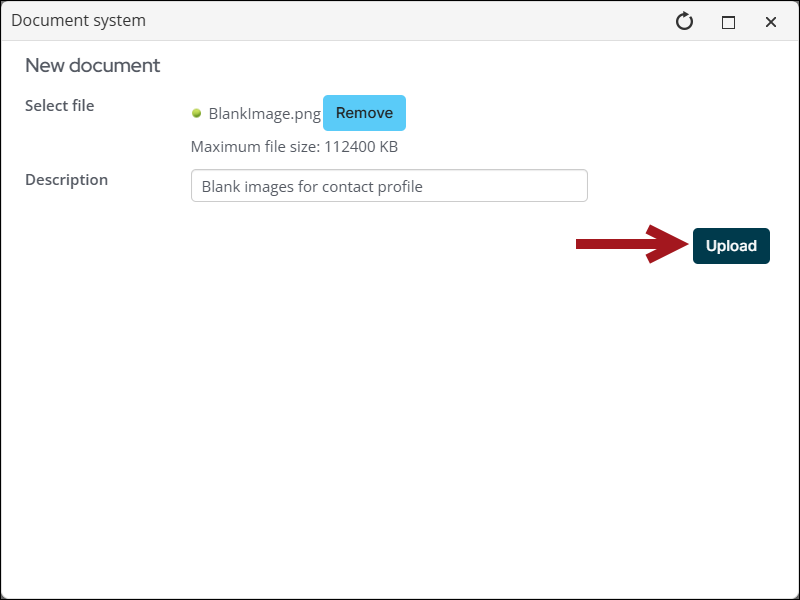
Select the BlankImage.png file.
-
Click Upload.
Step 3 - Inserting the contact image into Report Writer
- Go to Reports > Report Writer.
- Open an existing report, or create an ExpressView, Advanced Report, Chained Report, or Dashboard Report.
- On the cell you want to insert the contact image, right click and select Insert > Formula.
- Insert the following formula, keeping in mind the important notes below:
LoadImage(If(LEN({All Contacts With Picture.Image})>0, {All Contacts With Picture.Image}, '[Client URL]/images/BlankImage.png'))
WarningIf you named the shortcut something other than All Contacts With Picture, be sure to replace both instances in the formula with the correct name. The name is case sensitive.
WarningReplace
[Client URL]with the URL of the website. If the cell stores a relative path rather than a full URL, see Using relative image paths in LoadImage formulas.
Adding organizational logos to Report Writer reports
Do the following to add organizational logos to a Report Writer report:
-
Create a report. See the ExpressView, Advanced Report, Chained Report, or Dashboard Report documentation for more information.
-
On the cell you want to put the logo, right click and select Insert > Formula.
-
In the Search for Functions search bar, type LoadImage or go to Other > LoadImage.
-
Click Add.
-
Click Financial entities.Logo and begin typing the name of your logo.
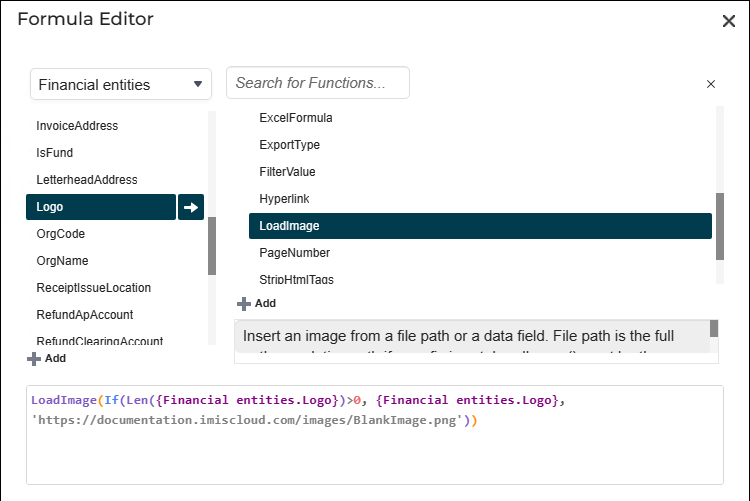
- Click OK.
Using relative image paths in LoadImage formulas
Some Report Writer cells store a relative path to an image rather than a full URL. LoadImage() formulas will resolve a relative path only when an image path prefix has been configured, so you must use different functions to make relative paths usable in LoadImage formulas. For more information, see Other Functions.
There are two kinds of relative path: paths that begin with a tilde (~) and paths that begin with a slash (/).
NoteBoth examples given in the following sections will fall back to BlackImage.png if the cell is empty. See Step 2 - Creating the contact image for how to create and upload this placeholder image.
LoadImage()must still be the outermost function in the cell.
Paths that begin with a tilde (~)
The following is an example of a path that begins with a tilde: ~/images/samples/uploadedimages/carlyk.jpg.
Use Replace() to swap the leading ~ for the website URL. In the following example, the arguments 1, 1 replaces one character, starting at the first character:
LoadImage(If(LEN({Financial entities.SignatureImageURL})>0, Replace({Financial entities.SignatureImageURL}, 1, 1, "[example.com]"), '[example.com]/images/BlankImage.png'))Replace [example.com] with your website URL.
Paths that begin with a slash (/)
Use Concatenate() to add the website URL to the beginning of the path, as in the following example:
LoadImage(If(LEN({All Contacts With Picture.ThumbnailLargeFilePath})>0, Concatenate("[example.com]",{All Contacts With Picture.ThumbnailLargeFilePath}), '[example.com]/images/BlankImage.png'))Replace [example.com] with your website URL.
Updated 18 days ago