

Creating a custom query to search for committee members
Access requiredTo create and update RiSE content, you must be a system administrator or a staff user that belongs to at least one content authority group.
If you want to review members in a committee from a single page, rather than clicking individual committees from Community >Committees, you can create a custom committee member search. This involves creating a query, adding the query to a content record, and then adding that content record to the Committee sitemap navigation.
Creating the custom committee query
-
Go to RiSE > Intelligent Query Architect.
-
Choose a folder for the query.
-
Click New > Query and name the query Search by Committee.
-
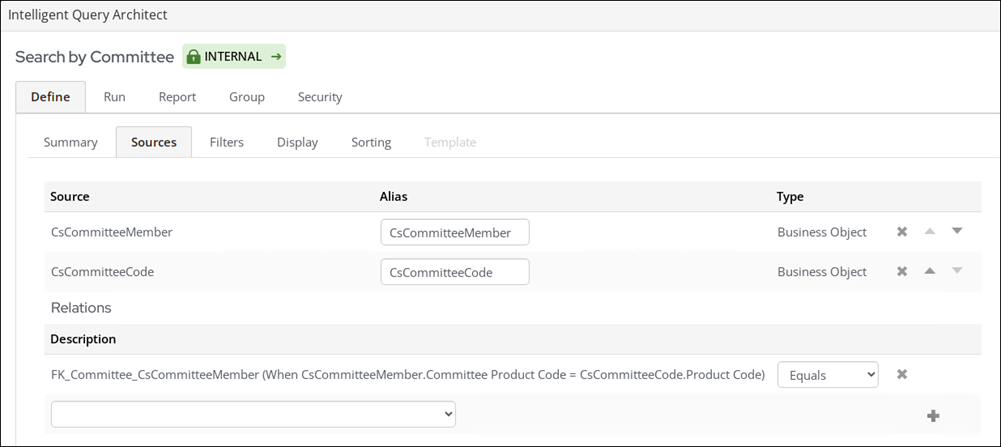
(Sources tab) Click All Sources and select CsCommitteeMember and CsCommitteeCode. Click OK. Use the default join of CsCommitteeMember.Committee Product Code = CsCommitteeCode.Product Code.
-
(Filters tab) Add the following filter:
-
Where CsCommitteeMember.Committee Name equals any value.
-
Set the In Search? drop-down to Required.

-
-
(Display tab) Select display columns, such as Email, Full Name, and Committee Name.
-
Click Apply.
-
Save the query, then click Run to view the results.
Adding the query to the content
-
Go to RiSE > Page Builder > Manager content.
-
Go to the Shared Content folder and click New > Website Content.
-
Enter a page Title, such as Search by Committee.
-
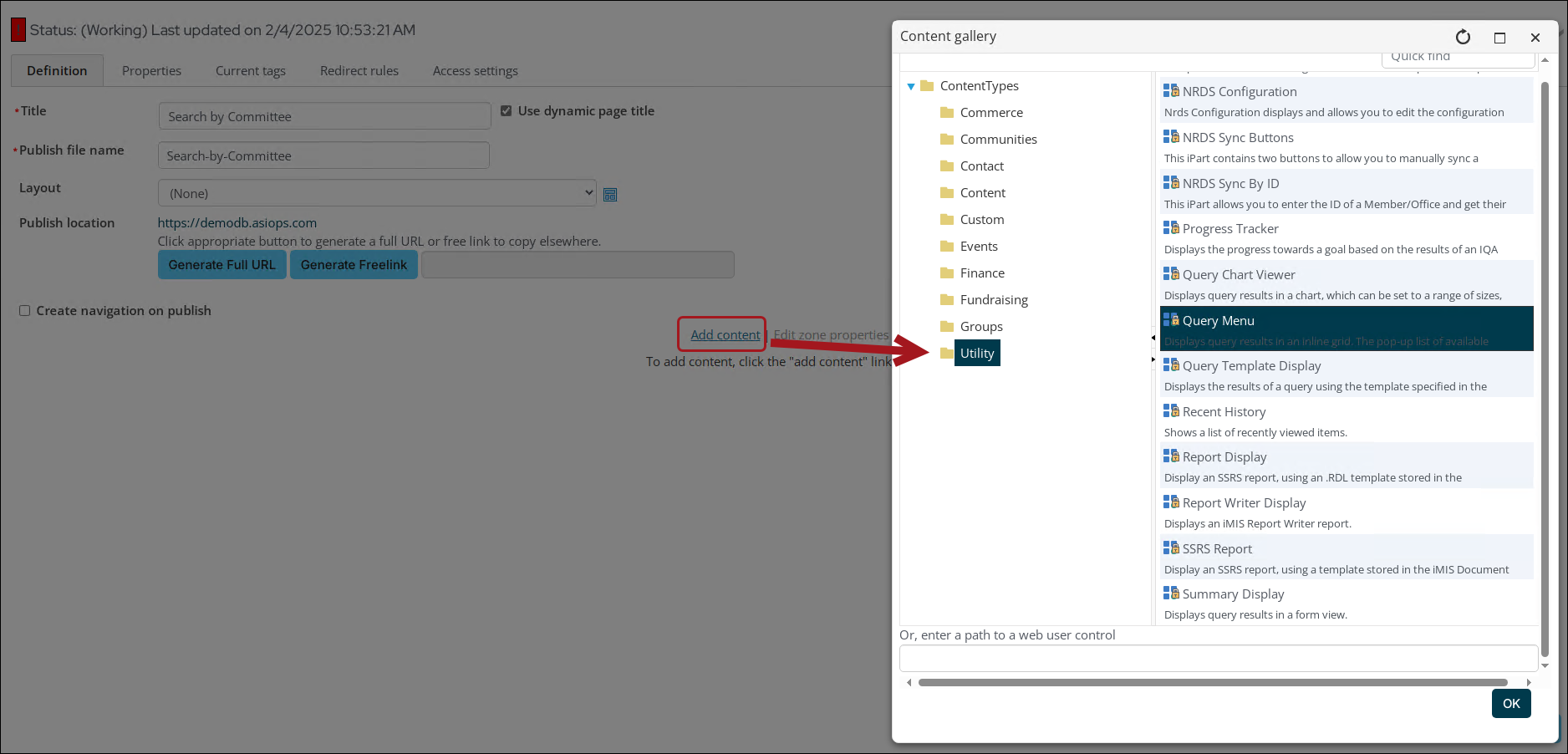
Select Add content, then choose the Utility folder.
-
Double-click the Query Menu content item.
-
From the Source query or folder field, select the query created in the steps above.
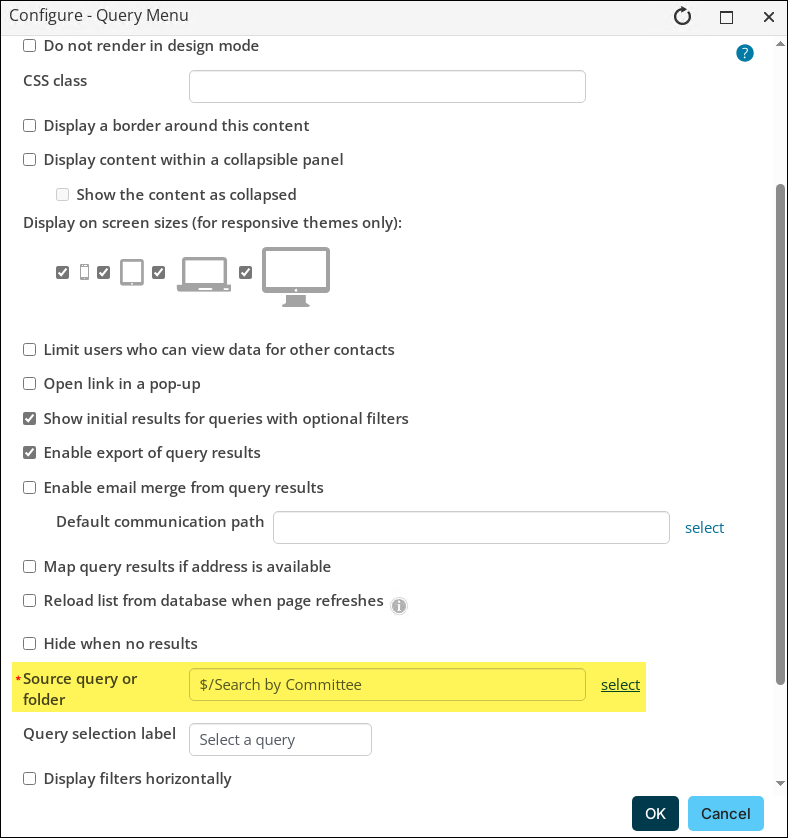
- Click OK, then click Save & Publish.
Adding the content to the sitemap
-
Go to RiSE > Site Builder > Manage sitemaps.
-
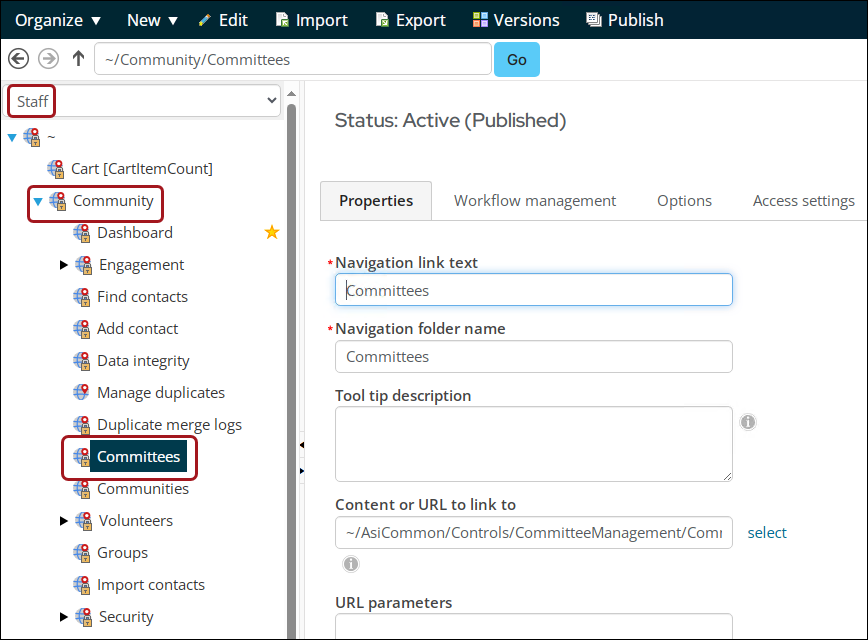
Choose the Staff site from the drop-down.
-
Go to Community > Committees.
-
Click New > Website Navigation Item.
-
Enter a Navigation link text, such as Search by Committee.
-
From the Content or URL to link to field, select the content record you created in the steps above.
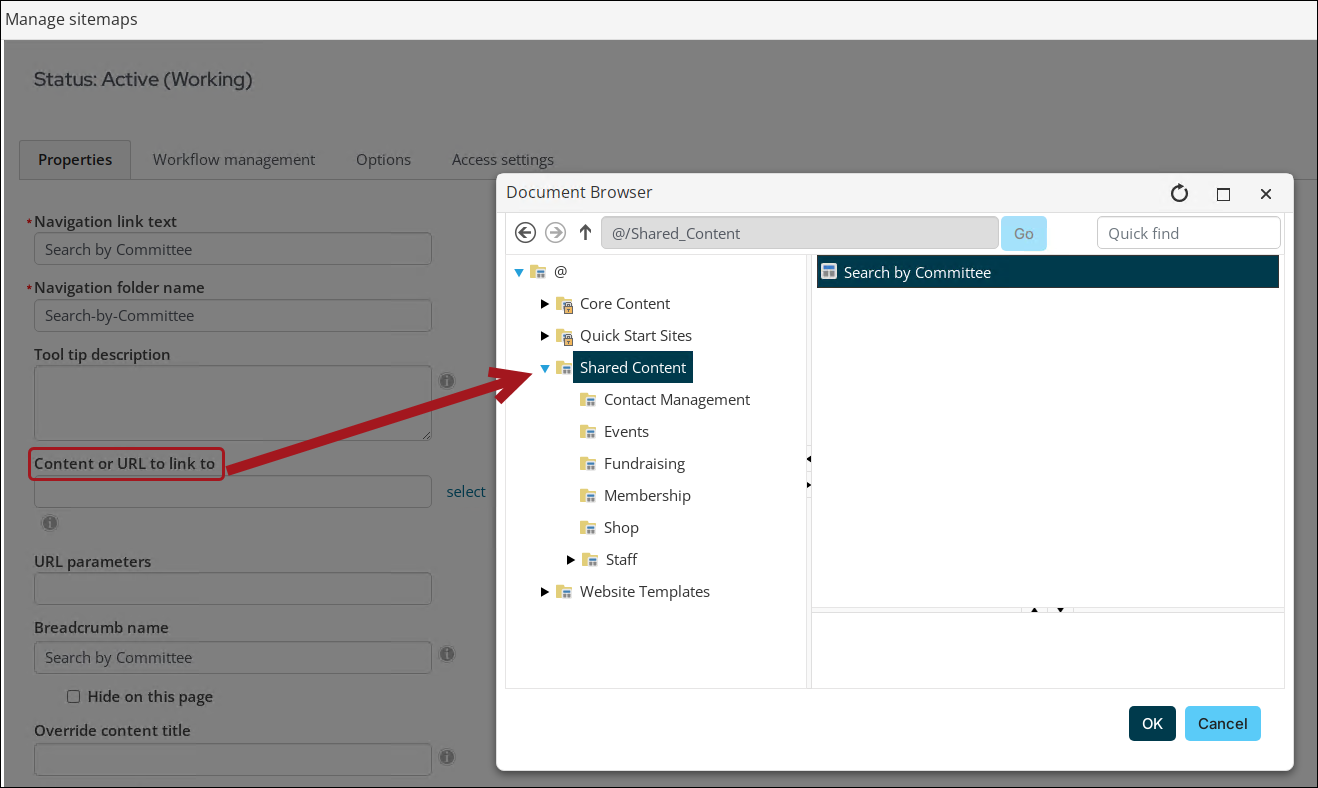
- Click OK, then Save.
- Click Publish.
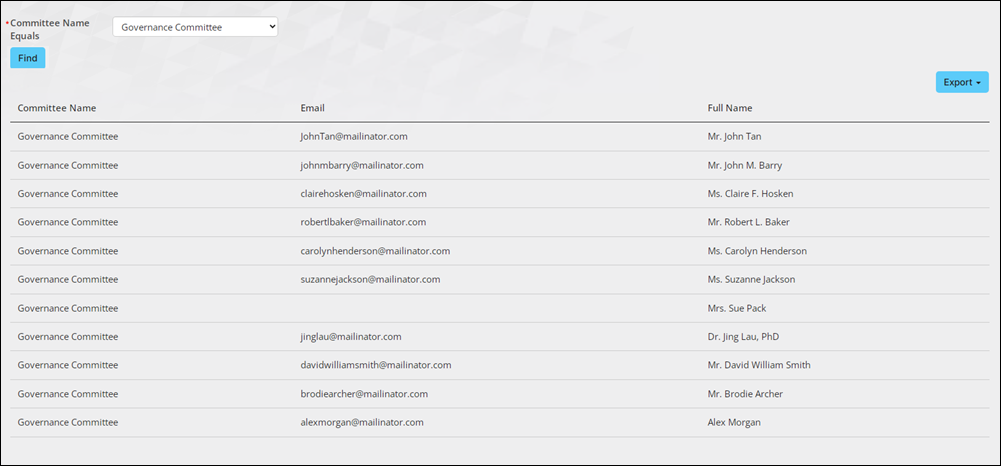
Go to the new navigation item you just created and confirm the query is correctly displaying.
Updated about 1 month ago