

Setting up EU SEPA direct debit payments
The Stripe gateway allows SEPA (Single Euro Payments Area) direct debit payments for clients in the European Union. SEPA direct debit supports both one-off payments and recurring (AutoPay) payments.
Before you begin: Required configuration
Before you configure the SEPA direct debit payment method, ensure the following required items are configured:
- The Stripe gateway is configured, which includes the onboarding process. See Stripe: Getting Started Guide.
- The Retrieve processed payments from Pay Central scheduled task is enabled and scheduled. This task is required to reconcile one-off and recurring direct debit payments in iMIS. See Using the 'Retrieve processed payments from Pay Central' scheduled task.
- Ensure the default country is set to a SEPA country (Settings > Contacts > General). See a list of SEPA countries.
- Ensure the Default currency code (Settings > Finance > General) is set to Euro (EUR).

Configuring the EU SEPA direct debit payment method and connecting it to the Stripe gateway
After configuring the above items, create the payment method and ensure it is connected to the Stripe gateway. Lastly, add the payment method to the Staff and Public sets.
Create the payment method
Do the following to create the SEPA direct debit payment method and connect it to the Stripe gateway:
-
Go to Settings > Finance > Pay Central.
-
Click the Payment methods tab.
-
Select Add new payment method:
- Code: Enter a Code. No spaces are allowed in this field.
- Name: Enter the Name assigned to the payment method. This is only visible to staff users.
- Type: Select Direct debit.
- (optional) Account: Select the cash account for the payment method.
- (optional) Entity: Select the financial Entity. For more information, refer to Financial entities.
- Gateway account: Select the EU Stripe gateway.
- Display payment authorization checkbox: Enable to display an authorization checkbox in the cart for this payment method. When this setting is enabled for the payment method, the user must enable the authorization checkbox in their cart before submitting the payment. The provided HTML text box must include the authorization details the customer agrees to, such as: I authorize {Organization name} to charge my {credit/debit} card for agreed-upon purchases. I understand that my information will be saved to file for future transactions on my account.

-
Click Save.
Add the payment method to the staff & public payment method sets
Do the following to add the SEPA direct debit payment method to the Staff and Public payment method sets:
-
Go to Settings > Finance > Pay Central.
-
Click the Payment method sets tab.
-
Select the Staff set:
- Select Add new.
- Enter the Display Name. This name appears to staff users in the Cart.
- Select the direct debit Payment Method you just created.
- (optional) Enable Default if you want this payment method selected by default in the staff user's cart.
- Click Save.

-
Select the Public set:
- Select Add new.
- Enter the Display Name. This name appears to public users in the Cart.
- Select the direct debit Payment Method you just created.
- (optional) Enable Default if you want this payment method selected by default in the public user's cart.
- Click Save.
Testing SEPA direct debit transactions
The testing workflow for direct debit transactions depends on the transaction type:
- Recurring direct debit transactions
- One-off direct debit transactions
The recommended workflow for testing SEPA direct debit transactions is as follows:
- Create a test user.
- Donate on the user's behalf.
- Generate and process a future invoice.
- Review the submitted payment in Pay Central Live.
- Refund both the initial and subsequent payments.
WarningEU SEPA direct debit payments take up to six business days to confirm the success or failure of a one-off payment or an initial recurring payment enrollment, and 2 business days for subsequent recurring payments.
In test environments, payments will reconcile in 5–15 minutes.
1. Creating the test user
Create a contact with an email address that you have access to.
2. Enrolling the user in a recurring donation
Next, make a one-off or recurring payment on behalf of the test user. In this example, we are using donations.
Before you begin, confirm the following for recurring payments:
Do the following to make a payment on behalf of the test user:
-
From the public website, go On Behalf of the contact.
-
Navigate to the Give Now page.
-
Click Recurring or One-time in the Gift details section.
-
(For Recurring gifts only) Select a gift frequency. For testing purposes, Monthly is recommended.
-
Select Other from the Gift amount field.
-
Enter 1.00 in the amount field.
-
From the Payment method field in the Payment details area, select the SEPA payment method.
-
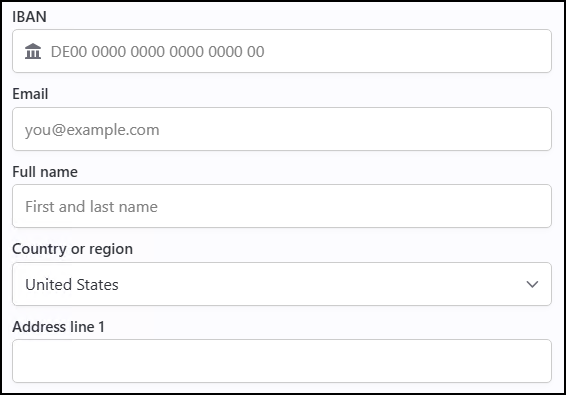
Enter the required payment details.
-
Select the Account type from the drop-down:

- Click Submit Donation.
3. Generate and process a future Donation invoice
WarningBecause it takes six business days to confirm the status of one-off payments or an initial recurring payment enrollment, wait six business days before generating the future donation invoice.
In test environments, payments will reconcile in 5–15 minutes.
Do the following to process a future donation:
-
Go to Fundraising > Automatic Payments > Process payments.
-
From the Generate invoices tab, generate the invoice.
-
From the Review invoices tab, review the invoice to make sure the test payment is included.

- From the Submit invoices tab, enter the date and donor name, and click Find. Submit the invoice.
- Retrieve the processed payment.
4. Review the payment in Pay Central Live
To ensure the payment succeeds, review the payments in Pay Central Live.
5. Refund the payments
After the payments have successfully processed, you may refund the payments.
Additional resources
Review the following resources for further information regarding Stripe payments:
- Reconciliation for direct debit payments
- Reconciling unsuccessful ACH/direct debit transactions
- Stripe: Getting Started Guide
- AutoPay: Getting Started Guide
- Setting up UK direct debit payments
- Setting up US ACH direct debit payments
- Setting up AU BECS direct debit payments
- Setting up NZ BECS direct debit payments
Updated about 1 month ago