

Attaching a Report Writer report to a communication template
Reports Writer reports can be attached to communication templates to send to a list of contacts. Compared to SSRS attachments, Report Writer attachments may take longer than usual to send. This is a background process that does not affect the performance of other areas, so continue using iMIS as needed.
NoteChained and Dashboard reports cannot be added as attachments in communications.
Process overview
The following are the steps and requirements to send a Report Writer report as a communication attachment:
-
Create the recipient query: The recipient query is required to have a Display property matching each Filter set to Prompt for Value.
-
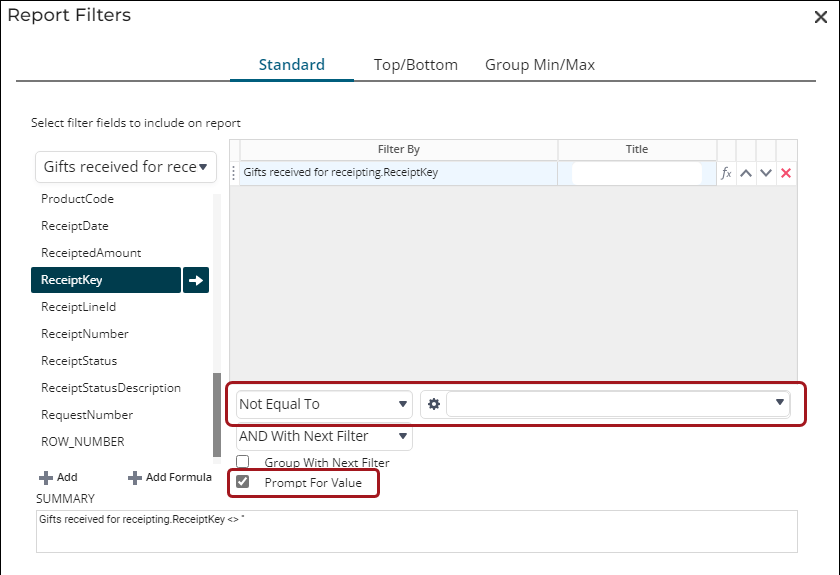
Create the Report Writer report (attachment): To ensure each contact is only receiving their attachment, the report is required to have a Filter matching the Display property from the recipient query (as noted above), and the filter is required to have the following configurations:
-
Filter has Prompt for Value enabled.
-
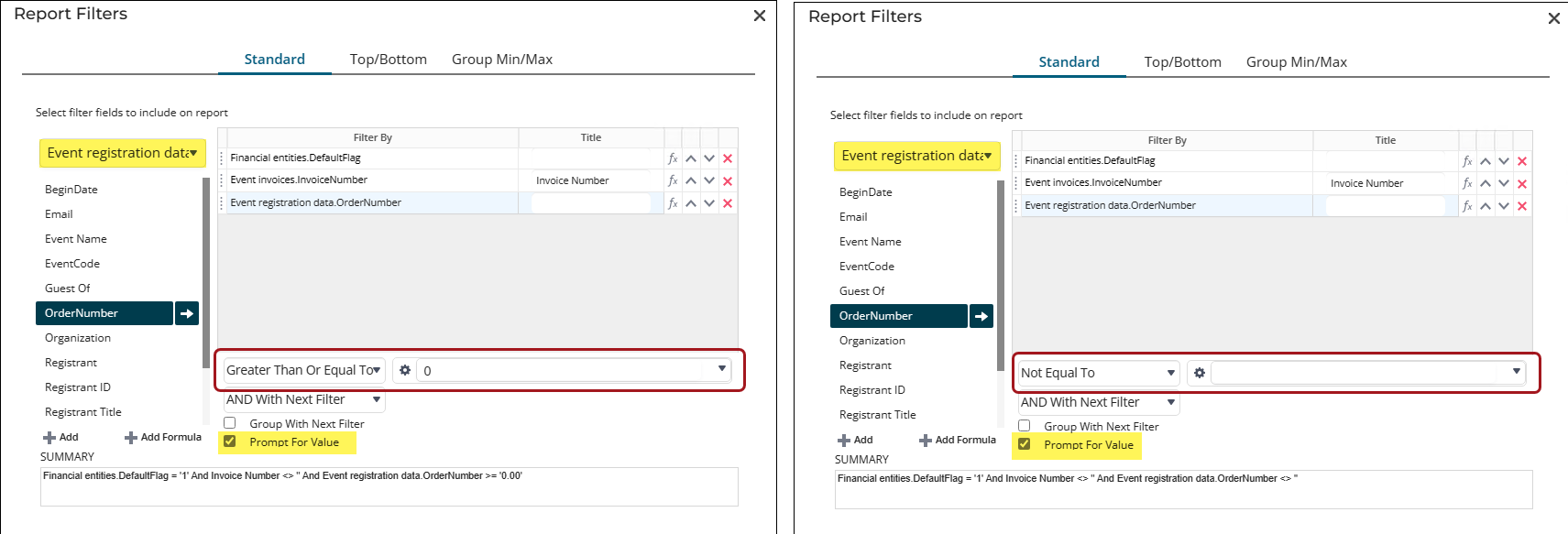
The filter condition must be configured so that no results are actually filtered out, for example:
-
Greater or Equal To 0 for numeric fields
-
Not Equal To blank for text fields such as Contact ID). Do not use Equal To for text-based fields like Contact ID. Doing so will cause the report to return all active members instead of scoping results to the passed-in value.
-
NoteCertain communication types require additional configurations for the filters. See Filter requirements for specific communication types for additional filter requirement details.
-
-
Update or create the communication template and add the attachment:
-
Go to Marketing > Communication templates.
-
Open the template or create a new one.
-
Click the Body tab.
-
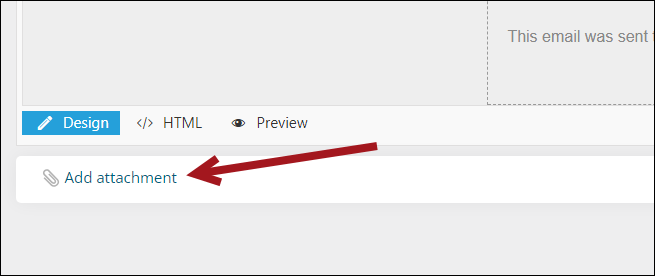
Scroll down to the bottom of the template, then select Add attachment.
-
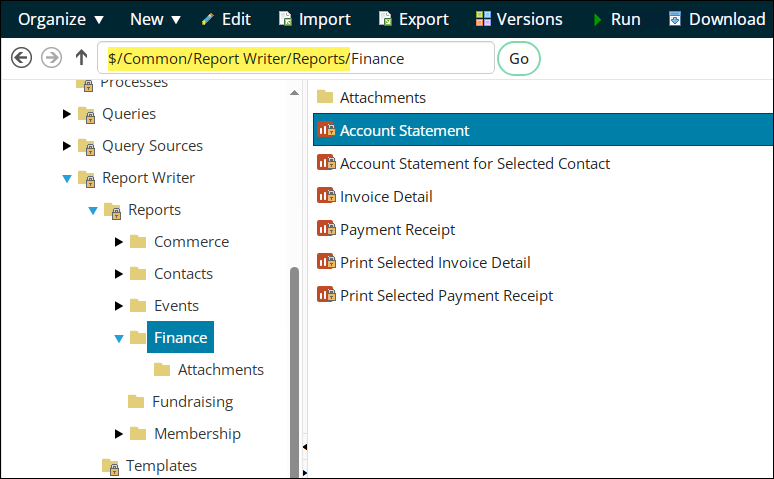
Select the report. Report Writer reports are saved in the following location: $/Common/Report Writer/Reports
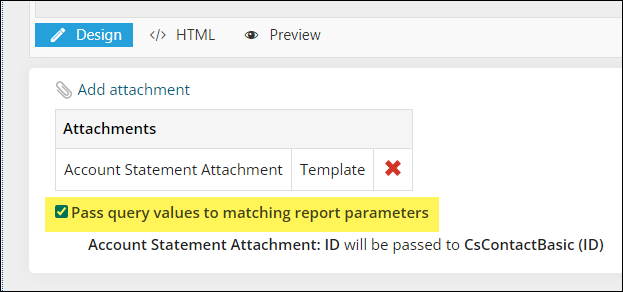
- To ensure each contact is only receiving their attachment, enable Pass query values to matching report parameters.
NoteIf there are warnings after enabling Pass query values to matching report parameters, you may need to update the recipient query or report to ensure you resolve the warnings. See Resolving warnings when 'Pass query values to matching report parameters' is enabled for details.
-
Filter requirements for specific communication types
If you are sending any of the following communications with a custom Report Writer report attached, the following filters are required and must have Prompt For Value enabled:
| Communication type | Required data source | Required property added as filter |
|---|---|---|
| Charitable receipts | Gifts received for receipting | ReceiptKey |
| Event registration confirmations | Event registration data | OrderNumber |
| Order processing notifications (all stages) | Order data | OrderNumber |
| Billing fees | Billing fees | BillingLogKey, Billing Cycle, and ID. Note: It is recommended that you start with a copy of the Renewal Notice Attachment Report Writer report (which contains these required filters already), then make customizations to the copied report. |
| Member-specific reports | Contacts | ContactId |
Example: Adding the Order Number filter to an event registration confirmation report
For this example, an event registration confirmation attachment is being created. To add the Order Number filter to an event registration confirmation report, do the following:
-
Go to Reports > Report Writer and open the Advanced Report for edit.
-
Click Manage Data Objects.
-
Ensure Event registration data is one of the chosen data objects. If it is not, expand the Events folder and add the data object.
-
Click Okay to close the window.
-
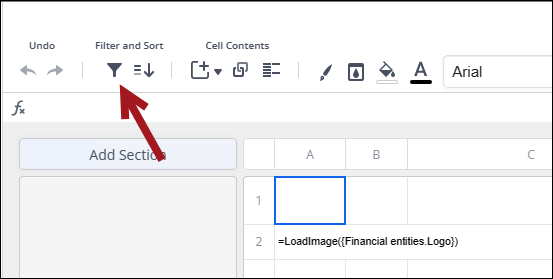
Click the filter icon.
-
From the drop-down, choose Event registration data.
-
Add OrderNumber as a filter, with the following configurations:
- Click Okay, then Save the report.
- In the communication template where you want to add the report as an attachment, ensure the associated recipient query has Order Number chosen as a Display property.
Example: Adding the Contact ID filter to a new member certificate report
For this example, a new member certificate attachment is being created. To add the Contact ID filter to a new member certificate report, do the following:
-
Go to Reports > Report Writer and open the report for edit.
-
Click Manage Data Objects.
-
Ensure there is a contact data source as one of the chosen data objects.
-
Click Okay to close the window.
-
Click the filter icon.
-
Add ContactId as a filter, with the following configurations:
-
Not Equal To blank value
IMPORTANTDo not set this filter to Equal To. Setting it to Equal To will cause the report to return all active members rather than the intended contact's certificate. Use Not Equal To blank to ensure the passed-in value is included in the report's results without filtering out any records.
-
Prompt For Value enabled
-
-
Click Okay, then Save the report.
-
In the communication template where you want to add the report as an attachment, ensure the associated recipient query has Contact ID chosen as a Display property.
Updated 3 months ago