

Using conditional functions in communication templates
Conditional functions perform calculations on properties or a range of properties, only if those properties meet a certain condition. These functions test a given range and determine if the condition is true or false before continuing.
You can use conditional functions with the following:
- Alerts
- Communication templates
- Data Showcase content item
- Query Template Display content item
Available conditional functions with examples
To insert a conditional function in the HTML body of one of the supported areas, use the syntax:
{if (conditions)}
Text or HTML to appear if condition is true
{/endif}
Notes
- If the conditions evaluate to FALSE, then the text or HTML is not shown.
- All conditional functions are case sensitive and must be upper case.
This section covers the specific conditional functions supported in alerts, communication templates, Data Showcase, and Query Template Display.
| Function | Description |
|---|---|
COUNT | Counts items in a collection. |
LENGTH | Returns the length of a value. |
ISTRUE | Tests whether a parameter is true. |
ISFALSE | Tests whether a condition is false. |
ISNULLOREMPTY | Checks whether a string is null or empty. |
ISNOTNULLOREMPTY | Checks whether a string is not null or empty. |
DAYSBETWEEN | Returns the number of days between two dates. |
DATE | Makes a date or literal date culture-safe. |
CONTAINS | Checks whether a string contains specified characters. This function is not case sensitive. |
NOTCONTAINS | Checks whether a string does not contain specified characters. |
STARTSWITH | Checks whether a string begins with specified characters. |
ENDSWITH | Checks whether a string ends with specified characters. |
COUNT example
{if (COUNT(#party.AdditionalAttributes) GT 0 AND #party.AdditionalAttributes[1].Name EQ
'IsMemberRecord' AND #party.AdditionalAttributes[1].Value EQ true)}
Is a member.
{/endif}
LENGTH example
{if (LENGTH(#query.TAX_EXEMPT) GT 0)}
Contact is tax exempt.
{/endif}
ISTRUE example
{if (COUNT(#party.AdditionalAttributes) GT 0 AND #party.AdditionalAttributes[3].Name EQ 'IsMember'
      AND ISTRUE(#party.AdditionalAttributes[3].Value))}
Contact is a member.
{/endif}
ISFALSE example
{if (ISFALSE(#query.IsMember))}
Contact is not a member.
{/endif}
ISNULLOREMPTY example
{if (ISNULLOREMPTY(#query.Website))}
Please add your website!
{/endif}
ISNOTNULLOREMPTY example
{if (ISNOTNULLOREMPTY(#query.PaidThrough) AND #query.PaidThrough LT Now)}
Contact is not yet expired.
{/endif}
DAYSBETWEEN example
{if (DAYSBETWEEN(#query.RenewedThrough, #query.PaidThrough) GT 90)}
Member is due for renewal.
{/endif}
DATE example
{if (ISNOTNULL(#query.JoinDate) AND (#query.JoinDate GTE DATE('12/31/2021')))}
2022 MEMBER
{/endif}
CONTAINS example
{if (CONTAINS(#query.JoinDate, '2022'))}
New member in 2022.
{/endif}
NOTCONTAINS example
{if (NOTCONTAINS(#query.City, 'Austin'))}
Member is not an Austin resident.
{/endif}
STARTSWITH example
{if (STARTSWITH(#query.City, 'Aus') OR STARTSWITH(#query.City, 'Dal') )}
Member may live in Austin or Dallas.
{/endif}
ENDSWITH example
{if (ENDSWITH(#query.FullName, 'Smith') OR ENDSWITH(#query.FullName, 'Richards') )}
Last name ends with Smith or Richards.
{/endif}
Acceptable conditional operators
| Operator | Description |
|---|---|
GT | Greater than |
GTE | Greater than or equal to |
LT | Less than |
LTE | Less than or equal to |
EQ or EQUALS | Equal to |
NEQ | Not equal to |
AND | Logical and |
OR | Logical or |
Symbolic operators such as ==, !=, and || are supported, but the preferred syntax is EQ, NEQ, and OR.
Example: Adding party data values when they exist for the recipient and hiding the values when they do not exist
ExampleA marketing blast is being sent soon. The Marketing Lead wants to send an email with the recipient's first, middle, and last names, plus their suffix and designation separated by commas. They do not want the commas to appear if the recipient does not have suffix or designation values defined.
Do the following to create the above example:
-
Go to Marketing > Communication templates.
-
Open the communication template.
-
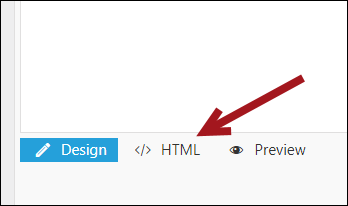
Click the Body tab, then click the HTML tab.
- Find the location where you want the message to go, then paste the following:
<h3>
  <strong>
{if (ISNOTNULLOREMPTY (#query.FirstName))}{#query.FirstName} {/endif}
{if (ISNOTNULLOREMPTY (#query.MiddleName))}{#query.MiddleName} {/endif}
{if (ISNOTNULLOREMPTY (#query.LastName))}{#query.LastName}, {/endif}
{if (ISNOTNULLOREMPTY (#query.Suffix))}{#query.Suffix}, {/endif}
{if (ISNOTNULLOREMPTY (#query.Designation))}{#recipient.Designation}{/endif}
  </strong>
</h3>
- Save the template.
The properties and associated commas will only appear if the recipient has the value populated on their account page.
Example: Adding a unique message to the email based on the recipient's location
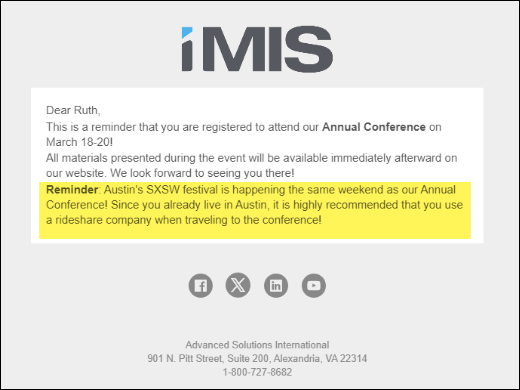
ExampleThe Annual Conference is this weekend in Austin, Texas. The city’s South by Southwest festival is also happening this weekend. The association is sending out their conference reminders and wants to send a special message to the members who live in Austin to recommend a rideshare company before traveling to the conference.
Do the following to add a conditional statement to a communication template based on the recipient’s location:
-
Go to Marketing > Communication templates.
-
Open the communication template.
-
Click the Body tab, then click the HTML tab.
-
Find the location where you want the message to go, then paste the following:
<p>{if (#party.City EQ 'Austin')}
 <strong>Reminder</strong>: Austin's SXSW festival is happening the same weekend as our Annual Conference!
Since you already live in Austin, it is highly recommended that you use a rideshare company when traveling to the conference!
{/endif}</p>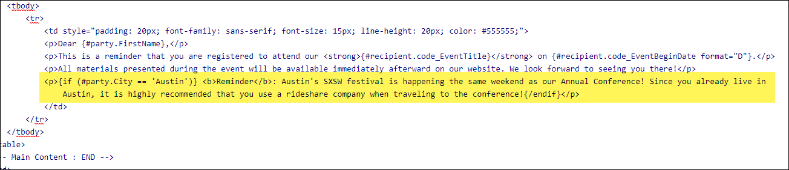
-
Save the template.
-
Only members attending the event with Austin defined as their primary city will see the extra note in their email.
Example: Adding address information for a contact when the information exists and hiding the extra line when the information does not exist
ExampleAn email is being sent that contains all potential address lines (Address 1, Address 2, and Address 3), plus the city, state, and zip code. Some contacts may not have an Address 2 or Address 3 defined, so the additional lines for those properties should not appear for those contacts.
Use the following to accomplish the above example:
{if (ISNOTNULLOREMPTY (#recipient.Address1))} {#recipient.Address1} <br>
{/endif}
{if (ISNOTNULLOREMPTY (#recipient.Address2))} {#recipient.Address2}<br>
{/endif}
{if (ISNOTNULLOREMPTY (#recipient.Address3))} {#recipient.Address3}<br>
{/endif}
{if (ISNOTNULLOREMPTY (#recipient.City))} {#recipient.City},{/endif}{if (ISNOTNULLOREMPTY (#recipient.StateProvince))} {#recipient.StateProvince}{/endif}{if (ISNOTNULLOREMPTY (#recipient.Zip))} {#recipient.Zip}{/endif}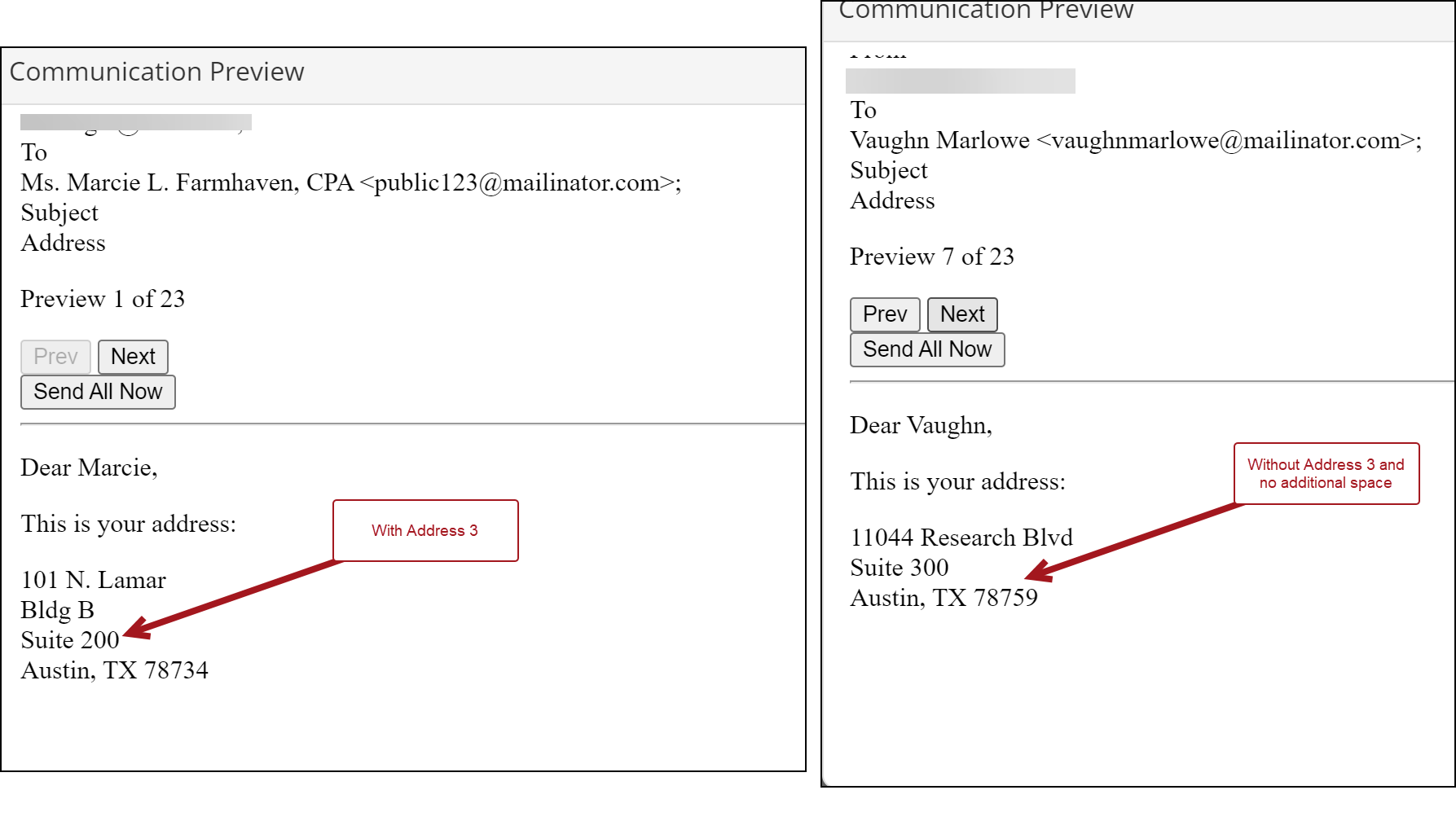
Updated 3 months ago