

Using conditional functions in alerts
Conditional functions perform calculations on properties or a range of properties, only if those properties meet a certain condition. These functions test a given range and determine if the condition is true or false before continuing.
You can use conditional functions with the following:
- Alerts
- Communication templates
- Data Showcase content item
- Query Template Display content item
Available conditional functions with examples
| Function | Description |
|---|---|
COUNT | Counts items in a collection. |
LENGTH | Returns the length of a value. |
ISTRUE | Tests whether a parameter is true. |
ISFALSE | Tests whether a condition is false. |
ISNULLOREMPTY | Checks whether a string is null or empty. |
ISNOTNULLOREMPTY | Checks whether a string is not null or empty. |
DAYSBETWEEN | Returns the number of days between two dates. |
DATE | Makes a date or literal date culture-safe. |
CONTAINS | Checks whether a string contains specified characters. This function is not case sensitive. |
NOTCONTAINS | Checks whether a string does not contain specified characters. |
STARTSWITH | Checks whether a string begins with specified characters. |
ENDSWITH | Checks whether a string ends with specified characters. |
Acceptable conditional operators
| Operator | Description |
|---|---|
GT | Greater than |
GTE | Greater than or equal to |
LT | Less than |
LTE | Less than or equal to |
EQ or EQUALS | Equal to |
NEQ | Not equal to |
AND | Logical and |
OR | Logical or |
Symbolic operators such as ==, !=, and || are supported, but the preferred syntax is EQ, NEQ, and OR.
Example: Using the birthday alert to display a message based on the member's age
ExampleThe association is offering a gift to members and donors on their birthday and is customizing the gifts based on their age. If they are over 25, they will receive a Gold gift, and if they are under 25, they will receive a Silver gift.
Do the following to update the out-of-the-box birthday alert to display a conditional gift based on age:
- Go to RiSE > Process automation.
- From the search, locate the Contact birthday alert.
- Select the Name of the alert to open it for edit.
- Click the Alert tab.
- Click the HTML tab.
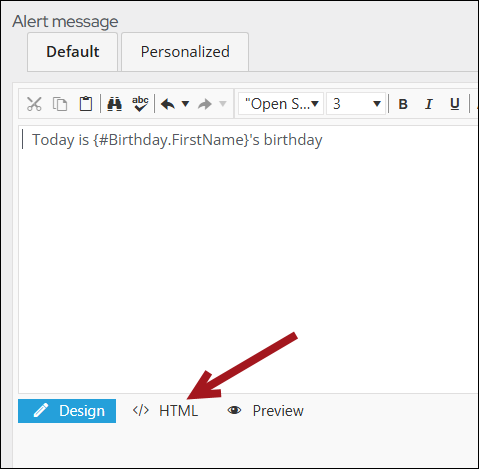
- Directly under Today is {#Birthday.FirstName}'s birthday, paste the following:
\{if (#Birthday.CurrentAge) GTE 25\}
    Send them a Gold Gift!
\{/endif\}
\{if (#Birthday.CurrentAge) LTE 25\}
    Send them a Silver Gift!
\{/endif\}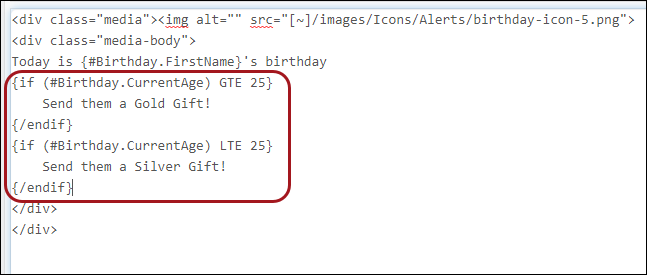
- Click Save & Exit.
The alert displays on the member’s account page on their birthday and conditionally displays a Gold or Silver message based on the age defined in the function defined in the alert.

Updated about 1 month ago