

Basic campaign example: Professional conference
The following is an example of a basic campaign for a professional conference. In this example, the ABBA professional society hosts a major conference each year. The goal of the Annual Conference Campaign is to recruit 20% more attendees than last year.
You'll also need to create marketing emails and include hyperlinks in each email to your website donation page. The hyperlink in each email should be associated with its own source code, allowing you to track the responses generated by that particular email. See Assigning source codes to hyperlinks for more information.
NoteEnsure that Hide Appeals and Solicitations under Marketing > Campaigns > Settings is disabled for the appeals and solicitations to be visible.
Setting up the campaign
Do the following to create the campaign:
- Go to Marketing > Campaigns > Define campaigns.
- Select Add a Campaign.
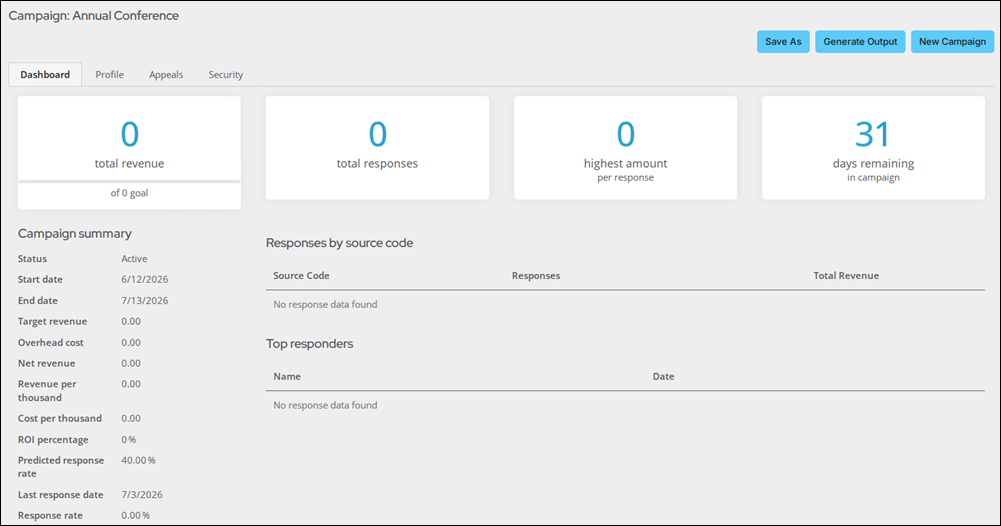
- (Profile tab) Enter the following information:
- Name - Annual Conference
- Campaign code - CNF
- Status - Active
- Type - Annual
- Start date - today's date
- End date - a month from today's date
- Predicted response rate - 40%
- Response cutoff date - today's date + three weeks
- Click Save.
First appeal and subsequent components
Do the following to define the first appeal and its components:
-
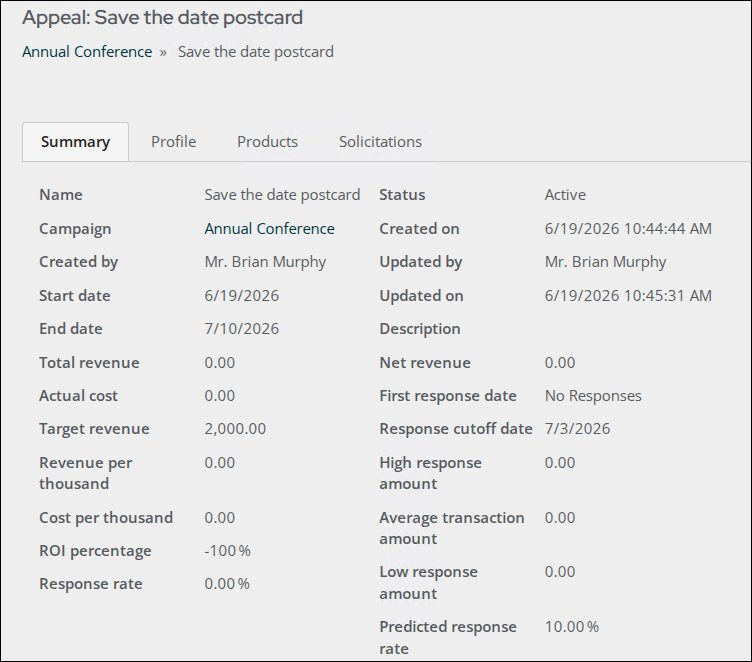
(Appeals tab) Click Add an appeal and create the first appeal:
- Name - Save the date postcard
- Status - Active
- Start date - today's date
- Overhead cost - $1000
- Predicted response rate - 10%
- End date - today's date + three weeks
- Target revenue - $2000
- Response cutoff date - today's date + two weeks
-
Click Save.
-
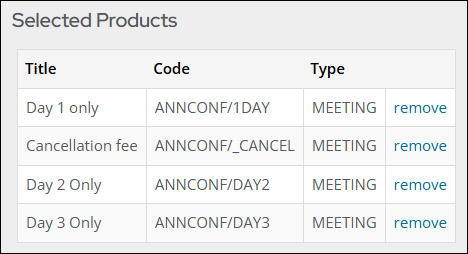
(Products tab) Choose the following products for the appeal:
- Cancellation fee
- Day 1 only
- Day 2 only
- Day 3 only
-
Click Save.
-
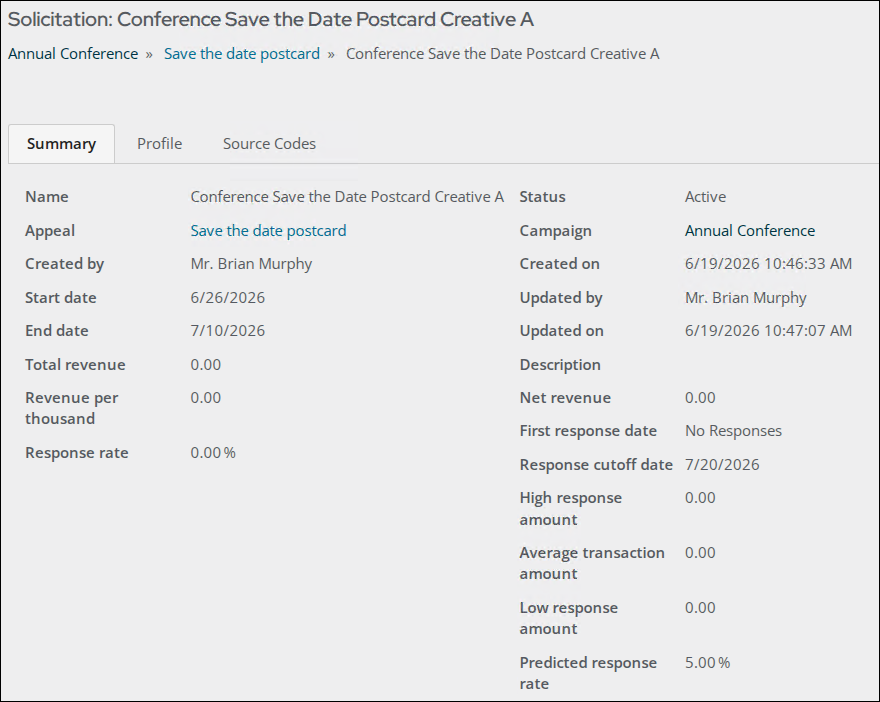
(Solicitations tab) Click Add a solicitation and create a solicitation for the first appeal:
- Name - Conference Save the Date Postcard Creative A
- Status - Active
- Start date - today's date + 1 week
- End date - today's date + 1 month
- Predicted response rate - 5%
- Response cutoff date - today's date + two weeks
- Description - Save the Date postcard
- Reminder date - today's date + one week
-
Click Save.
-
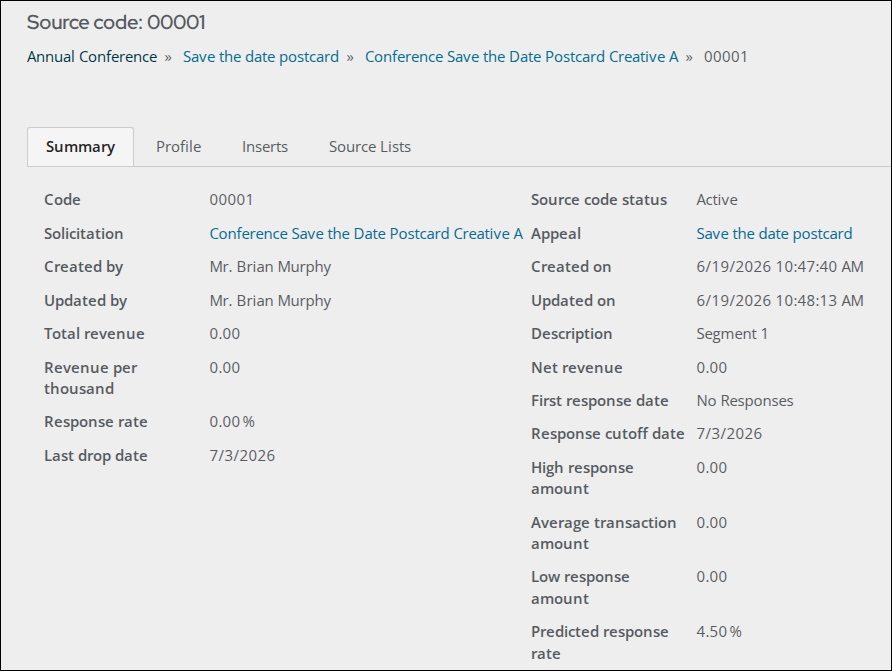
(Source Codes tab) The appeals are attached to a source code and combined as packages for each mailing. Click Add source code and enter the following:
- Code - 00001
- Source code status - Active
- Description - Segment 1
- Predicted response rate - 7.5%
- Last drop date - today's date + two weeks
- List member type - Contact
- Response cutoff date - today's date + two weeks
- Source code type - RunOnce
-
Click Save.
-
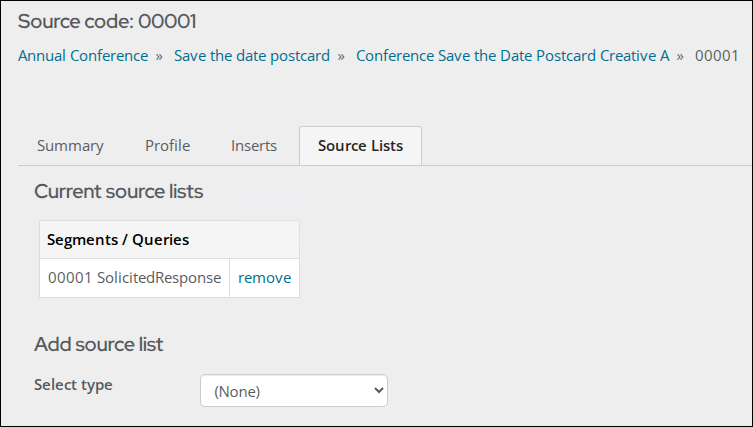
(Source Lists tab) Select Solicitation Response from the Add Source List drop-down.
- Select the Annual Conference.
- Enter the following information:
- Appeal - Save the date postcard
- Solicitation - Conference Save the Date Postcard A
- SourceCode - 00001
- Comparison - Equal
- State - SolicitedResponse
- Click add.
- Click Continue.
- Click Save.
Second appeal and subsequent components
Do the following to define the second appeal and its components:
-
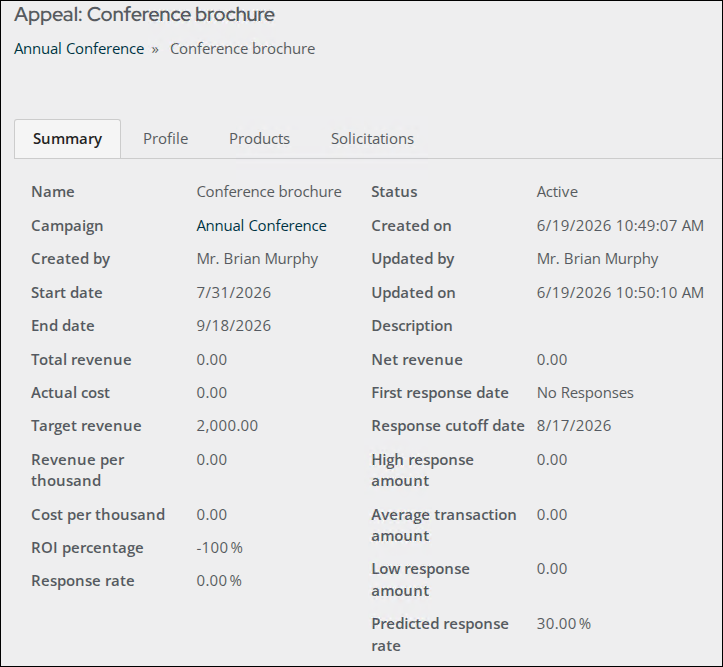
(Appeals tab) Click Add an appeal and create the second appeal:
- Name - Conference brochure
- Status - Active
- Start date - today's date + six weeks
- Overhead cost - $1000
- Predicted response rate - 30%
- End date - today's date + three months
- Target revenue - $2000
- Response cutoff date - today’s date + two months
-
Click Save.
-
(Products tab) Choose the following products for the appeal:
- Cancellation fee
- Day 1 only
- Day 2 only
- Day 3 only
-
Click Save.
-
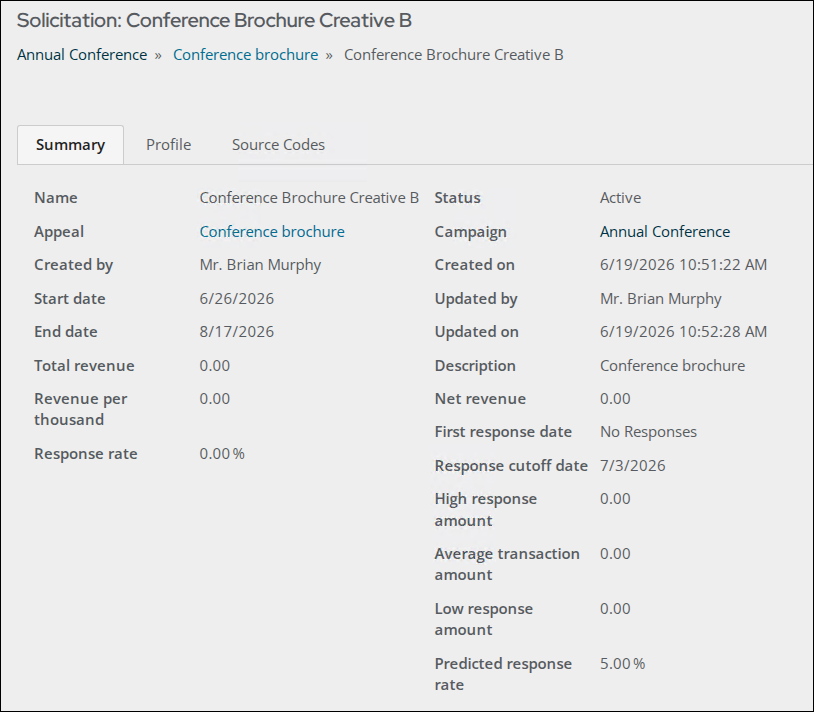
(Solicitations tab) Click Add a solicitation and create a solicitation for the second appeal:
- Name - Conference Brochure Creative B
- Status - Active
- Start date - today's date + 1 week
- End date - today's date + 1 month
- Predicted response rate - 5%
- Response cutoff date - today's date + two weeks
- Description - Conference brochure
- Reminder date - today's date + one week
-
Click Save.
-
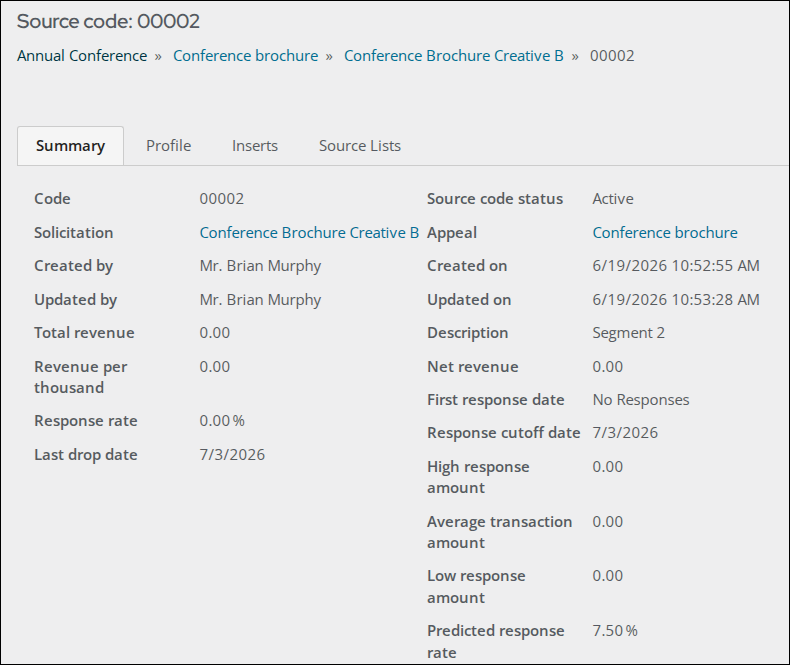
(Source Code tab) Click Add source code and enter the following:
- Code - 00002
- Source code status - Active
- Description - Segment 2
- Predicted response rate - 7.5%
- Last drop date - today's date + two weeks
- List member type - Contact
- Response cutoff date - today's date + two weeks
- Source code type - RunOnce
-
Click Save.
-
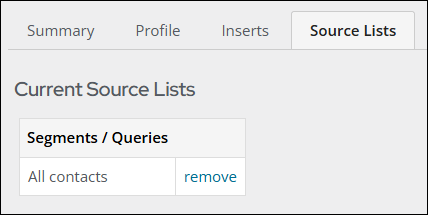
(Source Lists tab) Select Query from the Add Source List drop-down.
- Open the $/Common/Shared Documents/Contact folder and select the All contacts query.
-
Click Save.
Defining inserts
Now that the campaign is defined, the inserts can be defined. Do the following to create the Inserts:
- Go to Marketing > Campaigns > Define inserts.
- Click Add an Insert.
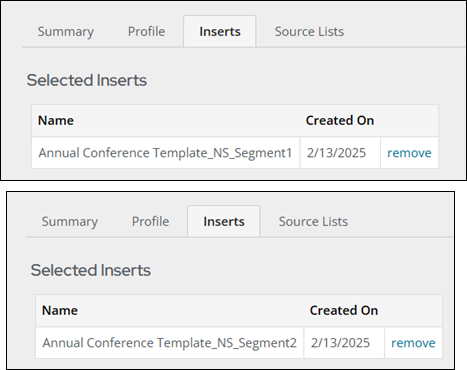
- Enter the following information for the first insert:
- Name - Annual Conference Template_NS_Segment1
- Description - Segment 1 template
- Total - 10.00
- Status - Available
- Insert Type - None
- Click Save.
- Click Add an Insert and enter the following information for the second insert:
- Name - Annual Conference Template_NS_Segment2
- Description - Segment 2 template
- Total - 15.00
- Status - Available
- Insert Type - None
- Click Save.
WarningBe sure to select the Insert for each Source code.
Review the campaign
Do the following to review the campaign:
-
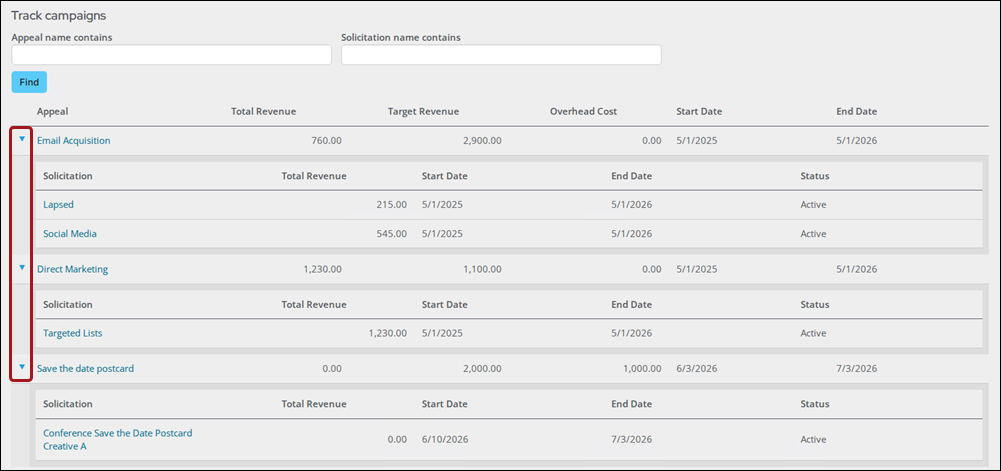
Go to Marketing > Campaigns > Track Campaigns.
-
Click the arrows next to the Appeals to see the specific solicitations for each appeal.
Generate the output
Generate the output to ensure that labels are created and our contacts are solicited.
Do the following to generate the output:
- Go to Marketing > Campaigns > Define campaigns.
- Select the Annual Conference.
- Click Generate Output.
Updated 3 months ago