

Latest Release: August 2026 (20.3.235)
Learn about the latest iMIS EMS updates.
TipLooking for something from a previous release not listed below? Check out the Sprint Review Notes!
Recording and managing invoice credits
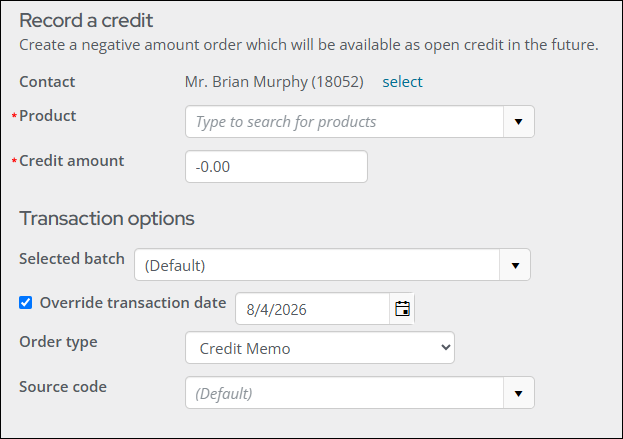
A new Record a credit feature lets staff users grant a contact credit by processing a negative amount order. Recorded credits can also be adjusted or removed directly from the associated invoice.
Key features
- A new Record a credit page under Finance for selecting a contact and product and entering a negative credit amount.
- Supports transaction options including batch selection, transaction date override, order type, and source code.
- Includes an option to suppress the order confirmation email sent to the contact.
- Recorded credits can be adjusted or removed from the Invoice detail screen.
Key use cases
- Granting a contact a credit — issue a credit for an overpayment, billing error, or goodwill/customer service resolution.
- Applying a credit toward a future purchase or renewal — record the credit now so it is available to offset an upcoming invoice.
- Backdating a credit for accurate reporting — use the transaction date override so the credit lands in the correct accounting period, regardless of when it was entered.
- Issuing a credit without notifying the contact — suppress the confirmation email for internal adjustments, bulk corrections, or credits the contact should not be alerted to yet.
- Correcting a recorded credit — adjust or remove a credit directly from the Invoice detail screen if the amount was entered incorrectly or is no longer needed.
How it works
Go to Finance > Record a credit. Select a contact and product, enter a credit amount, and set the transaction options, then click Submit. For more information, see Recording and managing invoice credits.
Improved privacy policy and cookie consent configuration
The cookie consent banner and Cookie Preferences dialog now provide clearer, automatically translated policy information for website visitors, along with a renamed configuration field that makes it easier for staff users to link to their organization's own privacy policy.
Key features
- The cookie consent banner message and its policy link labels are now automatically translated when a visitor views the staff site or a public RiSE website in a supported non-default language.
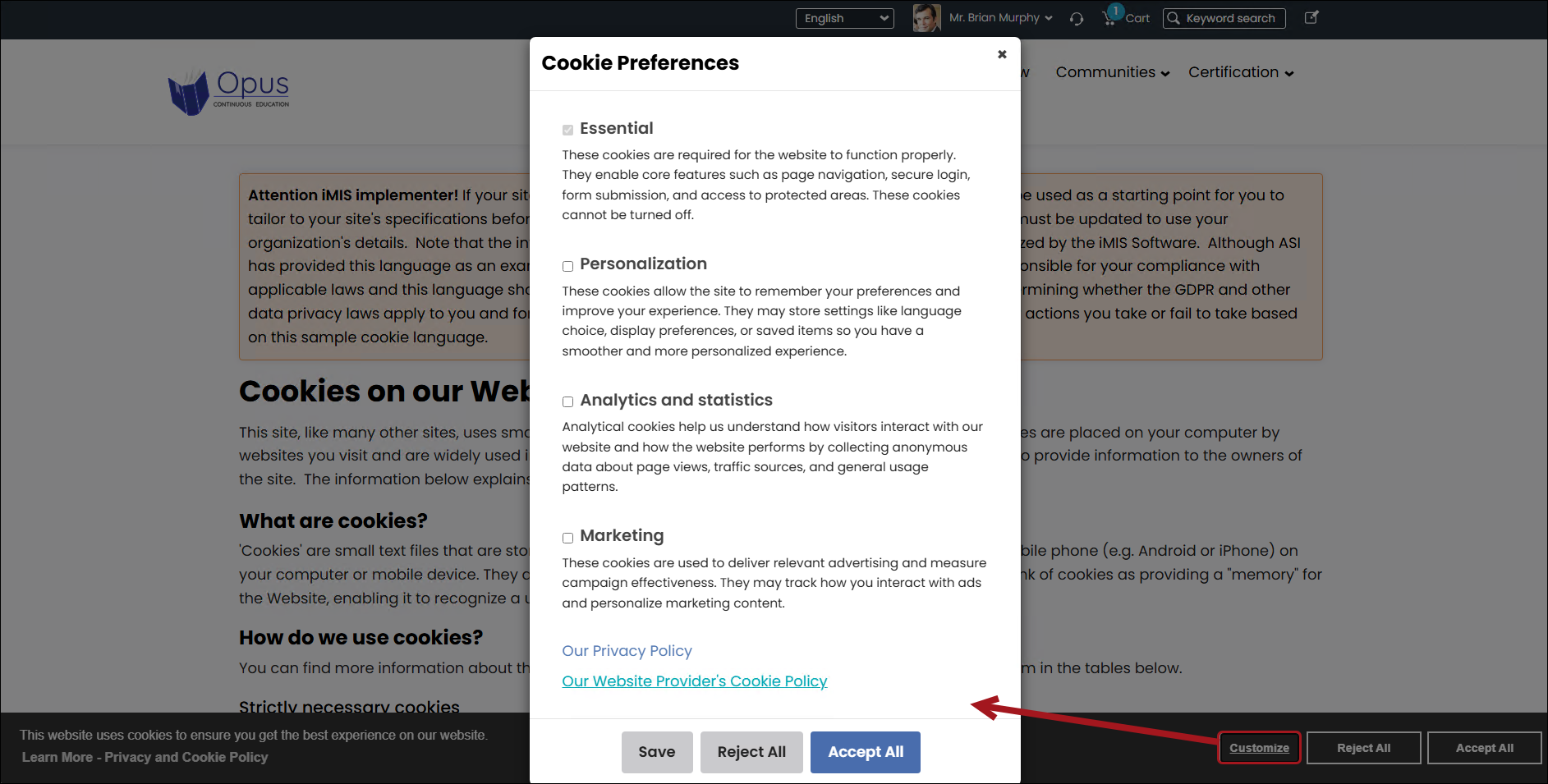
- The Cookie Preferences dialog (opened via Customize on the consent banner) now displays two clearly distinguished policy links: the organization's own Our Privacy Policy, followed by Our Website Provider's Cookie Policy, which opens the ASI-maintained iMIS Cookie Policy and cannot be configured by staff users.
- The Full policy content or URL field, on the Scripts tab of a RiSE website's options, has been renamed to Privacy policy URL or content path for clarity.
- The cookie consent banner's Learn More link is now labeled Learn More - Privacy and Cookie Policy, and only appears when the Privacy policy URL or content path field is configured.
Key use cases
- Meeting multi-language compliance requirements — present cookie consent and policy information in a visitor's language automatically, without maintaining separate translated banner content.
- Clearly separating organizational and vendor policies — give visitors an obvious distinction between the organization's own privacy policy and the cookie policy maintained by ASI, reducing confusion and support questions.
- Linking to a custom privacy policy — point the renamed Privacy policy URL or content path field to a custom copy of the out-of-the-box Cookie Policy content record, or to an external URL, so visitors always see the organization's current policy.
- Keeping the banner uncluttered when no policy is configured — the Learn More link only appears once a policy source is set, so sites that have not configured one are not shown a broken or irrelevant link.
How it works
Go to the RiSE website's options and open the Scripts tab. Configure the Privacy policy URL or content path field with a custom Cookie Policy content record or an external URL. Once set, the Learn More - Privacy and Cookie Policy link appears on the cookie consent banner, and Our Privacy Policy becomes active (rather than grayed out) in the Cookie Preferences dialog. For more information, see Website cookies.
Additional Enhancements
- Form elements UI enhancements - Certain labels and settings within the form elements configuration screen have been updated:
- Drop-down options relabeled to Value list.
- Options and Sort areas now have clearer labels with capitalized sorting options.
- Number of columns and Sort column values options are updated with clearer labels.
- Sort column values is automatically hidden when Number of columns is set to 1.
- Also clarified that multi-select properties are not supported in multi-layouts and any fields that support multi-selections appear as a single-selection drop-down instead.
- Additional Sort option for drop-down fields powered by a source or query - A new sort option, As defined in source or query, is now available for drop-down lists when the Value List is set to Default or Query. When selected, the drop-down list is sorted in the order defined by the source or query rather than by code or description.
- New Reference list page for Advertising - A new Reference lists page under Advertising provides a central location for managing shared values used across media assets, such as ad sizes. Changes made here are reflected wherever those values appear in the Advertising module.
Upgrade changes
- Persisted cash invoices enabled for all clients - Persisted cash invoices, previously available upon request, are now enabled for all clients as part of this upgrade. Cash-based membership invoices will use the permanent invoicing model instead of the traditional cash invoice behavior.
- Creating billing products with negative amounts – Previously, the Payment details did not show billing products with negative amounts. Now, the Payment Detail does show the negative billing products, rather than combining them with the preceding positive-priced product. The negative product can also be adjusted when adjusting the payment.
- New consentRecordId key in the cookie_preferences cookie - The
cookie_preferencescookie now includes aconsentRecordIdkey, a system-generated GUID that identifies the website visitor's consent record. The same GUID is retained when the visitor later changes their cookie preferences. This key does not indicate consent to any cookie category, so custom scripts that readcookie_preferencesshould continue to check only thefunctional,analytics, andmarketingkeys. - More selective sanitization of encoded characters - Sanitization introduced in HotFix #1 for the July 2026 (20.3.231) release now evaluates spaces and special characters, such as
%20for a space, as in the following HTML:<a href="https://www.example.org/documents/Annual%20Report.pdf">Annual Report</a>. This change allows staff users to link to files with spaces or special characters in their names when editing RiSE pages. Disallowed input, such as malicious scripts, is still sanitized. - Spaces in communication hyperlinks are encoded automatically - Previously, if a hyperlink in a communication contained a space in its address, the external service that delivers the email replaced the space with a plus sign (
+), and recipients who clicked the link were taken to an error page. Now, iMIS encodes spaces as%20before the message is handed off for delivery, and the delivery service leaves the encoded address unchanged. This applies to both Advanced Email and regular email communications. Staff users no longer need to type%20in place of spaces when adding a link.
Previous Releases
Updated 6 days ago