

Standalone panels
The following four standalone panels are used as value lists in QuickStart features:
| Panel name | Purpose | Codes |
|---|---|---|
| Contact us contact type | Used in the Contact us feature to define what the inquiry is related to. | Membership Training Other |
| Contact us status | Used in the Contact us feature to define the status of an inquiry. | Submitted InProgress Completed |
| Sources | Used to define the origin of where the user accessed the Contact us feature. | Web Mail Other |
To access these panels, go to Settings > Standalone panel configuration.
Editing the standalone configuration page
To edit the Standalone panel configuration page, do the following:
- Go to Settings > Standalone panel configuration.
- Click the Easy edit icon.

- Select Open in Content Designer.
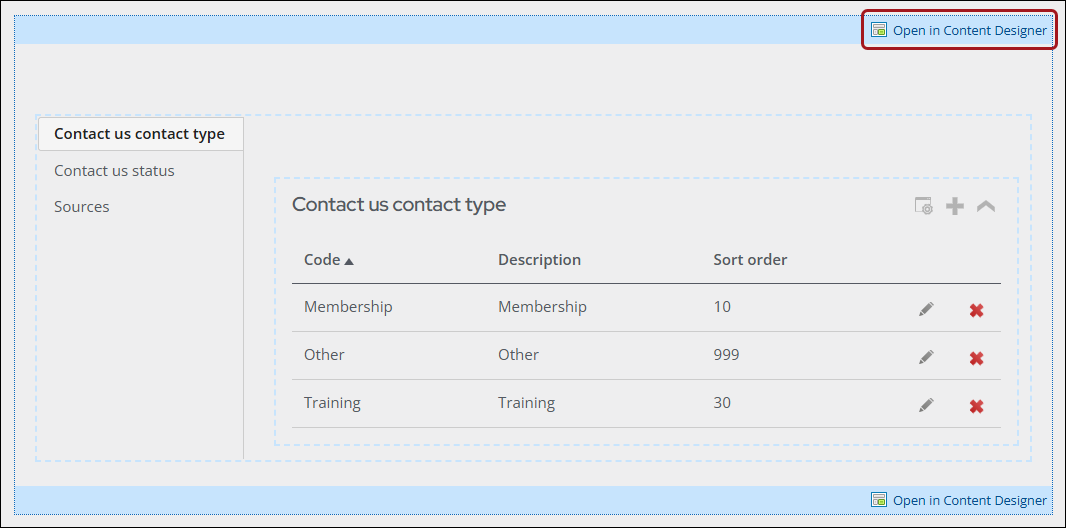
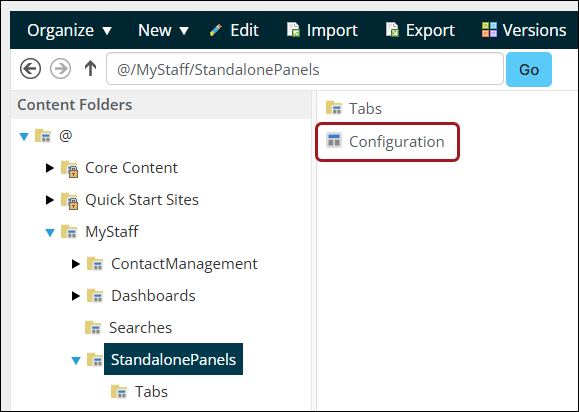
NoteAlternatively, edit the Standalone panel configuration page from RiSE > Page Builder > Manage content. Navigate through the following folder path: @MyStaff/Standalone Panels. Then select the Configuration content record. A staff user can edit the Standalone panel configuration page by opening the Configuration content record in Page Builder. The Configuration content record is located at @/MyStaff/Standalone Panels.
Adding Standalone panel tabs
To add additional standalone panels for value lists, a staff user must create a content record for each additional standalone panel in the Tabs folder (located at @/MyStaff/StandalonePanels/Tabs).
Do the following:
- Go to RiSE > Page Builder > Manage content.
- Navigate through the following folder path: @/MyStaff/StandalonePanels.
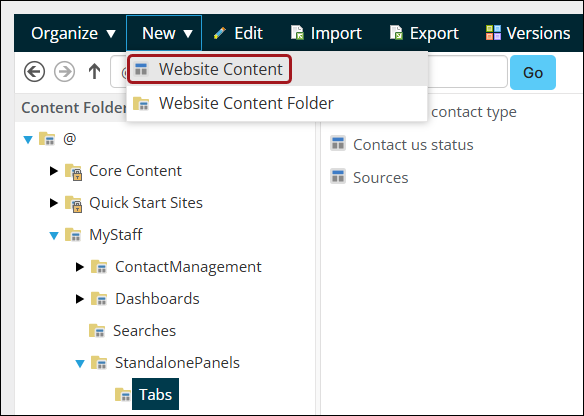
- From the navigation bar, select New > Website Content.
- In the Manage content dialog, choose Add content.
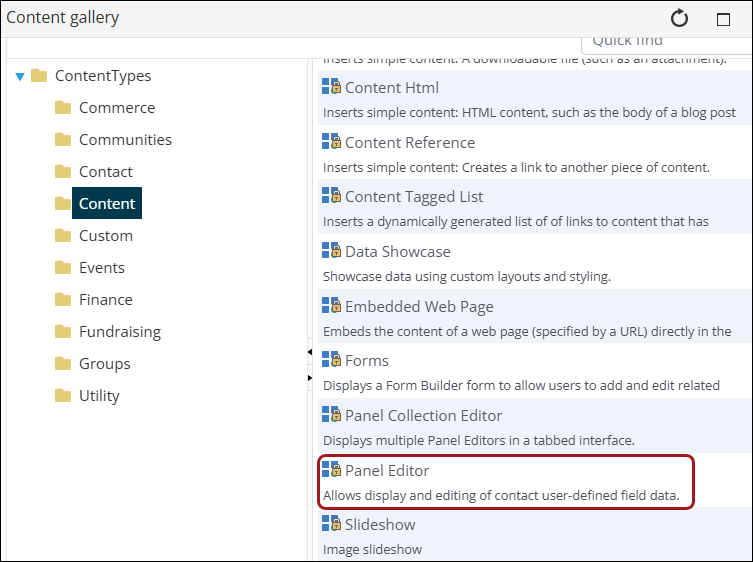
- In the Content gallery, go to Content and choose Panel Editor.
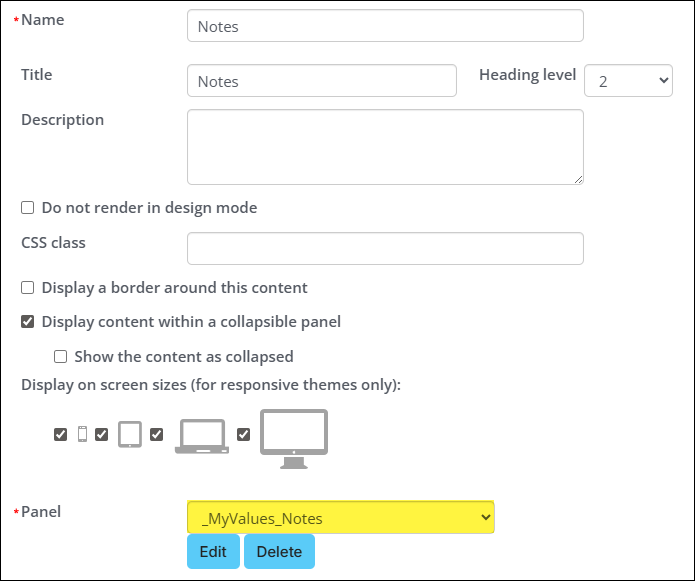
- Name and Title the content item.
- From the Panel drop-down, select the panel source.
- Click OK.
- Click Save & Publish.
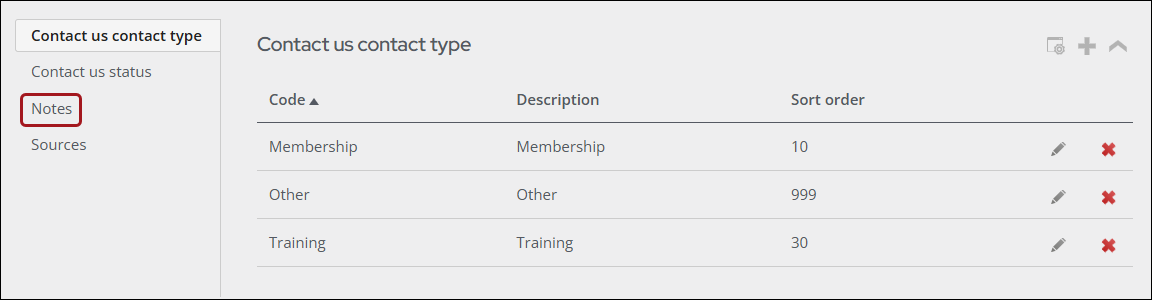
- The new panel appears on the Standalone panels configuration page as a new tab.
Updated 3 months ago