

Security sets
Review the security sets that control Staff site navigation access, independent of module authorization levels.
Throughout iMIS, whenever you configure access settings, you see a drop-down list of available security settings that you can apply to individual folders and objects. These security sets offer easier control and faster iMIS performance than defining custom ones.
Security sets are a different mechanism than module authorization levels: a module authorization level controls what a specific user can do within a module, while a security set controls who can see a specific navigation item, folder, or object at all. Many navigation items require both — a security set to see the item, and a module authorization level to use it once there.
Administrators Full Control
The following navigation items have the Administrators Full Control set applied:
-
Reports: All reports, Content reports
-
RiSE
NoteAlthough the RiSE navigation has the Administrators Full Control security set applied, you do not have to be a system administrator to have access to RiSE. See Granting a staff user access to RiSE without making them a system administrator.
-
Settings
Reporting Users Full Control
When the Reporting Users Full Control security set is applied to navigation, only those who have the Reporting security group selected have access to those navigation items. The following navigation items have the Reporting Users Full Control set applied:
- Contact reports: Reporting Users Full Control + Customers 2
- Membership reports: Reporting Users Full Control + Customers 2
- Accounting reports: Reporting Users Full Control + Customers 2
- Fundraising reports: Reporting Users Full Control + Fundraising 2
- Event reports: Reporting Users Full Control + Events 2
- Commerce reports: Reporting Users Full Control + Orders 2
- Certification reports: Reporting Users Full Control
- Report Writer: Reporting Users Full Control
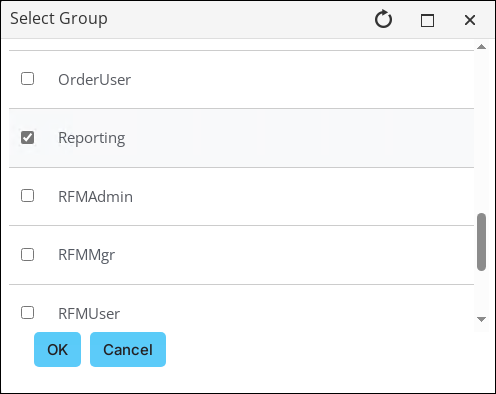
To add the Reporting security group to a staff user's account, do the following:
-
Go to the staff user's account page.
-
Click the Security tab.
-
From the Security groups area, select Add.

-
Enable Reporting, then click OK.
-
Click Save.
Campaign, Segmentation, RFM, Process manager
There are several navigation items under Marketing that require specific security groups:
- Campaign Users Full Control
- Campaigns: Track campaigns, Define campaigns, Define inserts, Record responses, View output, Import source codes
- Campaign Admins Full Control
- Campaigns: Settings
- Segmentation Users Full Control
- Defining segments
- Segmentation Admins Full Control
- Segmentation settings
- RFM Users Full Control
- Run analytics
- RFM Admins Full Control
- RFM settings
- Opportunity Users Full Control
- Process manager: Projects, Tasks
- Opportunity Admins Full Control
- Process manager settings
To add any of these security groups to a staff user's account, do the following:
-
Go to the staff user's account page.
-
Click the Security tab.
-
From the Security groups area, select Add.
-
Enable any of the following:
- CampaignUser
- CampaignAdmin
- SegUser
- SegAdmin
- RFMUser
- RFMAdmin
- OpportunityUser
- OpportunityAdmin
-
Click OK, then click Save.
Updated about 2 months ago