

System requirements (on-premise only)
TipThe system requirements must be reviewed and implemented by on-premise (self-hosted) iMIS EMS users. If you are hosted by ASI, these system requirements (other than the supported browsers) do not require your attention.
Operating systems
The following are the compatible operating systems:
- Windows Server 2016 Standard (with all updates applied)
- Windows Server 2019 Standard (with all updates applied)
WarningIf you have enabled FIPS in the operating system on iMIS application and web servers, you must disable FIPS before proceeding with your iMIS installation. Having FIPS enabled will cause parts of the iMIS.NET application to malfunction.
App server
> 🚧 Warning
Installing iMIS on multiple app servers is not supported.
App server requirements
The following are requirements for the application servers:
- 1000 Mbps network connection between database server host and all appservers and workstations.
- At least two CPUs that are each equivalent to the Intel(R) Xeon(R) CPU E5-2673 v3 @ 2.40GHz processor, 8GB RAM , 128GB SSD disk for operating system
- Microsoft Internet Information Services (IIS) 10.0
- Microsoft .NET Framework 4.8 and 4.6.2 (ASP.NET).
- Microsoft Command Line Utilities (download directly from here: Go Microsoft) - You must install OSQL.exe, SQLCMD.exe, and BCP.exe. The installer installs SQLCMD and BCP, which are required by the installer and the upgrader.
WarningInstalling .NET 4.6.2 is required for and is supported for previous versions of iMIS beginning with iMIS Q4 2015 (version 20.2.26), but is not compatible with versions prior to iMIS Q4 2015. If you have multiple versions of iMIS installed on the same server and those versions are different, only those versions beginning with iMIS Q4 2015 can be installed on the same server. Versions of iMIS prior to iMIS Q4 2015 must be installed on a separate server without .NET 4.6.2 installed.
Setting up an iMIS site at the root of an IIS web site
Default websites are required to have an SSL binding. Do the following to set up an iMIS site at the root of an IIS web site:
- Launch IIS Manager.
- In the left navigation, right-click Sites and select Add Web Site.
- Enter the following information:
- Site name: www.domainname.com
- Physical path: The default path is C:\Program Files (x86)\ASI\iMIS\Net. Change this path to reflect your new iMIS path (for example, C:\Program Files (x86)\ASI\domainname\Net).
- Binding: Change the IP address to the address assigned to this site.
- Host name: www. domainname.com
- Add an SSL site binding. Select the site, then click Bindings and then Add.
- Enter the following information:
- Type: HTTPS
- IP address: The IP address of the site.
- Port: 443
- SSL Certificate: Select the certificate for www.domainname.com.
NoteA new DNS record will need to be added to your DNS Server to associate the new www.domainname.com with the external IP address.
- Open the C:\Windows\System32\drivers\etc\hosts file in a text editor application.
- Add the following line to the end of the hosts file:
[IP address of the site] www.fullurl.com
- Go to RiSE > Site Builder > Manage websites, and select your website.
- Change the Website base URL(s) field: https://www.domainname.com
SQL database server
SQL database server requirements
The following are requirements for the SQL database servers:
- 1000 Mbps network connection between database server host and all appservers and workstations.
- At least four CPUs that are each equivalent to the Intel(R) Xeon(R) CPU E5-2673 v3 @ 2.40GHz processor, 16GB RAM, 128GB SSD disk for operating system, and 512GB SSD disk for data and logs.
- SQL Server Management Studio (release 18.8 or later) (installed separately from SQL Server 2019)
- SQL Server 2019 (with all updates applied) . For step-by-step installation instructions, see the Microsoft Documentation .
WarningThe following collation is required: SQL_Latin1_General_CP1_CI_AS. To review or change the collation, see the Microsoft Documentation.
Important SQL Server version notes
- SQL Server 2019 - SQL Server 2019 has performance enhancements and new features that iMIS benefits from, making it the base level of supported SQL Server for iMIS. ASI is in the process of transitioning all of internal development and support up to SQL Server 2019, but this is an ongoing process.
- SQL Server 2016 - SQL Server 2016 is out of the mainstream support as of July 2021. iMIS currently works on SQL Server 2016 but will not for much longer.
- SQL Server 2012 or 2014 - iMIS is not compatible with SQL Server 2012 or 2014, because it uses features specific to 2016+.
Required SQL features
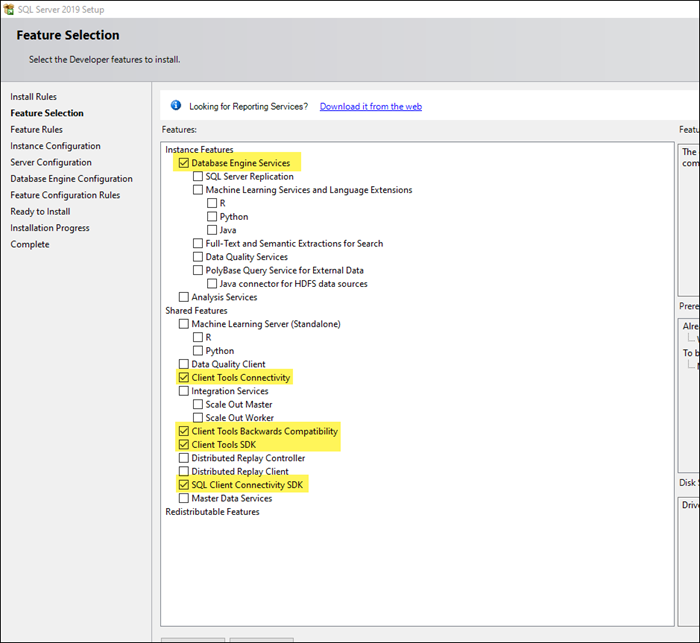
The following are SQL Server 2019 features to select at the time of install:
- Database Engine Services
- Client Tools Connectivity
- Client Tools backward compatibility
- Client Tools SDK
- SQL Client Connectivity SDK
Checking that the required features are installed
If SQL Server 2019 is already installed and you want to check that the required features are selected, do the following:
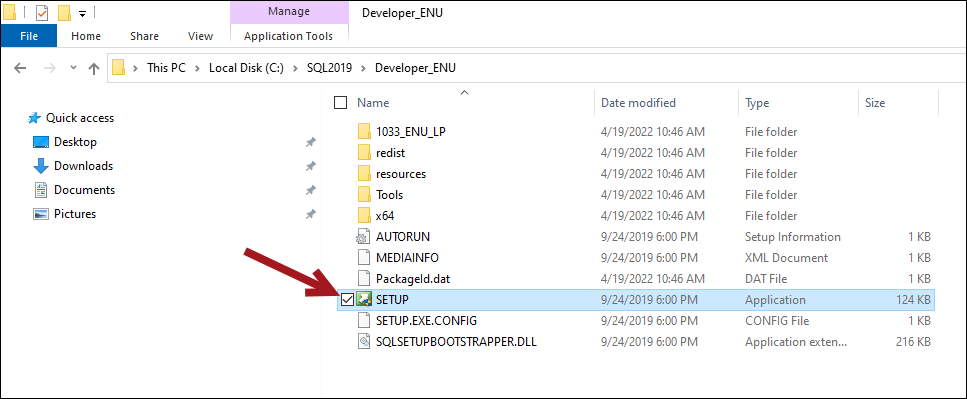
- From the root folder (or the location where SQL 2019 is installed), double-click the setup .exe to launch the SQL Server Installation Center.
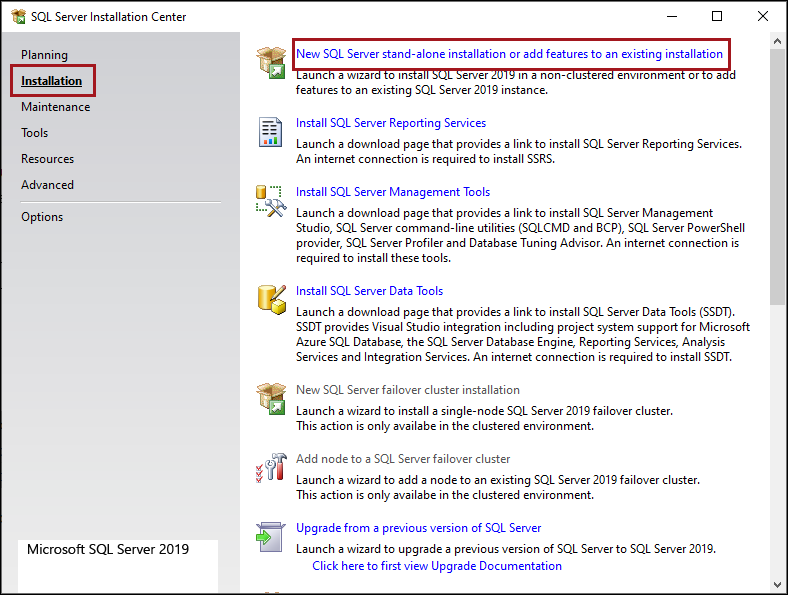
- From the left navigation, select Installation, then select New SQL Server stand-alone installation or add features to an existing installation.
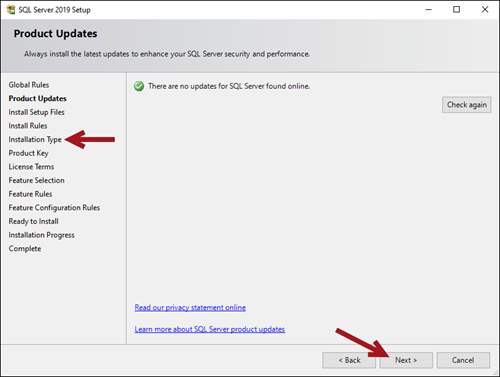
- After the Product Updates have finished running, click Next till you get to Installation Type.
- Select Add features to an existing instance of SQL Server 2019, then click Next.
- From the Feature Selection list, confirm the required features are selected. If the features are not selected, select them here, then click Next.
- Continue clicking Next through the SQL Server 2019 Setup window, then click Close.
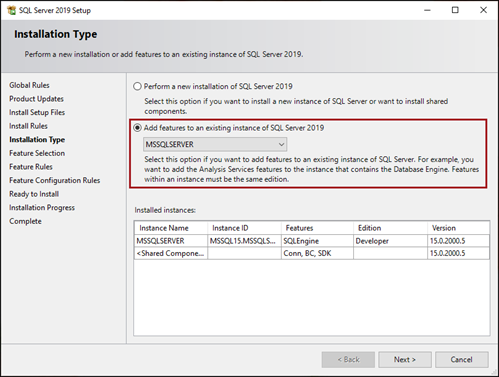
For more information about adding features after SQL 2019 is installed, see the Microsoft Documentation.
Ensuring the Client SDK folder path is correct
You must also ensure that the system PATH environment variable is updated to include the Client SDK folder. For example:
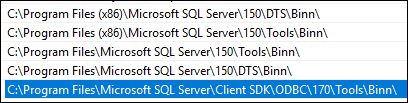
The Client SDK folder is not automatically added to the system PATH environment variable if Client Tools SDK is added after the initial SQL Server install. If this is not set up correctly, you can experience failures during an upgrade. A failure would most likely occur if you have multiple SQL Server instances installed on the same machine, or if you have Microsoft SQL Server 2019 installed, but did not include Client Tools SDK.
Browsers
iMIS supports the latest version of the following browsers:
- Chrome
- Edge
- Firefox
- Safari
- Chrome for Android
- iOS Safari
WarningInternet Explorer 11 is no longer supported as of January 1, 2021.
Report writing
- Reporting Services: SQL Server Data Tools (SSDT).
Install additional components
The following components must be installed. The iMIS installer checks for specific product versions. These components must be installed on the hosts (iMIS server and Advanced Accounting Console). If the following components are not installed, the installer will display a message indicating which components were not installed and then exit.
(NEW) Microsoft .NET Framework 4.8
The Microsoft .NET Framework 4.8 is required for iMIS EMS installs and upgrades.
Go to the Microsoft Download Center and download the Runtime version of Microsoft .NET Framework 4.8.
You must install the Microsoft Access Database Engine Redistributable on your application server.
(NEW) SQL Server Management Studio
SQL Server Management Studio is no longer installed automatically with SQL Server.
From the Microsoft Download Center, download the latest version of SSMS.
(NEW) Microsoft Internet Information Services (IIS) 10.0
You must have Microsoft IIS 10.0 installed.
From the Microsoft Download Center, download IIS 10.0.
Microsoft Access Database Engine Redistributable for Translation
The Microsoft Access Database Engine Redistributable is required to import dictionaries for iMIS Translation.
Go to the Microsoft Download Center to download the Microsoft Access Database Engine Redistributable. Be sure to read all System Requirements before downloading.
You must install the Microsoft Access Database Engine Redistributable on your application server.
Application Initialization
Application Initialization is included with Windows Server 2012 and 2012R2.
To enable Application Initialization, do the following:
- Download and install Application Initialization.
- To enable Application Initialization on Windows Server 2012 or 2012R2, do the following:
- Open the Server Manager.
- Go to Manage > Add Roles and Features.
- Follow the instructions in the Add Roles and Features Wizard until you get to the Select server roles page.
- Go to Web Server (IIS) > Web Server > Application Development > Application Initialization.
- Check the box to enable the Application Initialization.
Web Deploy
To enable Web Deploy, do the following:
- Download Web Deploy. Make sure to select the WebDeploy_amd64_en-US.msi file.
- Follow the installation instructions on the download page.
IIS URL Rewrite Module 2.1
Go to the Microsoft URL Rewrite Module 2.1 page to download.
Microsoft Report Viewer 2012 Runtime
SQL Server 2012 requires a Report Viewer Runtime update to display SSRS subreports. If you use SQL Server 2012 management tools on your application server and want to use SSRS subreports in iMIS, you must install the Microsoft Report Viewer 2012 Runtime on your iMIS application servers.
Do the following:
- Download the Microsoft Report Viewer 2012 Runtime.
- Follow the installation instructions on the download page.
Subreports will display an error if the Microsoft Report Viewer 2012 Runtime is not updated.
Installing additional components on Windows 2016
If the iMIS app server is installed on Windows 2016, use the Powershell command and a PS script to install all the roles and features. Using the Windows Powershell and the downloaded iMIS2017Windows2016.xml file, you can automatically install all the features needed by iMIS on a Windows 2016, except for the URL Rewriter and Windows Web Deploy. The steps are as follows:
- Extract the iMIS2017Windows2016.zip file from the following FTP site: https://download.advsol.com/public/restricted/iMIS2017Windows2016.zip
- Extract the iMIS2017Windows2016.zip file to a temporary folder. For example, C:\temp.
- Run the following command: Import-Clixml C:\temp\iMIS2017Windows2016.xml | Install-WindowsFeature
- Reboot once it is complete.
NoteIf a role or feature is already installed, it will skip over the role or feature and move on to the next one.
Troubleshooting
Error: You must install SQL server client tools before you can run the upgrade
All client tools must be installed on the app server where the upgrade is performed (the App Server where the iMIS Service page runs). The client tools must be installed separately from the SSMS download.
Download the client tools using the following link: https://go.microsoft.com/fwlink/?linkid=2142258
The following must be installed on the app server and the path where the upgrade runs:
- OSQL.EXE - Not installed by default with SSMS 18.x, which is why SSMS 17.x is required to be installed. The dependency on OSQL is being removed currently, and some future version (post 20.3.136) will no longer require this.
- SQLCMD.EXE
- BCP.EXE
Important SQL Server version notes
- SQL Server 2019 - SQL Server 2019 has performance enhancements and new features that iMIS benefits from, making it the base level of supported SQL Server for iMIS. ASI is in the process of transitioning all of internal development and support up to SQL Server 2019, but this is an ongoing process.
- SQL Server 2016 - SQL Server 2016 is out of the mainstream support as of July 2021. iMIS currently works on SQL Server 2016 but will not for much longer.
- SQL Server 2012 or 2014 - iMIS is not compatible with SQL Server 2012 or 2014, because it uses features specific to 2016+.
500.19 error when Feature Delegation is set to Read Only
If you receive a 500.19 error, check that Feature Delegation is set to Read/Write:
- Open IIS.
- From the top-most entry in the tree view, click the IIS Server Name.
- From the right pane, double-click Feature Delegation.
- From the list, locate Modules.
- Right-click Modules, then set to Read/Write.
Updated 5 months ago