

Entering and reversing negative gifts
Access requiredTo enter a negative gift, you must be a system administrator or a staff user with at least Fundraising: 4 module authorization.
Staff users can reduce the amount attributed to a fund or gift item by entering a gift with a negative amount. A negative gift typically represents money moving out of a fund rather than money received from a donor.
Understanding differences between a negative gift and a standard gift
Unlike a standard gift, a negative gift:
- Is excluded from receipting and does not appear on the donor's account page under gift transactions or in the Issue receipts screen.
- Is included in fundraising reports, queries, and business objects (GiftReport, GiftReceivedSummary, GiftHistorySummary, GL Export), so the fund and gift item totals stay accurate.
- Cannot be adjusted once entered. If a negative gift was entered incorrectly, reverse it rather than edit it. For more information, see Reversing a negative gift below.
Defining example use cases
Staff users can enter a negative gift in the following use cases. These are not exhaustive use cases but representations of where this feature may be used:
- Transferring funds: When gifts must be moved from the original fund (financial entity) to a different fund as a lump sum (rather than gift by gift), enter a negative gift on the source fund and an offsetting positive gift on the destination fund.
- Applying administrative or processing fees: When a percentage of gifts to a fund needs to be assessed as a fee after the gifts are received, enter a negative gift for the fee amount on the relevant gift item, which can be configured to represent a fund-related expense.
- Splitting funds to a foundation receiving fees: When a foundation takes a small fee on funds raised for a chapter or affiliated charity, a negative gift removes the fee amount from the fundraising fund. An offsetting gift adds it to the foundation's operating fund, keeping both the accounting system and iMIS reporting in sync.
Defining prerequisites to entering a negative gift
Before entering negative gifts for the first time, staff users should confirm that the following exists:
- Gift item: If needed, set up one or more gift items that represent a fund-related expense linked to the appropriate financial entity and GL account on the Accounting tab. Set a Show in search end date in the past to hide the gift item from search results. Select Allow purchaser to enter details to allow entering details or comments for a negative gift when this gift item is selected. For more information, see Defining gift items.
- Contact: The contact that is selected when entering a negative gift should represent the organization or placeholder contact to record the negative gift against. This contact is not a real donor. For more information, see Contacts.
- Cash payment methods: If needed, set up one or more Cash-type payment methods linked to GL accounts from which the negative gifts should be drawn. Existing cash or checking accounts may be used for this purpose as well. The payment methods do not need to be added to a payment method set for use in Enter negative gifts. For more information, see Payment methods and payment method sets.
Entering a negative gift
Do the following to enter a negative gift:
-
Go to Fundraising > Enter negative gift.
-
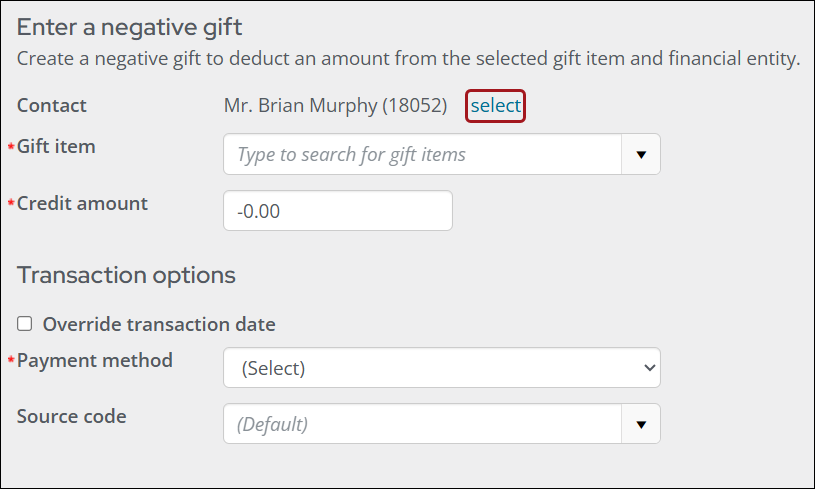
Click select to choose or change a contact. When in On Behalf Of mode, the OBO contact is selected by default.
-
Fill in the following required fields:
- Gift item: Start typing to choose a target gift item from the drop-down. Once a gift item is selected, the associated Financial entity appears as a read-only field.
- Credit amount: Specify a credit amount to apply as a negative gift. The negative sign must precede this amount.
-
From the Payment method drop-down, select the cash payment method.
-
Choose whether to suppress the order confirmation.
-
Click Submit.
Once the negative gift transaction is submitted, invoice, activity, and transaction records are created for it. A corresponding negative payment is created for the same amount so the invoice has a balance of zero and no open credit remains.
Reversing a negative gift
If a negative gift was entered in error, staff users must reverse it, since it cannot be adjusted. Reversing the negative gift creates a cleaner accounting trail and makes reconciliations easier in the accounting system and iMIS.
To reverse a negative gift, the following processes must be completed in the specified order:
- Reverse the payment: A negative gift's payment only has the Reverse action enabled. For more information on reversing the payment, see Recording a payment reversal.
- Reverse the invoice: A negative gift's invoice only has the Reverse action enabled. For more information on reversing the fundraising invoice, see Adjusting and reversing fundraising invoices.
Updated 2 days ago