

Voiding and issuing replacement charitable receipts
Access requiredTo void donation receipts, you must be a system administrator or a staff user with Fundraising: 3 module authorization.
There may be instances in which a donation receipt must be voided. Review the following documentation to learn how to void a receipt and issue a replacement receipt to the same donor with a new receipt number.
Voiding a charitable receipt
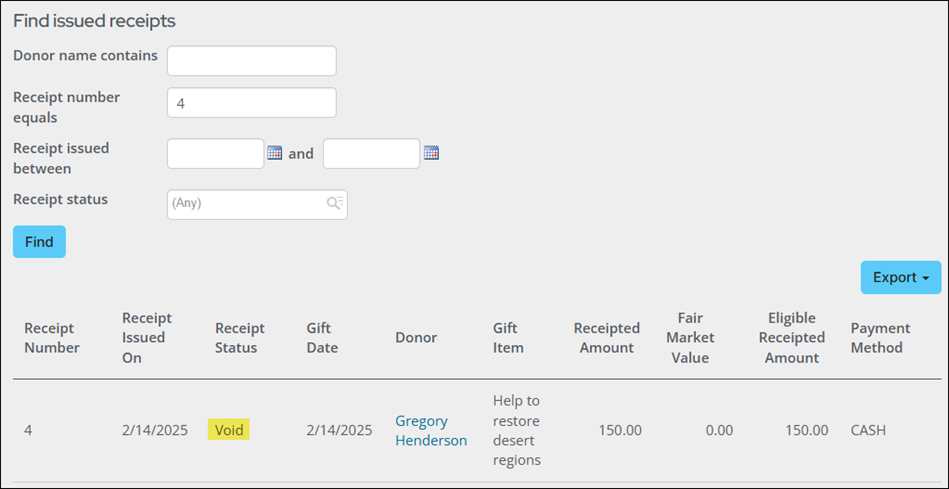
Voiding the receipt
Do the following to void a receipt:
-
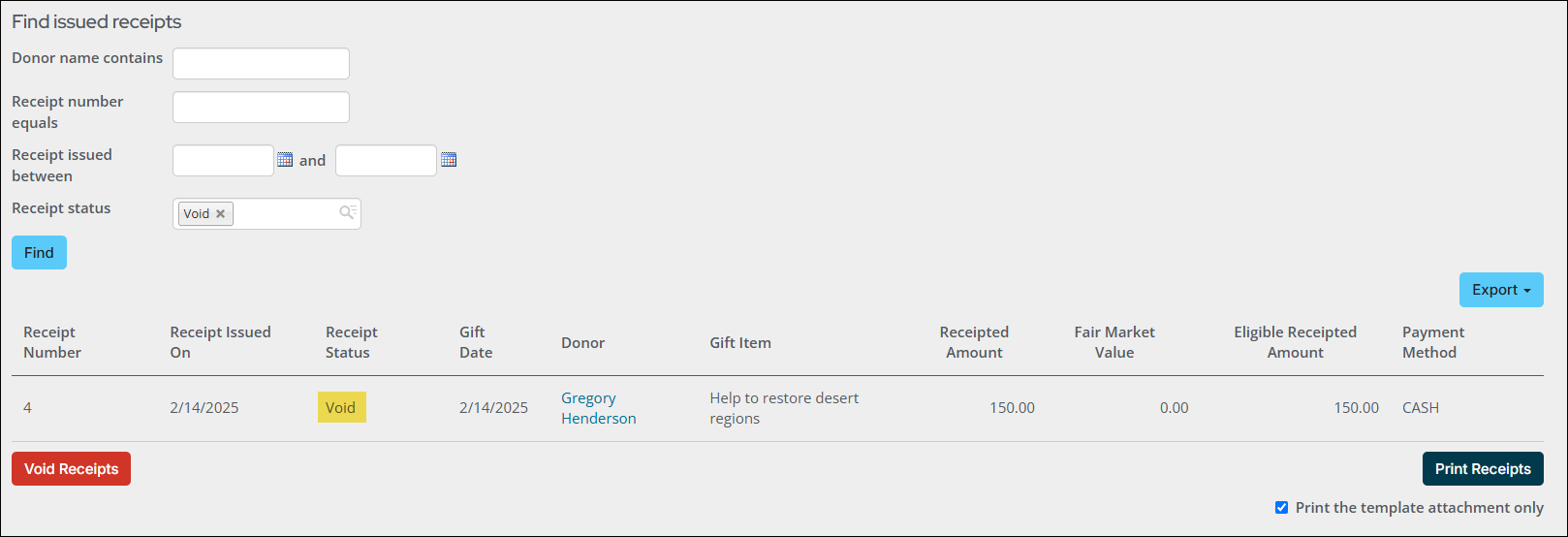
Go to Fundraising > Receipting > Find issued receipts.
-
Use the available search options to locate the receipt.
-
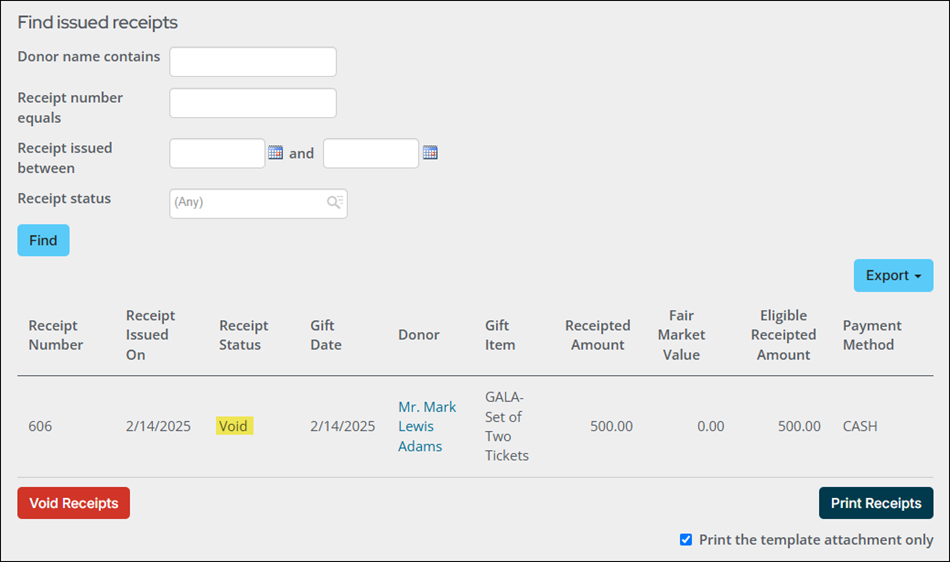
Click Void Receipts.
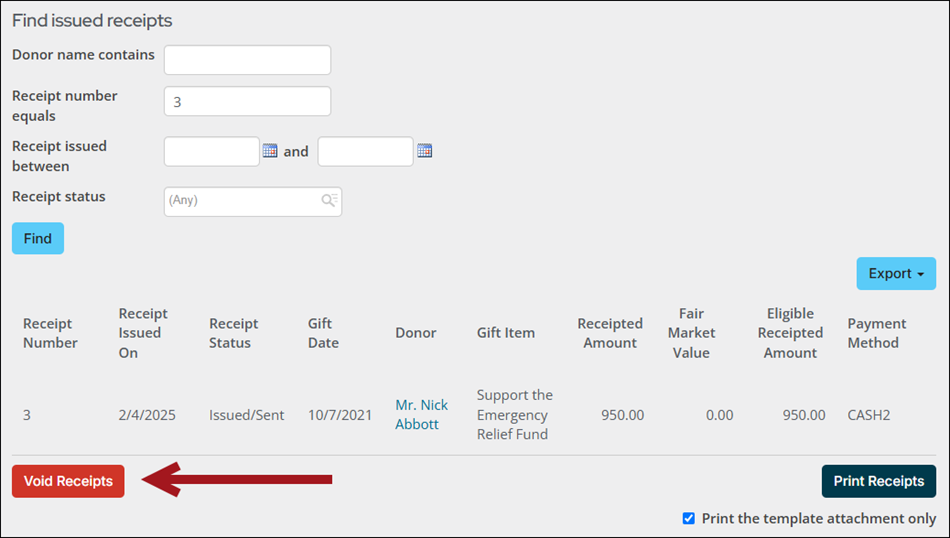
- Click OK to confirm.
Printing the voided receipt
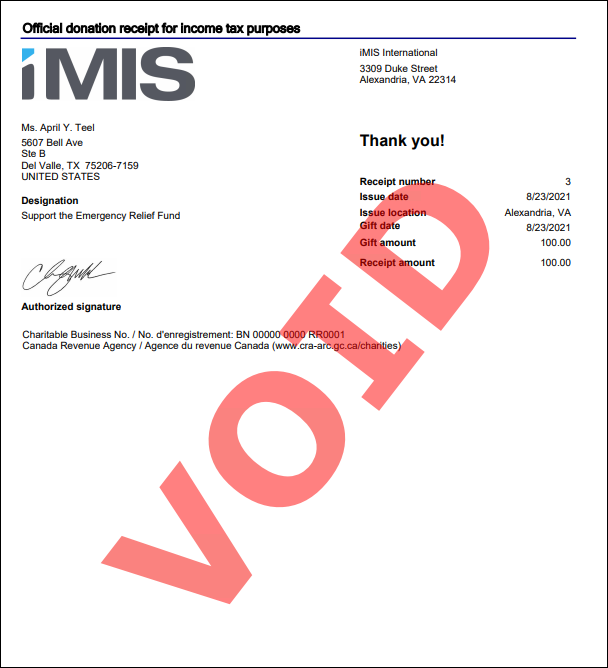
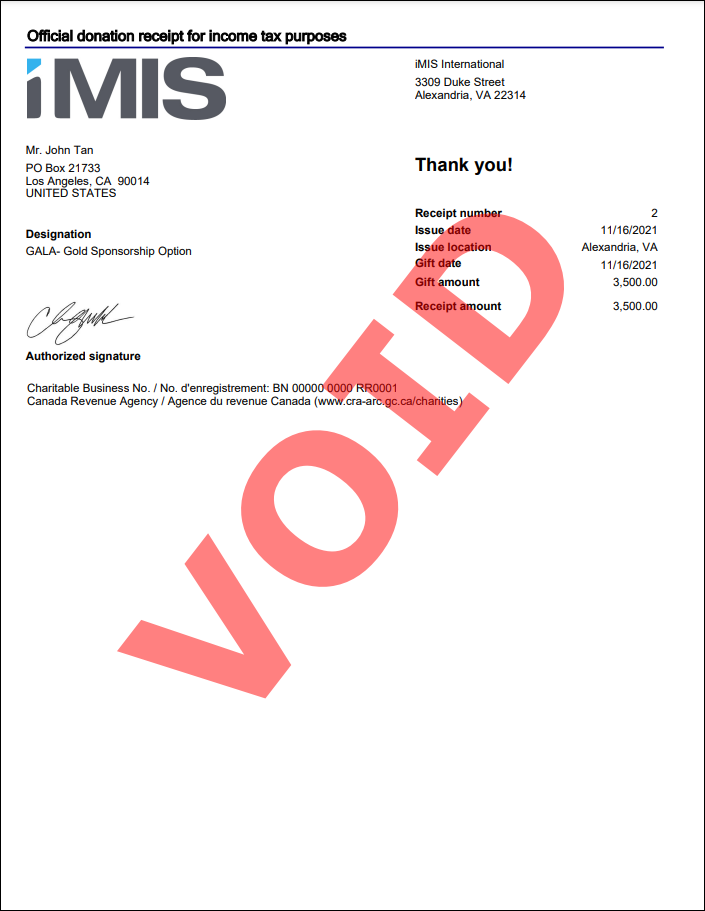
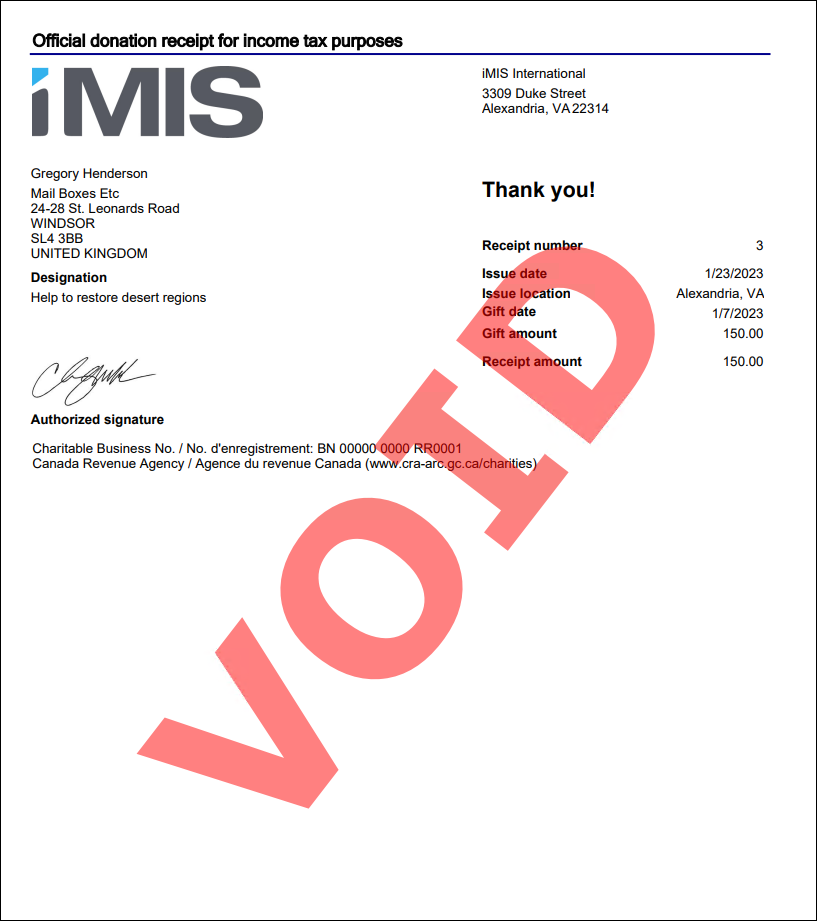
Do the following to print the voided receipt:
-
Go to Fundraising > Receipting > Find issued receipts.
-
Use the available search options to locate the receipt.
-
Click Print Receipts.
-
Go to Fundraising > Receipting > Receipt logs.
-
Select Download receipts.

-
The receipt is downloaded as a PDF.
Automatically voiding issued receipts
The following scenarios result in gift receipts being automatically voided:
- Adjusting a gift payment associated with a receipt that was already issued.
- Cancelling a charitable event registration or program item registration.
- Adjusting the Donor, Gift item or Gift date of a pledge or gift associated with a receipt that was already issued.
Review the examples below for more information.
Example: Adjusting invoice payments
Example: A staff user incorrectly enters a $25 donation as $250 and issues the receipt.
Staff users can reverse the payment, which automatically voids the associated receipt.
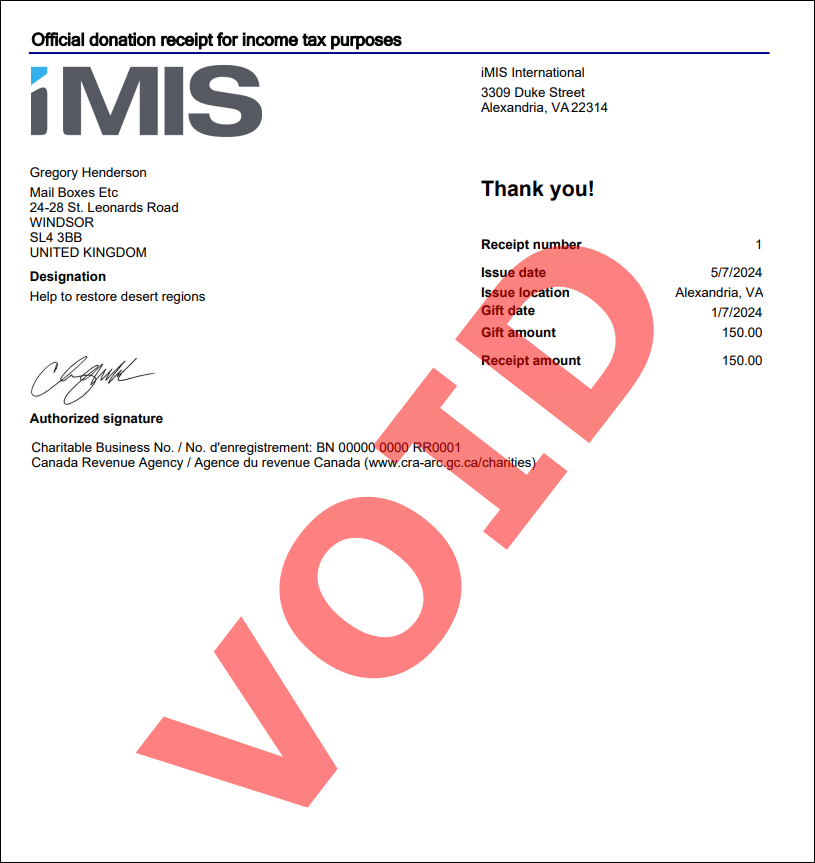
Do the following to adjust the payment, which will also void the issued receipt:
-
Go to Finance > Pay Central > Find payments and open the payment.
-
From Payment detail, make an adjustment to the payment. See Recording a payment reversal and Recording and processing refunds for more information.
-
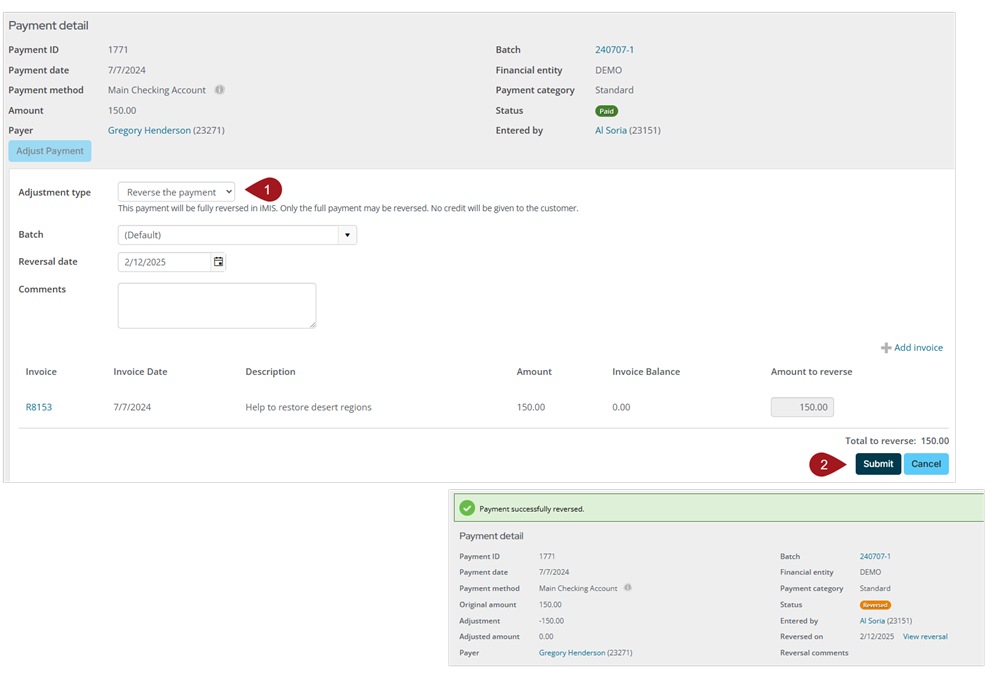
Click Submit. A message displays indicating that the receipt has been voided.
-
Go to Fundraising > Receipting > Find issued receipts to verify that the receipt was successfully voided.
Example: Cancelling a charitable event registration
Example: A registrant for a charitable event can no longer attend due to a schedule conflict.
A staff user can cancel the contact's registration, and upon checking out, void the previously issued charitable receipt.
NoteRemoving a charitable program item from a registration will entirely void any receipt that included the program item.
To void an issued receipt from charitable event registration cancellation, do the following:
-
Go to Events > Find registrations and open the registration.
-
Click Edit registration.
-
Now working on behalf of the registrant, cancel the registration.
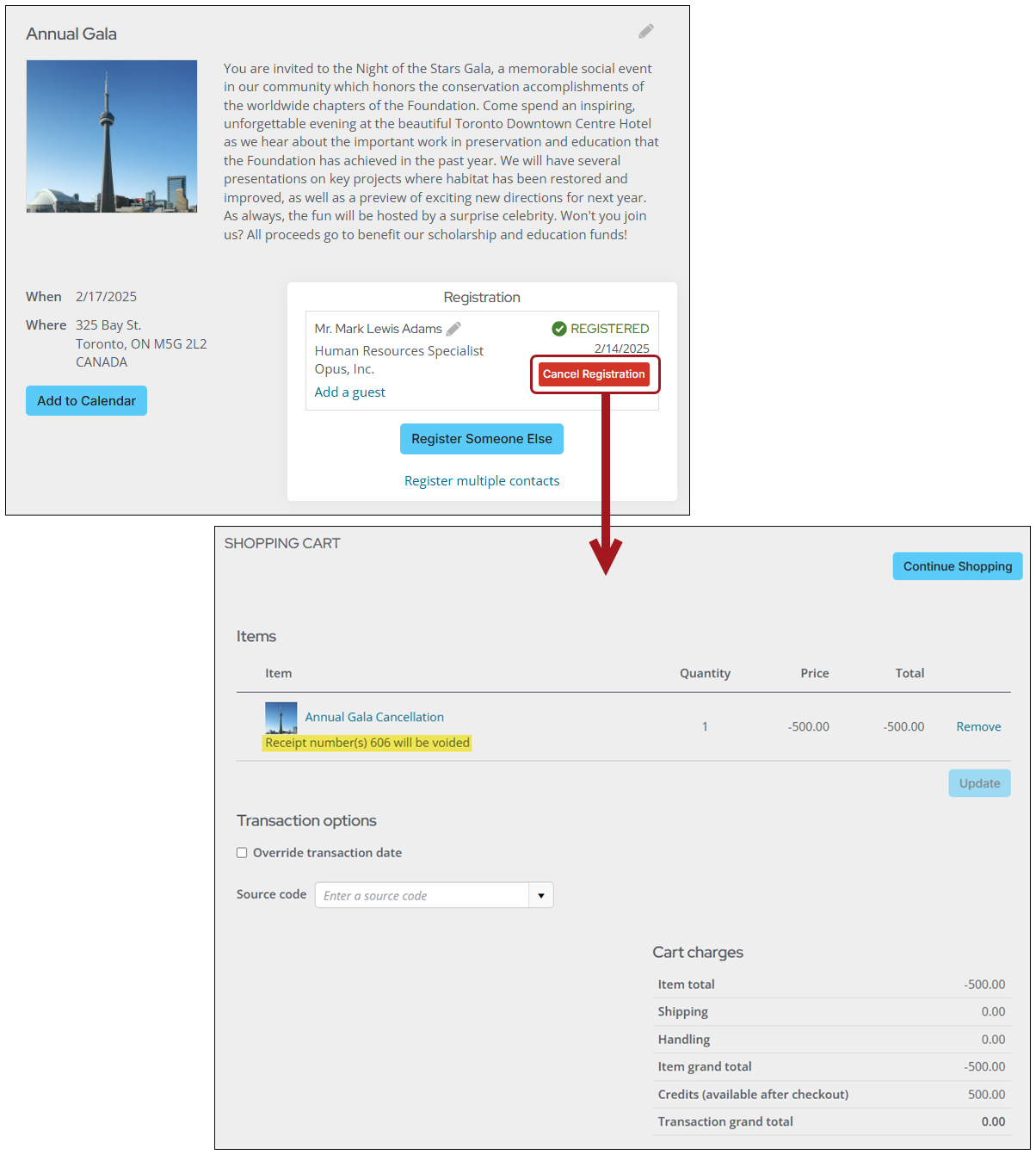
-
Click Proceed to checkout.
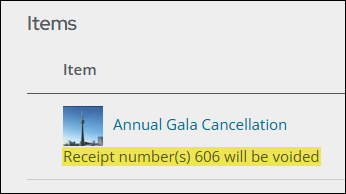
-
A note displays indicating the receipt numbers to be voided.
-
Click Submit order.
-
Go to Fundraising > Receipting > Find issued receipts to verify that the receipt was successfully voided.
Example: Adjusting gifts and pledges
ExampleA staff user enters a gift for the wrong date and issues the receipt.
Access requiredStaff users with Finance: 4 module authorization level or higher can adjust the gift date, which automatically voids the associated receipt. For more information, see Adjusting gift and pledge details.
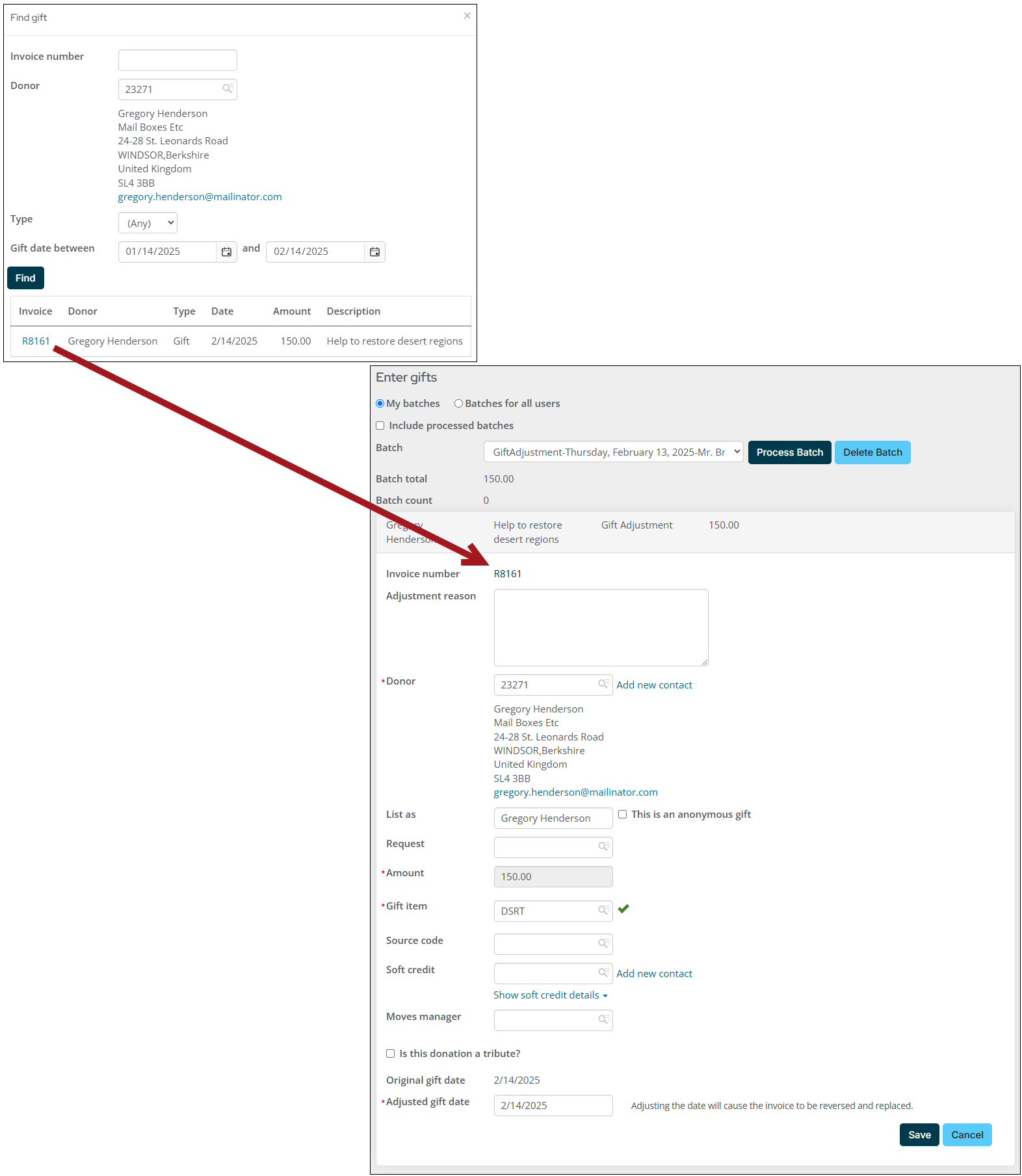
To void an issued receipt from a gift or pledge adjustment, do the following:
-
Go to Fundraising > Enter gifts.
-
From the Batch drop-down, select New adjustment batch.
-
Enter the Batch date.
-
Click Create Batch.
-
Click Find Gift to Adjust:
-
Use the available search options and click Find to locate the desired gift.
-
Select the Invoice number.
-
-
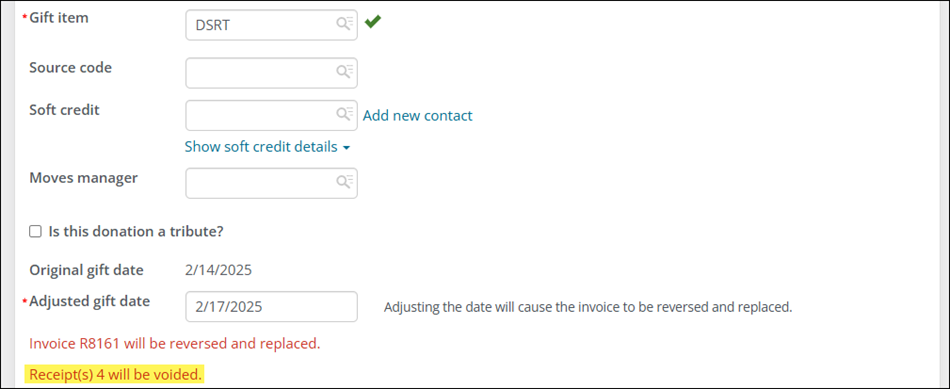
Enter the correct date in the Adjusted gift/pledge date field. A message displays noting the numbers of the voided receipts.
-
Click Save.
-
Click Process Batch to submit the adjustments.
-
The receipts associated with the gift or pledge automatically void once the batch is posted. To post the batch, go to Finance > Batches.
-
Search for the batch, then select the Batch Number.
-
Click Post Batch.
-
Click OK. A message is displayed confirming that the batch is submitted for posting.
-
Go to Fundraising > Receipting > Find issued receipts to verify that the receipt was successfully voided.
Tailoring the receipt template and PDF
Gift receipts can be replaced after the original receipt has been voided. Before you issue replacement receipts through email, you must tailor the Gift Replacement Receipt Template.
Tailoring the Gift Replacement Receipt Template
Staff users must tailor the out-of-the-box communication template (Gift Replacement Receipt Template) before sending replacement receipts to donors through email, because the template contains iMIS and ASI content the donor will not recognize.
Do the following to tailor the communication template:
-
Go to Marketing > Communication templates > Receipts > Replacement Receipts.
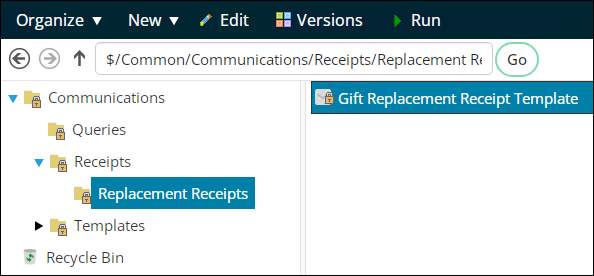
- Select the Gift Replacement Receipt Template.
- Select Organize > Copy.
- Select Organize > Paste.
- Double-click the template to open it for edit.
- Make the following changes:
-
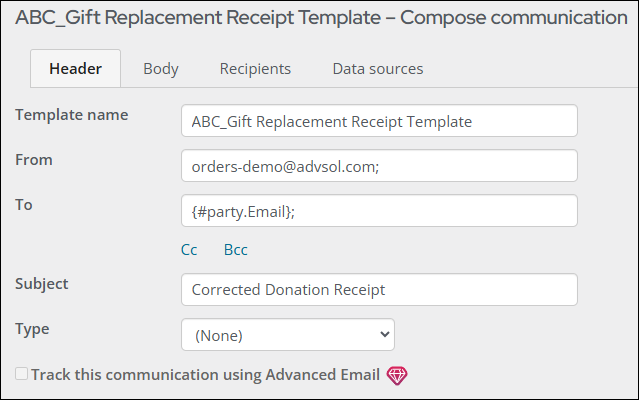
(Header tab) Update the following elements on the
Header tab:-
Template name
-
From email address
-
(optional) Subject
-
-
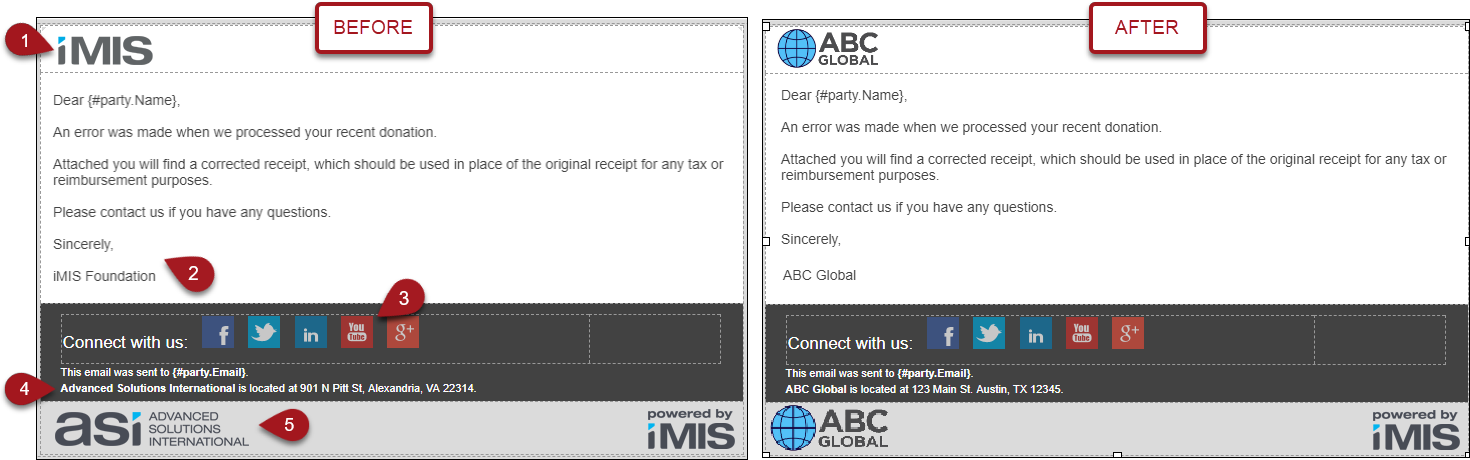
(Body tab) Update the following elements on the Body tab:
-
Logo – Replace this logo with your company’s
logo or delete the image. -
Email body content – Update the email body content if you would like to send a different
message to donors. -
All footer content – Update the links associated with the social media buttons, address, and remaining logos.
-
-
(Data sources tab) If necessary, add additional data sources to include in the body of the communication
template.
-
- Click Save.
Tailoring the Donation Receipt PDF
The Donation Receipt (DonationReceipt.rdl) attached to the out-of-the-box Gift Replacement Receipt Template is located at Reports > Fundraising reports > Templates folder. This .RDL file can be downloaded and edited using SQL Server Data Tools. See Modifying an existing report for more information.
NoteIf you have modified the Gift Receipt Template to no longer include the DonationReceipt.rdl attachment, do not enable Print template attachment only when printing issued receipts.
Issuing replacement receipts
After the original receipt is voided, do the following to issue a replacement receipt:
-
Go to Fundraising > Receipting > Issue receipts.
-
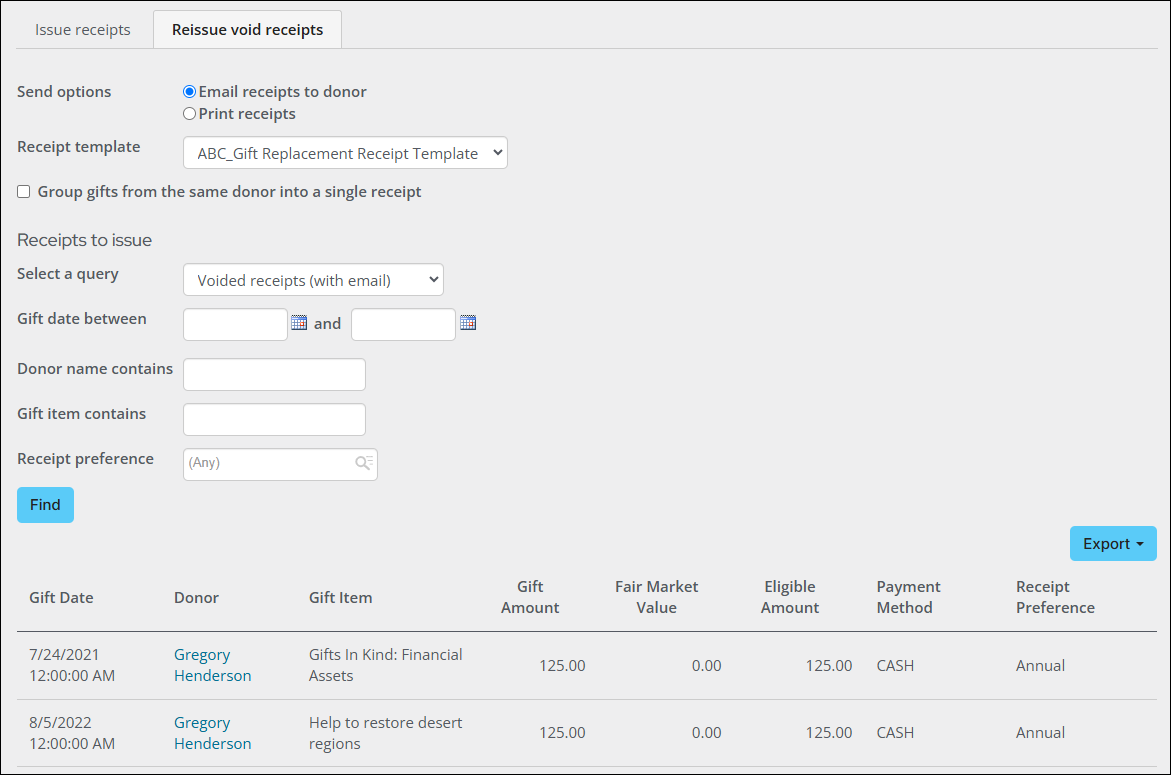
Click the Reissue void receipts tab.
-
In the Send options, choose from the following:
- Email receipts to donor - Sends an email communication to the donor with a PDF of the receipt attached.
- Print receipts - Downloads a PDF of the receipts.
-
Choose your custom Receipt template. See Tailoring the receipt template and PDF.
-
(Print receipts only) Select Print the template attachment only to only print the PDF receipt. Deselecting this option also prints the body of the communication template along with the PDF receipt. This option is only available if Print receipts is selected and the selected Receipt template has an attachment selected by default.
-
Enable Group gifts from the same donor into a single receipt to group gifts from the same donor into a single receipt.
-
Select the Receipts to issue from the Select a query drop-down:
-
Voided receipts (with email) - This is the Default query. This query displays donation receipts with a status of Void and donors with an email address.
-
Voided receipts (no email) - This query displays donation receipts with a status of Void and donors without an email address.
-
-
Click Issue receipts.
-
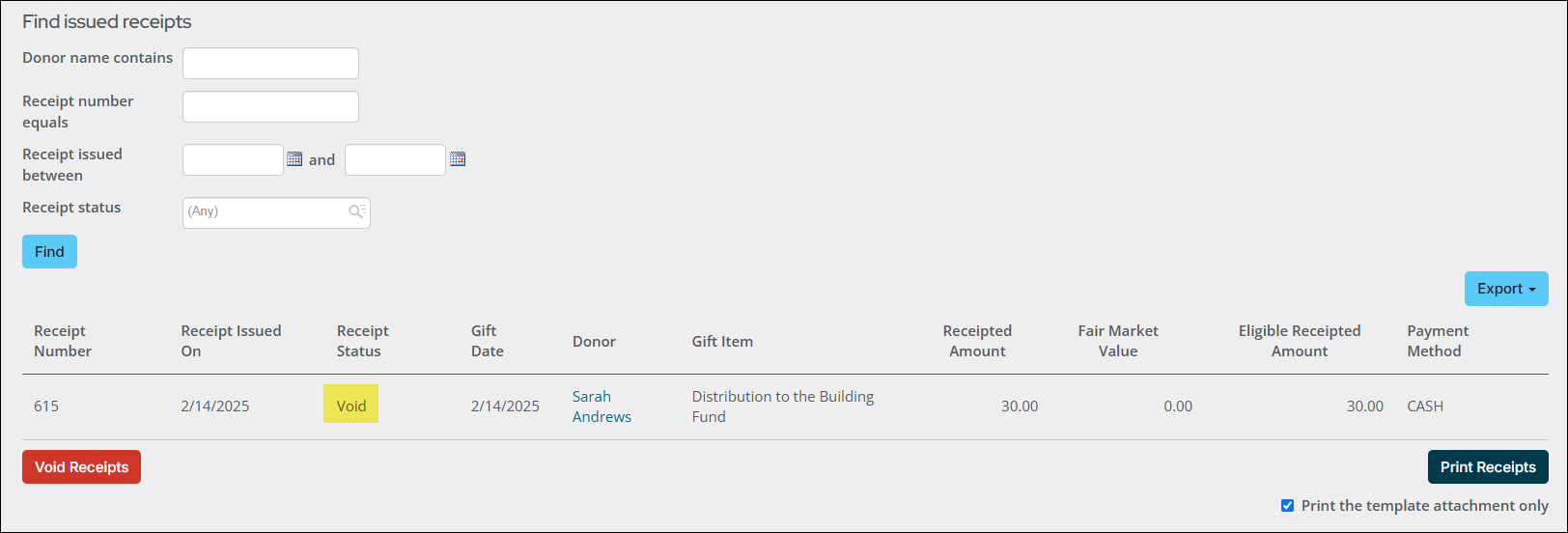
Go to Fundraising > Receipting > Receipt logs to confirm the receipt was successfully issued. If the receipt was emailed, there is a link to the Communication log. If the receipt is printed, there is a link to Download receipts.

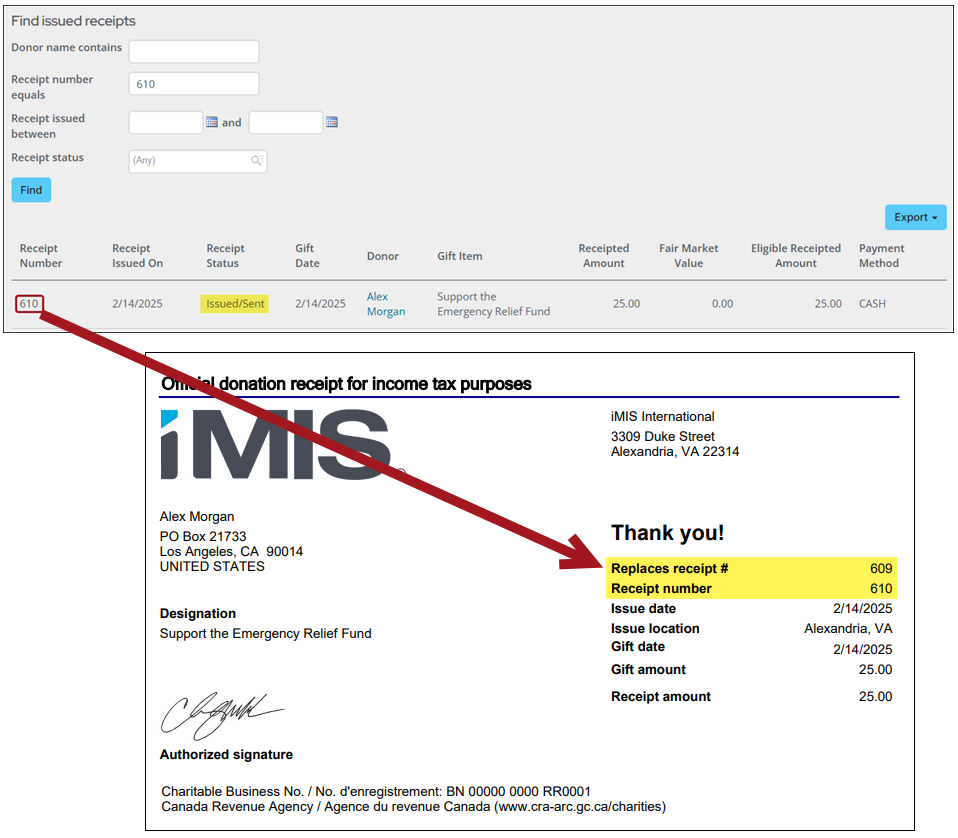
From each donor’s account page, use the Communications content item to review the replacement receipt. The replacement receipt is issued a new receipt number along with the number that this new receipt is replacing.
Creating a custom query to use when issuing voided receipts
Add custom receipting queries to the $/Fundraising/DefaultSystem/Queries/Receipts/Reissue void receipts folder. Each custom receipting query must contain the following as a display property:
- PartyId aliased as code_PartyId
- PaymentId aliased as code_PaymentId
- ReceiptLineId aliased as key_ReceiptLineId
- ReceiptNumber aliased as code_ReceiptNumber
- ReceiptKey aliased as key_ReceiptKey
If any of these Display properties are missing, an error is displayed. It is recommended that you use the GiftsReceivedForReceipting business object as a source for these queries because it uses the required fields.
WarningThe query selected is used to replace the recipient query of the communication template. Customized queries will not resolve in an individual template correctly. Instead, it is recommended to add additional data sources.
Voiding aggregate receipts
There may be instances when you need to group gifts from the same donor for receipting purposes. The Group gifts from the same donor into a single receipt option in the Issue receipts window allows you to group receipts together.
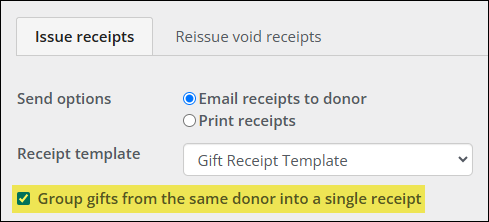
When an adjustment is made to the payment of one gift from an aggregate receipt, such as a reversal or refund, the receipts for the remaining gifts are voided. Once the original receipt has been voided, a new receipt that details the replacement can be issued.
>Example: Reissuing one receipt from a voided aggregate receipt
Alex Morgan donated two gifts in two separate transactions. Receipt #609 is issued as an aggregate receipt for both gifts.
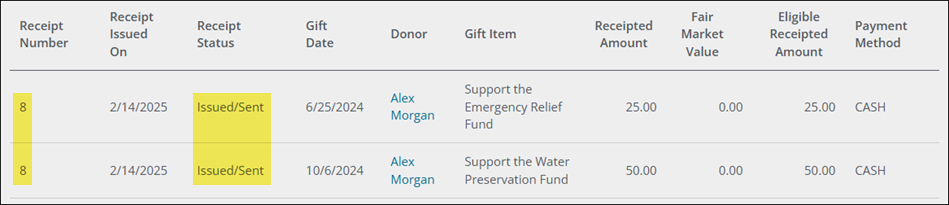
Alex's check did not clear the bank and now requires reversal. This payment adjustment results in aggregate receipt #609 being set to Void status.
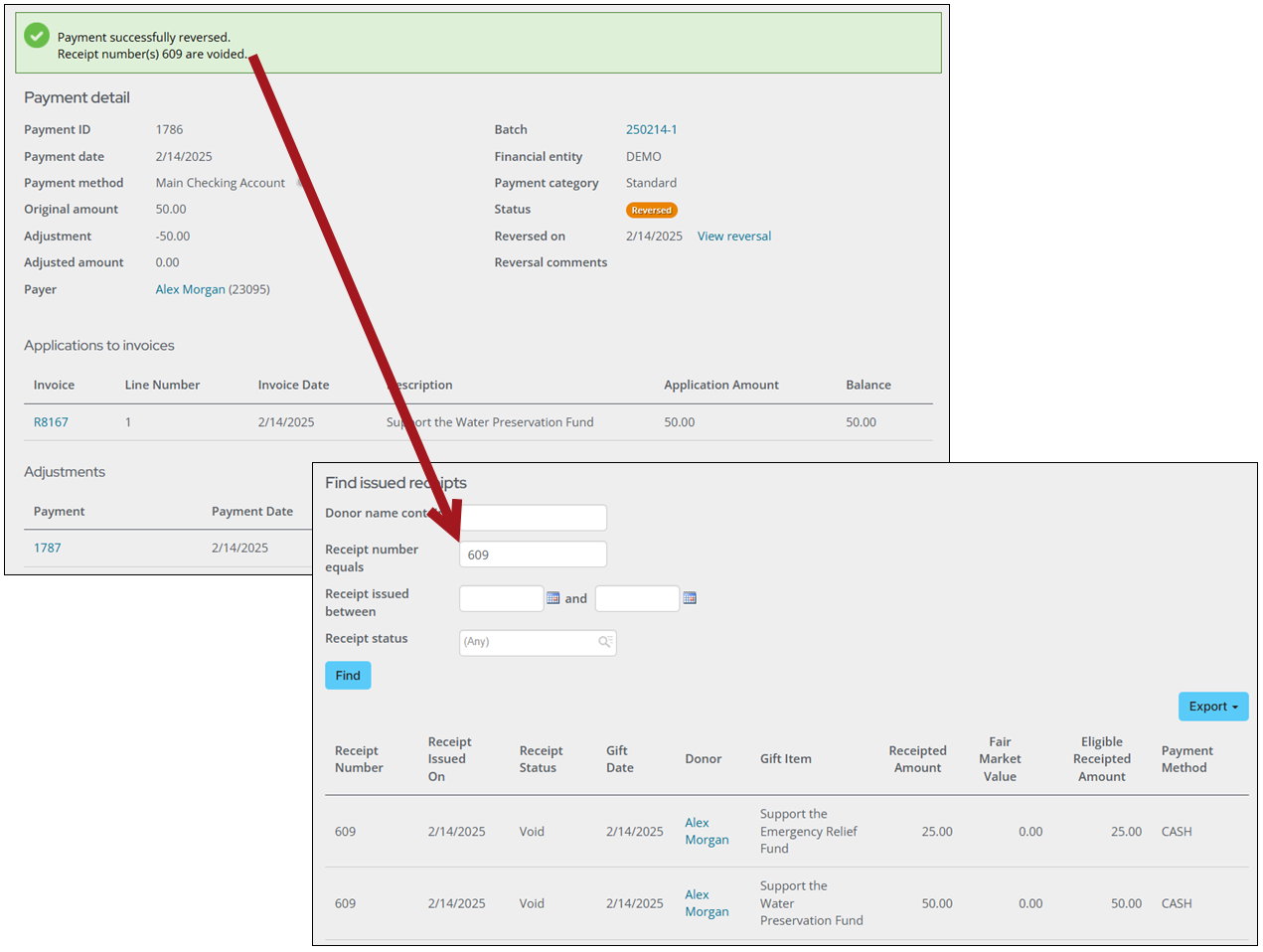
The Support the Emergency Relief Fund gift appears in the Voided receipts query in the Reissue void receipts tab. The reversed Support the Water Preservation Fund gift now has an open balance and does not appear as available for receipting.
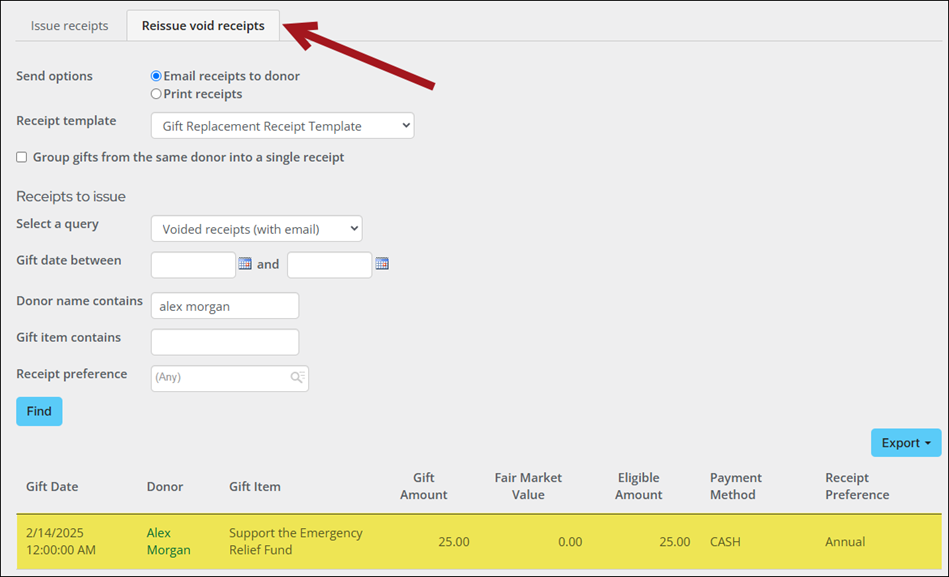
Alex requests that the receipt for the Support the Emergency Relief Fund gift be reissued. This action creates a new receipt that details the replacement of the original aggregate receipt.
Updated about 1 month ago