

Viewing payments
Access requiredTo view payments, you must be a system administrator or a staff user with Finance: 2 module authorization.
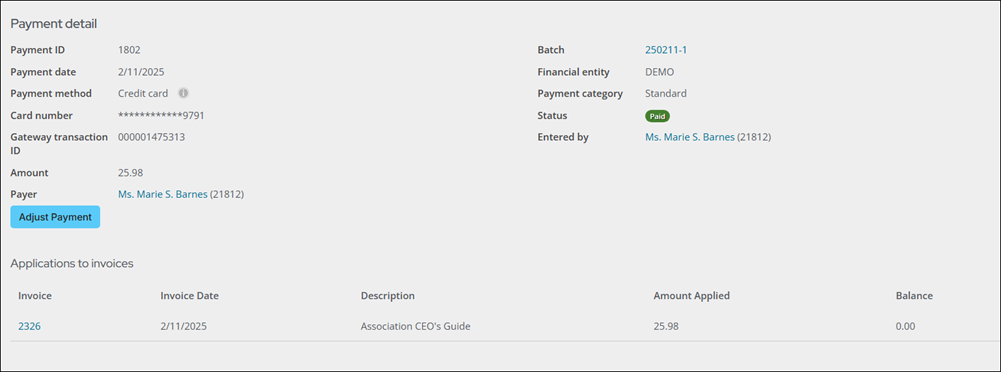
Do the following to view payment details:
-
Go to Finance > Pay Central > Find payments.
-
Use the available search fields to locate a specific payment.
-
Click Find.
-
Select the Payment ID for a specific payment. Payment details are displayed:
-
Payment ID
-
Payment date
-
Payment method
-
Reference, such as the last four digits of a credit card
-
Gateway transaction ID, provided by the gateway provider
-
Payment Amount
-
Name of the Payer
-
Batch in which this payment is included
-
Associated Financial entity
-
Payment category (Refund, Standard, Reversal, or Voided)
-
Payment Status
-
Who the payment was Entered by:
- Anonymous - Payments made by unauthenticated users from the Guest Invoice Payment content item. For more information, see Paying invoices using a direct link.
- MANAGER - Payments facilitated by system processes like AutoPay.
- User no longer exists - Payments made by users who have since been removed.
- Full name – For payments entered by authenticated users, the logged-in user’s full name along with their ID appears as a clickable link.
-
The Note field displays the description entered for a prepayment. If the payment is not a prepayment, or no description was entered, the Note field does not appear.
-
-
If an associated invoice exists, select the Invoice number to view the invoice detail. If no invoice exists, the Invoice column displays a reference number.
Updated about 1 month ago