

Website cookies
Access requiredTo create and update RiSE content, you must be a system administrator or a staff user that belongs to at least one content authority group.
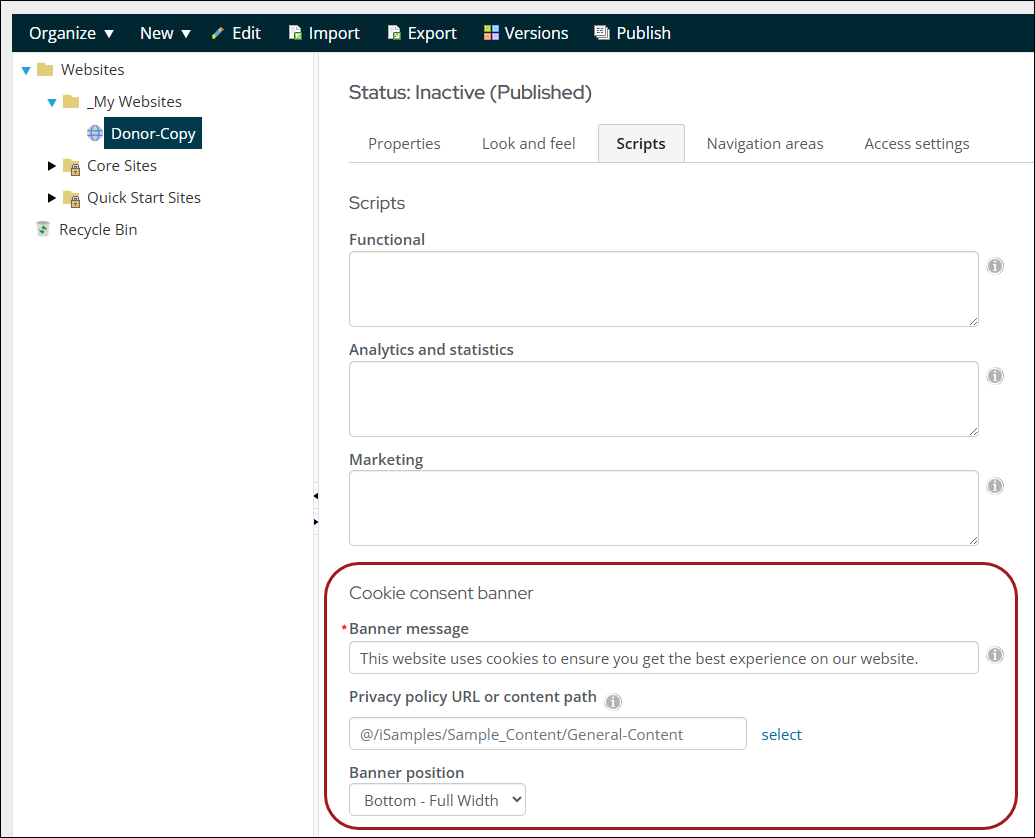
iMIS RiSE websites display a cookie consent banner that allows visitors to configure their cookie preferences.
Understanding website cookies
When a user visits an iMIS website and interacts with the cookie consent banner, two cookies are set: cookieconsent_status and cookie_preferences.
Review the following table to understand the two initial cookies:
| Cookie | Format | Description |
|---|---|---|
cookieconsent_status | Plain string (allow or deny) | Indicates whether the user accepted or rejected all optional cookies. |
cookie_preferences | URL-encoded JSON | Indicates if a user has consented to optional cookies on a granular, per-category basis. |
When a user interacts with the cookie consent banner, the two cookies are set to different values depending on which button the user interacts with on the website banner. Review the following table to understand how the two cookies are modified based on user action:
| Visitor action | cookieconsent_status | cookie_preferences | |
|---|---|---|---|
| Accept All | allow | { "functional": true, "analytics": true, "marketing": true, "consentRecordId": "<GUID>" } | |
| Reject All | deny | { "functional": false, "analytics": false, "marketing": false, "consentRecordId": "<GUID>" } | |
| Customize > (accept some categories) > Save | deny | Depends on user’s selections; for example, selecting Functional and Marketing cookies sets a value of { "functional": true, "analytics": false, "marketing": true, "consentRecordId": "<GUID>" } | |
| Customize > (accept all categories) > Save | allow | { "functional": true, "analytics": true, "marketing": true, "consentRecordId": "<GUID>" } |
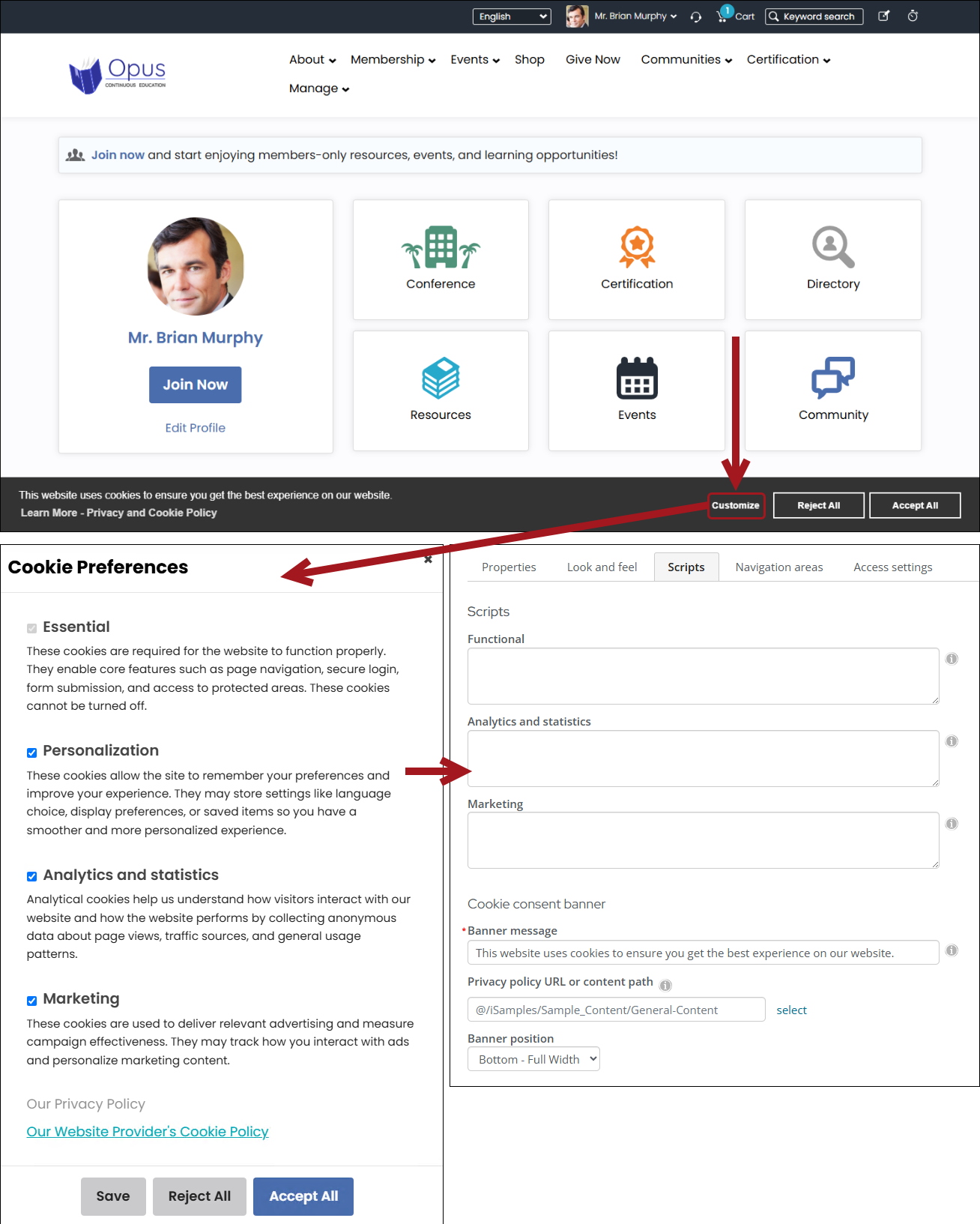
Selecting Customize presents the Cookie Preferences dialog with three buttons: Save, Reject All, and Accept All. A user who clicks Customize to adjust individual cookie types must click Save to apply their selections. The functional, analytics, and marketing keys correspond to the Functional, Analytics and statistics, and Marketing optional cookie types, which are detailed in the following section. The consentRecordId is a system-generated GUID that identifies the visitor's consent record. The same GUID is retained when the visitor later changes their cookie preferences.
consentRecordId does not indicate consent to any cookie category on its own. If you write custom scripts that read cookie_preferences, check only the functional, analytics, and marketing keys when deciding whether to load a script.
NoteUsers cannot disable essential cookies, which are cookies required for the website to function. To learn more about iMIS's necessary cookies, see iMIS Cookie Policy.
Optional cookies
In the Cookie Preferences dialog, users can configure their consent to the three following optional cookie types:
- Functional cookies support optional features that make the site easier for users to use, like remembering language or display settings. Examples include scripts for live chat tools, translation widgets, or video players that save playback preferences.
- Analytics and statistics cookies track how visitors use the site so you can measure performance and improve user experience. Examples include tools like Google Analytics, Plausible, Mixpanel, or scripts that record page views, click events, or session duration.
- Marketing cookies track visitors across websites so you can deliver personalized ads or measure how well campaigns perform. Examples include advertising and remarketing scripts like Google Ads, Meta Pixel, LinkedIn Insight Tag, or any tool that builds audience profiles or tracks conversions.
These optional cookie types correspond to the Functional, Analytics and statistics, and Marketing script fields in Site Builder's Script tab.
Policy links
The Cookie Preferences dialog displays two clearly distinguishable policy links so that visitors can tell your organization's policy apart from the one belonging to the provider of your website software:
- Our Privacy Policy - Your organization's own privacy policy. This link is configurable per website through the Privacy policy URL or content path field. See Managing websites for more information.
- Our Website Provider's Cookie Policy - A fixed-label link that opens the iMIS Cookie Policy, a globally accessible document maintained by ASI that describes the cookies iMIS itself places. This link is the same for all iMIS EMS systems and cannot be configured by staff users.
Our Website Provider's Cookie Policy always appears after Our Privacy Policy in the dialog.
Rejecting website cookies
NoteWhen a user visits a RiSE site with Do Not Track or Global Privacy Control enabled in their browser, the site suppresses the cookie consent banner and disables all non-essential cookies.
The following section details which cookies are automatically and not automatically blocked when all cookies are rejected or they have yet to respond to the message:
- Automatically blocked:
-
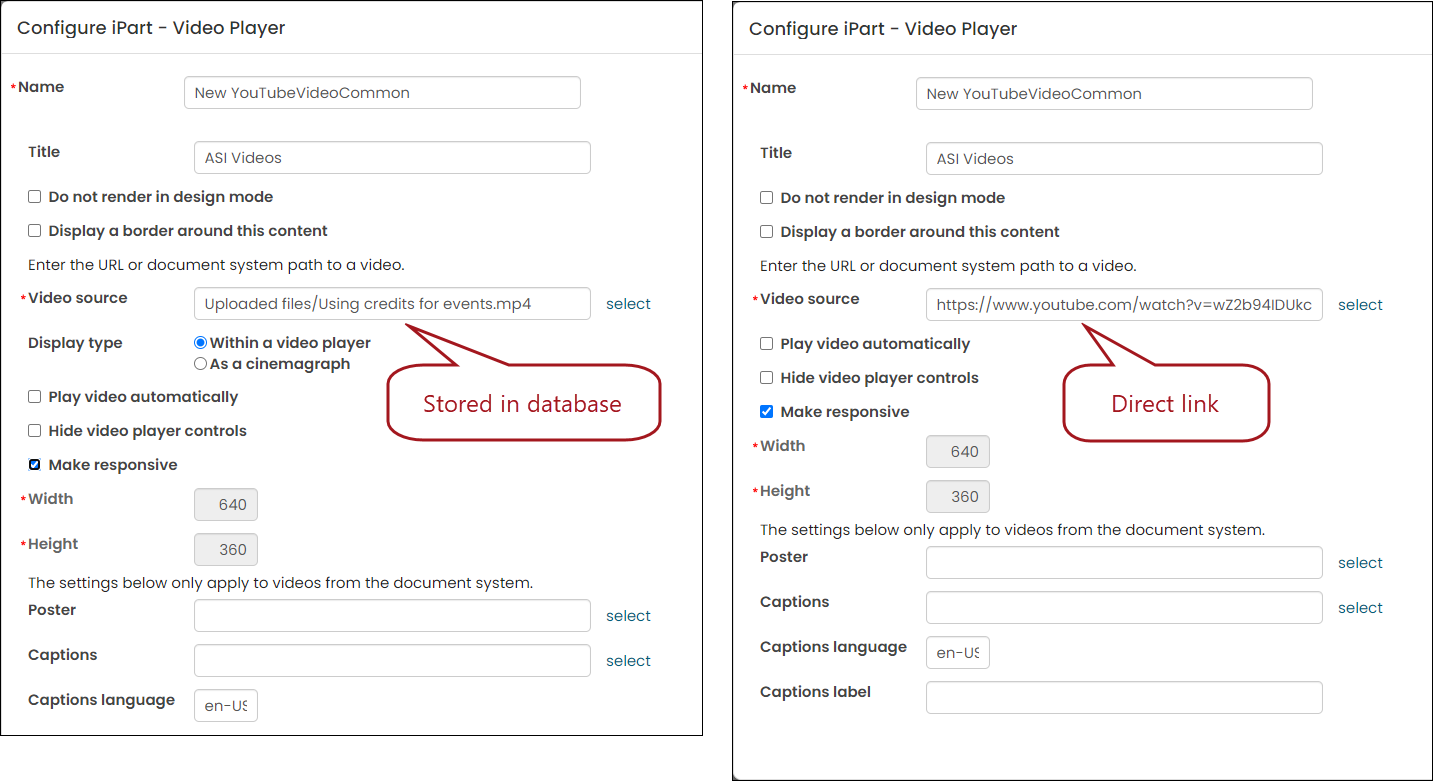
YouTube, Vimeo, and Twitch videos deriving outside of iMIS, typically through a direct link. Videos stored in iMIS do not set cookies, so the Reject option does not apply to these videos.
-
Amplitude Analytics, which iMIS uses to measure product usage. Amplitude cookies are not placed when a visitor clicks Reject All or saves preferences with Analytics and statistics cookies disabled.
-
- Not automatically blocked:
- If you have custom scripts that generate cookies outside of the script fields in the Scripts tab, you will need to configure your custom scripts to block cookies if the user rejects them, and you will need to create your own legally-compliant Cookie Policy page with details of your custom cookies.
Configuring custom scripts to use cookies
To use cookies with custom scripts, place custom scripts into the relevant script fields in Site Builder’s Scripts tab to use the cookie consent banner’s optional cookie types. This ensures compliance with cookie consent policies and regulations.
Review the following information to understand the relationship between the fields in the Scripts tab to the optional cookies:
- Functional – Corresponds to Functional cookies, which support optional features that make the site easier for users, like remembering language or display settings.
- Analytics and statistics – Corresponds to Analytics and statistics cookies, which track how visitors use the site so you can measure performance and improve the experience.
- Marketing – Corresponds to Marketing cookies, which are used to track visitors across websites so you can deliver personalized ads or measure how well campaigns perform.
If the custom script cannot be placed into the Scripts tab, such as a script contained in a content page or a content item, the custom script must read the cookie_preferences cookie that contains the optional cookie types (such as in the following Code Sample 1) and check consented cookie types before loading scripts (such as in the following Code Sample 2).
Review the following best practices for configuring custom scripts with cookies:
- Use the script fields in Site Builder’s Scripts tab whenever possible to use the cookie consent banner’s optional cookie types.
- Use
cookie_preferencesinstead ofcookieconsent_statusfor any script that must read consent manually.cookie_preferencesrecords a website user’s cookie consent choices, whereascookieconsent_statusrecords a blanket true or false value. - Treat a missing cookie as a rejected cookie. Until a website user interacts with the cookie consent banner and makes a cookie decision, neither
cookie_preferencesnorcookieconsent_statusare set, and only essential functions will run. - Re-check consent on each page load. Website users can change their cookie preferences through the Cookie Preferences link at the bottom of every iMIS RiSE website.
- Ignore the
consentRecordIdkey when checking consent. It is a system-generated GUID that identifies the visitor's consent record and does not indicate consent to any cookie category. Check only thefunctional,analytics, andmarketingkeys.
/**
 * Returns the parsed cookie_preferences object, or null if the cookie
 * is absent or cannot be parsed (i.e., the visitor has not yet responded
 * to the consent banner).
 *
 * @returns {{ functional: boolean, analytics: boolean, marketing: boolean, consentRecordId: string } | null}
 */
function getCookiePreferences() {
    var match = document.cookie.match(/(?:^|;\s*)cookie_preferences=([^;]*)/);
    if (!match) {
        return null;
    }
    try {
        return JSON.parse(decodeURIComponent(match[1]));
    } catch (e) {
        return null;
    }
}var prefs = getCookiePreferences();
if (prefs && prefs.analytics) {
// Safe to load analytics scripts (e.g., Google Analytics, Matomo)
}
if (prefs && prefs.marketing) {
// Safe to load marketing/advertising tags (e.g., Facebook Pixel)
}
if (prefs && prefs.functional) {
// Safe to set cookies that store visitor preferences
}
if (!prefs) {
// Visitor has not made a consent choice yet — only essential cookies are allowed
}Translating the cookie consent banner
The cookie consent banner respects your system's translation settings on both the staff site and public RiSE websites. When a user views a site in a supported non-default language, the following happens:
- The banner message text is automatically translated using iMIS translation features.
- The label of the link to the iMIS Cookie Policy is translated.
NoteTranslation applies to the out-of-the-box banner text. If you configure the Privacy policy URL or content path field with your own content record, the content is translated only if it is itself configured for translation.
Updating the Cookie Policy
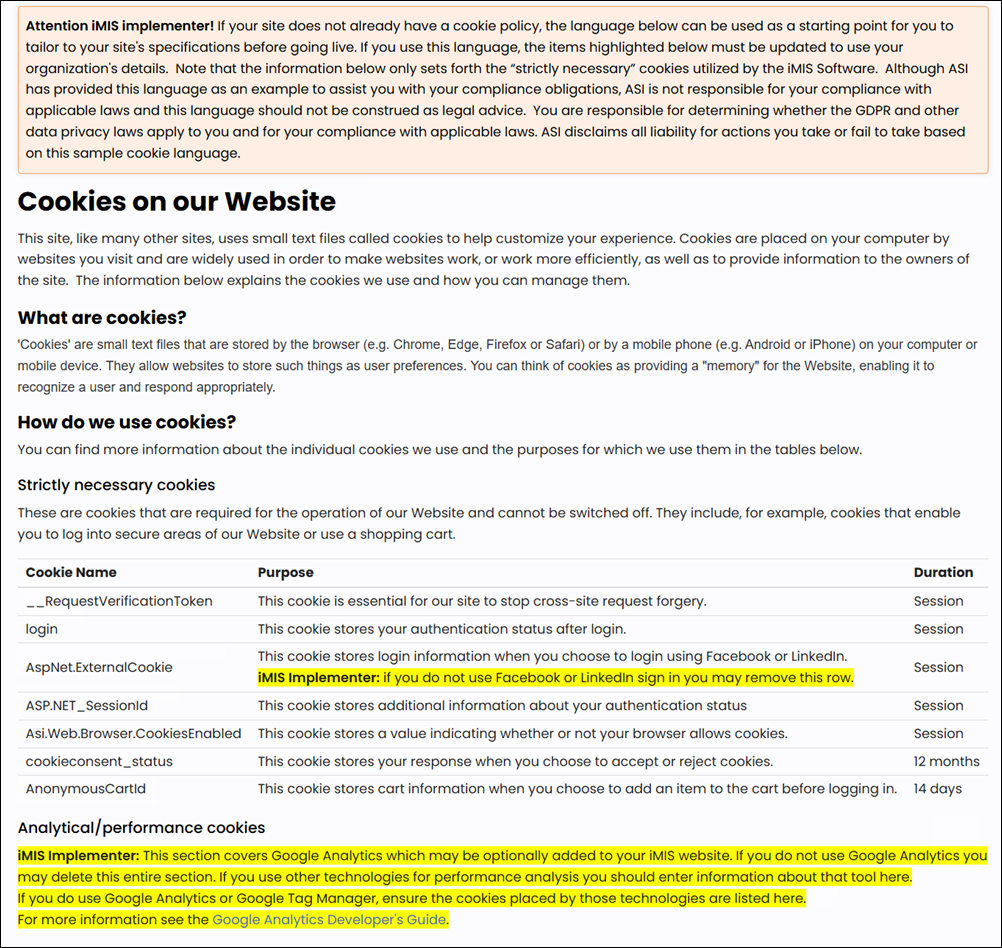
The out-of-the-box Cookie Policy document is located in the footer of all Quick Start Sites, such as the Member Responsive site. This document is a starting point for your organization's own cookie and privacy disclosures, and it is what you should copy and customize if you add custom scripts that set cookies.
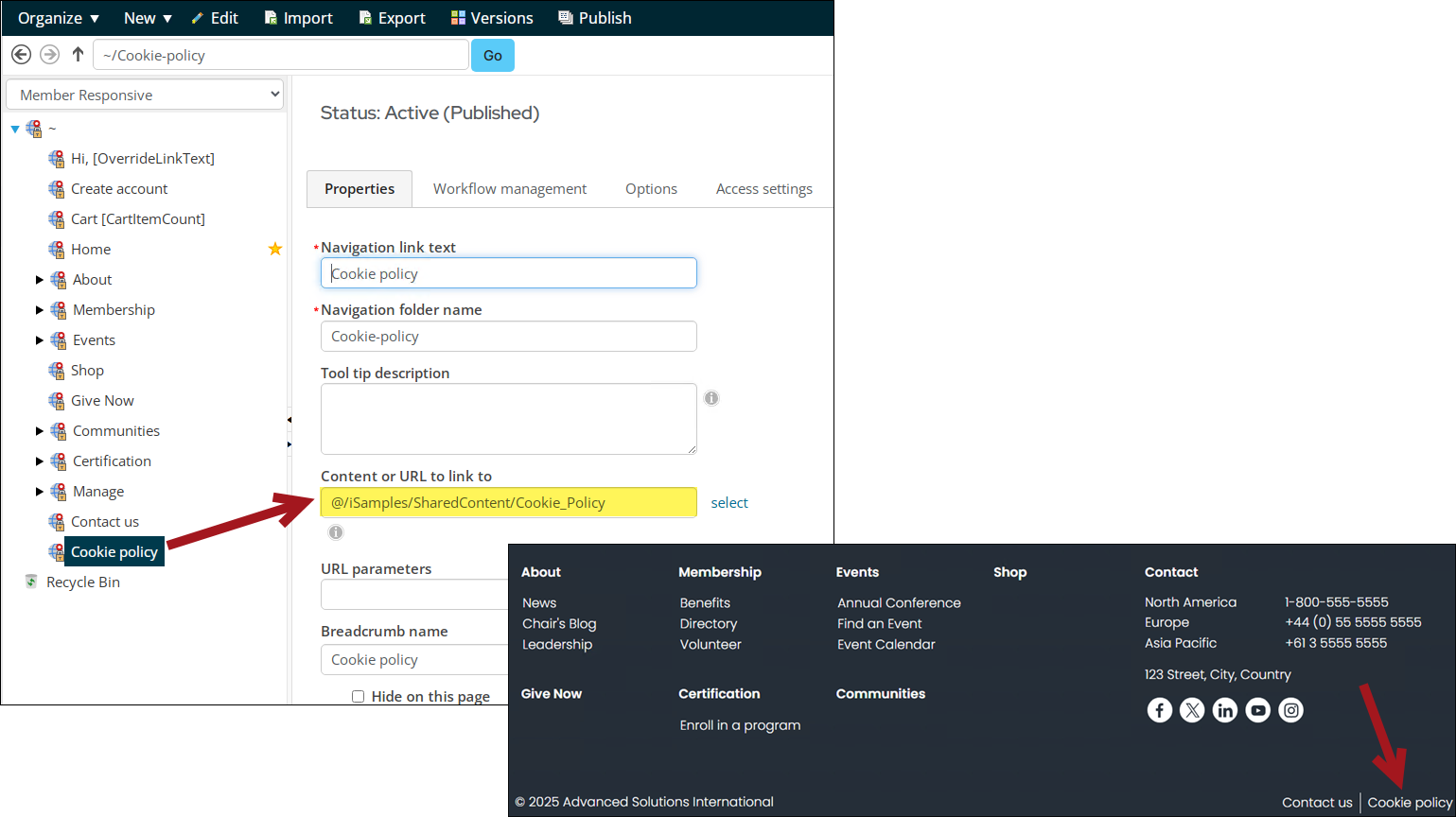
This document is separate from the iMIS Cookie Policy, which is maintained by ASI, describes only the cookies that iMIS places on your RiSE websites, and is what the Our Website Provider's Cookie Policy link in the Cookie Preferences dialog opens.
To update the cookie policy document, do the following:
-
Make a copy of the Cookie Policy content record (@/iSamples/SharedContent/Cookie_Policy).
-
Make the required changes to the copy. The Cookie Policy content record has specific instructions about what must be updated.
-
Add the new content record to your website:
- If you have a sitemap item specifically for a Cookie Policy, update the sitemap item to point to the new content record (RiSE > Site Builder > Manage sitemaps).
- Configure the Privacy policy URL or content path field in the Scripts tab with a link to the copied Cookie Policy content record.
Updating cookie preferences
Users can also update their cookie preference choice (accept or reject) after interacting with the cookie consent banner.
By default, there is a hidden link on the bottom left of all website pages that will bring back the cookie preferences message. When you hover the bottom-left area of the window, a Cookie Preferences link appears. Clicking the link will bring back the cookie consent banner.
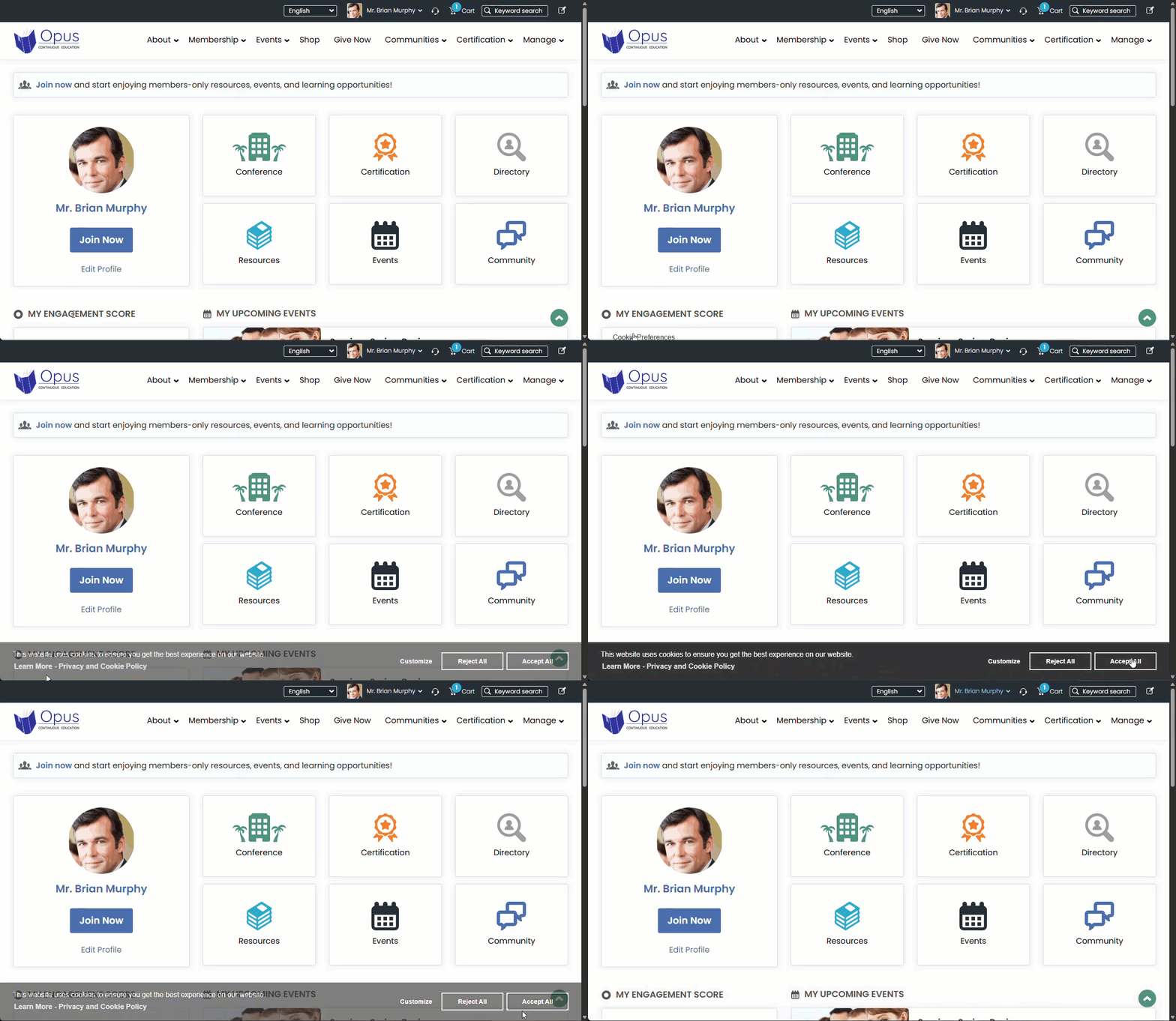
If the RiSE site's Scripts tab has a configured Privacy policy URL or content path field with a link to an external website or content record, the cookie consent banner displays a Learn More - Privacy and Cookie Policy link that opens the website or content record. If the Privacy policy URL or content path field is blank, no link appears on the cookie consent banner, and Our Privacy Policy appears grayed out in the Cookie Preferences dialog.
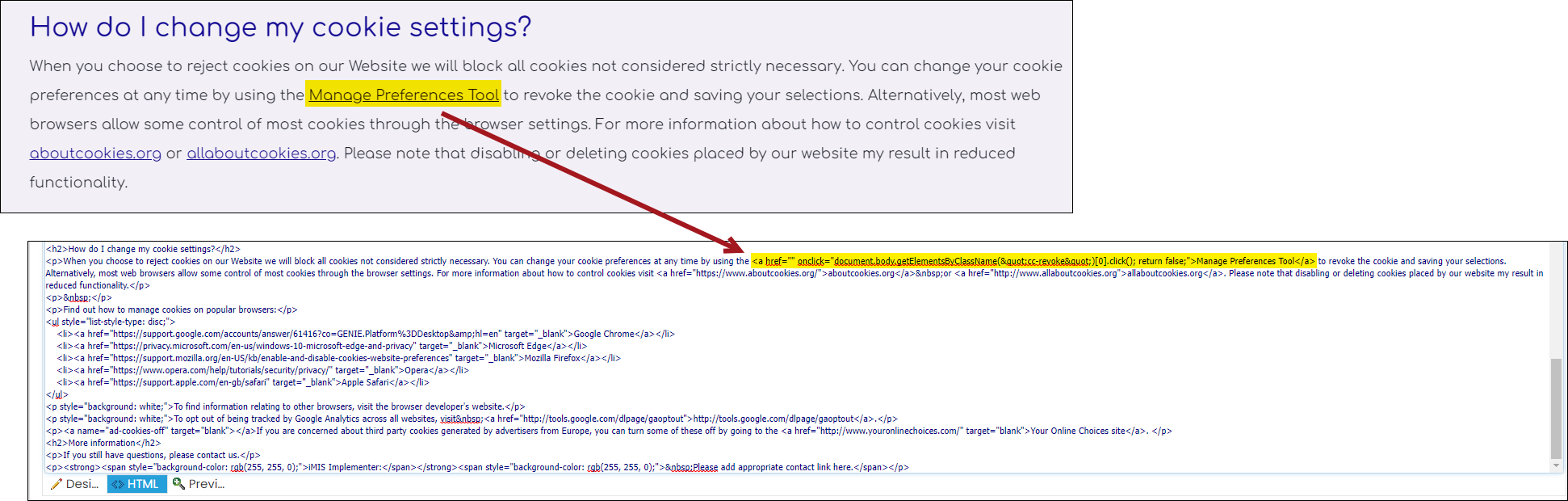
If you would like to add an additional link that users can access their Cookie Preference from, use the following HTML, changing the _Link goes here_ text to a text of your choosing:
<a href="" onclick="document.body.getElementsByClassName("cc-revoke")[0].click(); return false;">Link text goes here</a>
There is an example of the above link in the out-of-the-box Cookie Policy document (@/iSamples/SharedContent/Cookie_Policy).
Updated 26 days ago