

Adding Analytics Tags to Donate Now - Premium
This article is about adding analytics tracking tags to Donate Now - Premium pages so that you can gather marketing and analytics data from Donate Now - Premium.
Requirements
The following are required:
- An analytics account already set up
- Tracking code (sometimes referred to as a JavaScript snippet or HTML snippet) ready to copy and paste into Donate Now - Premium.
Known Compatible Analytics Tools
The following analytics tools have been confirmed working with Donate Now - Premium:
- Google Analytics
Google Analytics Instructions
You should already have your GA4 web stream measurement ID. To learn how to create a new one, or retrieve your existing one, refer to the Google Analytics documentation here.
Do the following to enter your GA4 measurement:
- Navigate to the Donate Now - Premium Admin area and select System Settings > Social.
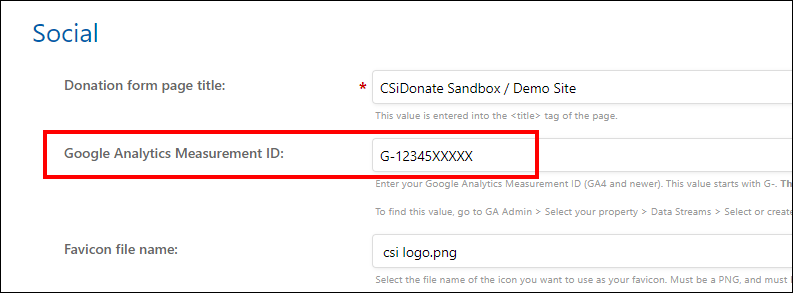
- Enter your GA4 measurement (web stream) ID into the settings field:
- Click Save.
Tracking individual pages
The following pages can be tracked with analytics tools:
- Giving forms
- On-screen receipts
- Giving Dashboard (Crowdfunding)
The following pages cannot be tracked:
- Any page in the Admin Area
- Rapid Entry pages (PLUS)
- Error pages
NoteOnly insert the page tracking code (e.g. gtag(...);) into a content block. Do not include the full
<script>tag. This is handled automatically.
Recommended content blocks
To track specific pages, use the following content blocks:
- Giving forms - Under Text and Content > Content Blocks, use the Footer Content block (under the Donation Form header).
- On-screen receipt - Under Text and Content > Content Blocks, use the Footer Content block (under the Receipt header).
- Giving Dashboard - Under Text and Content > Giving Dashboard, use the Footer Content block (under the Dashboard Page header).