

Setting up a future recurring gift in BluePay and iMIS
On this page, you will learn how to set up a future recurring gift via BluePay, and record the recurring plan in iMIS and Donate Now - Premium.
WarningThe instructions below should ONLY be used in the instance where is it necessary to set up a future recurring gift to start charging a donor at later date. All other recurring gifts should be set up using Donate Now - Premium, regardless of whether donor or staff is setting up the gift.
Do the following to set up a future recurring gift in BluePay and iMIS:
Step 1: Enter the BluePay transaction
Do the following to enter a BluePay transaction:
-
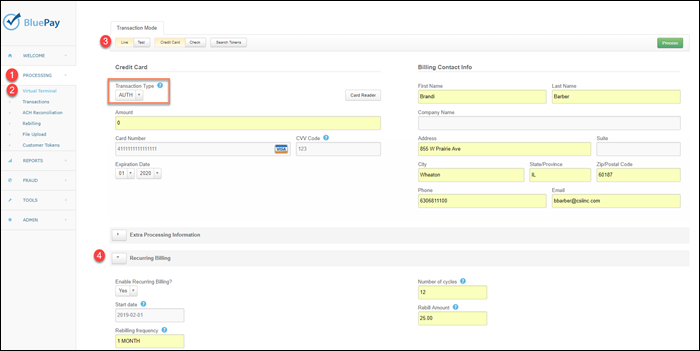
Go to the BluePay portal > Processing > Virtual Terminal to enter a new transaction.
-
Select Live mode.
-
Select Transaction Type of AUTH.
-
Enter the Amount as $0.
-
Complete the donor billing contact and credit card information.
-
Expand the Recurring Billing section, and choose Yes.
-
Enter the start date for the future date you wish to start the rebilling plan.
-
Enter the frequency (1 YEAR, 1 MONTH, etc).
-
Enter the number of Billing cycles, or 0 for unlimited.
-
Enter the Rebill amount to charge each time.For example. starting on February 1, 2019 the donor will be charged $25 a month for 12 months.
-
Click Process when finished and ready to submit the transaction.
- If successful, BluePay will respond with APPROVED: INFORMATION STORED. This is a successful message which tells you the credit card information was stored for later processing (the Start Date above), but was not charged today.
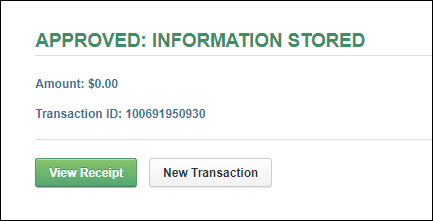
- Click View Receipt.
- On the Receipt screen, cick Return to Details. This will take you to the transaction details screen.
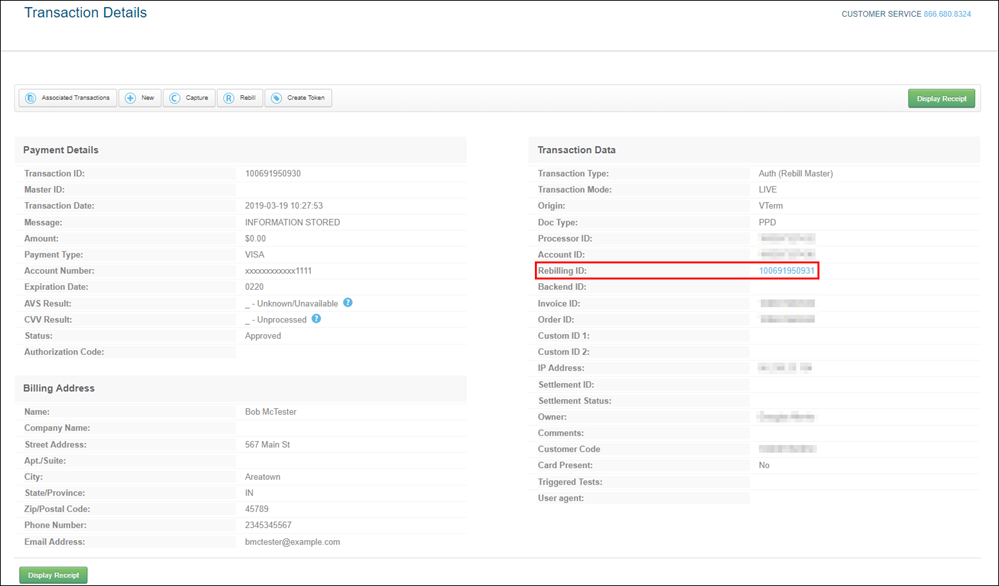
- Click the Rebilling ID field to go to the Rebill Admin screen.
Step 2: Gather BluePay information
The Rebill tab will show additional details below regarding the rebill plan.
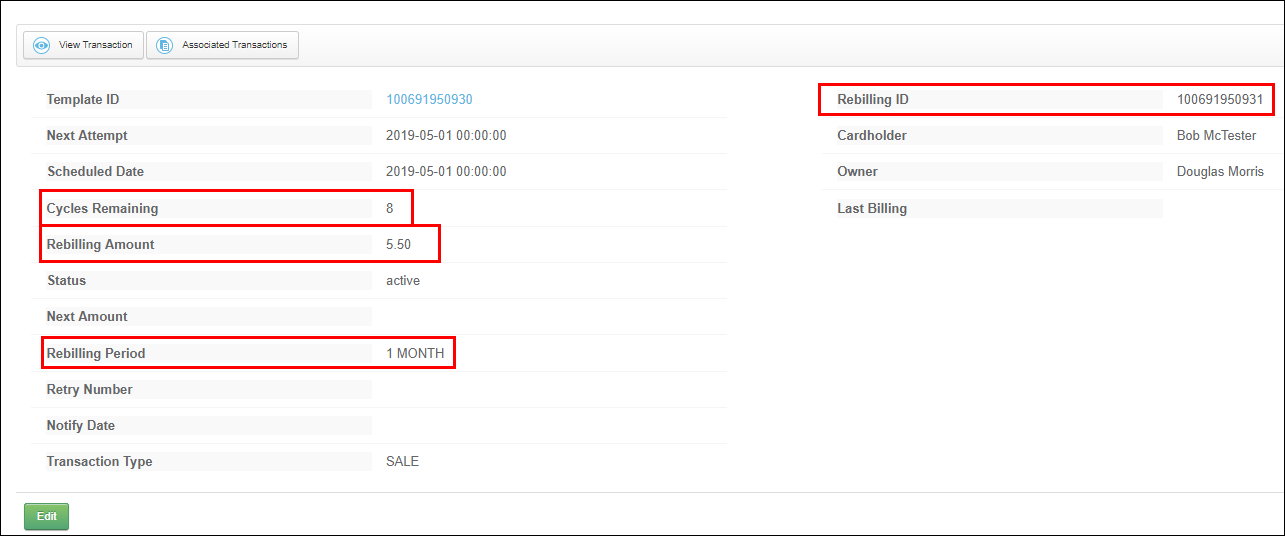
NoteThese fields for insertion into iMIS below.
Step 3: Determine the Donate Now - Premium financial account ID
A Donate Now - Premium Financial Account profile is where Donate Now - Premium stores its BluePay settings, as well as settings for batch and cash account settings.
WarningIf you have multiple Financial Account profiles in Donate Now - Premium and/or multiple BluePay accounts (e.g. for Foundation vs Housing), then the BluePay account you use to set up the rebilling plan above in Step 3 must match the Donate Now - Premium Financial Account profile's BluePay information.
Do the following to find out which Financial Account ID to use:
- Sign in to the Donate Now - Premium Admin site.
- Click Financial Accounts.
- Click the Edit icon next to the one you would like to use.
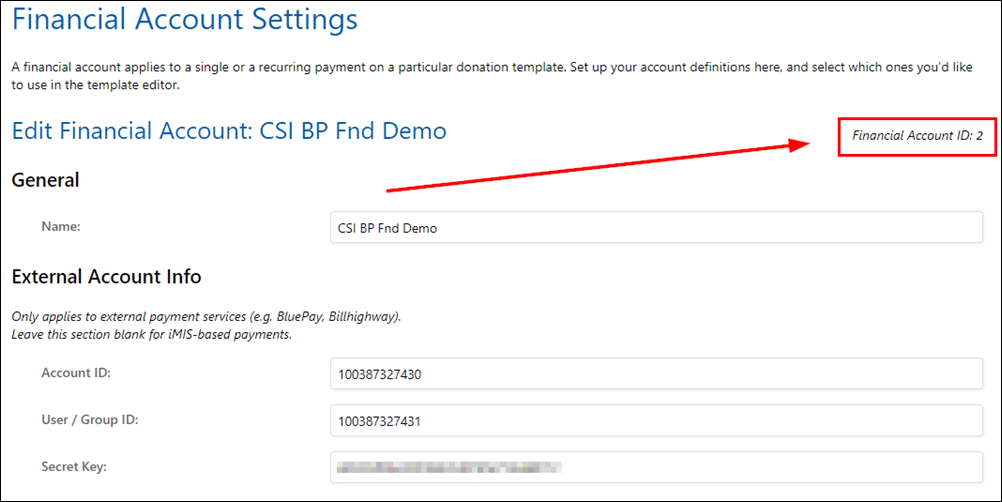
- Verify that the Account ID and User ID fields in Donate Now - Premium match the Account ID and User ID fields on the Transaction Details screen in BluePay (see screenshot above).
- On the Edit screen, in the upper-right corner, take note of the Financial Account ID as we will use it in the next step.
Step 4: Enter recurring plan information into iMIS
After setting up the transaction in BluePay, you must also enter the plan into iMIS. Do the following to enter the plan into iMIS:
- Login to iMIS Staff site.
- Search for the donor profile in question.
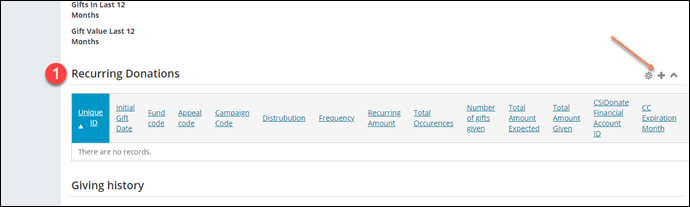
- To enter the plan info, locate the recurring donations panel and click the plus sign to add a new entry.
- Enter the transaction details from BluePay as shown below.
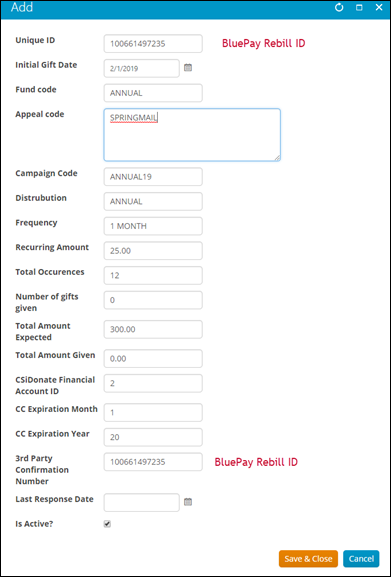
- Click OK
- Click Save.
| Field name | Get from | Value to enter |
|---|---|---|
| Unique ID | BluePay | 12-digit Rebill ID |
| Initial Gift Date | N/A | Date of First Billing |
| Frequency | BluePay | Rebilling Period |
| Occurrences | BluePay | Cycles Remaining |
| Recurring Amount | BluePay | Rebilling Amount |
| Total Amount Expected | BluePay | Should match the total recurring amount sum, or 0 if the recurring plan is "unlimited" (no # Of Cycles) |
| Number of Gifts Given | N/A | Enter 0. This is a future scheduling with no installments paid yet. |
| Total Amount Given | N/A | Enter 0. |
| Distribution | iMIS | Enter a distribution code value that exists in the Donate Now - Premium gen table IDONATE\_DISTRIBUTIONS, such as "GEN" or "AF". |
| Fund | iMIS | Enter the fund code that the distribution is configured to use in iMIS. |
| Campaign Code | iMIS | Optional. This value is an override only. Enter a valid iMIS campaign code that should be applied to gifts that are written using this recurring plan. If not set, will use the distribution's default code. |
| Appeal Code | iMIS | Optional. This value is an override only. Enter a valid iMIS appeal code that should be applied to gifts that are written using this recurring plan. If not set, will use the distribution's default code. |
| CC Expiration (Month) | BluePay | Enter the card expiration month (1 or 2 digits). Set to "0" for ACH transactions. |
| CC Expiration (Year) | BluePay | Enter the card expiration year (2 digits, e.g. "19" or "23"). Set to "0" for ACH transactions. |
| Last Response Received | N/A | Leave blank. This value is auto-filled when an automatic recurring payment notification is received from BluePay. |
| Third-party Confirmation Num | BluePay | 12-digit Rebill ID (Same as "Unique ID") |
| Donate Now - Premium Financial Account ID | Donate Now - Premium | Numeric Financial Account ID obtained from above. MUST NOT BE "0". |
| Last Recurring Status | N/A | Leave blank. This value is auto-filled when an automatic recurring payment notification is received from BluePay. |
| Pledge Trans Number | N/A | Leave blank. This value is only for use with recurring pledges, not standard recurring gifts. To enter a recurring pledge, please see Applying a BluePay Recurring Plan to an Existing iMIS Pledge. |
| Pledge Last Status | N/A | Leave blank. This value is only for use with recurring pledges. |
| Is Active | N/A | Must be checked. (If not checked, automatic recurring gifts from BluePay will not be entered into iMIS.) |
| Warning Flag | N/A | Leave unchecked. This value is auto-filled when an automatic recurring payment notification encounters an error. |