
Panel actions
iMIS panels and panel records can be accessed by creating a flow using the iMIS Power Automate Connector. The following examples show different ways to utilize panel data. In the following examples, a Input fields are created in the Flow within the iMIS Power Automate Connector, and the Outputs are returned.
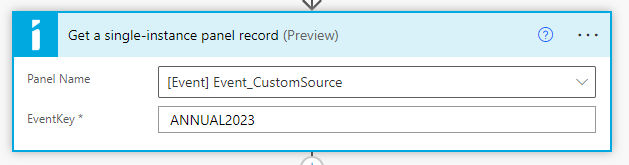
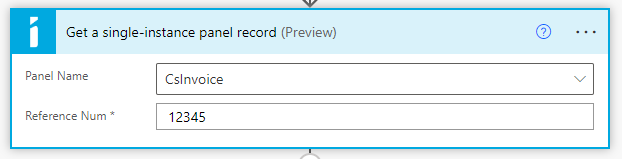
Get a single-instance panel record
Fetches one single-instance panel record from iMIS by its panel name and iMIS ID.
Note
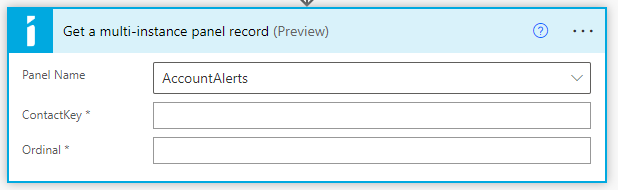
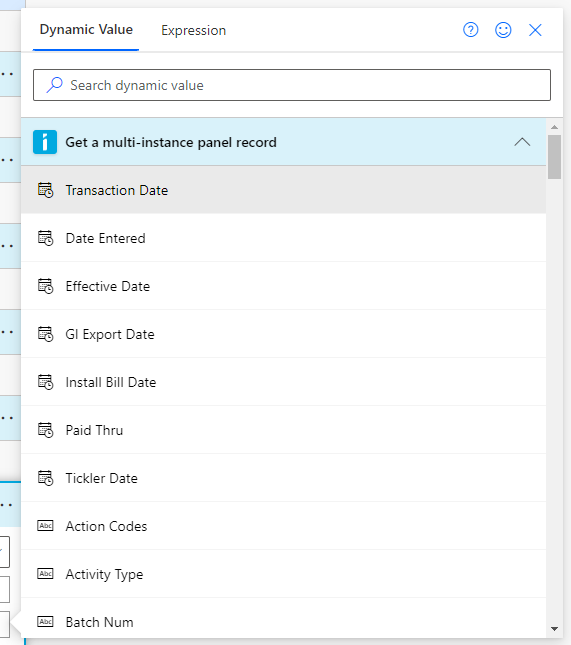
Get a multi-instance panel record
Fetches one multi-instance panel record from iMIS by its panel name and primary key(s).
Note

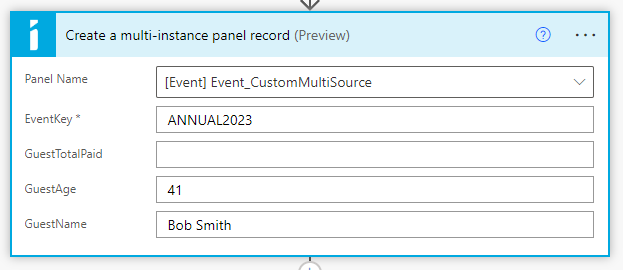
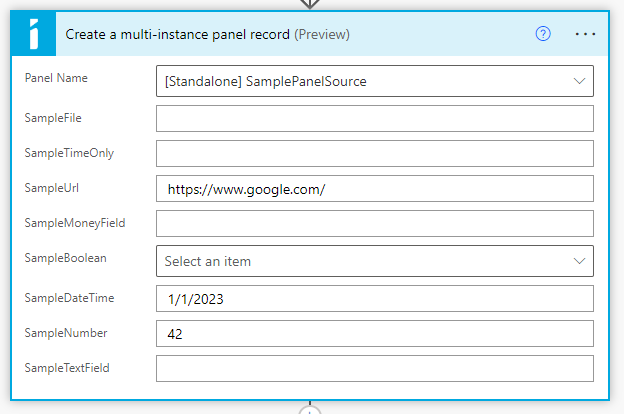
Update a single-instance panel record
Updates (or creates) fields in a single-instance panel source record.
Any fields left blank will not be altered. To explicitly blank out a field, insert an empty string ('') using an expression. See Known Limitations for more information.
Warning

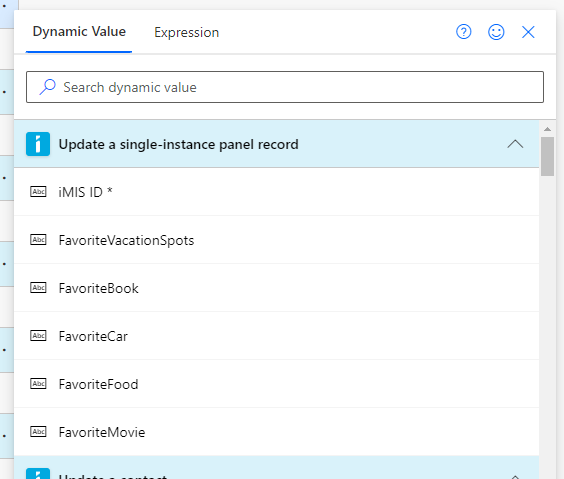
Update a multi-instance panel record
Updates fields in a multi-instance panel source record.
Any fields left blank will not be altered. To explicitly blank out a field, insert an empty string ('') using an expression. See Known Limitations for more information.
Warning
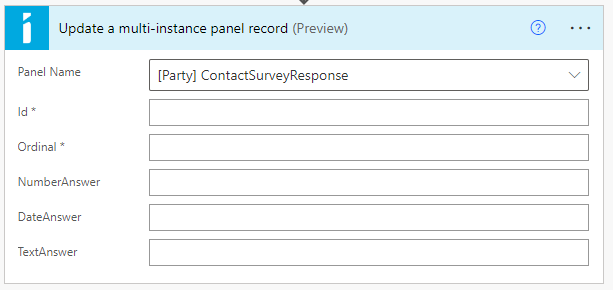
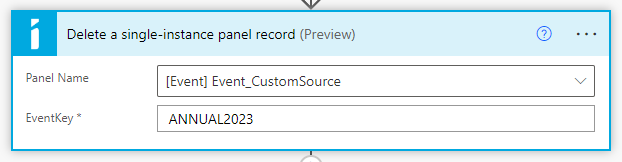
Delete a single-instance panel record
Deletes a single-instance panel source record by its primary key.
WarningDeletes are permanent in iMIS. Exercise caution when using this action.
Warning
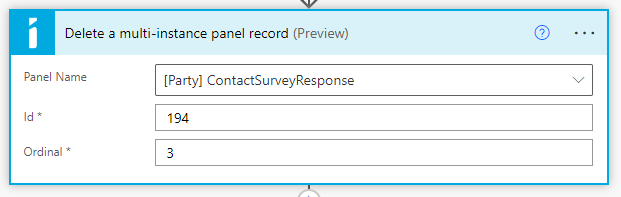
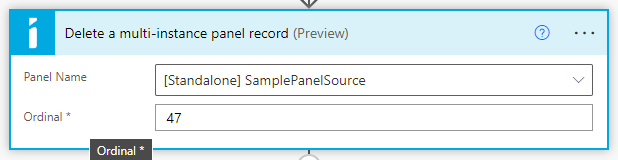
Delete a multi-instance panel record
Deletes a multi-instance panel source record by its primary key(s).
WarningDeletes are permanent in iMIS. Exercise caution when using this action.
Warning
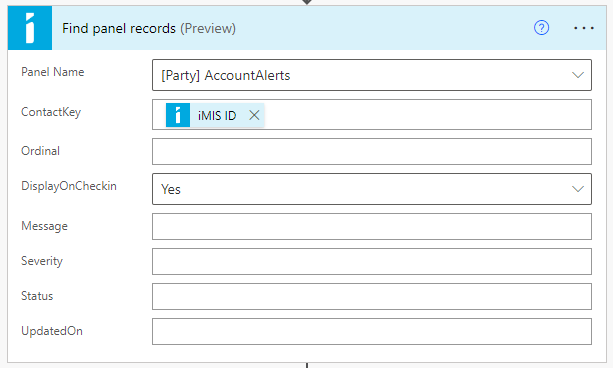
Find panel records
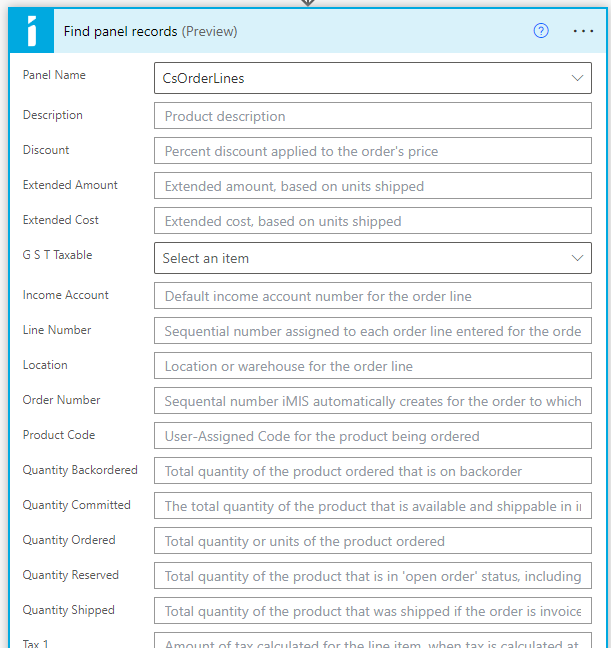
Searches through, and returns records in a panel source.
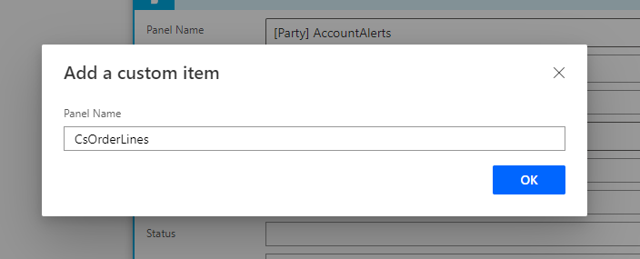
NoteThis action works on any Business Object in iMIS. Select "Enter custom value" in the Panel Name dropdown and type the name of a business object exactly as it appears in iMIS (e.g.
CsContactorCsOrderLines)
Note