

Creating a scheduled task
During the Mapping step, after completing mappings and selecting your options, select Schedule as Task.
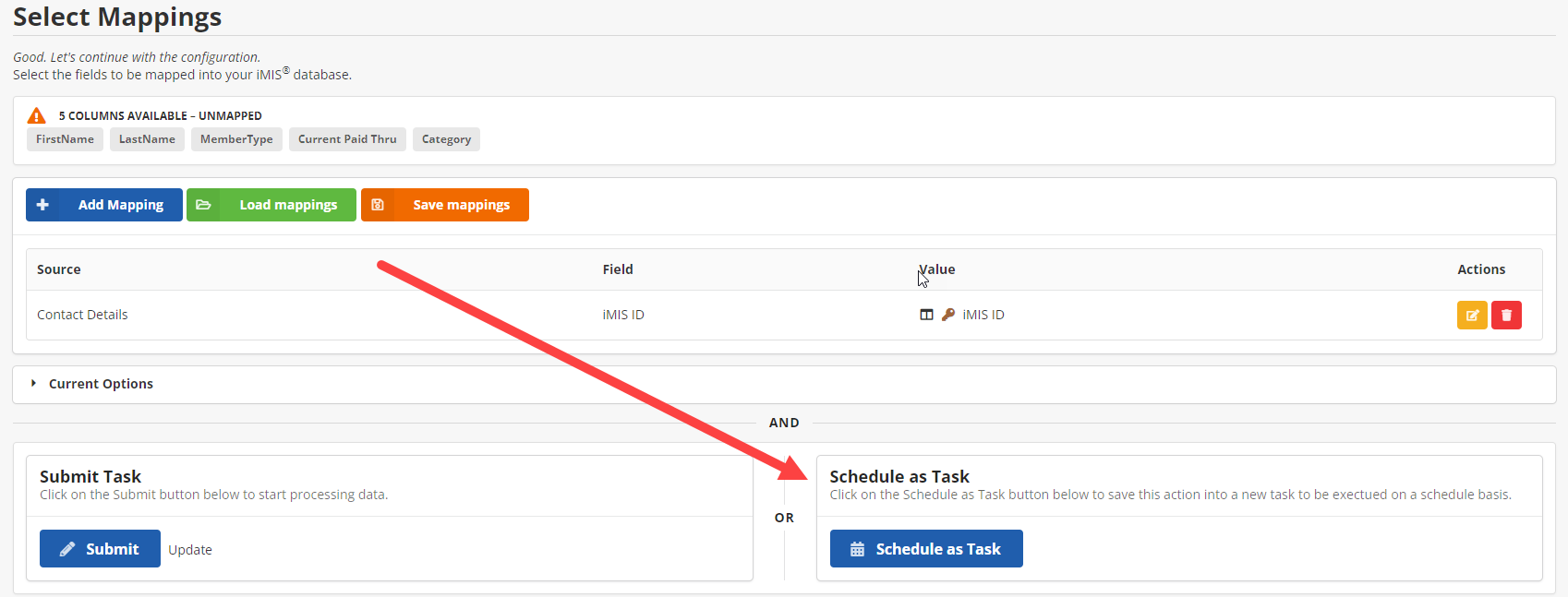
Creating or editing a Task Page
After clicking Schedule as Task or the Edit button on an existing task, you are taken to the Edit Task page. Do the following:
-
(Required) Add a name for the scheduled task.
-
(Optional) Add a description for the task.
-
Determine the number of times a job can fail before being automatically disabled.
-
The Crontab Schedule (UTC) enables you to schedule a task either as a one-time event or on a recurring basis.
-
Disable or Enable your scheduled task:
-
Click the Schedule Builder button on the right. This opens a dialog box like the one below.
-
Click Recurring to schedule a task to run repeatedly on a set schedule.
-
Click One-Time to schedule a task to run a single time.
NoteBy default, times are in UTC time.
- Once the schedule isset, click Save.
-
The task appears in the Manage Tasks list. From here, view the listing.
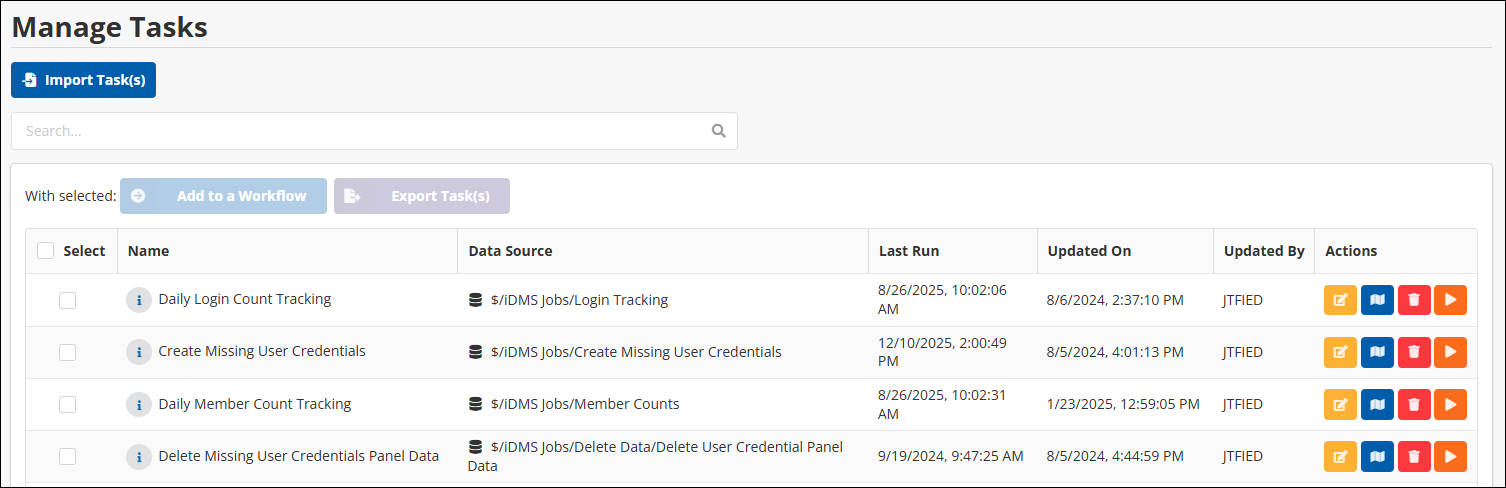
NoteYou also have the ability to sort on the column headers. Sort by Name, Last Run, Updated By, and more.
The following actions are available:

- Edit Task Properties
- Edit Mappings
- Delete Task
- Run Task Now