
Event Setup guide
This intermediate-level guide covers events setup in iMIS EMS. Supported iDMS actions include Insert, Update, and Insert / Update.
This article describes how Events can be setup using iDMS.
TipDownload the [Sample Event Setup Tutorial spreadsheet](Sample Event-Setup-tutorial.xlsx) to start with pre-populated headers and sample data instead of building the spreadsheet from scratch.
Mapping
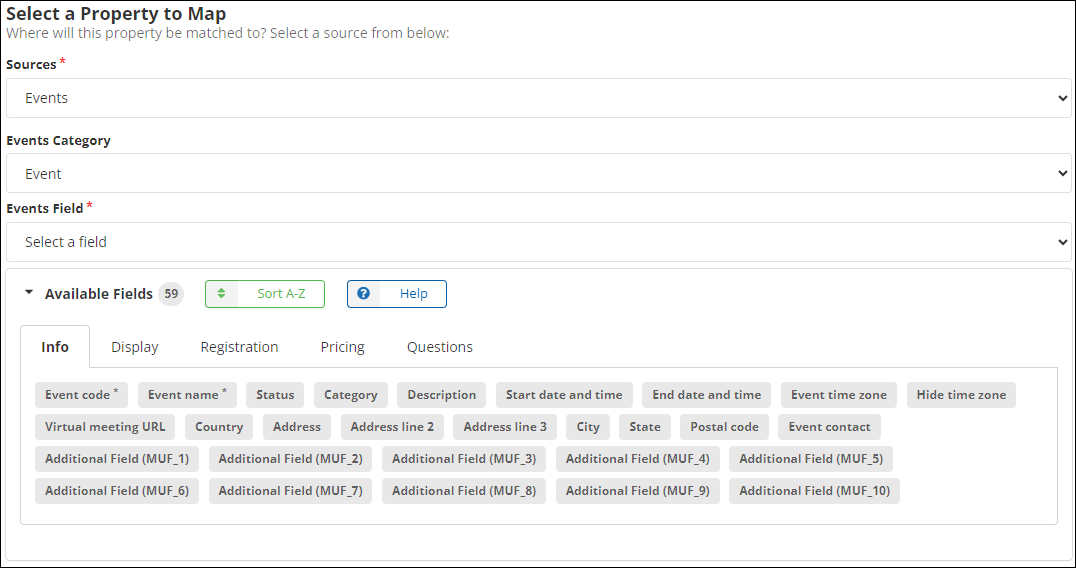
Review the following required field mappings:
-
Creating a new event
- Event Code - The code in iMIS that will be given to the event.
- Event Name - The name of the event.
-
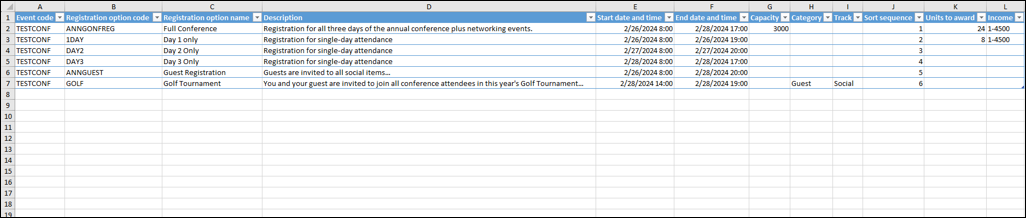
Adding a registration option
- Event Code - The code of the event that the registration option will be added to.
- Registration Option Code - The code in iMIS that will be given to the registration option.
- Registration Option Name - The name of the registration option.
-
Adding a program item
- Event Code - The code of the event that the program item will be added to.
- Program Item Code - The code in iMIS that will be given to the program item.
- Program Item Name - The name of the program item.
NoteCreating an event, adding a registration option, and adding a program item can all be done at the same time (or separately). If you are creating an event and adding a registration option or program item, the event creation must appear in the spreadsheet first.
Events Category
The Events Category drop-down feature helps display only the fields relevant to each category area - Event, Cancellation Fee, Registration Option, or Program Item. The available fields are further organized into sections within a tabbed menu. Based on the selected category area and tab, the list of fields shown will vary.

Importing requirements for specific properties
The following table outlines formatting requirements for certain event setup properties:
| Property | Location in iMIS | Required value in spreadsheet | Example spreadsheet value |
|---|---|---|---|
| Status | Info tab | The Status code value: - A = Active - P = Pending - F = Frozen - C = Closed. Note: To close an event using iDMS, set the event’s status to C; however, unlike manually closing an event in iMIS, iDMS does not generate the corresponding activities automatically. - X = Cancelled | C |
| Event contact | Info tab of event edit window | iMIS ID | 101 |
| Default program sort | Display tab of event edit window | Day, Category, Track, ViewAll | Day |
| Financial entity | Pricing tab of event edit window | Code value of the financial entity | DEMO |
| Income and Deferred Income of the Cancellation Fee | Pricing tab of the event edit window > Cancellation fee > Accounting tab | Code value of the Income or Deferred Income account | 1-1100 |
| Registration option availability | Pricing tab of the event edit window > Registration option > Pricing tab | Guest, Registrant, Both, None. Note: Guest is equivalent to enabling the Available to guests option. Use Both when combining with Also available to primary registrants option. | Both |
| Pricing group | Pricing tab of the event edit window > Registration option > Pricing tab | Standard or Member. Note: If omitted, the pricing group will default to Standard. It also accepts other pricing group name that would have been defined and not out-of-the box. | Standard |
| Display options for program items | Pricing tab of the event edit window > Registration option > Program options tab | - VisibleRegistrationAllowed (i.e. Display and allow user to add/remove) - VisibleRegistrationNotAllowed (i.e. Display and do not allow user to add/remove) - Hidden (i.e. Do not display) | VisibleRegistrationAllowed |
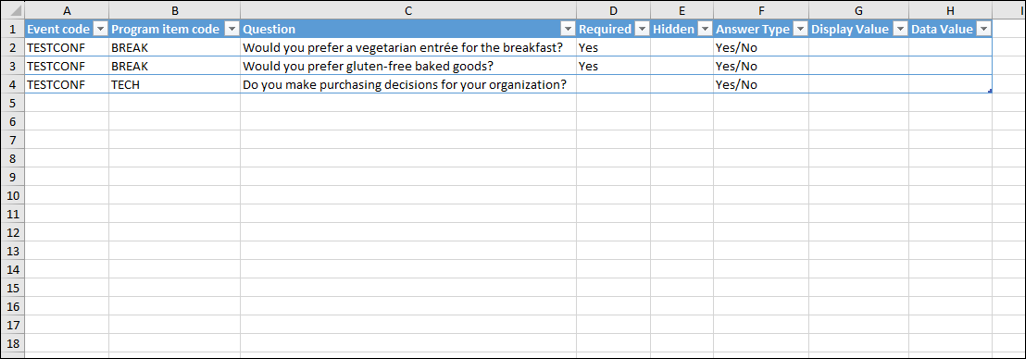
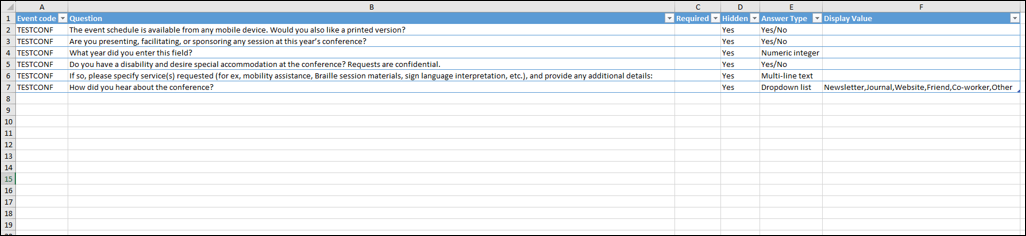
| Answer Type | Questions tab of the event edit window | - Yes/No - Numeric integer - Numeric decimal - Single-line text - Multi-line text - Dropdown list Other acceptable values are: boolean, integer, decimal, single, multi, or select. | Numeric integer |
| Display Value & Data Value for Questions | Questions tab of the event edit window > Answer type is Dropdown list and Defined by explicit list | When creating an explicit list, we can have more than one values to select from. In which case each of these fields can be a list of comma-separated values. Both fields, display value and data value, must have the same number of values. |
Example spreadsheets
The following are example spreadsheets for setting up events:
Event Questions
Registration Option
Registration Pricing
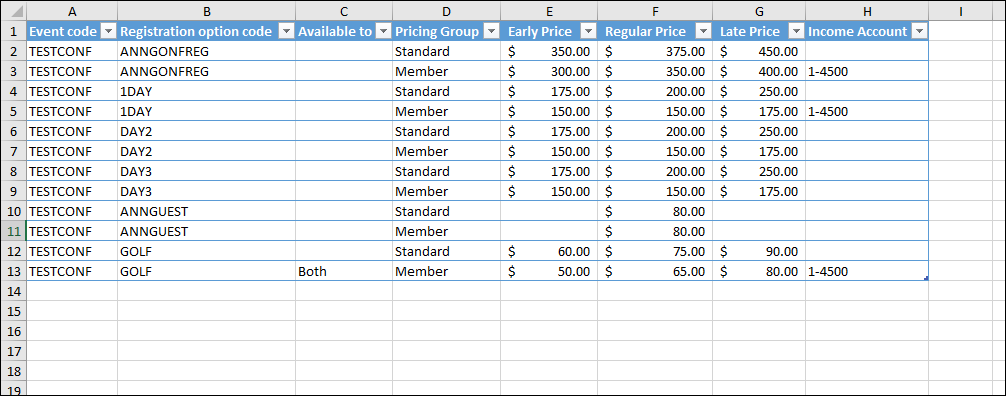
Registration Questions
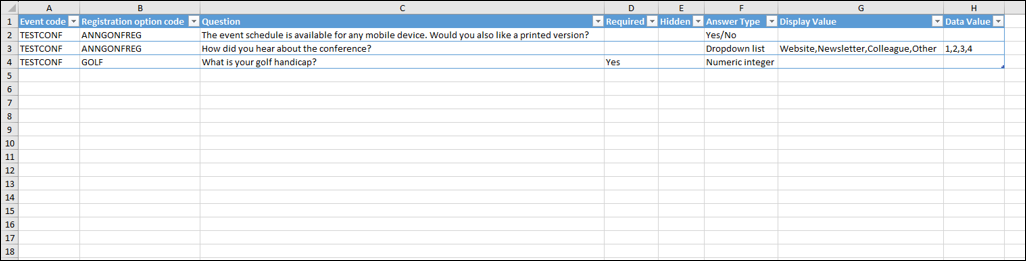
Program Item

Program Pricing
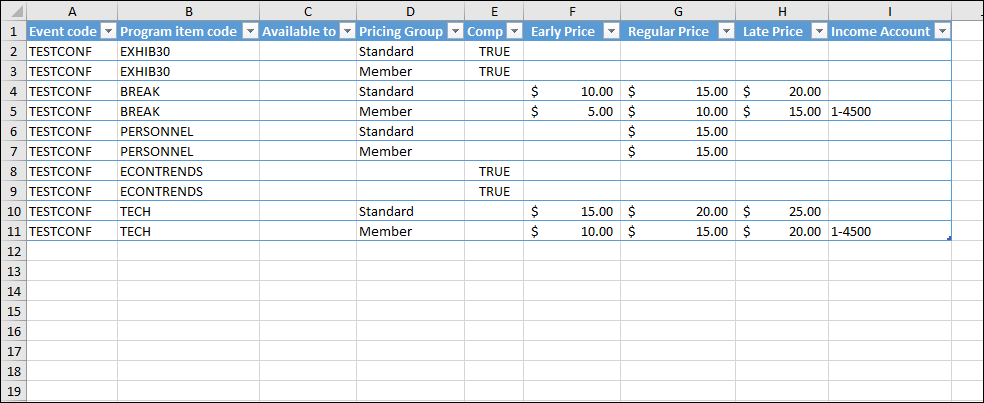
Program Questions