

Scheduling automated data updates
iSchedule runs iUpdate and iImport jobs automatically on a recurring schedule, so iMIS data stays current without manual effort. It works with jobs already built in iUpdate or iImport by configuring the job once, setting a schedule, and executing the job.
iSchedule is more commonly used with iUpdate than iImport because iUpdate uses a live query, so the data is always current when the job runs.
Understanding scheduling
iSchedule runs jobs on a defined, fixed, recurring time interval, either hourly, daily, weekly, or monthly. Once a task is enabled, it executes automatically at the configured time. Common examples of using iSchedule include the following:
- Running iUpdate tasks on a daily, weekly, or monthly schedule.
- Scheduling iImport tasks to process files overnight or during off-hours.
- Automating routine data updates without manual intervention.
- Ensuring consistent execution of repeatable processes.
Navigating iSchedule
There are two ways to get to iSchedule: from the left pane or from the top menu.
-
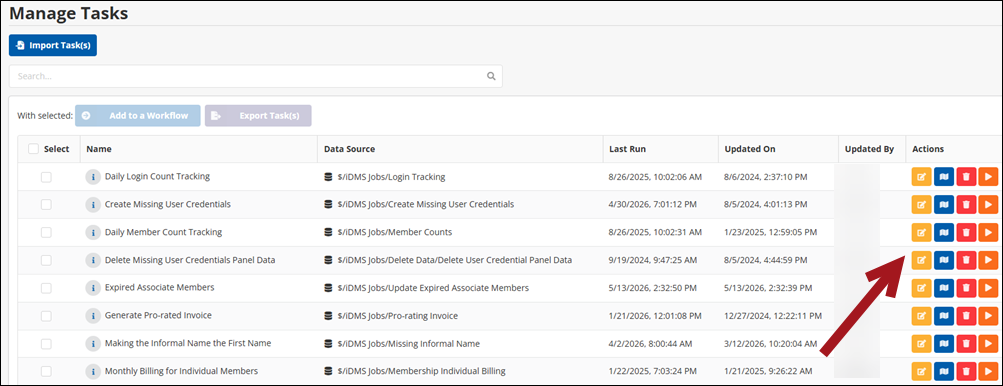
Clicking iSchedule from the left pane takes you to the Manage Tasks page where you can do the following:
-
Edit Task Properties – Edit the Name or Description of the task.
-
Edit Mappings – Add, remove, or change existing mappings attached to the task.
-
Delete Task – Delete tasks that are no longer needed from iSchedule.
-
Run Task Now – Run the task immediately without waiting its schedule time.
-
-
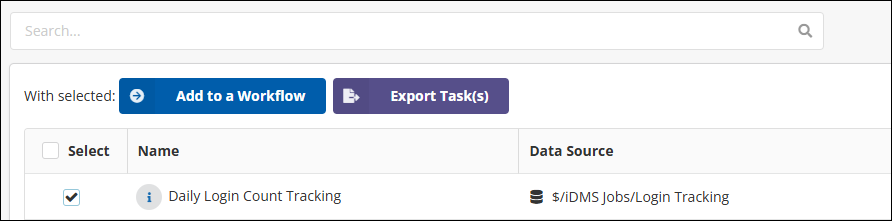
Selecting a task makes the Add to a Workflow and Export Task(s) options available. See Building a basic automated workflow or iUpdate overview.
-
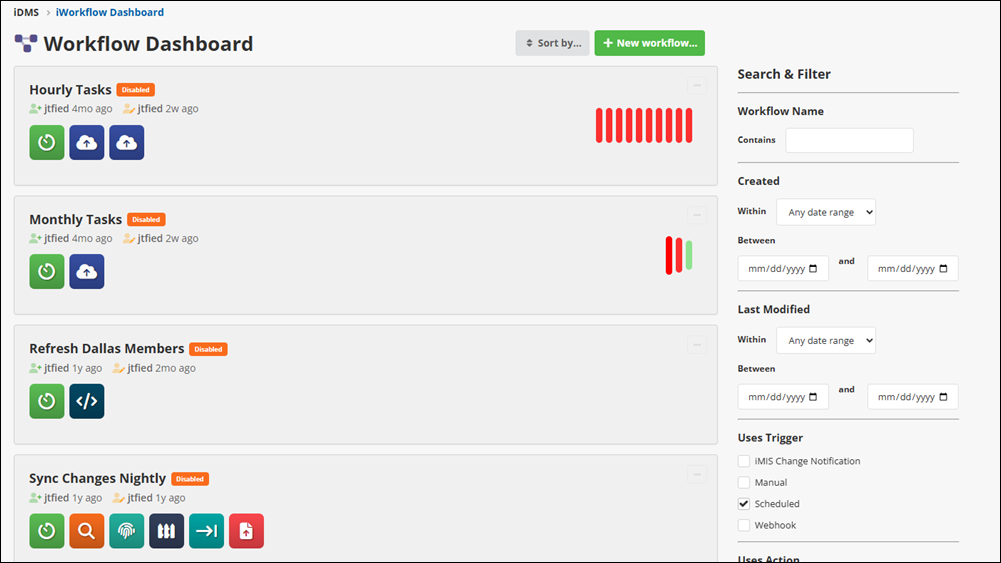
Clicking iSchedule from the top menu takes you to the Workflow Dashboard. See Building a basic automated workflow.
Knowing when to use iSchedule
Running a job manually in iImport or iUpdate is useful for one-off tasks and testing.
iSchedule should be used when a data process needs to repeat on a consistent cadence and the source data changes over time. Because iUpdate uses a live query as its data source, each scheduled run automatically processes whatever records match the query immediately, no file preparation required.
| Scenario | Recommended approach | Why iSchedule fits |
|---|---|---|
| Member records need to be updated nightly based on a database query. | iSchedule + iUpdate (daily at off-peak time). | IQA query always reflects current data; no manual file prep needed. |
| A large spreadsheet needs to be processed overnight. | iSchedule + iImport (daily or one-time overnight run). | Offloads processing to off-hours; avoids manual triggering. |
| Contact data from an external system arrives weekly via file drop. | iSchedule + iImport (weekly, timed after the file is expected). | Automates the import step once the file naming and location are consistent. |
| A one-time bulk update needs to run now. | Manual execution in iUpdate or iImport. | No schedule needed; iSchedule adds complexity for a one-off job. |
| An action should trigger the moment a record is saved in iMIS. | IWorkflow. | iSchedule is time-based; real-time event responses need iWorkflow. |
Table 1 - When to use ischedule
Example: Scheduling an automated member status update
The following shows how to use iSchedule to automate a recurring iUpdate task that changes member status based on current data in an IQA query. The same pattern can be used for other recurring updates where the source records change over time:
-
Log in to the Cloud Dashboard.
-
Go to iUpdate.
-
Create and test the iUpdate job manually. Build an iUpdate task that uses a query to return the records that need to be updated, define the update action, and run it once by hand to confirm the results are correct.
-
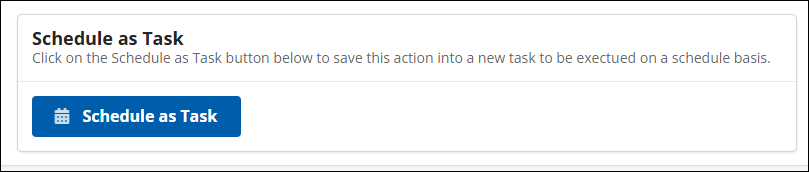
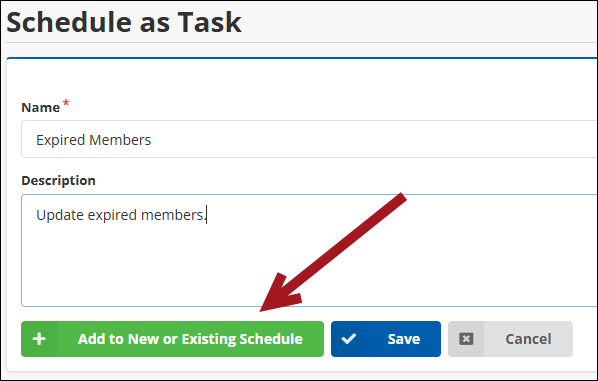
Click Schedule as Task from the iUpdate job.
-
Give the job a Name, such as Expired Members and a Description.
-
Click Add to New or Existing Schedule.
-
Continue with the Worklfow Wizard.
-
Click Start.
-
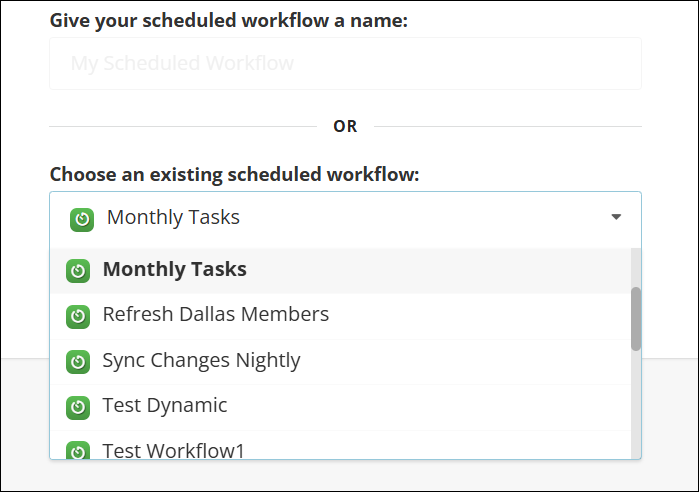
Give your scheduled workflow a name or Choose an existing scheduled workflow.
-
Click Next.
-
Review the Summary and click Finish.
-
Tip!Use a fixed recurring schedule for predictable maintenance jobs. If an update needs to run in response to an external system or on-demand process instead of a set time, use the task's webhook or HTTP trigger rather than a recurring schedule. See Using webhooks and HTTP triggers.
Understanding the results
The following table explains how to understand the results:
| Result | What it means | What to do |
|---|---|---|
| All rows processed. | Every row in the query or file was handled without errors. | No action needed. Verify a sample of records in iMIS if this is the first run. |
| Partial. Some rows skipped. | Some rows were skipped because no match was found, multiple matches were found, or a validation failed. | Download the failed records file. Review the error message for each skipped row and correct the underlying data or mappings. |
| Job did not run at scheduled time. | The task may be disabled, or there may be a connectivity or credential issue. | Check the task's Enabled status when editing the task. Review the import history for an error entry around the scheduled time. |
| Job ran but processed zero rows. | The query returned no records at the time the job ran. | Confirm the query returns data when run manually. Check that the data source filter value is correct. |
Table 2 - Understanding the results
Common issues
The following are common issues that may be encountered when using iSchedule:
Data source and filter problems
Take the following actions:
- If the job processes no records, the query filter may be set to a value that returns no results. Navigate to the task, review the filter field, correct it, and save.
- If the query is returning more records than expected, the filter scope may be too broad. Refine the IQA query or tighten the filter value before the next run.
Mapping and action issues
Take the following actions:
- If records are being skipped due to match failures, verify that the match-on fields in the mapping contain data that exists in iMIS. A field like email that is blank on many records will cause frequent skips.
- If the wrong action was selected (for example, clicking Update when you needed Insert / Update), the action cannot be changed on an existing task. You must recreate the task with the correct action selected and run it again.
- If field values are being overwritten with blanks, check whether Ignore blank values is enabled in the task options. If it is not checked, blank cells in the source data will clear the corresponding field in iMIS.
Timing and scheduling issues
Take the following actions:
- If a job is not running at the expected time, confirm the task is enabled. Tasks are created in a disabled state by default and must be explicitly enabled in Edit task.
- If two scheduled jobs are running at the same time and one appears to delay or fail, stagger them by at least 15 to 30 minutes to avoid resource contention.
- If a job ran during business hours and caused noticeable slowness, adjust the schedule to an off-peak window such as late night or early morning.