

Adding alerts to account pages
The Alerts tab on the out-of-the-box staff-facing account page enables staff users to add alerts directly to a contact’s account page. These alerts can be used for a variety of reasons and are meant to serve as a way for staff to make quick-and-obvious notes about the contact for other staff users to see.
The alerts are categorized as information, urgent, or warning. Contacts are unable to see these alerts.
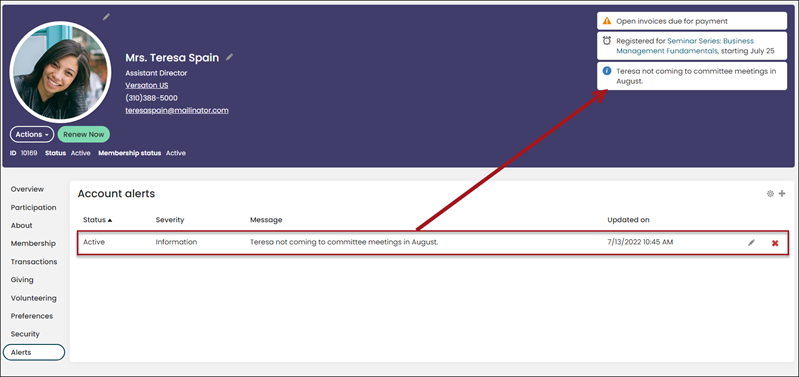
Do the following to add an alert to a contact’s account page:
- Navigate to the contact’s account page.
- Click the Alerts tab.
- From the Account alerts panel, click the add icon:
- Select a Status:
- Active – The alert is displayed on the contact’s account page.
- Inactive – The alert is not displayed on the contact’s account page but remains in the Account alerts panel as an inactive alert.
- Select a Severity:
- Information - Creates an alert with a blue information icon.
- Urgent - Creates an alert with a red icon.
- Warning - Creates an alert with a yellow icon.
- Enable Display on check-in if you want the alert to appear upon checking an individual in. Please see Checking in a club member for more information.
- Enter the alert’s Message content.
- Updated on is a read-only field that displays the date and time the alert was last updated.
- Click Save & Close.
- Select a Status:
- Refresh the browser to see the alert appear on the account page.
Updated 5 months ago
Did this page help you?