

Processing recurring transactions
Although AutoPay is seamless and automatic for members or donors, there is a manual process staff users must perform before payments are taken.
Membership fees
Sequentially follow the following drop-downs if you are processing recurring transactions for membership fees.
Generating invoices
📘 Note
Generating invoices will generate all renewal invoices for the specific group.
For a recurring ACH/direct debit renewal, the initial required invoice is automatically posted to the member’s account page. You must process this initial invoice before creating the renewal batches. The processing of automatic payments can vary for specific regions. See Direct Debits for more information.
Do the following to generate renewal invoices:
- Go to Membership > Automatic payments > Process payments.
- From the Generate invoices tab, Select the Group name and enter a Run date.
- Click Run. The message Renewal workflow has been started successfully is displayed.
Posting batches
📘 Note
Posting a batch will post all invoices in that batch, not just the recurring transactions.
Do the following to review and post the membership renewal payments batch:
- Click the Post batches tab.
- Select the new batch. For example: Renewal batch; Group: ‘Association Members’.
- Review the batch details.
- Click Post to activate any open invoices on the ledger that are due for payment.
📘 Note
Until the invoices are posted, the batch can be deleted.
Reviewing invoices
Do the following to review recurring invoices before processing the payment:
- Click the Review invoices tab.
- Review records for the invoice and other payment details.
Submitting payments
In this step, staff users are submitting the invoices for payment. Any payments submitted are processed immediately. ACH/direct debit payments are sent immediately but may have a delayed response from the bank.
Review before submitting invoices
The following are important notes specifically related to submitting recurring invoices. Review the following notes before processing recurring invoices:
- When invoices are submitted, the due date is not checked, since this action is manually performed when you provide a Due for collection on or before date (step 2 below). Do not submit invoices that are not due for payment.
- Invoices associated with expired cards can only be submitted once. After the first failed attempt, the invoice is pending and is excluded from this list until the expiration dates are updated or a new payment method is added. To review all pending invoices, go to the AutoPay dashboard (Membership > Automatic payments > Dashboard) and click the Pending invoices tab.
- If the recurring membership is modified to use a different payment option, the invoice can be resubmitted up to three times. If a staff user cancels or credits the invoice, the invoice is not available for submission because the balance is 0.00. Consider the following:
- A new payment option with new credit card or bank details is created. The recurring instruction is updated to use this new payment option.
- A recurring membership is updated to use a payment method that is already in use for other recurring payments.
- As a safeguard to prevent failed invoices from being stuck, invoices are not retained without update for a period greater than five days. Therefore, UK Direct Debit invoices must be submitted no earlier than five days before payment is due. If UK Direct Debit invoices are submitted earlier than five days before payment is due, the invoices will be flagged as Failed to reconcile – timed out. Submit the invoices again within five days of the payment due date for the UK Direct Debit invoices to be processed.
- Only current renewing invoices are processed. For example, if there is a member with an unpaid renewal that was due in June, the invoice is not submitted for processing under the July renewal. Staff intervention is required to resolve the payment.
Submitting the invoices
Do the following to submit your recurring invoices for payment:
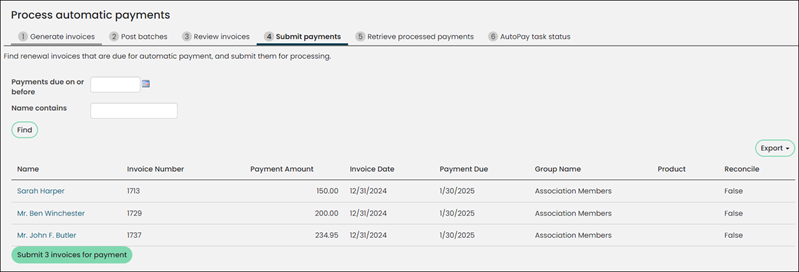
- Select the Submit payments tab.
- Provide a date for Payments due on or before. For ACH/direct debit transactions outside the UK, this will be the current date.
- (optional) In the Name contains field, enter a member's name to return a specific member's invoice.
- Click Find to see the invoices that need to be paid.
- Review the list of invoices and click Submit invoices for payment. You will receive a notice that the invoices have been submitted.
📘 Note
If a payment has failed three times, it will no longer appear in the list of available invoices to submit. See Resubmitting failed AutoPay payments for more information.
There might be situations where you will want to address a single transaction. You can edit the IQA query to filter on iMIS ID to return transactions for a specific donor or member.
Retrieving processed payments
The step of retrieving processed payments can be automated. See Using the 'Retrieve processed payments from Pay Central' scheduled task for details. The following information details how you can manually process payments.
Do the following to review the submitted recurring renewals batch to verify the status of the transaction:
- Select the Retrieve processed payments tab.
- Review the detailed list of invoices that have been submitted for payment but have not yet completed processing.
- Unknown - An error occurred that requires investigation.
- Awaiting Sync - iMIS is waiting to communicate payment details with Pay Central Service.
- Not Settled - The payment has not yet been applied to an invoice.
- In Progress - The payment transaction is in progress.
- Failed to Settle - An error occurred while applying the payment to an invoice.
- Settled - The payment was successfully applied to an invoice.
- Click Retrieve processed payments. The Retrieve processed payments button calls the tokenization engine (Pay Central Service) to retrieve payment information, and updates the invoices with a Result.
- Approved: The invoice is marked as paid.
- Rejected: The donor account has insufficient funds. The invoice can be submitted for payment again.
- Returned: The donor account is invalid or closed.
- Awaiting Processing: The invoice is waiting for the gateway to actually take the payment. iMIS Pay Central checks daily for payments and will apply them to iMIS once they have settled.
📘 Note
By default, invoices are arranged with the most recently submitted invoices first.
The Settlement Status column in the Submitted payments area indicates the status of the submitted payment. When the payment has been successfully submitted, it will be reflected in this column.
The Settlement Status options include:
The values in the Result column are marked Completed when payments are successful and marked Failed when payments are not successful. If successful, the related invoices are marked as Paid.
The Retrieve processed payments from Pay Central scheduled task performs the same function on a predetermined schedule.
The Settlement Status column in the Processed payments area indicates that a payment has been received and applied to the invoice.
For Direct Debits, the following statuses might be displayed in the Result column:
To review the status of a Direct Debits recurring transaction, you can go to the gateway website and review transaction details. See Direct Debits for more information
Verifying recurring payments
Staff users can review payments to ensure that payments have been successfully processed by the payment gateway. There might be instances where a payment is rejected by the gateway. In this situation, Staff intervention is required to find the rejected transactions.
Do the following:
- Go to or Membership > Automatic payments > Review payments.
- In the Gateway transaction ID field, enter the Gateway Transaction ID.
- Go to Membership > Automatic payments > Process payments.
- Select the Retrieve processed payments tab.
- Review the Processed payments area. Once the transaction is processed, it will be displayed in this area with its Gateway Trans ID.
- Click Find. You can review details for the specific transaction.
To retrieve this ID:
📘 Note
The Settlement Status column in the Processed payments area indicates that a payment has been received and applied to the invoice.
📘 Note
If necessary, you can reverse an ACH/direct debit.
Reviewing submitted recurring payments
Staff users can also look up the status of recurring transaction payments without needing to perform any of the processing steps:
- Go to or Membership > Automatic payments > Review payments.
- Search for completed automatic renewal payments using your desired parameters.
- Review records for the invoice (using the Invoice column) and other payment details.
Reviewing submitted payments in Pay Central Live
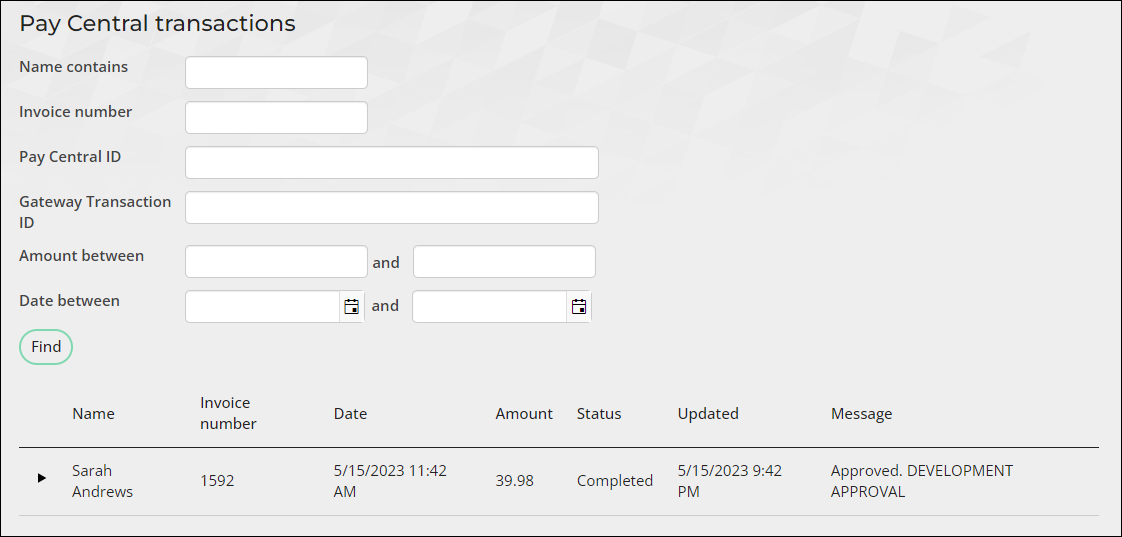
When you submit a recurring payment, the payments are sent to Pay Central to be processed. After a short amount of time, a scheduled task in Pay Central processes the group of payments. Staff users then retrieve the processed payments. Once the payment is retrieved, the recurring payment appears in Pay Central Live.
See Using Pay Central Live to review payments for details.
Fundraising donations
WarningReview Understanding how recurring donors are billed before processing recurring donations for the first time.
TipTo fully automate the recurring donation process for staff users, see Automating the recurring donation process for staff users.
Sequentially follow the following drop-downs if you are processing recurring transactions for fundraising donations.
Generating invoices
If your donors elect to contribute donations on a recurring basis, the required invoices are generated for staff users on the first payment (the initial donation). For existing donors who are enrolled in AutoPay, staff users must first generate the new invoices.
Do the following to generate recurring donation invoices:
- From the Staff site, go to Fundraising > Automatic payments > Process payments.
- From the Generate invoices tab, enter a Run date. The run date is used to gather all of the invoices due up to the date on which you want to process your open pledge invoices. See Understanding how recurring donors are billed for more information.
- Click Run. A new recurring donations batch is automatically created and posted.
Reviewing invoices
Do the following to review recurring invoices before processing the payment:
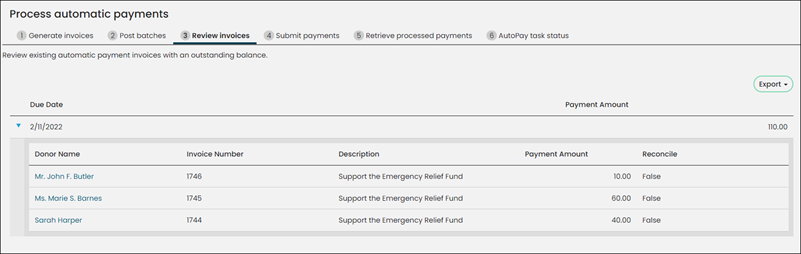
- Select the Review invoices tab.
- Review records for the invoice and other payment details.
Submitting payments
All payment requests are processed immediately. ACH/direct debit payments are sent immediately but might have a delayed response from the bank.
Review before submitting payments
The following are important notes specifically related to submitting recurring payments. Review the following notes before processing recurring payments:
- When payments are submitted, the due date is not checked, since this action is manually performed when you provide a Payments due on or before date (step 2 below). Do not submit invoices that are not due for payment.
- Payments associated with expired cards can only be submitted once. After the first failed attempt, the invoice is pending and is excluded from this list until the expiration dates are updated or a new payment method is added. To review all pending invoices, go to the AutoPay dashboard (Fundraising > Automatic payments > Dashboard) and click the Pending invoices tab.
- If the recurring donation is modified to use a different payment option, the payment can be resubmitted up to three times. If a staff user cancels or credits the payment, the payment is not available for submission because the balance is 0.00. Consider the following:
- A new payment option with new credit card or bank details is created. The recurring instruction is updated to use this new payment option.
- A recurring donation is updated to use a payment method that is already in use for other recurring payments.
- As a safeguard to prevent failed invoices from getting stuck, invoices without update are only retained for no more than five days. These invoices are flagged as Failed to reconcile – timed out.
- Only current renewing payments are processed. For example, if there is a member with an unpaid donation that was due in June, the payment is not submitted for processing under the July renewal. Staff intervention is required to resolve the payment.
Submitting the payment
Do the following to submit your recurring renewals batch for processing:
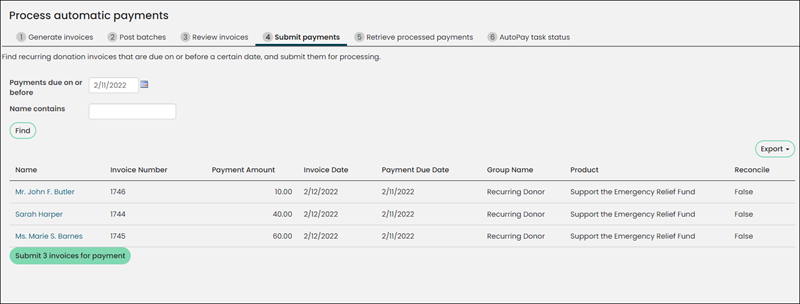
- Click the Submit payments tab.
- Provide a date for Payments due on or before. For ACH/direct debit transactions outside the UK, this will be the current date.
- (optional) In the Name contains field, enter additional information to return a reduced number of transactions. By entering additional information, you can focus your search results. There might be situations where you will want to address a single transaction. You can edit the IQA query to filter on iMIS ID to return transactions for a specific donor or member.
- Click Find to see the invoices that need to be paid.
- Review the list of invoices and click Submit invoices for payment. You will receive a notice that the invoices have been submitted.
📘 Note
If a payment has failed three times, it will no longer appear in the list of available invoices to submit. See Resubmitting failed AutoPay payments for more information.
Retrieving processed payments
The following information details how you can manually process payments.
Do the following to review the submitted recurring renewals batch to verify the status of the transaction:
- Select the Retrieve processed payments tab.
- Review the detailed list of invoices that have been submitted for payment but have not yet completed processing.
- Unknown - An error occurred that requires investigation.
- Awaiting Sync - iMIS is waiting to communicate payment details with Pay Central Service.
- Not Settled - The payment has not yet been applied to an invoice.
- In Progress - The payment transaction is in progress.
- Failed to Settle - An error occurred while applying the payment to an invoice.
- Settled - The payment was successfully applied to an invoice.
- Click Retrieve processed payments. The Retrieve processed payments button calls the Pay Central Service to retrieve payment information and updates the invoices with a Result.
- Approved: The invoice is marked as paid.
- Rejected: The donor account has insufficient funds. The invoice can be submitted for payment again.
- Returned: The donor account is invalid or closed.
- Awaiting Processing: The invoice is waiting for the gateway to actually take the payment. iMIS Pay Central checks daily for payments and will apply them to iMIS once they have settled.
📘 Note
By default, invoices are arranged with the most recently submitted invoices first.
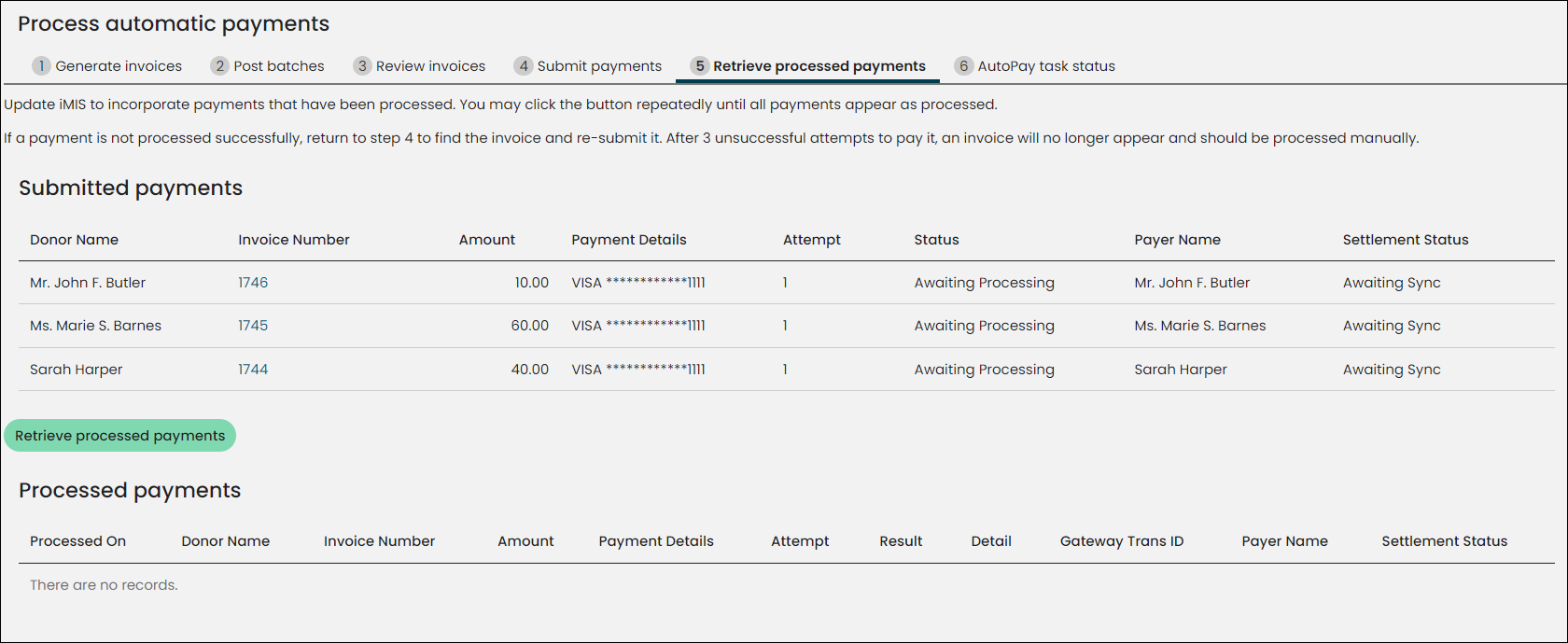
The Settlement Status column in the Submitted payments area indicates the status of the submitted payment. When the payment has been successfully submitted, it will be reflected in this column.
The Settlement Status options include:
Understanding the results
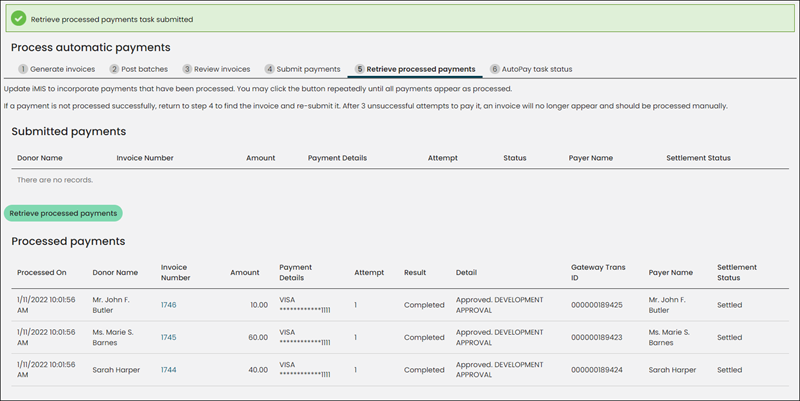
The values in the Result column are marked Completed when payments are successful and marked Failed when payments are not successful. If successful, the related invoices are marked as Paid.
The Settlement Status column in the Processed payments area indicates that a payment has been received and applied to the invoice.
For Direct Debits, the following statuses might be displayed in the Result column:
To review the status of a Direct Debits recurring transaction, you can go to the gateway website and review transaction details. See Direct Debits for more information
Verifying recurring payments
Staff users can review payments to ensure that payments have been successfully processed by the payment gateway. There might be instances where a payment is rejected by the gateway. In this situation, Staff intervention is required to find the rejected transactions.
Do the following:
- In the Staff site, go to Fundraising > Automatic payments > Review payments.
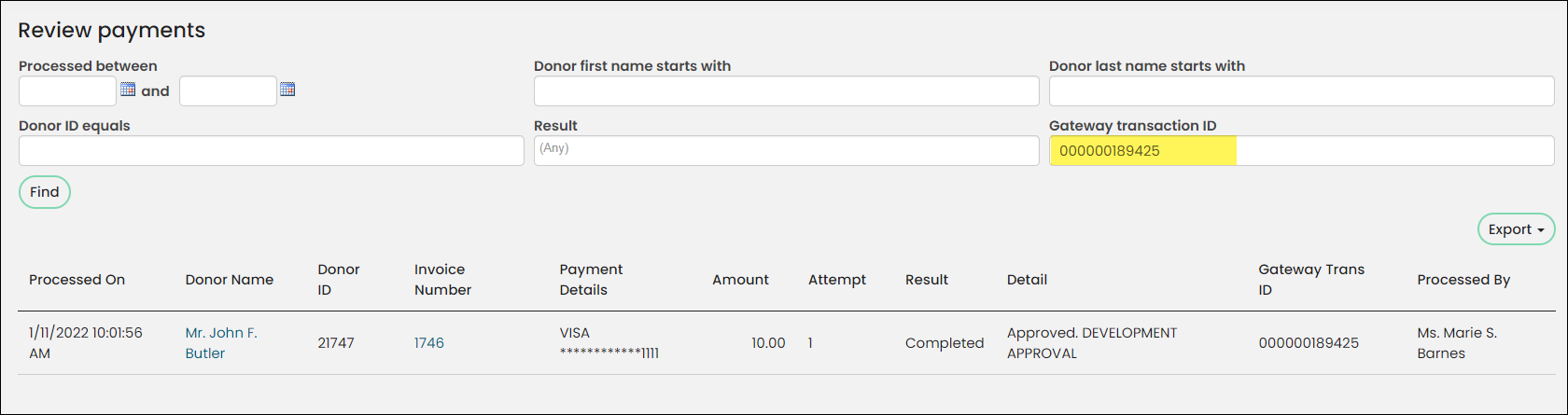
- In the Gateway transaction ID field, enter the Gateway Transaction ID.
- Go to Fundraising > Automatic payments > Process payments.
- Select the Retrieve processed payments tab.
- Review the Processed payments area. Once the transaction is processed, it will be displayed in this area with its Gateway transaction ID.
- Click Find. You can review details for the specific transaction.
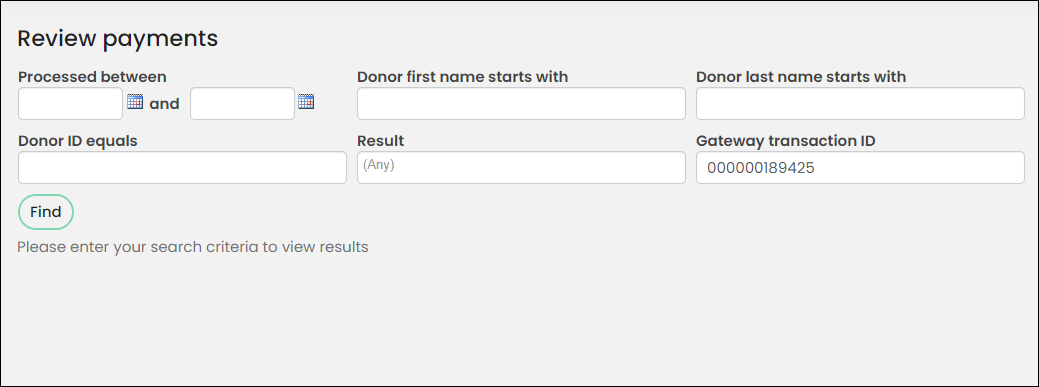
To retrieve this ID:
📘 Note
The Settlement Status column in the Processed payments area indicates that a payment has been received and applied to the invoice.
📘 Note
If necessary, you can reverse an ACH/direct debit.
Reviewing submitted recurring payments
Staff users can also look up the status of recurring transaction payments without needing to perform any of the processing steps:
- From the Staff site, go to Fundraising > Automatic payments > Review payments.
- Search for completed automatic renewal payments using your desired parameters.
- Review records for the invoice (using the Invoice column) and other payment details.
Reviewing submitted payments in Pay Central Live
When you submit a recurring payment, the payments are sent to Pay Central to be processed. After a short amount of time, a scheduled task in Pay Central processes the group of payments. Staff users then retrieve the processed payments. Once the payment is retrieved, the recurring payment appears in Pay Central Live.
See Using Pay Central Live to review payments for details.
Updated 5 months ago