

Updating the club account pages
The way a contact's account page appears in the Club Staff site varies depending on the type of contact a staff person is viewing: Staff or Volunteer, Household contact, or Member (child):
- Staff and Volunteers - Staff users and volunteers have similar looking account pages. These pages contain a Volunteering tab that does not appear on the other two account pages. This account page uses the StaffVolunteerFullAccount shortcut.
- Household contact - The household account page is for contacts who are in a household group but are not a member, such as a parent or guardian of a member. This account page uses the HouseholdContactFullAccount shortcut.
- Member (Child) - The member account page is for contacts who are members of a club. The member account page details the child’s household contacts, medical information, membership details, school, and much more. This account page uses the MemberFullAccount shortcut.
Editing the account pages
To edit any of the staff-facing account pages, you must first copy the content records and update the related shortcuts.
Do the following to edit the staff-facing account pages:
-
Log in to the Staff site as a system administrator.
-
Go to RiSE > Page Builder > Manage content.
-
Open the @/iCore/Contacts/Club/Staff folder.
-
Select the folder and related content record of the account pages you want to edit:
-
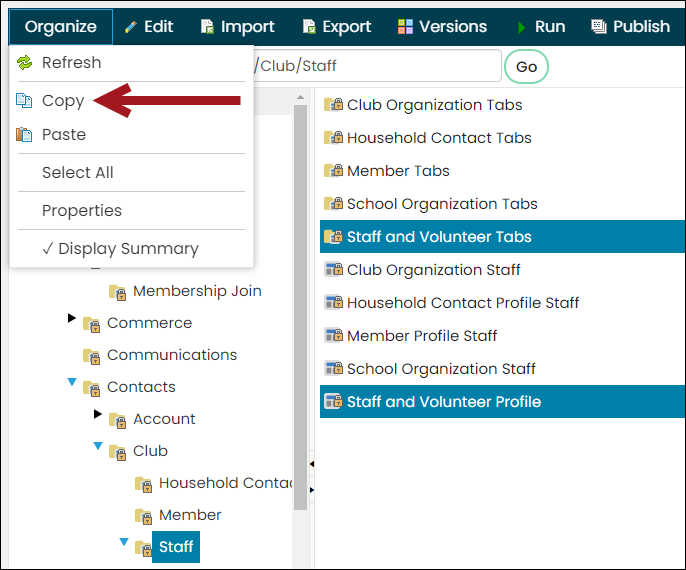
Staff and Volunteer: Select the Staff and Volunteer Tabs folder and Staff and Volunteer Profile content record.
-
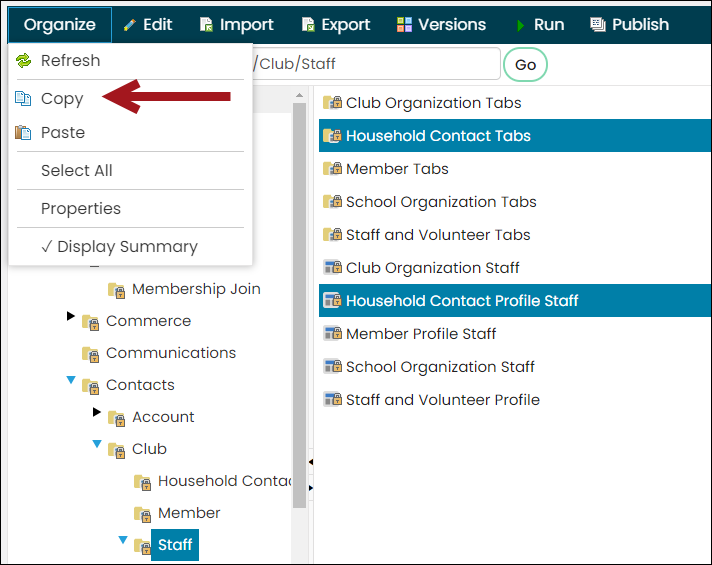
Household contact: Select the Household Contact Tabs folder and Household Contact Profile Staff content record.
-
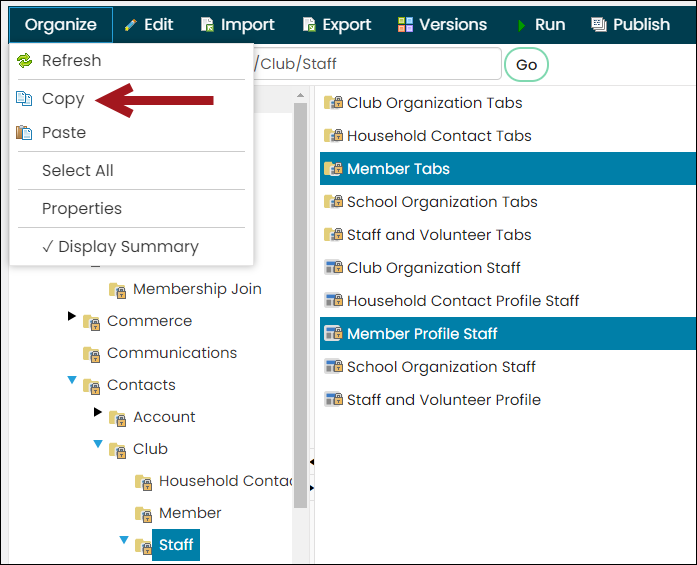
Member: Select the Member Tabs folder and Member Profile Staff content record.
-
-
Select Organize > Copy.
-
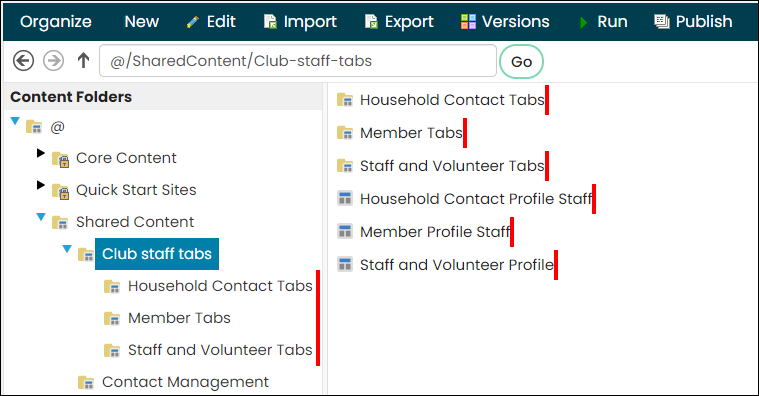
Paste the content in a Shared Content folder.
-
Publish the content.
-
Update the content records to point to the correct folders:
-
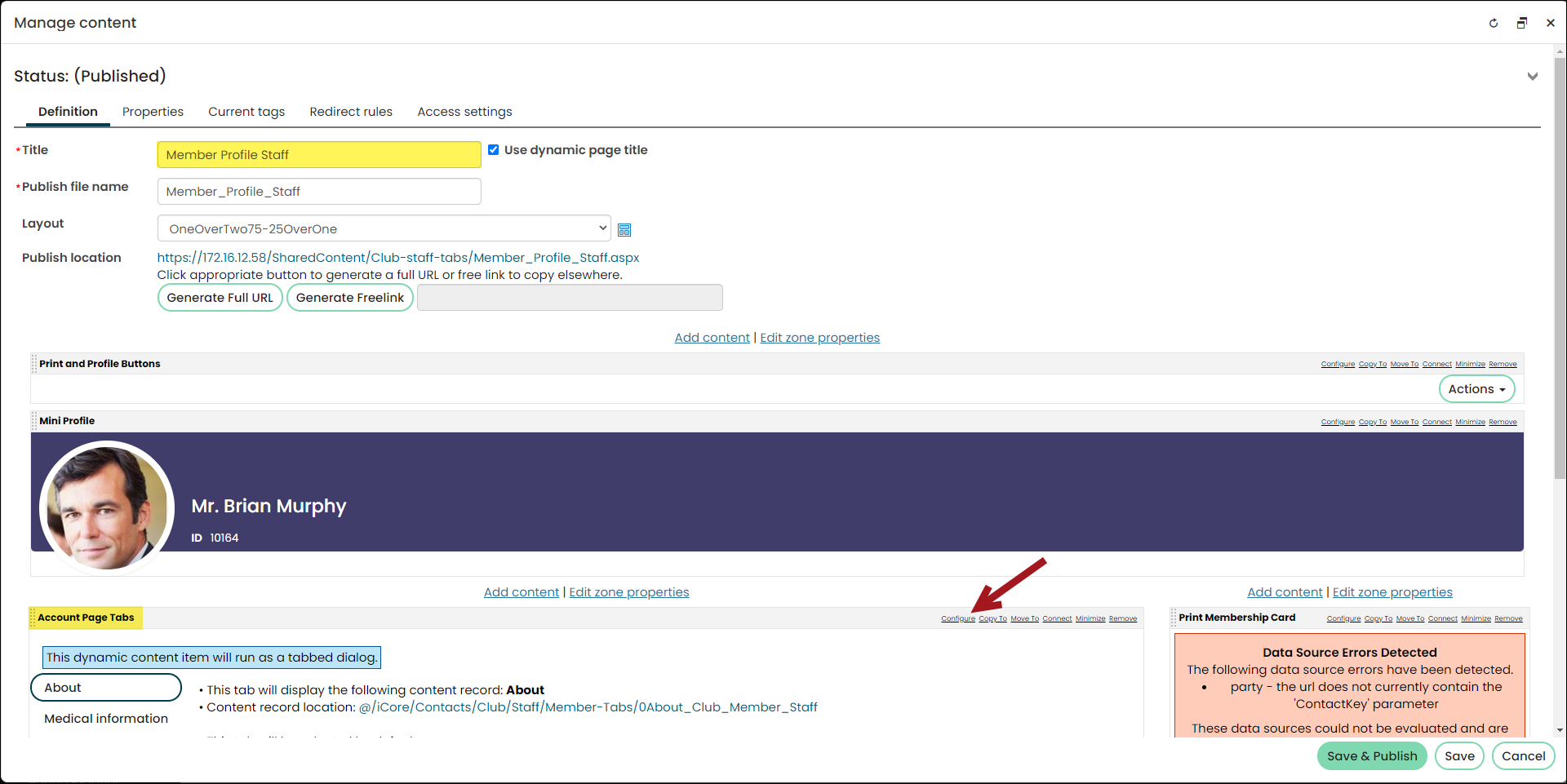
Open one of the content records you just pasted, for example, if you are updating the member account page, open the Member Profile Staff content record.
-
From the Account Page Tabs content item, select Configure.
-
From the Source folder field, select the Member Tabs folder you pasted in the Shared Content folder.
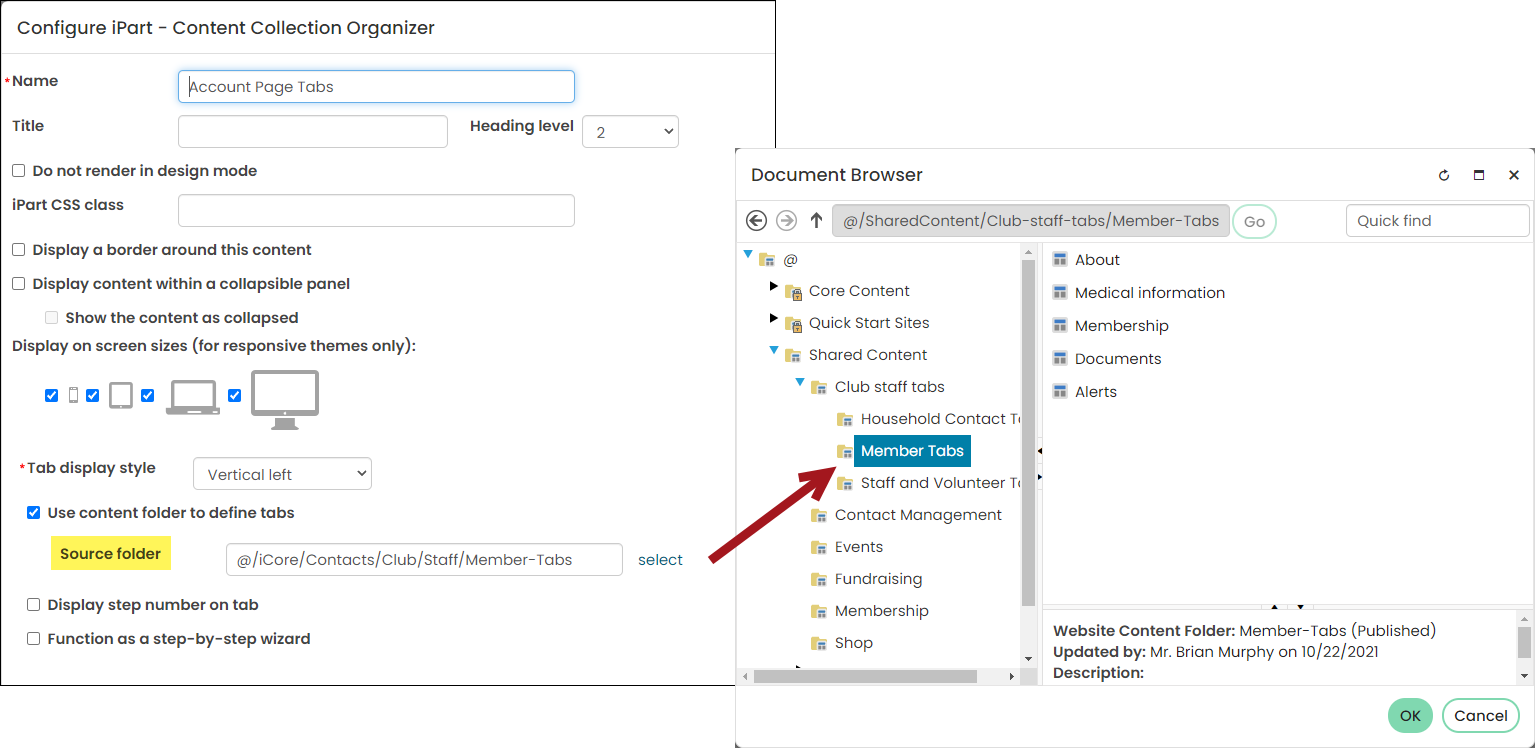
- Click OK, then click OK again.
- Click Save & Publish.
- Repeat this process for each content record you pasted in step 6.
-
-
Go to RiSE > Site Builder > Manage shortcuts, and locate the shortcut related to the account pages you want to edit:
- MemberFullAccount – The shortcut used for member (children) account pages.
- HouseholdContactFullAccount – The shortcut used for household contact account pages.
- StaffVolunteerFullAccount – The shortcut used for staff and volunteer account pages.
-
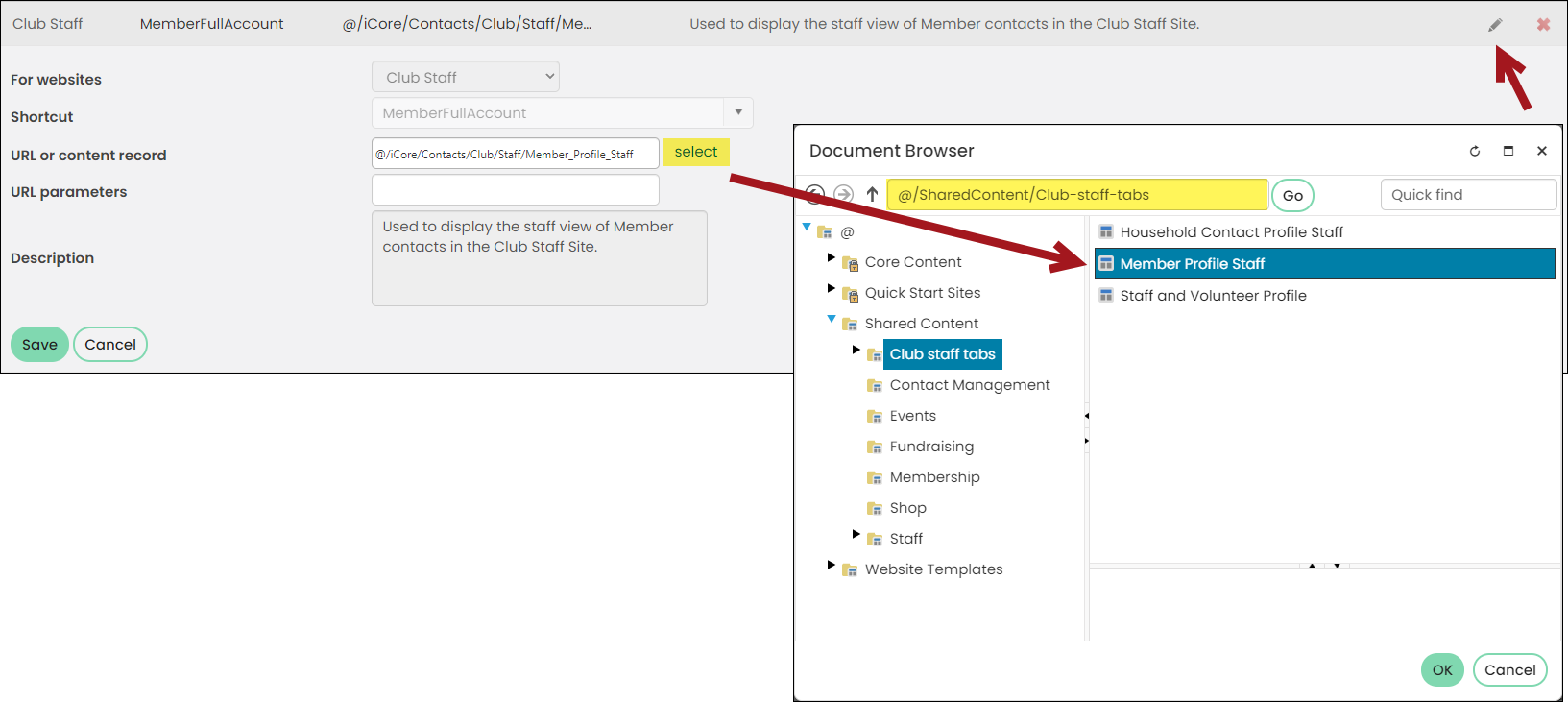
Select the edit icon for the shortcut you need to edit:
-
From the URL or content record field, select the related content record pasted in the Shared Content folder. For example, if you are editing the MemberFullAccount shortcut, select the Member Profile Staff content record in the Shared Content folder.
- Click Save.
- Continue the same process to edit the remaining shortcuts.
-
Updated 5 months ago