

Updating usernames and passwords
This article covers how to change a username or password for an iMIS user. To have access to unlocking an account or changing a password, you must be a system administrator or staff user.
To change a contact’s username or password, do the following:
- Do one of the following:
- Navigate to the contact's account page, then click the Security tab.
- Go to Community > Security > Users, then use the search filters to locate the contact.
- The contact's security page will open. Look for the Username and Password fields in the User credentials panel.
Note
If the fields in the User credentials panel are empty, the contact is not an iMIS user and does not have login credentials. As a system administrator or authorized staff user, you can assign credentials to the contact.
-
To change the password:
-
Enter a new password in the Password and Confirm password fields. Ensure the new password meets the password security requirements. For more information, see Password security.
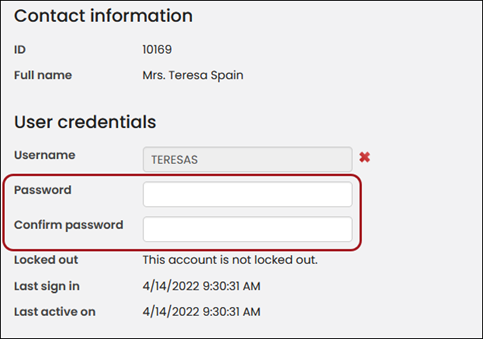
- Click Save.
-
-
To change the username:
-
Click the red icon (X) to delete the existing username.
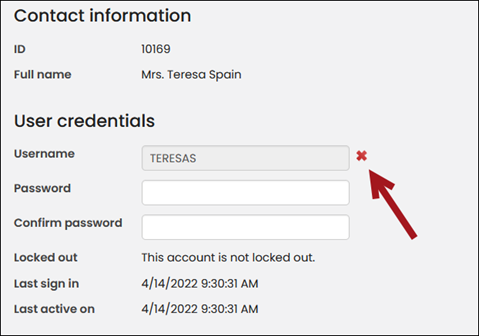
-
Click the plus icon next to No user selected.
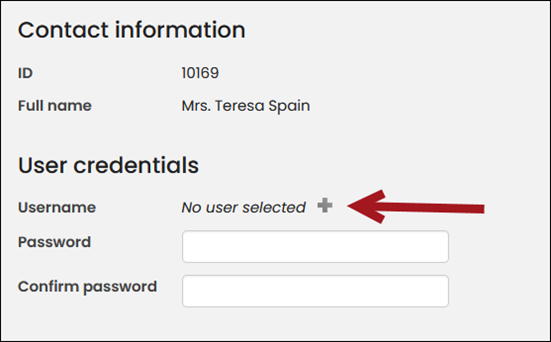
-
Enter the values for Username, Password, and Confirm password.
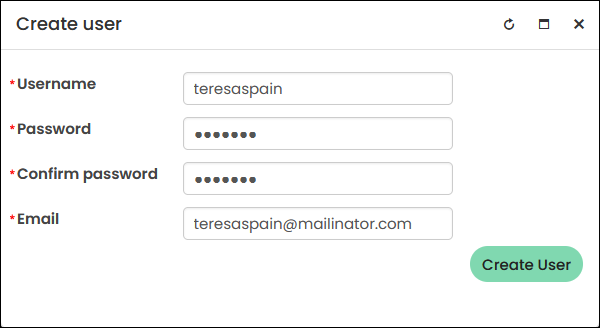
- Click Create User.
- Click Save.
-
Updated 5 months ago