

Using the contact redirector
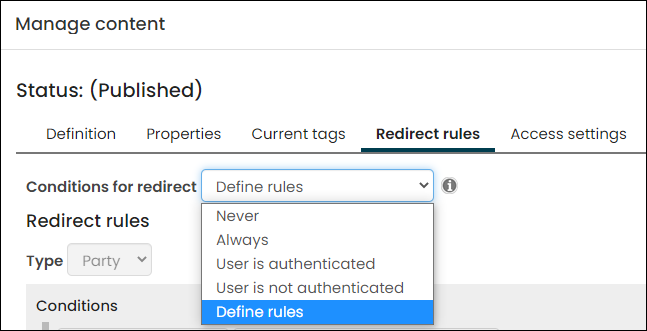
In some instances, you might need to redirect a user depending on a certain set of conditions, for example, a contact's member status, authentication, or role. These types of redirect rules can be added to any content record from the Redirect rules tab.
NoteWhen the Content is restricted to members setting is enabled on the content record (Properties tab), the redirect rules are only evaluated for members, while non-members see an Access denied message.
Important information about redirect rules
Keep the following in mind before you begin building redirect rules:
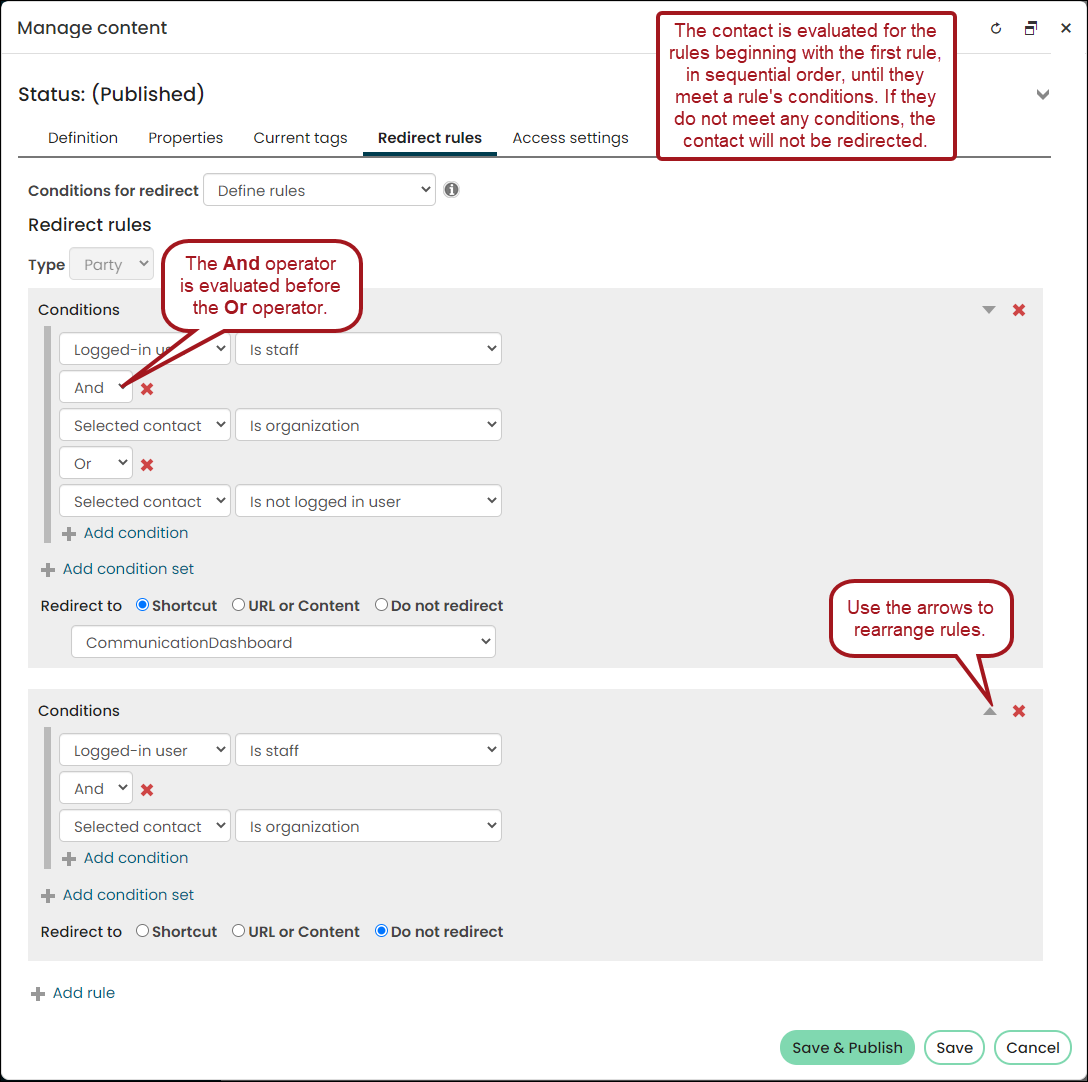
- Evaluation of rules - Each content record can have multiple redirect rules. The initial redirect rule in a sequence is honored first. If a contact does not match the conditions of the initial redirect rule, then the second rule’s conditions are evaluated. The process continues until the contact meets one of the redirect rules. If a contact does not meet any of the redirect rules, then the contact is not redirected anywhere, and the current content record is loaded.
- And/Or - Within a rule, the And operator is evaluated first, followed by the Or operator. For example, if you have A And B Or C, A And B are evaluated first, then C is evaluated.
- Reprioritizing rules - To reprioritize the rules, use the arrows located to the right of the conditions. After you have reprioritized rules, you must click Save to continue editing the rules.
- Save As – Redirect rules are not copied when using Save As to copy or duplicate a content record.
- Exporting content records – Redirect rules are not exported with content.
- Deleting content records that contain rules - Never delete any content records that have redirect rules defined. Remove all defined rules before deleting the content record.
Understanding the conditions
Redirect rules are based on properties of the logged-in user or selected contact. Any single-instance data source available in Panel Editor is also available when creating redirect rules.
Logged-in user
The following conditions are available when creating a rule based on the Logged-in user:
- Is authenticated – Logged-in user has a login and password to your site.
- Is unauthenticated – Logged-in user is unauthenticated.
- Is staff – Logged-in user is a staff user.
- Is system administrator – Logged-in user has the System administrator role.
- Is member – Logged-in user is an active or inactive member of an Is Member group.
- Is non-member – Logged-in user is not a member of an Is Member group.
- Is member of group – Logged-in user is an active member of a group. The next drop-down that is displayed allows you to choose a group type. After selecting a type, you can optionally select one-or-more specific groups, as well as one or more group roles.
- Is not selected contact - Logged-in user is viewing a contact that is not the logged-in user. For example, if a user is viewing a profile for another contact from the contact directory.
- Has read access – Logged-in user has read access to the selected contact. For example, Brian Murphy is looking at Teresa Spain’s account page and has read-only access of Teresa’s account page.
- Has update access - Logged-in user can update information about the selected contact. For example, Alex Morgan (Teresa’s company administrator) is looking at Teresa Spain’s account page and can update her account page.
- Has role - Logged-in user has a specific role.
Selected contact
The selected contact is identified by an Contact Key in the URL. If there is no Contact Key, then the selected contact is the On Behalf Of contact. If there is no On Behalf Of contact, then the selected contact is the logged-in user.
The following conditions are available when creating a rule based on the Selected contact:
- Is staff – Selected contact is a staff user.
- Is system administrator – Selected contact has the System administrator role.
- Is organization - Selected contact is an organization.
- Is individual - Selected contact is an individual.
- Is member – Selected contact is an active or inactive member of an Is Member group.
- Is non-member – Selected contact is not a member of an Is Member group.
- Is member of group - Selected contact is an active member of a group. The next drop-down that is displayed allows you to choose a group type. After selecting a type, you can select one-or-more specific groups, and one or more group roles.
- Is not logged-in user - Selected contact is not the logged-in user. For example, if a user is viewing a profile for another contact from the contact directory.
- Organization type equals - Selected contact is an organization with a type of company, chapter, or club.
Defining where a user is redirected
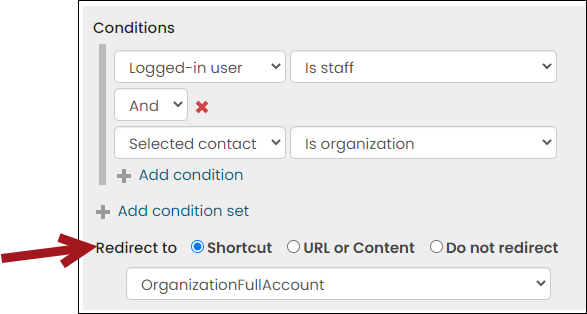
After you have defined a redirect rule, you must pick one of the following Redirect to options:
- Shortcut – From the drop-down, select a shortcut.
- URL or Content – Enter a URL or select a content record.
- Do not redirect – The page is not redirected, and the current content record is loaded.
If a contact does not meet any of the redirect conditions, they are not redirected and the current content record is loaded.
Examples of redirect rules
The following examples demonstrate ways you can utilize the redirect rules.
Member or non-member
Redirect a user to a specific page based on whether or not they are a member.
Click to view image
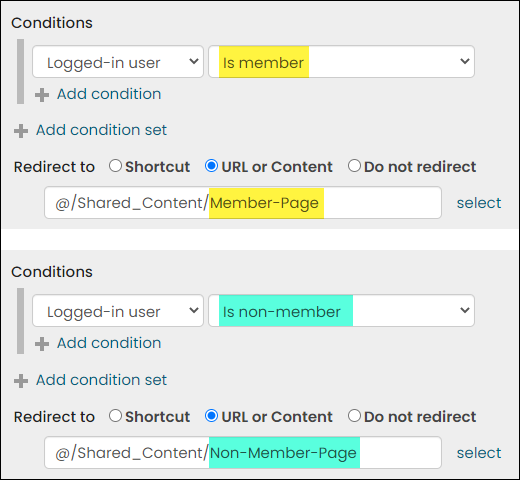
- Rule 1: Logged-in user | Is member
- Rule 2: Logged-in user | Is non-member
Member type
Redirect a user based on their role in a membership group. Another way to construct this rule is by choosing a different group for each rule rather than a different role for the same group.
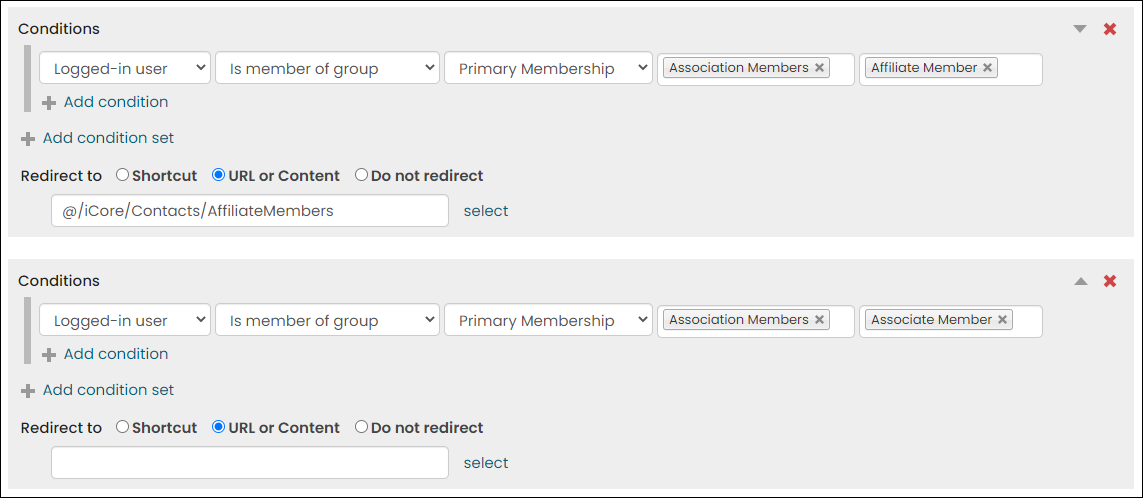
- Rule 1: Logged-in user | Is member of group | Primary Membership | [Selected Membership Groups] | [Membership Group Role 1]
- Rule 2: Logged-in user | Is member of group | Primary Membership | [Selected Membership Groups] | [Membership Group Role 2]
Updated 5 months ago